
Question
How can I delete a user in Remote Portal?
Answer
In Remote Portal, there are 3 options to delete a user:
-
Delete a user from your Company
-
Delete yourself from a Company
-
Delete yourself from Remote Portal
1. Delete a user from your Company
To delete a user from your Company, perform the following steps:
1. Logon Remote Portal as Administrator
2. Navigate to User Management tab
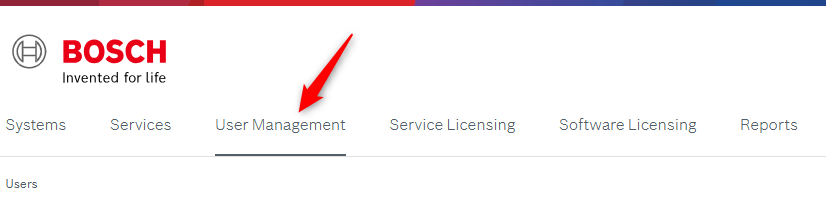
3. Select the user to delete, then click 

2. Delete yourself from a Company
To delete yourself from a Company, perform the following steps:
1. Logon Remote Portal as Administrator, Technician or Customer
2. Click your name top right, select User Settings
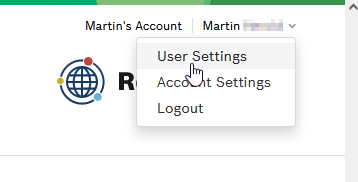
3. Click the card My Companies
4. Select the Company you want to delete yourself from, then click 

Note: Even you deleted the last company you belong to, you are still user in Remote Portal and you can be invited to a Company.
3. Delete yourself from Remote Portal
To delete yourself from Remote Portal, perform the following steps:
1. Logon Remote Portal as Administrator, Technician or Customer
2. Click your name top right, select User Settings
3. Click the 
4. Now you are completely deleted from Remote Portal and from all companies you were invited to.
Note: To create a new company in Remote Portal click Sign Up and follow the instructions on the screen.