
🕒 This procedure takes in average ~ 5 min to complete
This article explains how to:
-
Define two horizontal positions (left and right limits)
-
Enable Auto Pan for the camera to automatically move between these two positions
This could be useful for perimeter monitoring or scanning a specific area.
What are horizontal positions?
Horizontal positions are defined using Azimuth values.
Azimuth represents the camera’s horizontal direction (in degrees).
By setting:
-
A minimum azimuth (left limit)
-
A maximum azimuth (right limit)
You define the area where the camera is allowed to move.
This setup could be used for:
-
Perimeter security
-
Fence line monitoring
-
Large open areas
-
Parking lots
-
Industrial yards
The camera continuously moves between two defined points.
Step-by-step guide
1. Access the camera via WEB and login using its credentials
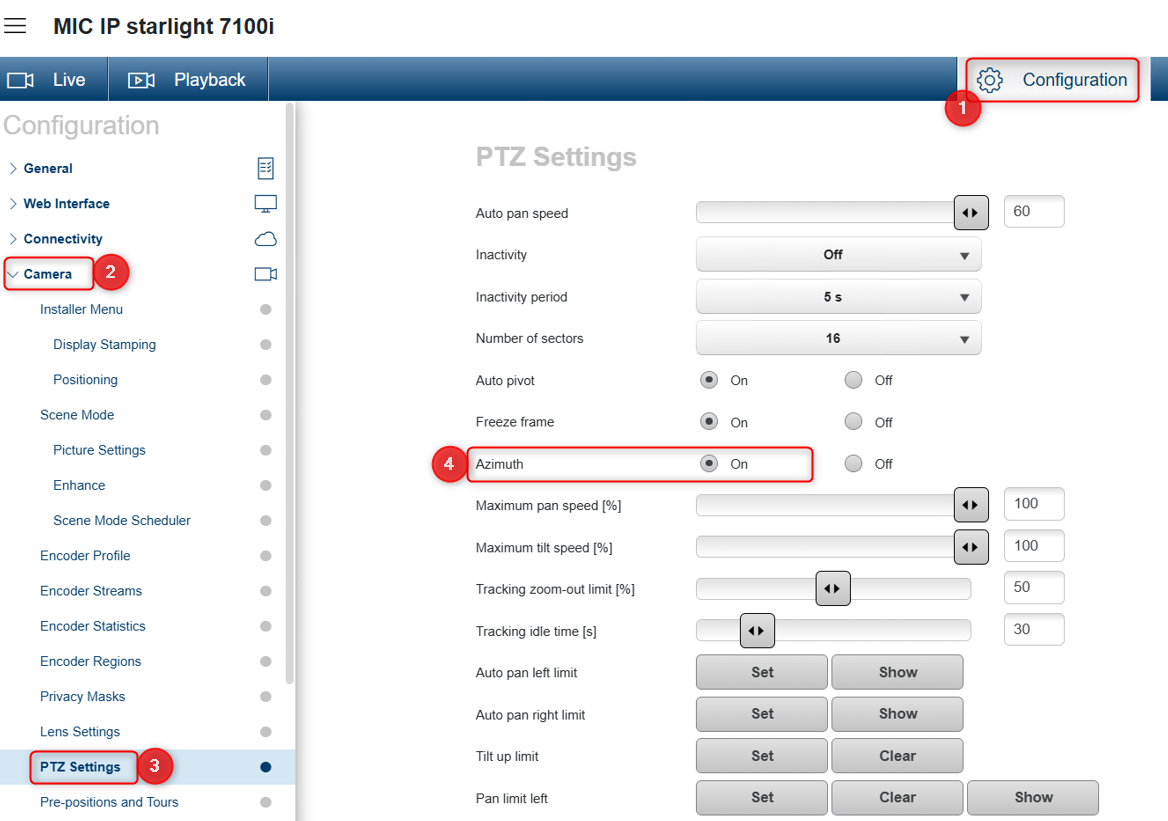
2. Go to Configuration > Camera > PTZ Settings
In case the Azimuth value is not displayed, set the Azimuth option to On
3. Move the Camera to the desired left position by using PTZ controller menu
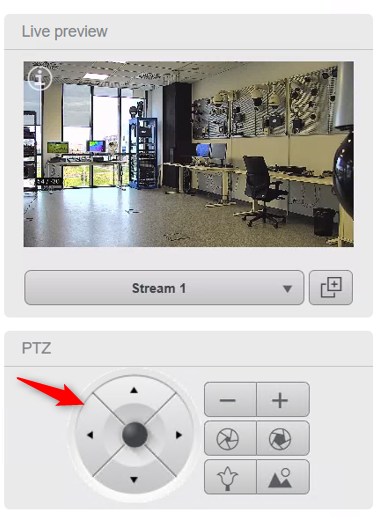
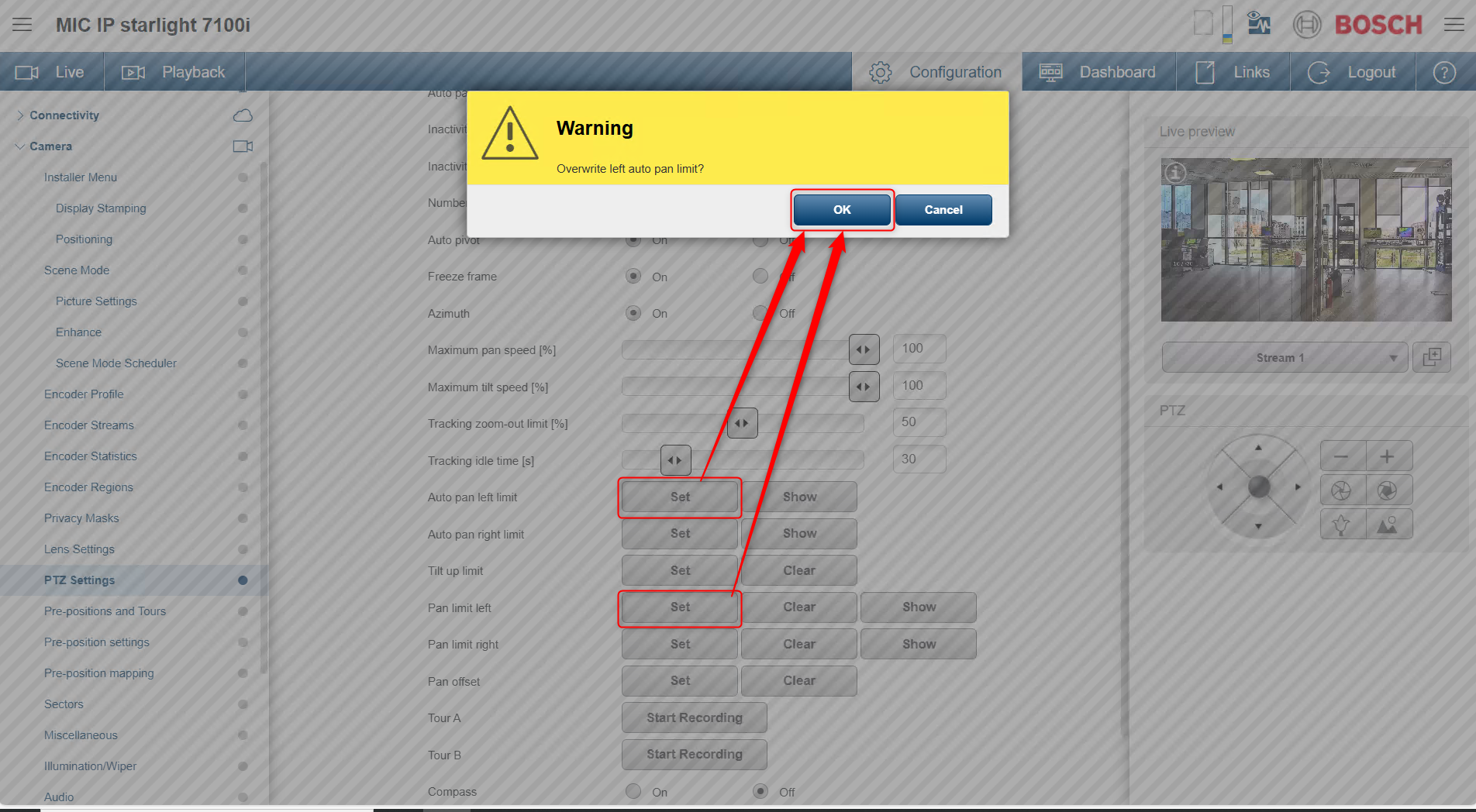
4. Note the Azimuth value shown in the Live preview (for double checking later) and click Set next to the Auto pan left limit and Pan limit left
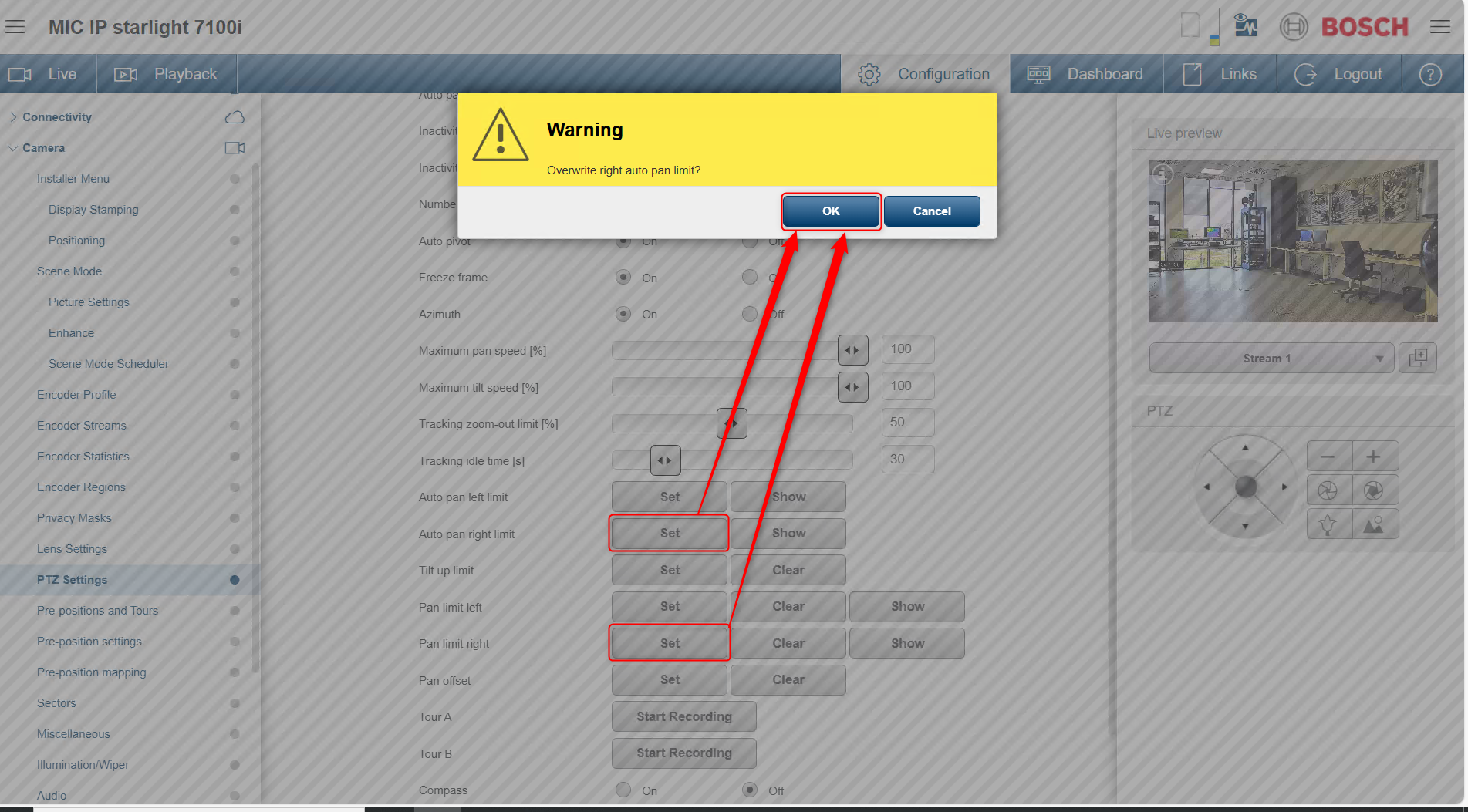
5. Pan the camera to the desired right position. Note the Azimuth value shown in the Live Preview for double‑checking later, then click Set next to Auto Pan Right Limit and Pan Limit Right.
6. Enable Auto Pan
On many IP MIC cameras there’s an AUX command that triggers Auto Pan (e.g., AUX 2 = Auto Pan Between Limits).
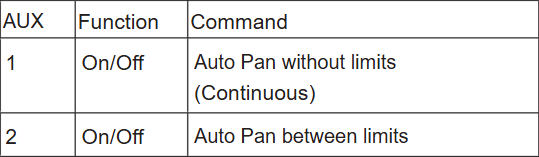
Go in Live view > type in 2 in the AUX control field > click AUX on
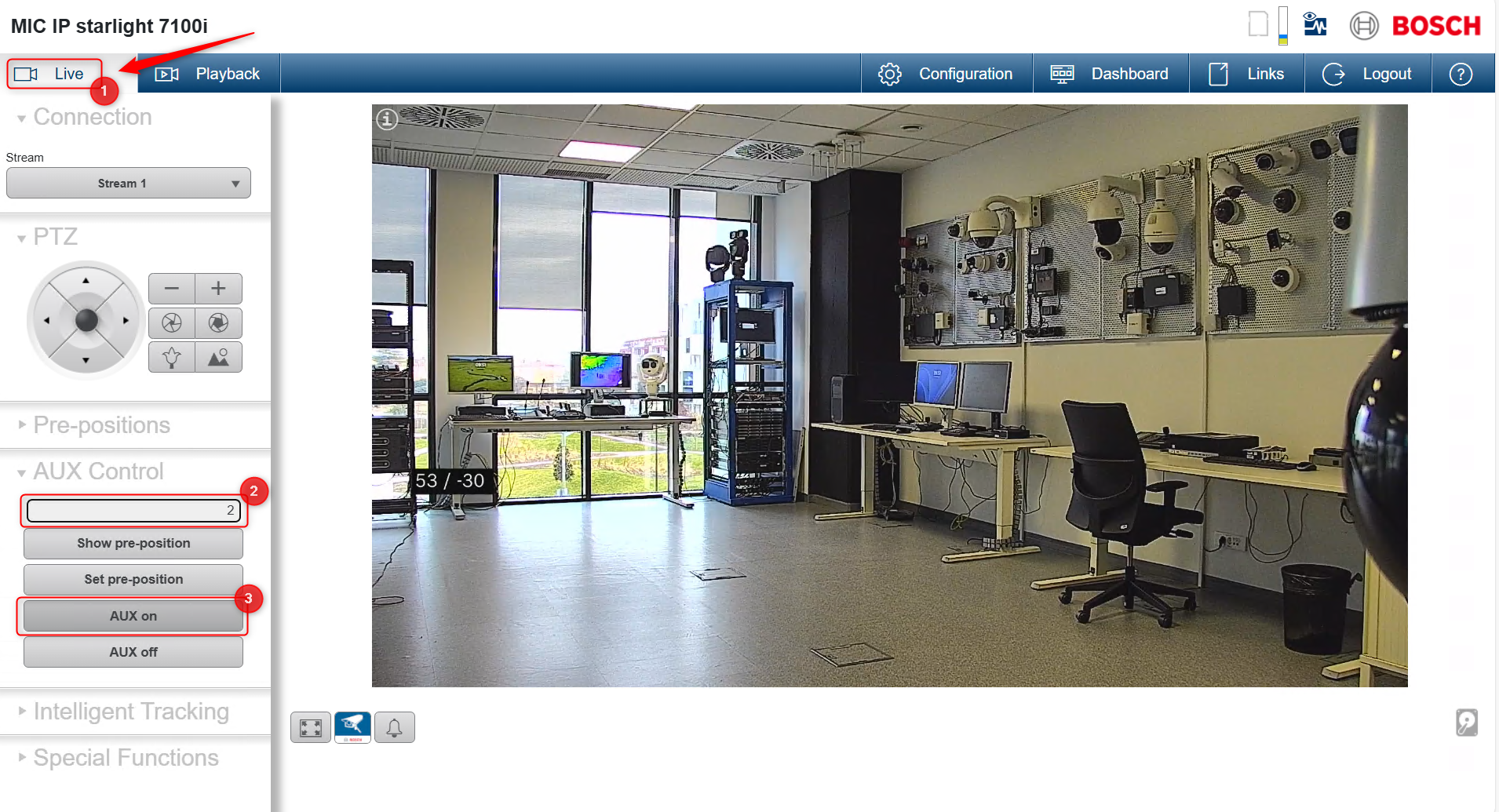
Result
After configuration, the camera will:
-
Move left to right between the two defined positions
-
Continuously scan the selected horizontal area
-
Here you can check if the Azimuth values noted few steps before are the right ones

If you need to estimate how wide the camera image is (field of view), you can use the Lens Calculator.
By adjusting the focal length in the calculator, you can see how the Horizontal Field of View (HFOV) changes.
This is helpful during system planning, but is not related to Azimuth or Auto Pan settings.