
🕒 This procedure takes in average ~ 10 min to complete
This article explains the necessary steps for setting up the Bosch Forensic Search task inside Genetec Security Center and explains the single installer components.
This information is especially helpful when setting up the system for the first time.
The article is valid for Plugin Suite versions 2.2.x
Introduction
Bosch Forensic Search extends Genetec Security Center with advanced video investigation tools. The plug-in is delivered via an all-in-one installer that includes both client and server components.
Because of the nature of forensic search—especially the attribute search mode—specific installation and configuration steps are required to ensure proper functionality.
Understanding the Components
Server Plug-in
-
Forensic Search Server Plug-in
-
Must be installed on every Archiver that connects to Bosch cameras intended for forensic search.
-
Required for both classic rule-based search and attribute search.
-
Handles metadata dissection and storage.
-
Client Plug-in
-
Forensic Search Client Plug-in
-
Installed on workstations running Security Desk.
-
Provides the Forensic Search Task interface for investigators.
-
Enables operators to run searches, apply filters, and review result
-
Forensic Search Task – Two Use Cases
|
Mode |
Description |
Pros |
Cons |
|---|---|---|---|
|
Attribute based search 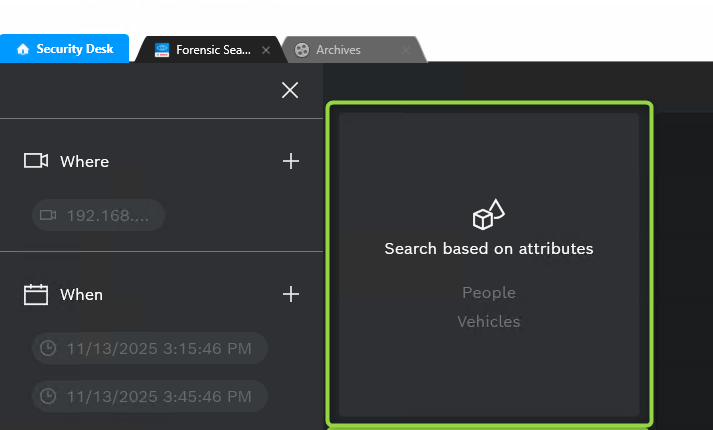
|
Fast search based on object attributes (clothing, color, gender, vehicle-type, etc.) |
Very quick results |
Fewer options, requires background metadata processing and extra DB storage during runtime |
|
Rule based search 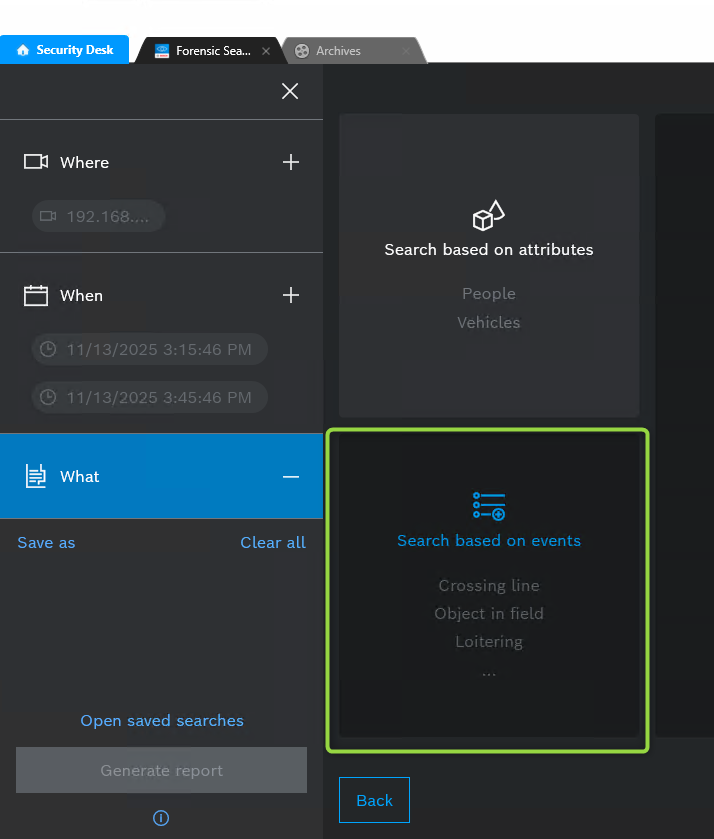
|
Retrospective search using predefined rules (motion, direction, size, etc.) |
Flexible, many options |
Slower, more resource-intensive during search execution |
Installation Process
Step 1: Run the All-in-One Installer
-
Launch the Bosch plug-in installer package.
-
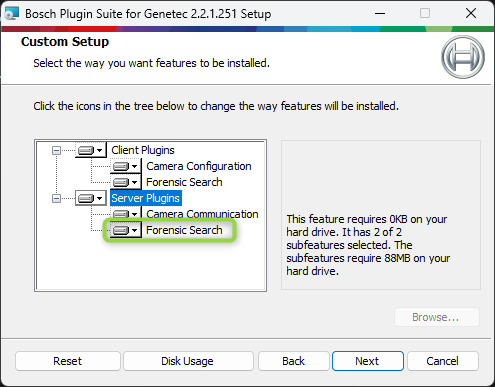
Choose Forensic Search Server Plug-ins for Archiver machines.
-
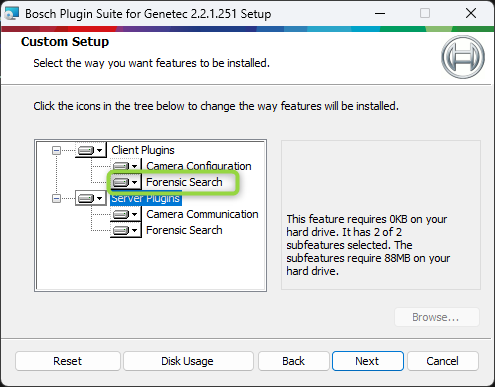
Choose Forensic Search Client Plug-ins for Security Desk workstations.
Step 2: Install Server Plug-in on Archivers
-
Ensure every Archiver connected to Bosch cameras has the Forensic Search plug-in installed.
-
This is critical for both rule-based and attribute search functionality.
Step 3: Install Client Plug-in on Workstations
-
On each workstation running Security Desk, install the client plug-in.
-
After installation, the Forensic Search Task will appear in the Investigations workspace.
Step 4: Verify Camera Metadata
-
Confirm Bosch cameras are configured with IVA Pro analytics.
-
Metadata must be available and recorded for forensic search to function.
-
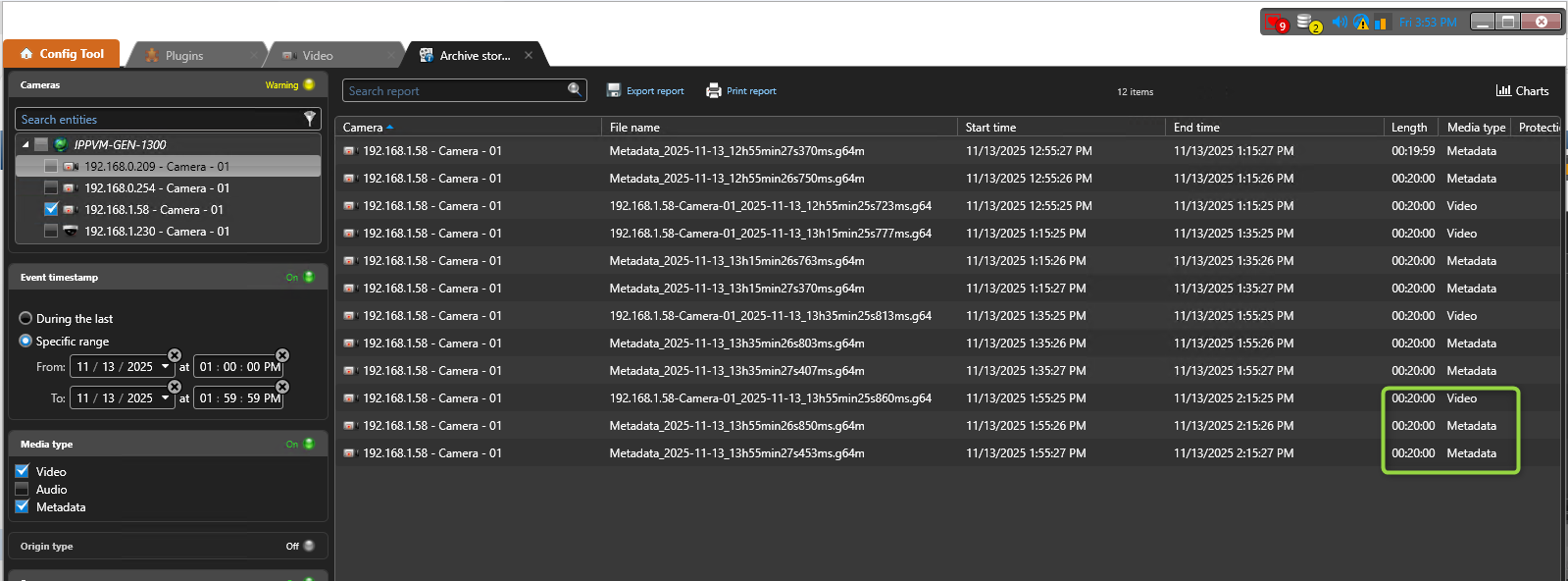
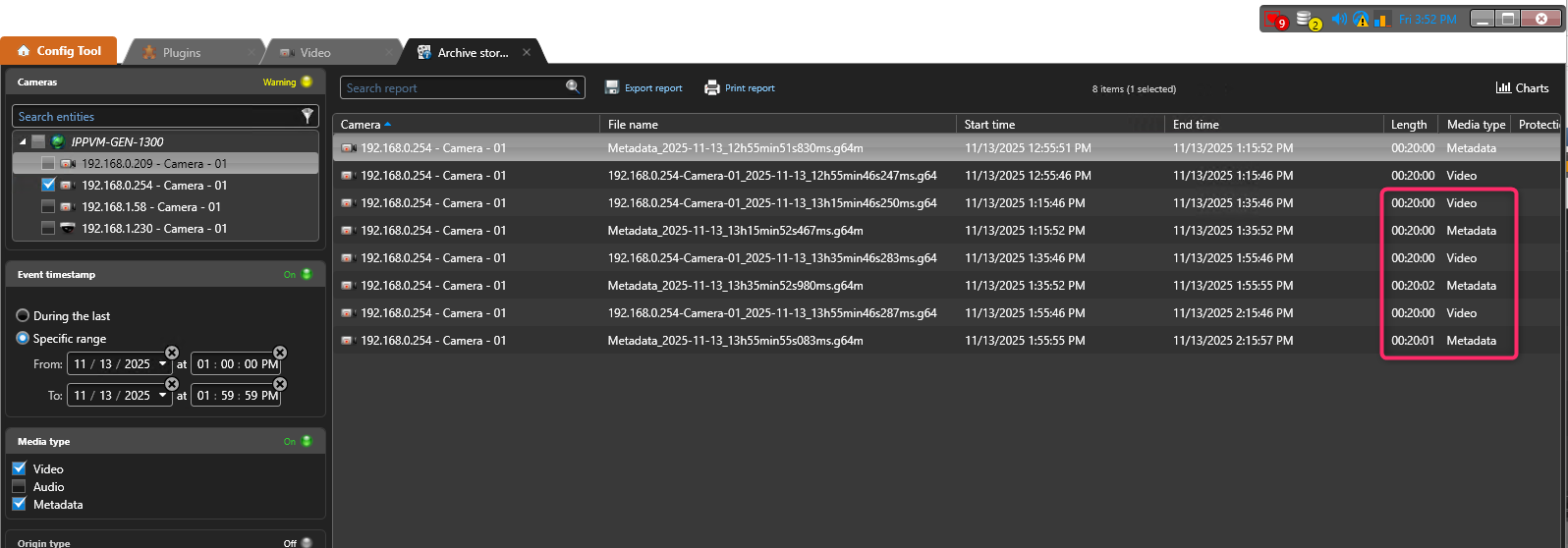
To verify that SC is receiving the correct metadata stream, run an Archive storage report in Config Tool for the specific camera.
-
The report must contain 1 video track and TWO metadata tracks per time slice for a camera. The images below depict a correct setup and an erroneous setup. In case that there is only one metadata track available something in the Genetec between the camera and SC is incorrect and neither Forensic Search nor Attribute Search can function properly.
-
Step 5: Verify Thumbnail Creation
-
Make sure that thumbnails can be generated for the current user in Security Desk.
-
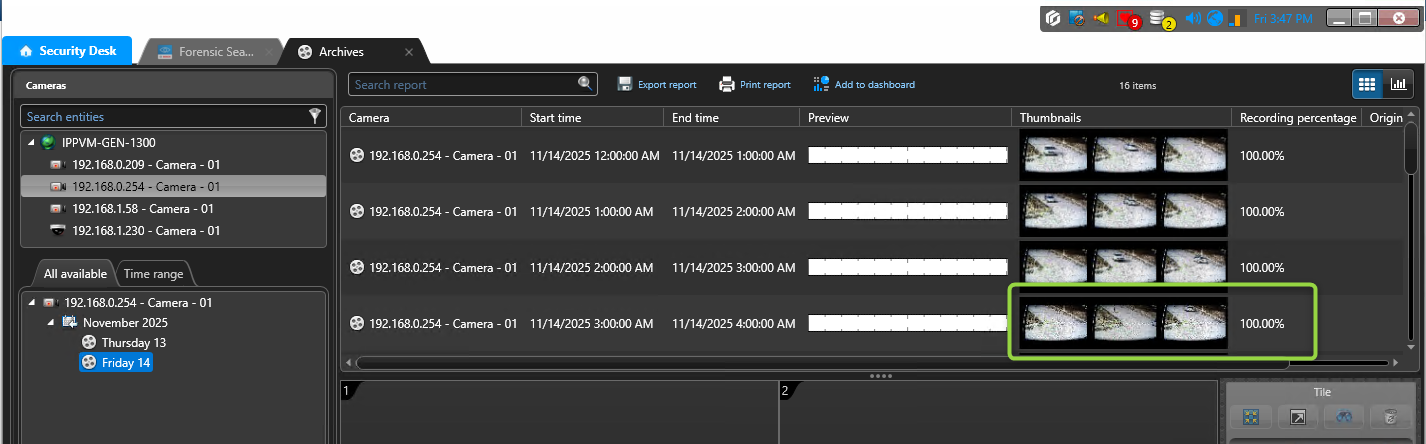
Run and Archives report in Security Desk for on relevant cameras.
-
The report must contain thumbnails as depicted below.
-
In case lock signs are generated, the thumbnail generation is failing and the forensic search will not work properly.
-
Step 6: Enable Cameras For Attribute Search
-
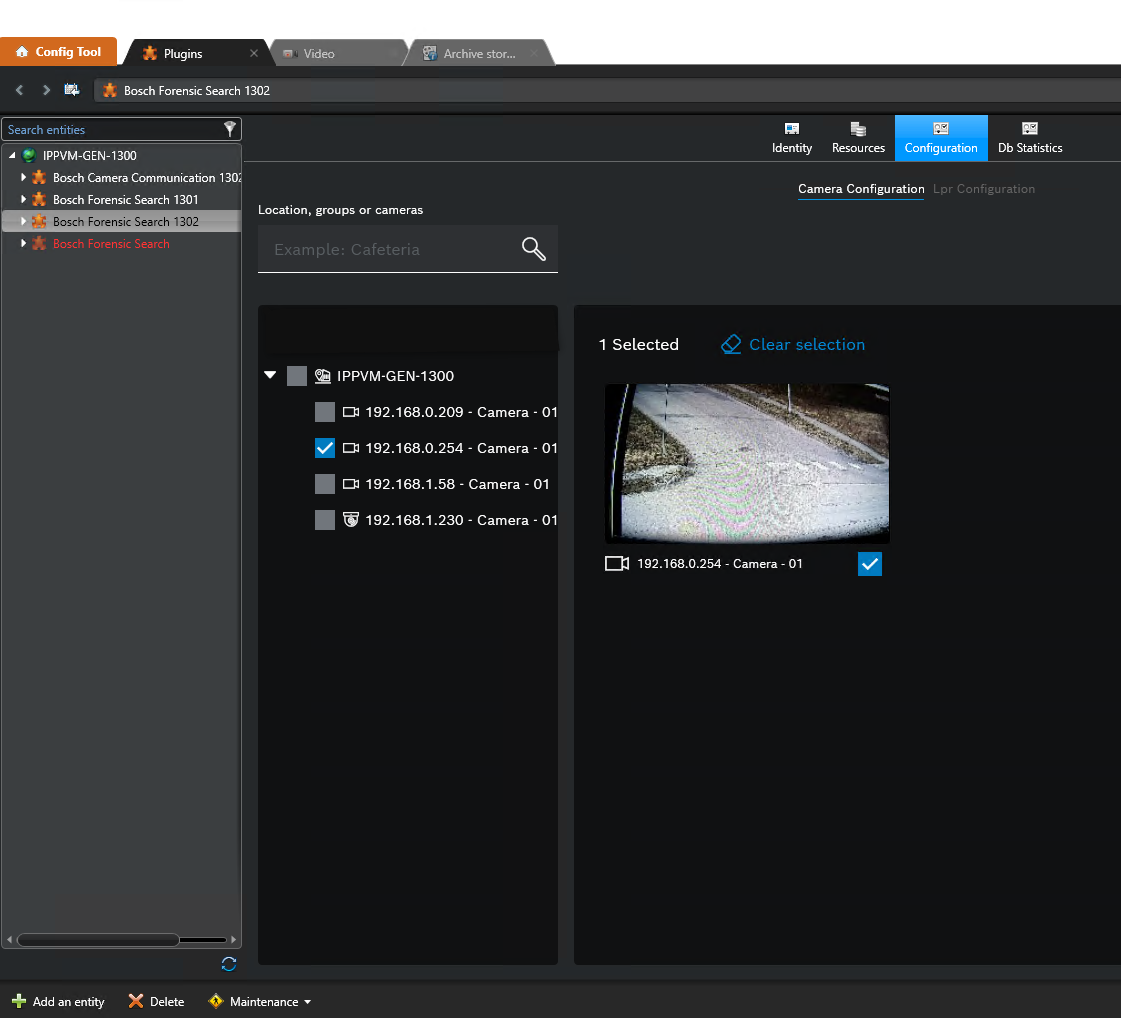
Due to the fact that Attribute Search is adding additional storage requirements and backend processing, relevant cameras need to be activated manually for being indexed.
-
To enable the cameras in the plug-in navigate to the plug-in role configuration and check the cameras that are supposed to be available for Attribute Search.
-
In a multi server environment, ideally the cameras are processed in the plug-in role of the Archiver, which is also managing the camera.
-
The reason for this recommendation is the fact that metadata needs to be sent to the background process for the metadata indexing. The Archiver that manages a specific camera already consumes the metadata stream and thus no additional stream needs to be requested.
-
Additional Considerations: Database Consumption & Background Processing
Attribute Search Requirements
-
Attribute search relies on continuous background processing of metadata streams.
-
Metadata is indexed during runtime, which requires extra database storage space for metadata records.
-
Due to the fact that the amount of extracted metadata heavily depends on the analyzed scene, it’s hard to give exact numbers, in general but as a ballpark number the following table can be used to determine the storage capacity that is needed in the database that is connected to the forensic search plugin role.
-
The values are given ‘per detection' which basically means one object. The extrapolation can then be done through the number of expected detections per ‘retention period’ per camera.
-
The size of the generated data depends significantly on the time an object dwells in a scene due to positional data, that is also stored in the database.
-
|
Scenario |
Data per detection |
Comment |
|---|---|---|
|
LPR / MMR detector running on the camera |
in average 2.5 kB |
LPR and MMR deliver slightly less attributes than the attribute detector. |
|
Attribute detector w/o snapshot generation |
in average 3kB |
|
|
Attribute detector w/ snapshot generation |
in average 8kB |
Snapshots add additional data to the DB. |
-
Performance overhead on Archiver servers.
Best Practices
-
Plan for increased DB capacity when enabling attribute search.
-
Monitor Archiver performance to ensure metadata indexing does not impact recording stability.
-
Use attribute search primarily for time-critical investigations where speed outweighs search flexibility.
Summary
-
Install server plug-ins on all Archivers connected to Bosch cameras.
-
Install client plug-ins on Security Desk workstations.
-
Choose between classic rule-based search (flexible, slower) and attribute search (fast, requires DB overhead).
-
Plan for extra database consumption when attribute search is enabled.