
Possible causes and solution(s)
-
Issue
Gmail account doesn’t work with AEC 2.1
-
Solution
Upgrade AEC firmware at least 2.1.9.5 and create an “App Password” in your Gmail account settings. See instructions below.
-
Log in to Gmail Account.
-
Go to Manage your account and then Security.
-
Under "Signing in to Google," select App Passwords. You may need to sign in. If you don’t have this option, it might be because:
A. 2-Step Verification is not set up for your account.
B. 2-Step Verification is only set up for security keys.
C. Your account is through work, school, or other organization.
D. You turned on Advanced Protection
-
Click “Select app” and choose the desired app, or click other to use a personalized app. Click generate.
-
In AEC go to System -> Network Settings.
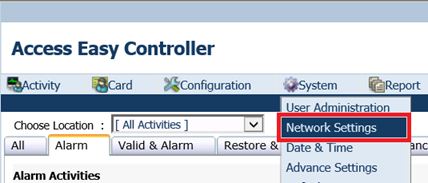
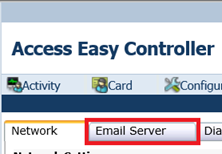
2. Go to Email Server.
3. Enter all the SMTP server parameters and login information, hit save.
-
Verify the SMTP server settings with Google.
-
The password required is the “App Password” previously created in your Gmail account.
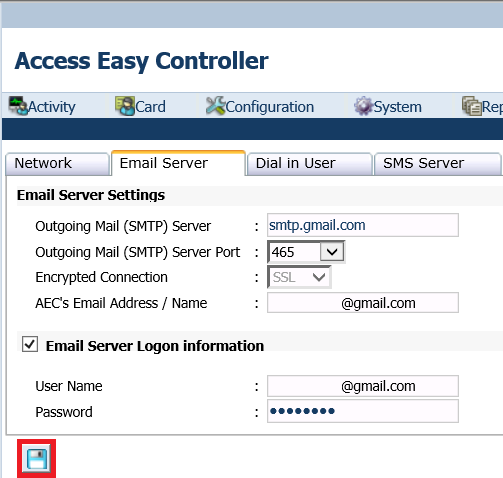
Note: The SMTP server settings shown above are current at the moment of this document’s creation.