
Can be useful if running the AECT utility
Possible causes and solution(s)
-
Symptoms
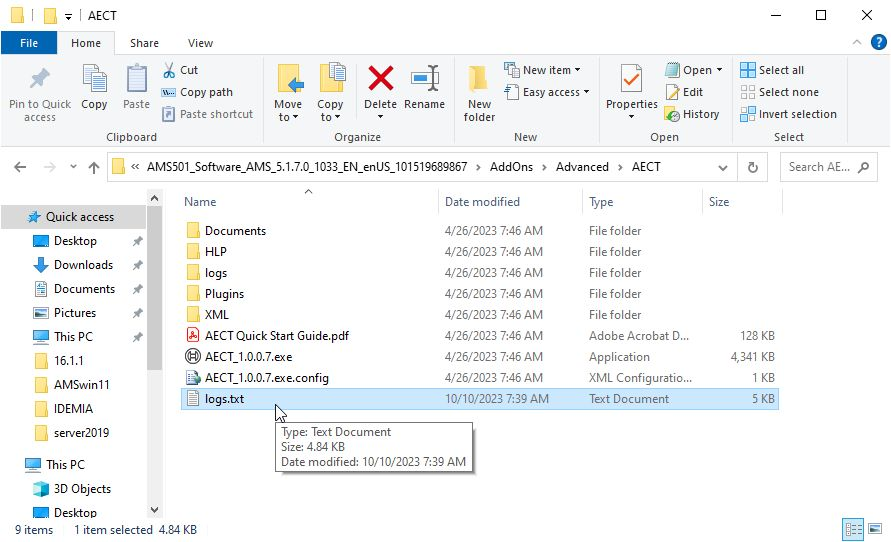
When attempting to run the AECT utility to check PC specs, there may occur a situation where it doesn't run at all when selecting run as administrator or just double clicking on it to open it. Typically nothing will appear or possibly a text file may appear like the one in the screenshot below:
-
Causes
This may be caused due to windows updates or restrictions.
-
Solution
Here are the steps to a possible solution to this issue:
-
Navigate to the downloaded AMS installation folder. Open the EN\AddOns\Advanced\AECT folder.
-
Open the "Plugins" folder.
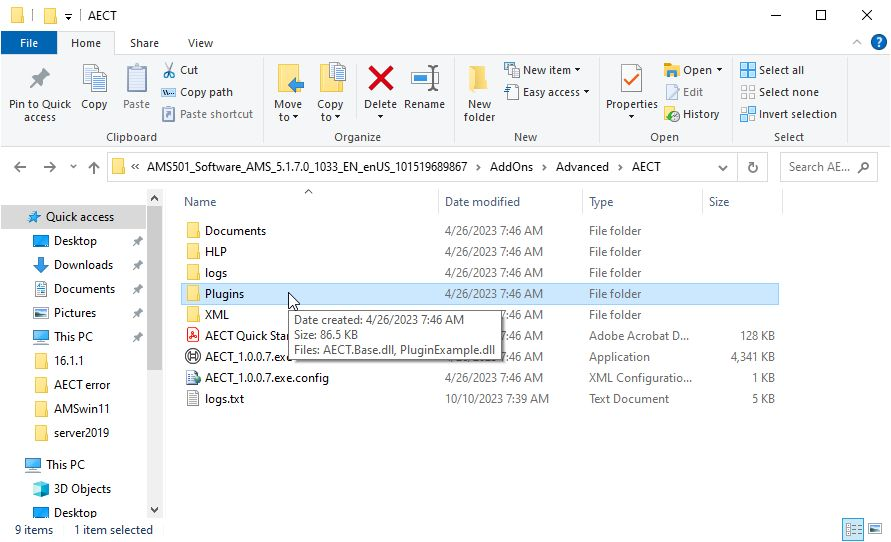
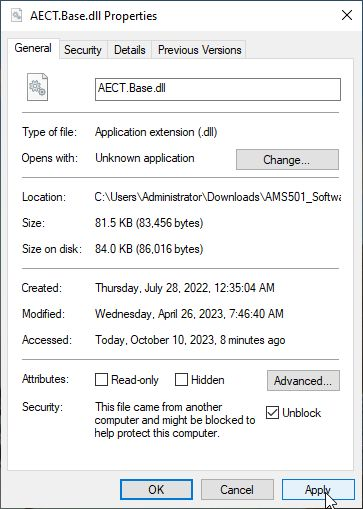
3. In the plugins folder, right click on the AECT.base.dll file and select "properties".
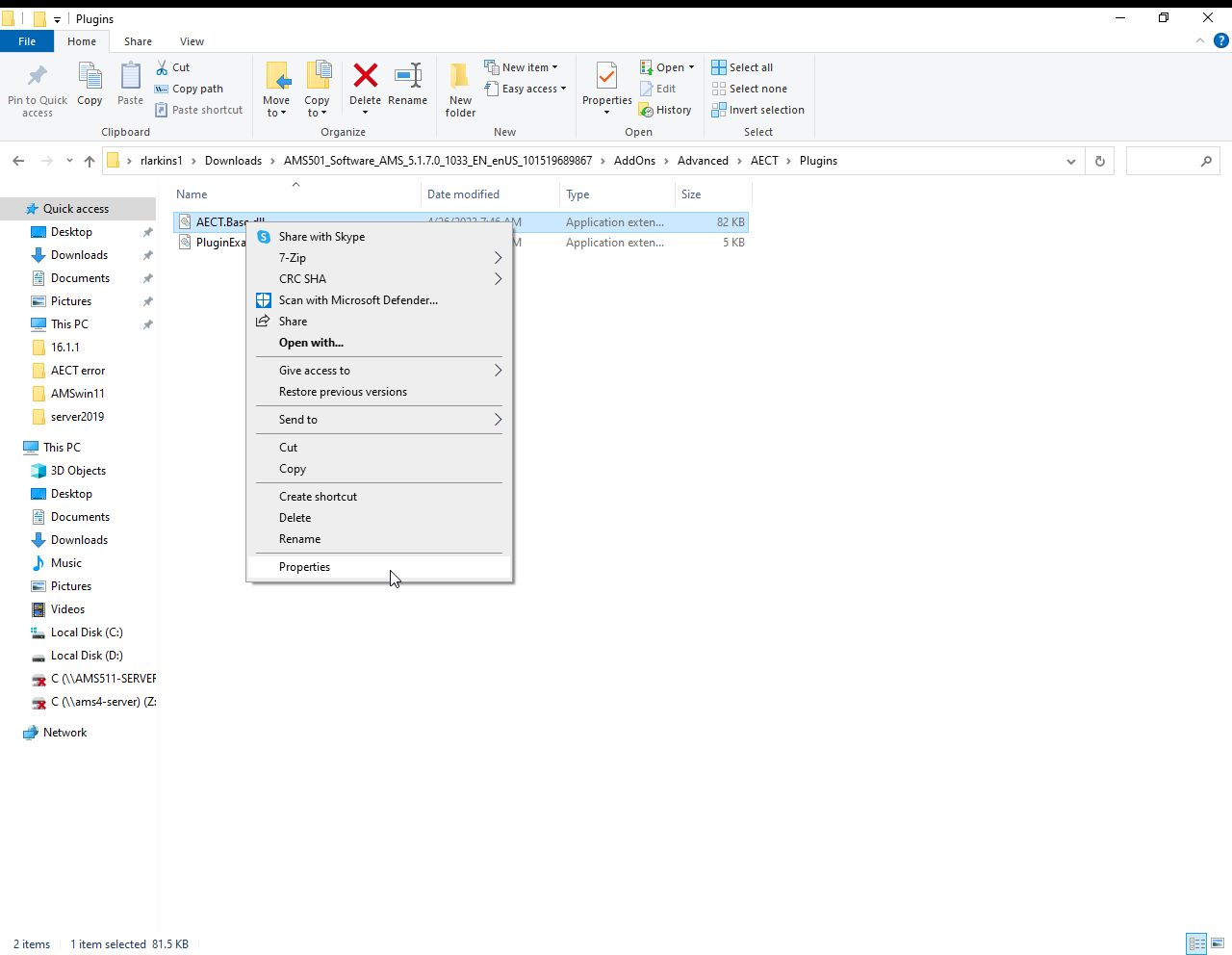
4. On the next screen that appears, check the "Unblock" checkbox on the bottom right.
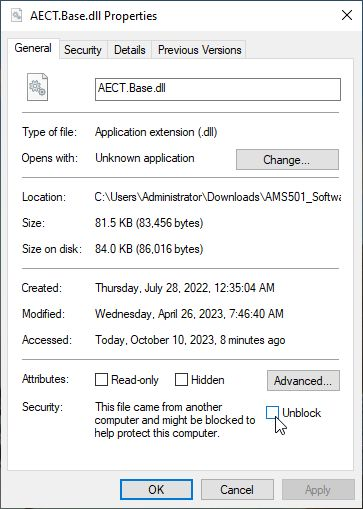
5. Click "apply" and then "okay" to apply the option and close the screen.
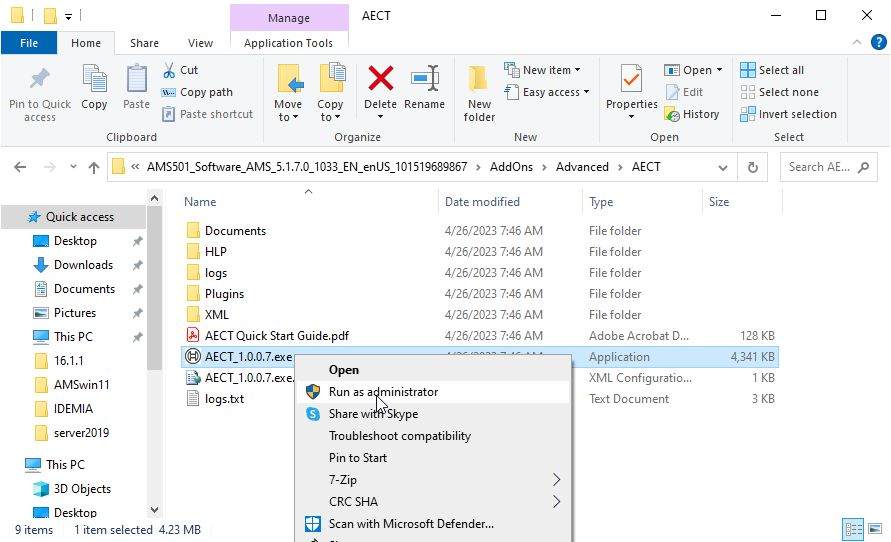
6. Rerun the AECT utility and remember to select "run as administrator".
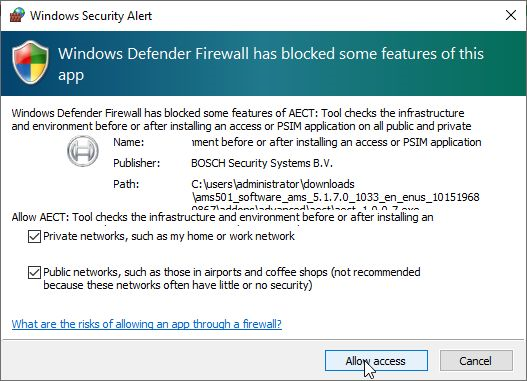
7. Click on "Allow Access" if any firewall messages appear.
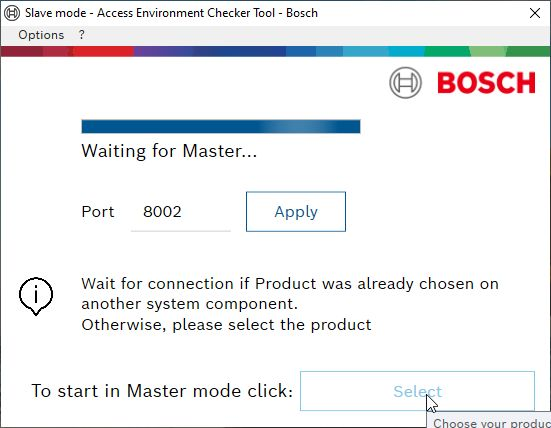
8. You should now be able to run the AECT utility.
A more detailed explanation of what causes the issue can be found here.