Since August 1st, 2020: Bosch has changed its software maintenance policy and the support will be offered based on the Software Maintenance Agreement status.
This article describes how can you check the status of your SMA for AMS .
This article applies when:
-
You want to check if you still have a valid SMA to see if you are still eligible to get support via the Bosch Central Technical Support team
-
You want to check if you need to extend the Bosch Assurance Agreement for Access Management System (AMS) for yourself or your customer
Article requirements:
-
Access Management System software
-
Access to internet
-
Recommended Browser: Firefox, Internet Explorer, Chrome
-
Valid account to login into Bosch Remote Portal
-
Access to PC
Step-by-step guide
-
Open Access Management System and login
-
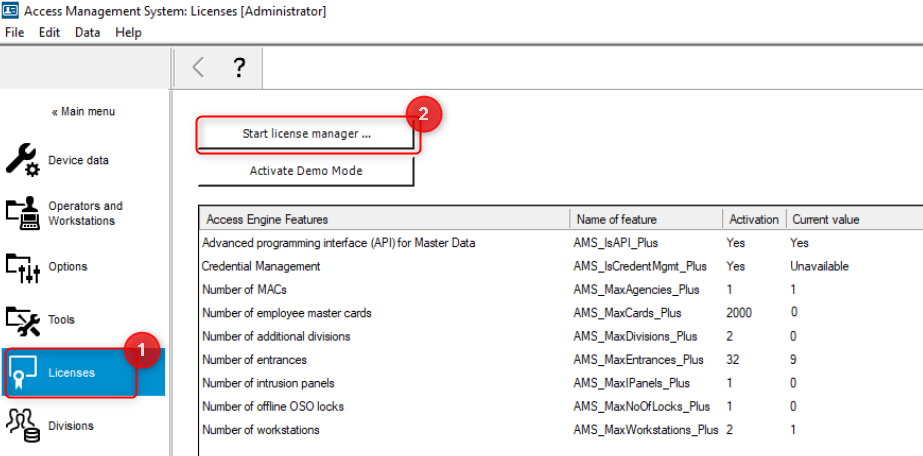
In AMS, go to Licenses. Here you find the activated Base (AMS-PLU) license. Click “Start License Manager”.
-
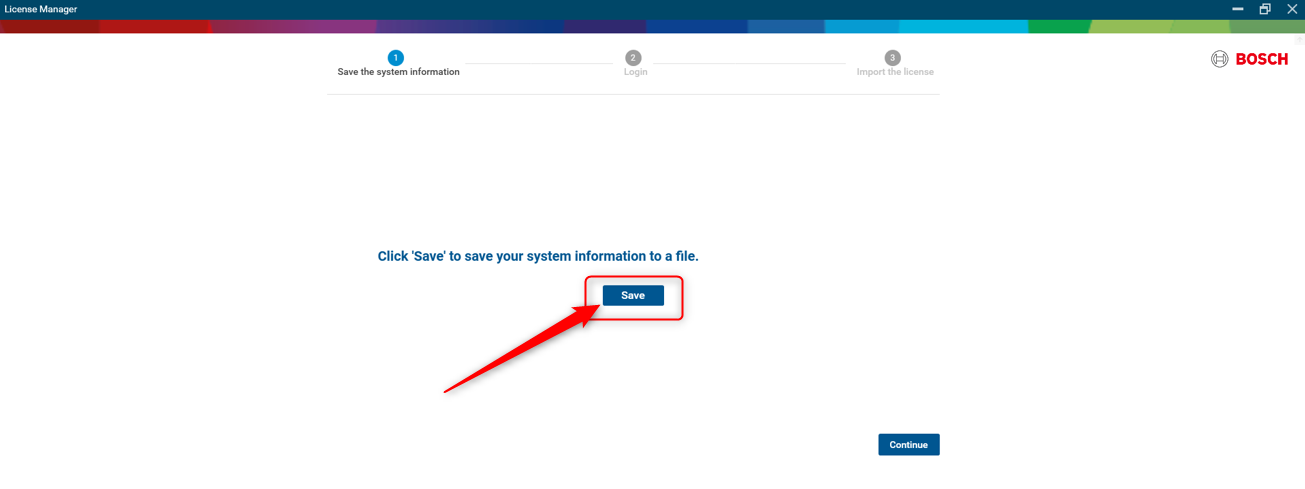
Click on “Save” to Save the System Information File on your desktop.
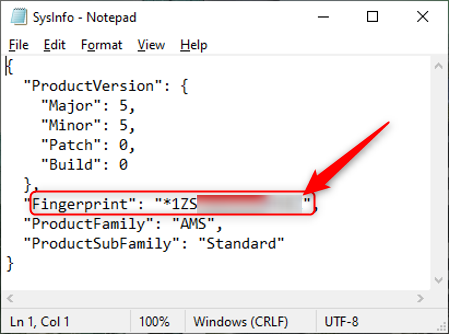
The SysInfo.JSON file contains the PC’s Fingerprint. That Fingerprint should be equal to the one that was used to register the Base license. COpy this Fingerprint
-
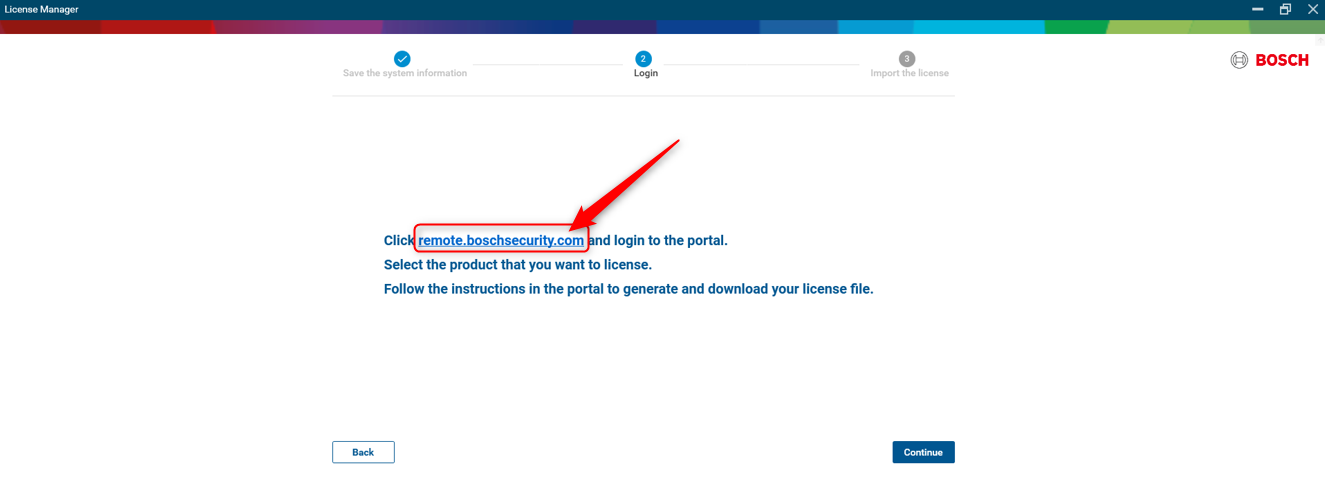
On the next page of the License Manager click the URL link to go to the Remote Portal
-
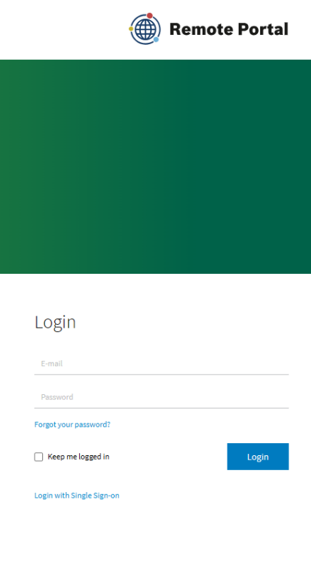
Login on the Remote Portal with the same account that registered the Base License.
-
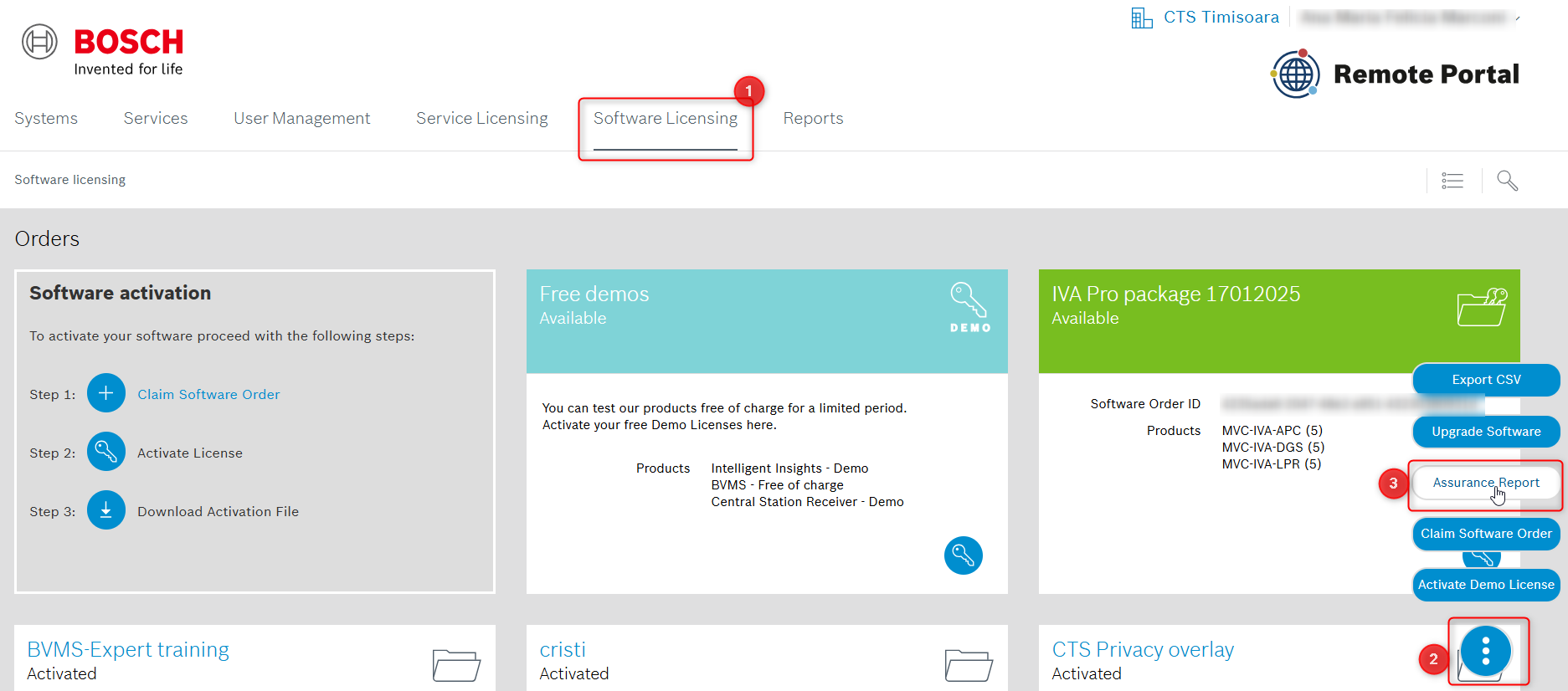
Go to Software Licensing > click on the three dots button > select Assurance Report
-
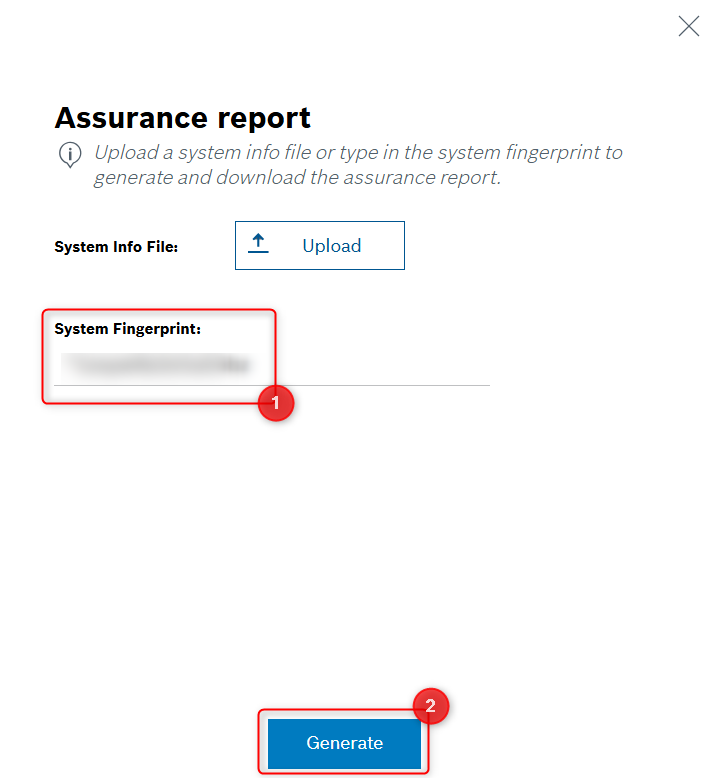
Paste the System Fingerprint you have copied from the SysInfo.JSON and click Generate to download the Assurance report. Open the report and check your SMA validity
Further, you can expand your SMA validity by following the steps below:
-
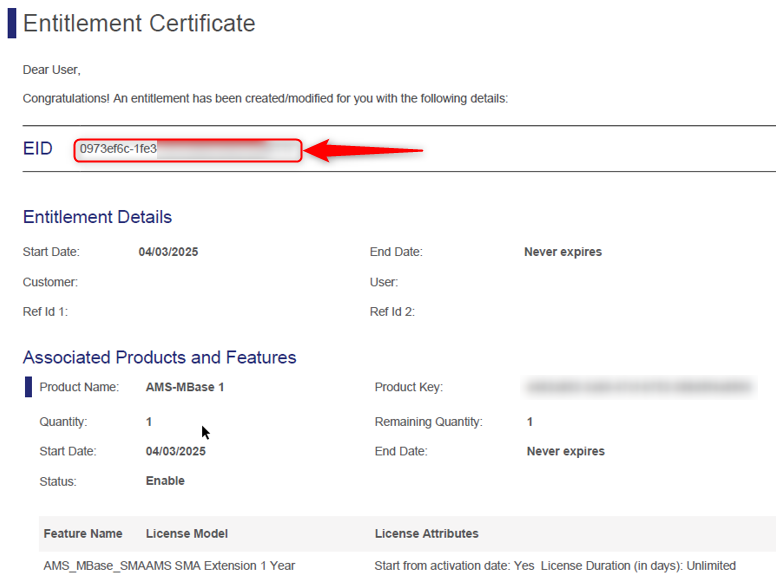
Check the Entitlement Certificate email that you received from Bosch. Copy the EID number to the Clipboard.
-
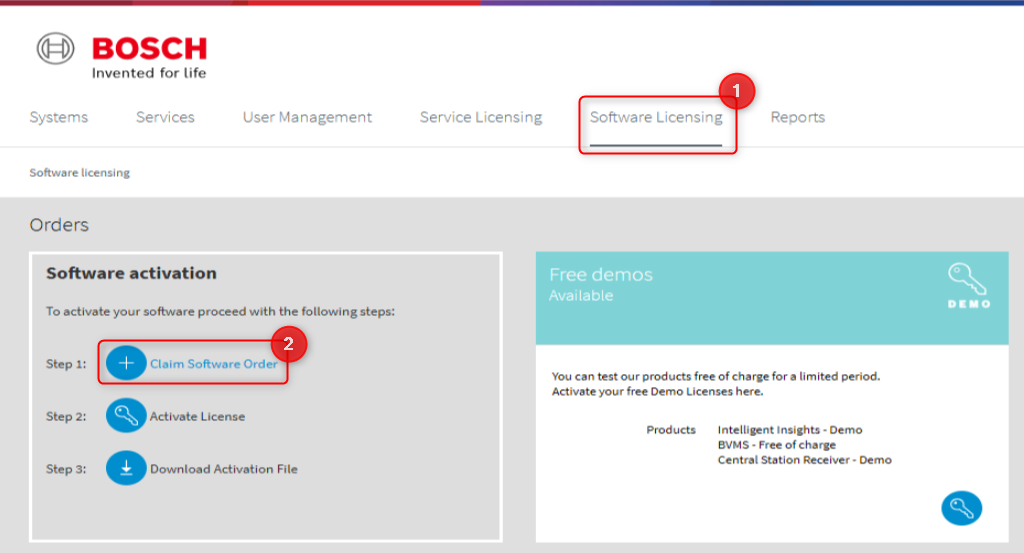
Click Software Licensing > click “Claim Software Order”.
-
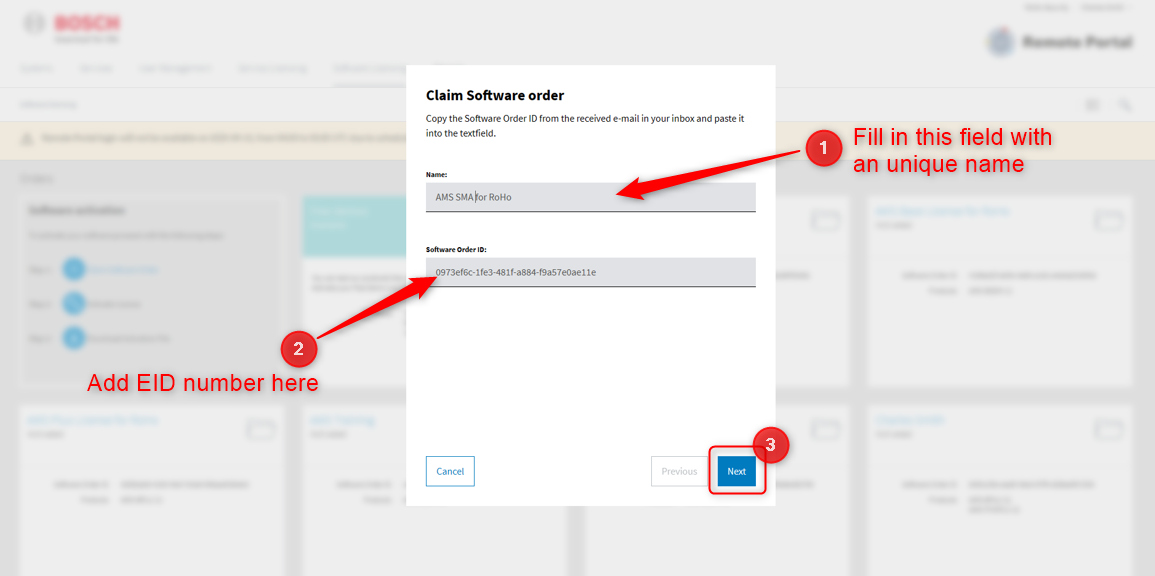
Enter a unique name that will make it easy to find the license. Paste the EID that you copied from the Entitlement Certificate to the Software Order ID line.
-
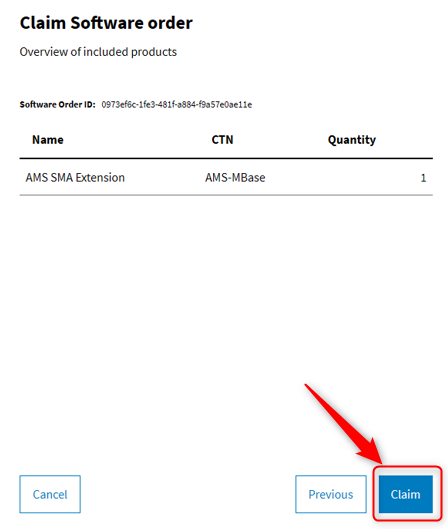
When clicking “Next” you see an overview of the current license. Press “Claim” and then Step 1 is ready.
-
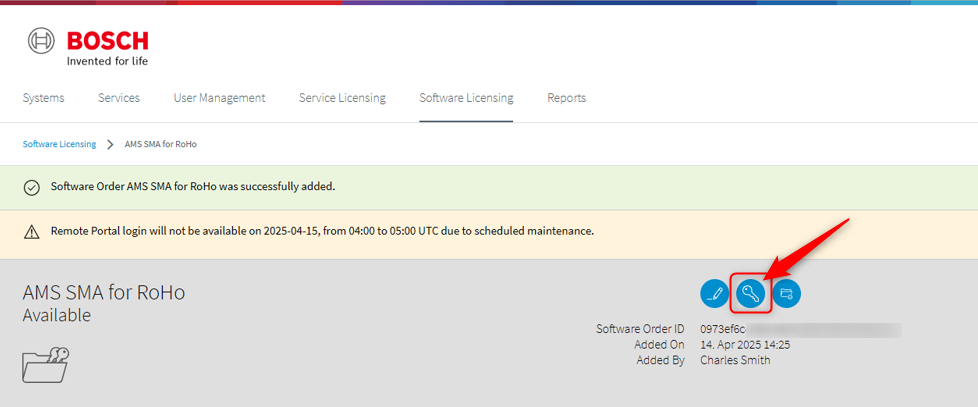
Step 2 is activating the license therefore you need to click the blue key icon in the middle of the page.
-
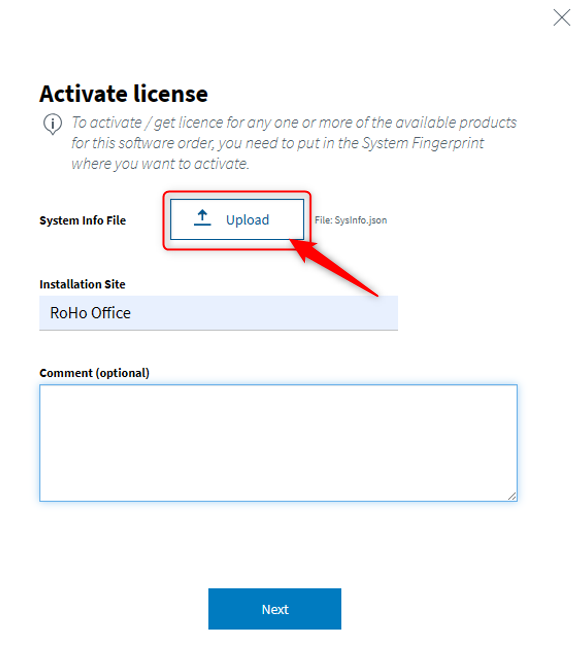
Click the “Upload” button to upload the SysInfo.JSON file you saved in step 2 above. Optionally, you can enter anything in the Comments box regarding this license.
-
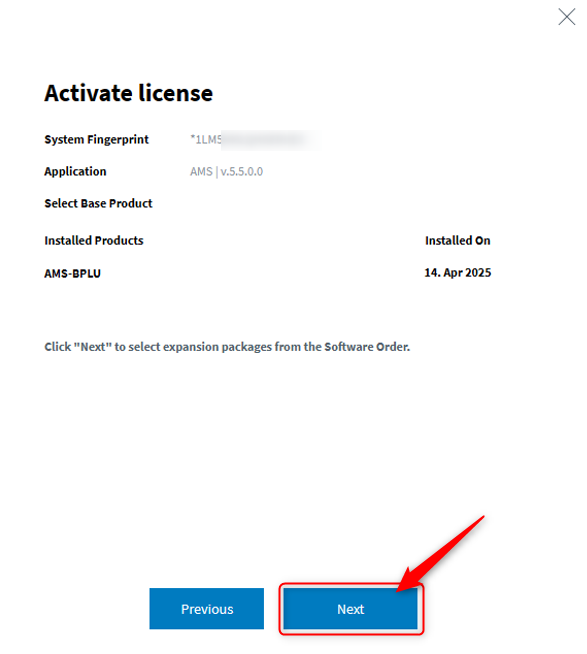
When clicking “Next” you get an overview of the license. Click “Next” again to go to the final activation page.
-
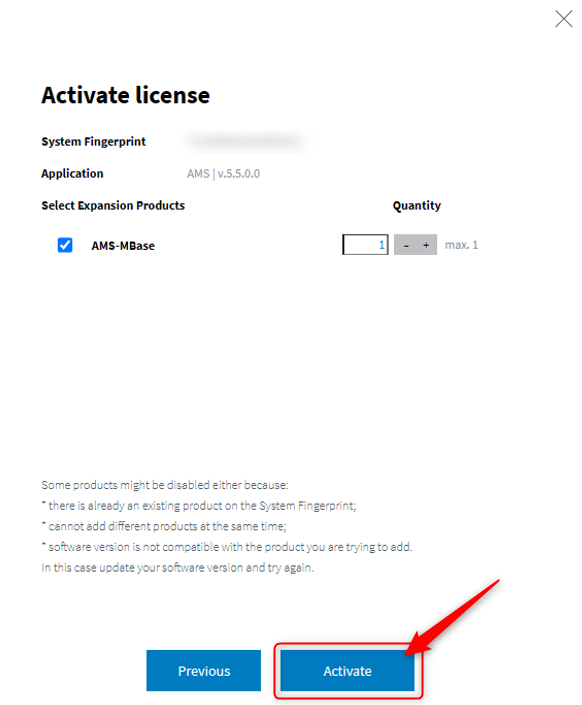
Click on “Activate” to start the actual activation of the SMA and therewith finish Step 2.
-
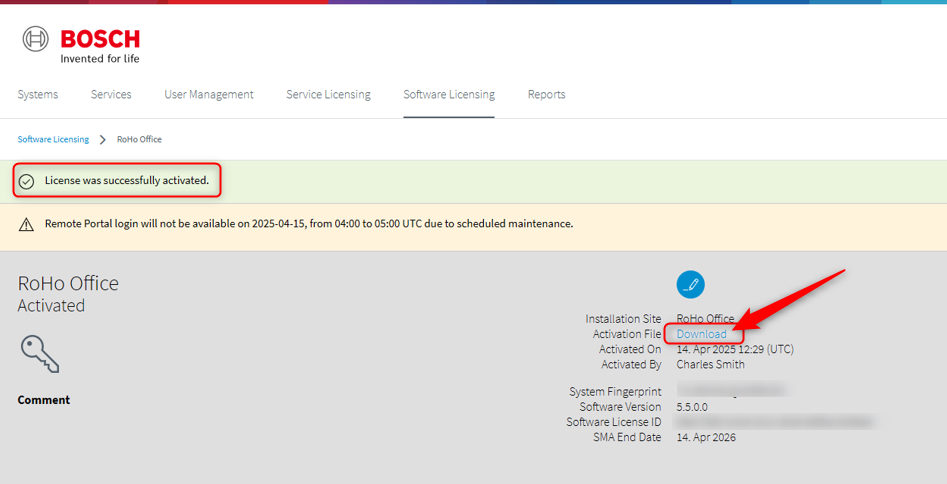
The last step is to download the activated license but that is not necessary for the SMA. You did that already for the Base license.
-
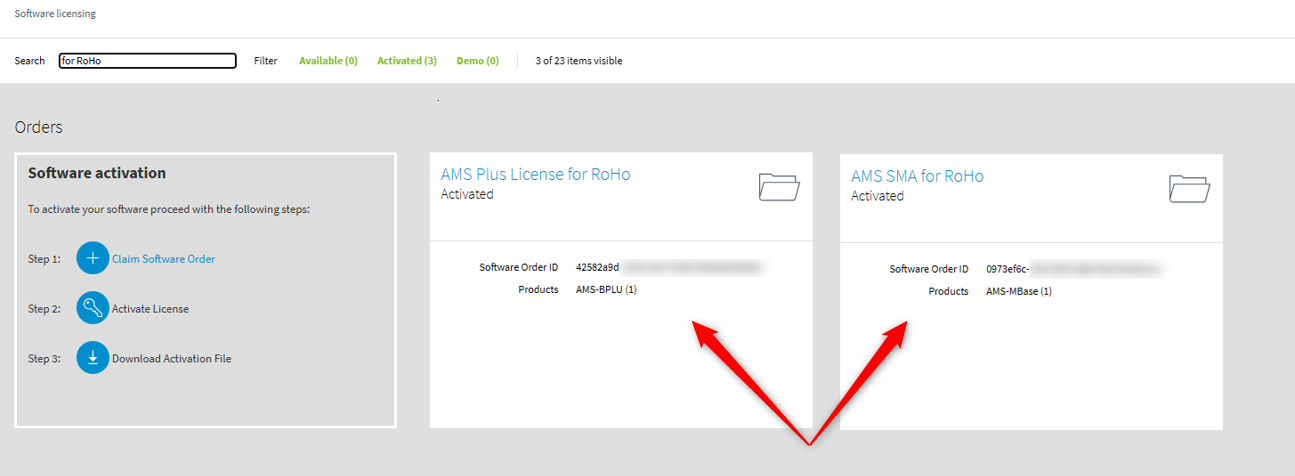
Now you have a set of 2 Active licenses: The AMS-PLU is the Base license and the AMS-Mbase it's SMA.
-
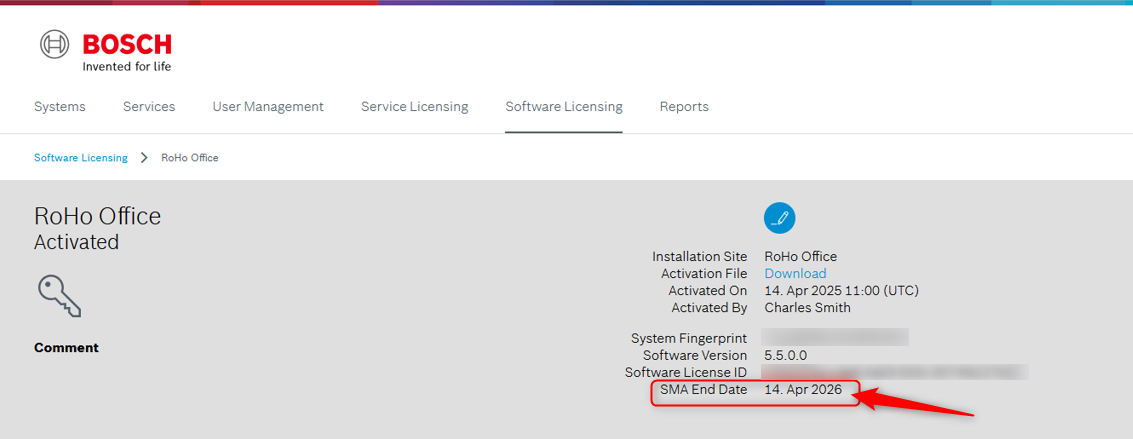
If you now check the Base license (AMS-PLU), you will see the 1 year extended SMA End Date.