
Scenario
User needs to keep a door open Monday – Friday from 8 am to 5 pm.
Solution
Create a time model (schedule), and then configure the door to open in that schedule.
1. Create a day model.
-
Go to “System Data” and then “Calendar”
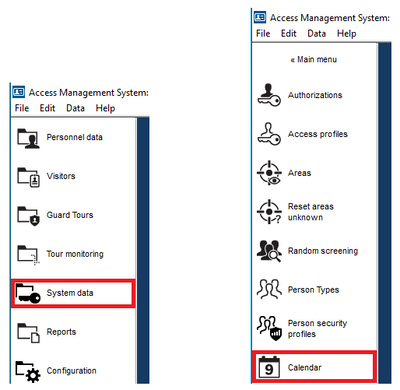
Figure 1.
-
Click on “Day Models”
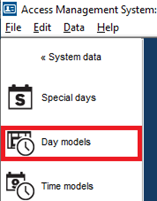
Figure 2.
-
Click the “Create new” button
-
Assign a name to the Day Model. Add a description and fill the intervals as needed
-
In this example we are only creating one interval from 8 am to 5 pm. If needed, up to three intervals can be created in the same Day Model
-
Click Save
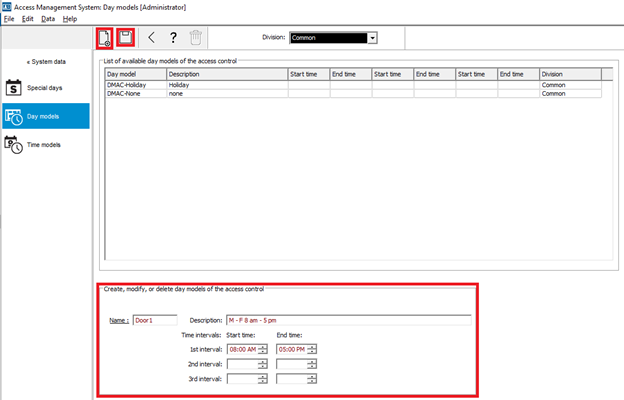
Figure 3.
2. Create a Time Model.
-
Click “Time Models”
-
Click the “Create new” button
-
Assign a name to the Time Model. Add a description
-
Select the number of days in the Period
-
Select a reference date (select a past date and not a future date).
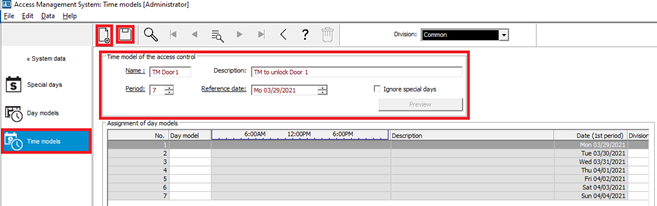
Figure 4.
-
Assign the Day Model to each day of the period as needed and click save
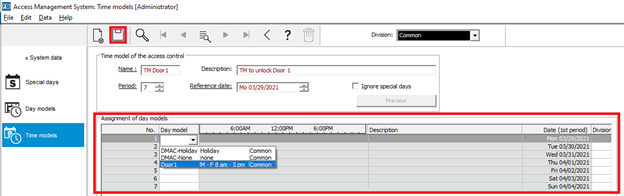
Figure 5.
Note: to verify the Time model is correct, click the preview button and confirm the dates match.
-
The predefined holidays are shown below, assign the desired Day Model to apply on those days
-
If holidays are not needed, click the “ignore special days” checkbox
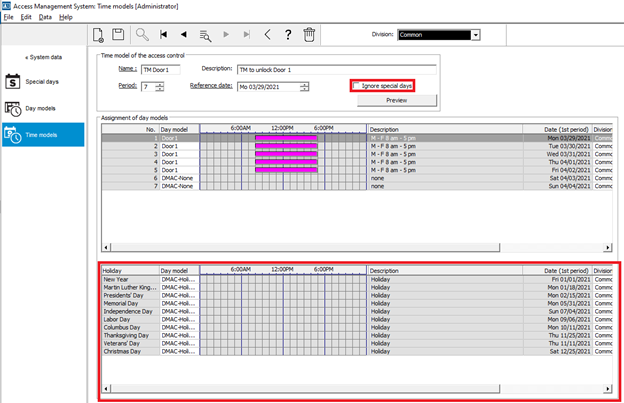
Figure 6.
3. Configure the door to open depending on time model
-
Go back to main menu and go to “Configuration”
-
Click “Device Data”
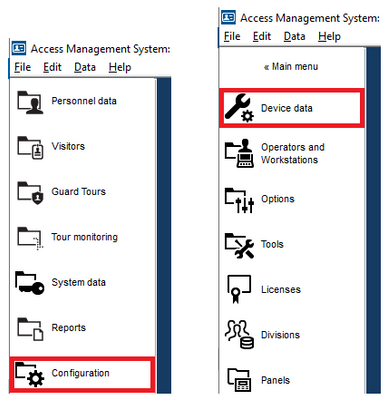
Figure 7.
-
In the DevEdit, find the desired door.
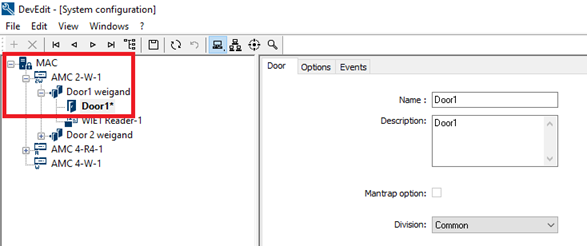
Figure 8.
-
Click the “Options” tab and click under “Unlock door”
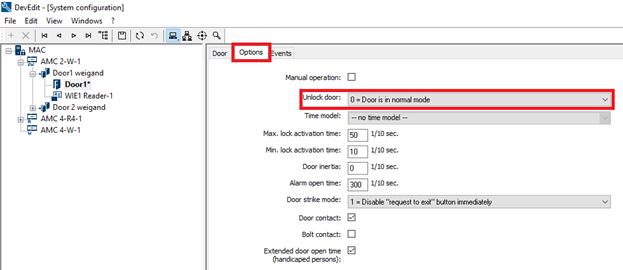
Figure 9.
-
Select the desired option, in this example we choose “Door is open depending on time model”
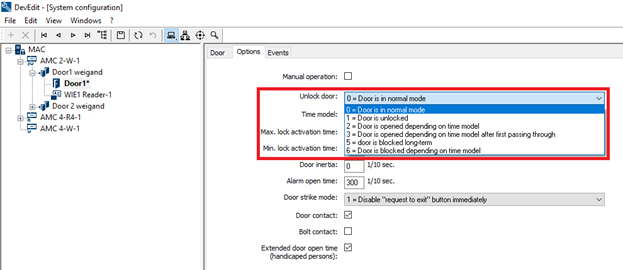
Figure 10.
-
Select the desired “Time model”
-
Click the “Save” button.
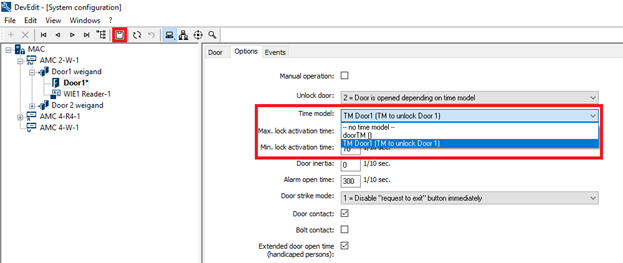
Figure 11.