
How to add a printer to APE.


1. Open “Card personalization Configuration”.

You can find this software by accessing the “Access Professional Edition” folder in the start menu. See figure 1.

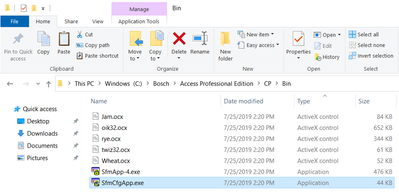
If unable to find in the start menu, this is located in the folder “C:\BOSCH\Access Professional Edition\CP\bin\SfmCfgApp.exe”, (unless non-default paths and folder names are chosen during installation). See figure 2.
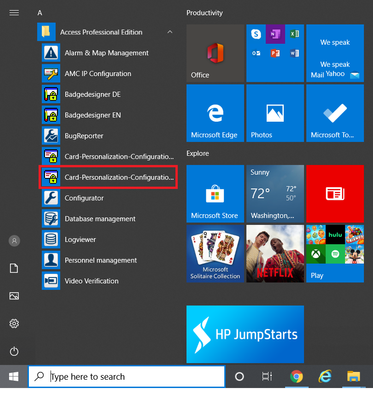
https://community.boschsecurity.com/t5/image/serverpage/image-id/3955iA55E62ACDA133541/image-size/medium?v=v2&px=400 Figure 1

https://community.boschsecurity.com/t5/image/serverpage/image-id/3956i09EB9679332F6B24/image-size/medium?v=v2&px=400 Figure 2

*Note: Make sure to run the software with administrator rights.


2. In Card personalization Configuration go to the Print tab.
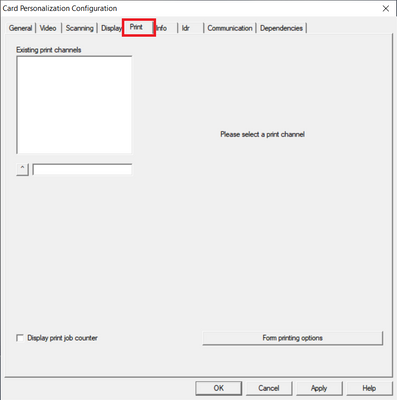
https://community.boschsecurity.com/t5/image/serverpage/image-id/3957i8A0146CAFF78E5A6/image-size/medium?v=v2&px=400 Figure 3


3. Create a print channel.

Type the print channel desired name and click the button to the left.
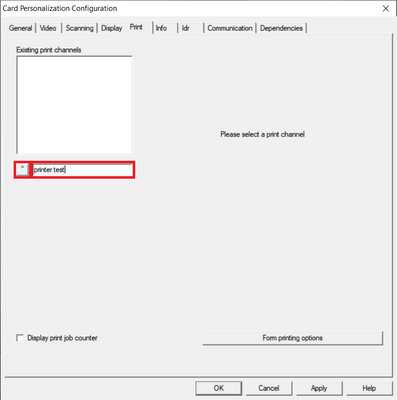
https://community.boschsecurity.com/t5/image/serverpage/image-id/3958i9FFF5DA957DC33CE/image-size/medium?v=v2&px=400 Figure 4

Once the print channel is created, the installed printers at this PC will populate below.
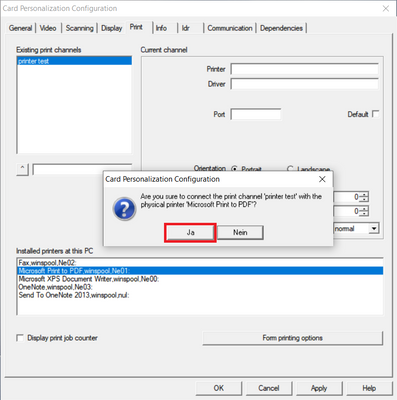
https://community.boschsecurity.com/t5/image/serverpage/image-id/3961i8F67FF5E1030D7F0/image-size/medium?v=v2&px=400 Figure 6


4. The printer’s information will auto fill under the current channel, modify parameters as needed.
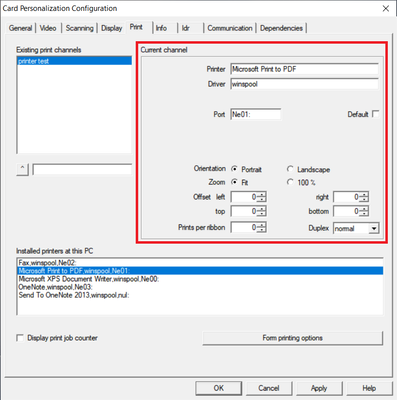
https://community.boschsecurity.com/t5/image/serverpage/image-id/3962i73CEC265F21A93C5/image-size/medium?v=v2&px=400 Figure 7


5. Once finished, click apply and close.
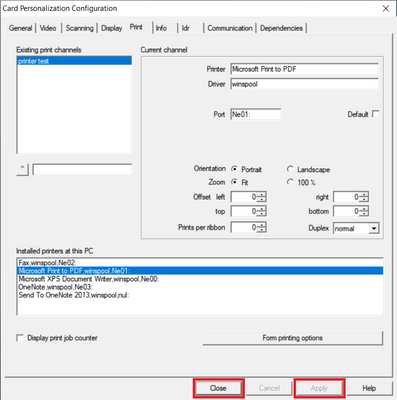
https://community.boschsecurity.com/t5/image/serverpage/image-id/3964i6CD5E139F8C6331F/image-size/medium?v=v2&px=400 Figure 8


6. Restart the computer.