Step-by-step guide
-
How to correct small text in panel account page.
This article describes how to correct a situation where text in the main page of RPS appears normal but text in the panel account programming page is much smaller.
-
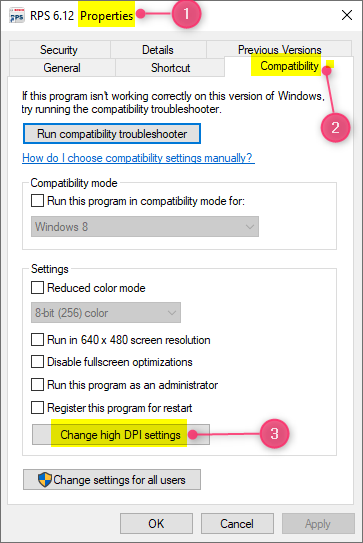
Access the Properties page for the RPS executable file using one of the below methods.Right-click on the RPS icon located on the desktop and select Properties.If the RPS icon is not on the desktop, locate the RPS executable file C:\RPS\RAMV\Bin\RAMVMain.exe. Right click on the file and select Properties.
-
Click the “Compatibility”
-
Select “Change high DPI settings”.
-
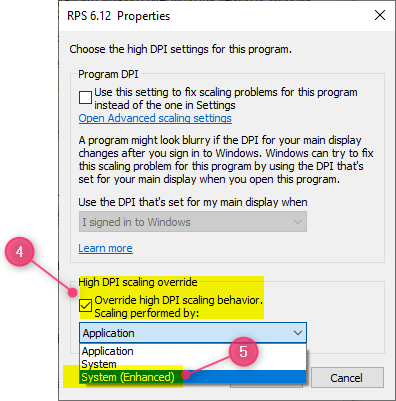
Select “Override high DPI scaling behavior”.
-
From the drop-down menu select “System (Enhanced)”.
-
Select “OK” and then “apply”.