NOTE: After completing the below steps, select SAVE & EXIT before exiting TeraTerm or all changes are lost.
-
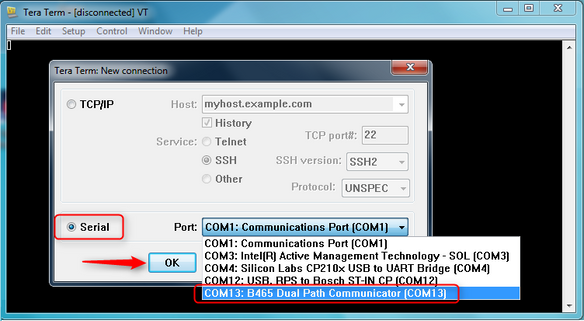
Open TeraTerm.
-
The New connection dialogue opens.
-
Select the Serial radio button and choose the port configured for the B465. Press OK.
-
Press the ENTER key and the display reads [Enter Passcode]. Enter the default Log-in password: B465.
-
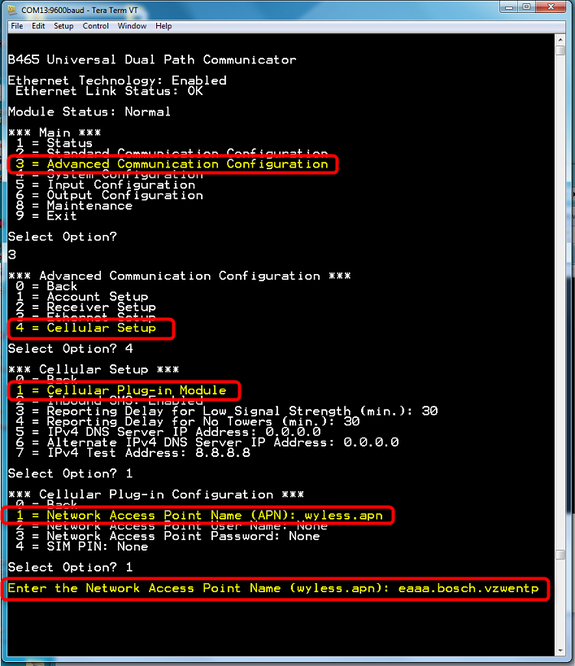
Select 3 > Advanced Communication Configuration
-
Select 4 > Cellular Setup
-
Select 1 > Cellular Plug-in Module
-
Select 1 > Network Access Point Name (APN).
-
Enter the correct APN for the type of cell card to be used:
B444 (Verizon): [eaaa.bosch.vzwentp]. B443-ATT (AT&T): [wyless.com.attz] B443-TMO (T-Mobile): [GNE] [B443-ROG (Canada): [wyless.apn] -
Select SAVE & EXIT before exiting TeraTerm or all changes are lost.