-
Remove the B450 from the control panel and remove the cell card from the B450.
-
Set the address wheel on the B450 to 0 and reconnect the B450 to the control panel. Note that the B450 address wheel must be changed as required for the control panel once the firmware upgrade is completed.
-
Connect a USB A to USB A cable (Bosch p/n B99) between a computer and the B450. When using a store purchased cable, be sure to use a ‘Computer to Peripheral ‘cable and not a ‘Computer to Computer’ type cable.
-
Open TeraTerm.
-
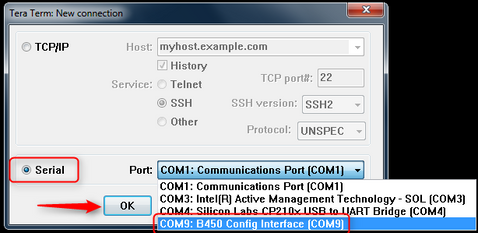
The New connection dialogue opens. Click on the Serial radio button and select the port configured for the B450 and press OK.
-
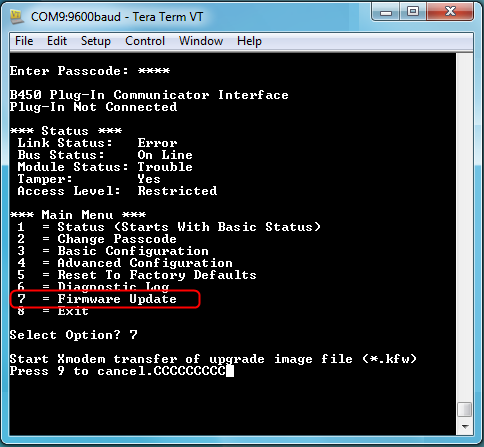
Press the keyboard ENTER key and [Enter Passcode] displays. Enter the default Log-in password: B450.
-
Select 7: Firmware Update.
-
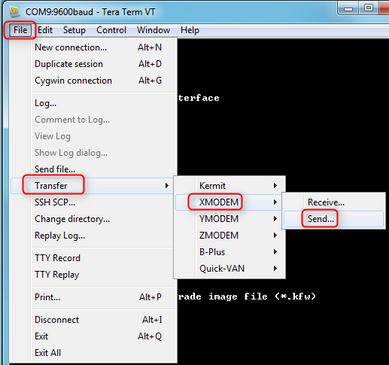
The screen displays; Start Xmodem Transfer of upgrade image file. Select File > Transfer > XMODEM > Send…
-
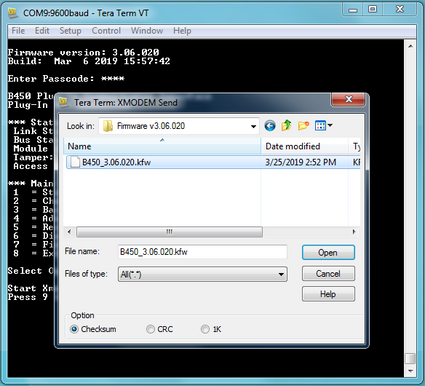
Select the firmware file.
-
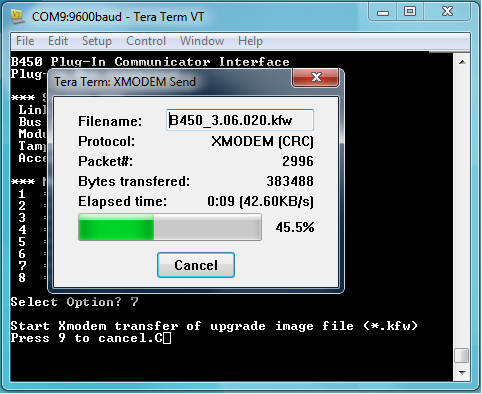
Select Open to start the firmware update. The TeraTerm: XMODEM Send dialog box opens to indicate the update process.
-
When the file transfer completes, the TeraTerm: XMODEM Send dialog box closes. A TeraTerm window displays a message about updating to firmware version “x.xx.xxx”, and the B450 automatically reboots.
Notice! Do not power off the module during this phase. Powering off might cause permanent damage to the B450. -
Close the TeraTerm session, and relaunch TeraTerm.
-
Log into TeraTerm to reestablish the connection. Communication between the control panel and B450 restores.
-
Remove power from the B450.
-
Place the cell card back into the B450.
-
Set the device address as required for the configuration in use.
-
Reconnect the B450 to the control panel.