Question
How to move the Bosch PTZ camera to a specific pre-position during inactivity?
Answer
This can be done via alarm task scripting.
The “inactivity” algorithm below will move the camera to Pre-position 99 in the Alarm Task scripting.
In this way, you can use the Pre-position 1 for other surveillance purpose.
Point to take note when using the script.
1) The PTZ camera will move to Pre-position 99 after boot up.
2) The PTZ camera will move to Pre-position 99 after 60 seconds of inactivity.
Note :
-
Using PTZ camera Web GUI, it is not possible to select other Pre-position except for Pre-position 1
-
Inactivity setting on PTZ camera need to be switch off
-
Pre-position 99 need to be created on the camera Web GUI before applying the script
Explanation:
E.g. for 2 minutes inactivity at local time 13:00:00:
-
Camera becomes inactive. Counter starts at 13:00:00
-
1 minute and 30 seconds pass without any alarms or camera movement.
-
Camera does not move to pre-position 99 as the full 120 seconds of inactivity have hot passed yet.
-
At 13:01:30 IVA takes over.
-
At 13:02:01 camera becomes inactive again, and counter restarts.
-
No alarms or operations for 2 minutes (120 seconds).
-
At 13:04:01 camera moves to pre-position 99 as dictated by the script.
Alarm Task Script:
|
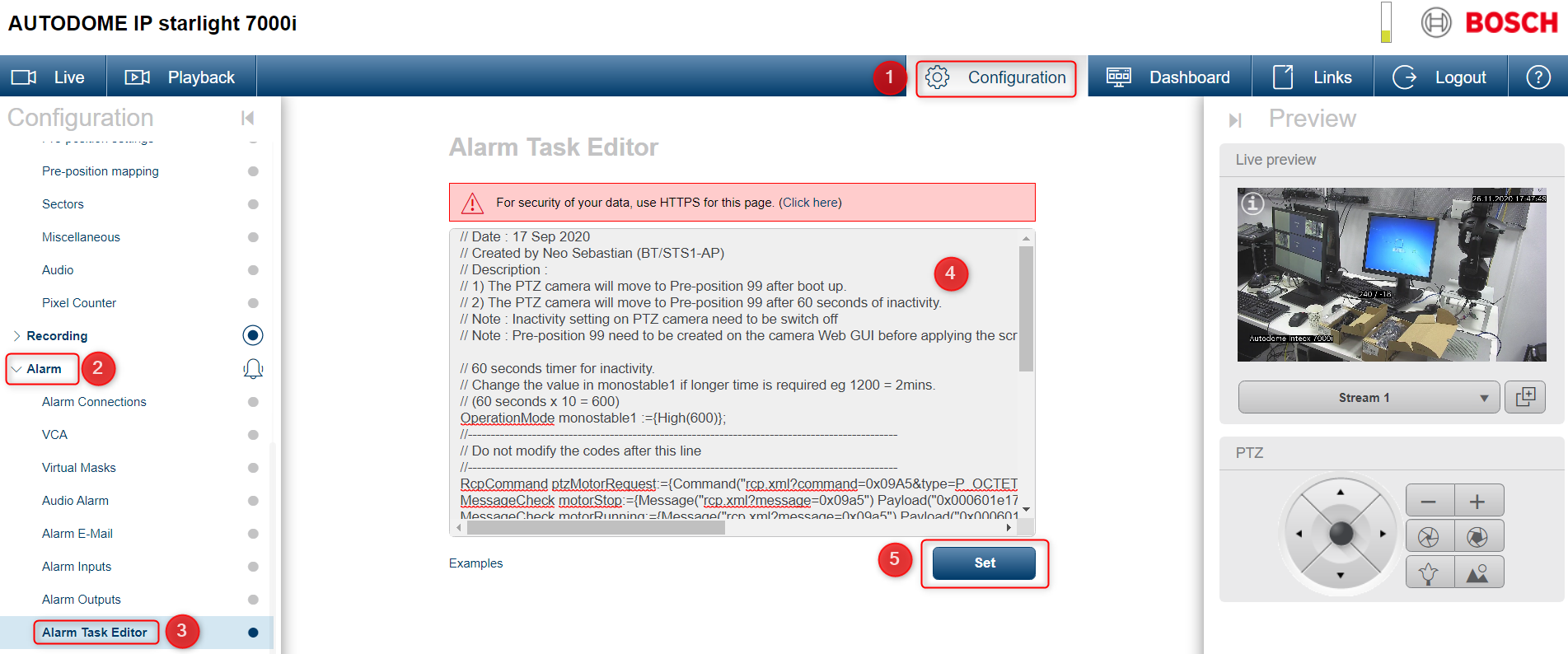
// Date : 17 Sep 2020 // Created by Neo Sebastian (BT/STS1-AP) // Description : // 1) The PTZ camera will move to Pre-position 99 after boot up. // 2) The PTZ camera will move to Pre-position 99 after 60 seconds of inactivity. // Note : Inactivity setting on PTZ camera need to be switch off // Note : Pre-position 99 need to be created on the camera Web GUI before applying the script // 60 seconds timer for inactivity. // Change the value in monostable1 if longer time is required eg 1200 = 2mins. // (60 seconds x 10 = 600) OperationMode monostable1 :={High(600)}; //---------------------------------------------------------------------------------------------- // Do not modify the codes after this line //---------------------------------------------------------------------------------------------- RcpCommand ptzMotorRequest:={Command("rcp.xml?command=0x09A5&type=P_OCTET&direction=WRITE&num=1&payload=0x85000601e0030002") IP("127.0.0.1")}; //PTZ motor request MessageCheck motorStop:={Message("rcp.xml?message=0x09a5") Payload("0x000601e1700000") IP("127.0.0.1")}; // no motors are running MessageCheck motorRunning:={Message("rcp.xml?message=0x09a5") Payload("0x000601e1700001") IP("127.0.0.1")}; // motors are running MessageCheck position_reached:={Message("rcp.xml?message=0x09a5") Payload("0x000601307000630002") IP("127.0.0.1")}; // camera is in Pre-position 99 ControlCode goto_shot:={Operation(Shot)Number(99)Name("Show Pre-position 99")}; // Execute Pre-position 99 //if(true) then ptzMotorRequest; // Subscribe to Bicom PTZMotorRequest; OperationMode monostable2 :={High(10)}; // Dummy timer OperationMode boot_timer:={Low(50)High(300)}; // Bootup timer checker OperationMode msgchk:={Low(1)High(9)}; // Timer to check for Bicom messages every second TempState(1):=msgchk; if(TempState(1)) then motorStop,motorRunning,position_reached; TempState(2) := monostable1; TempState(9) := boot_timer; if(TempState(9)) then TempState(10):= true else TempState(10):= false; // logic for bootup if(!TempState(9) && TempState(10)) then ptzMotorRequest, goto_shot, TempState(9):= Stop(boot_timer); // logic for bootup if(IsActivated(position_reached)) then TempState(2):=Stop(monostable2),TempState(2):=true,TempState(3):=true; // logic for inactivity if(IsActivated(motorRunning)) then TempState(2):=Stop(monostable2),TempState(2):=true,TempState(3):=true else TempState(2):=monostable1; // logic for inactivity if(IsActivated(motorStop)&& !TempState(2)) then TempState(2):=true, TempState(3):=true; // logic for inactivity if( TempState(3) && !TempState(2) ) then TempState(3):=false, goto_shot; // logic for inactivity |
|---|
(information) Replace the IP with your camera's IP address where IP("127.0.0.1") is present.
Create Pre-position 99:
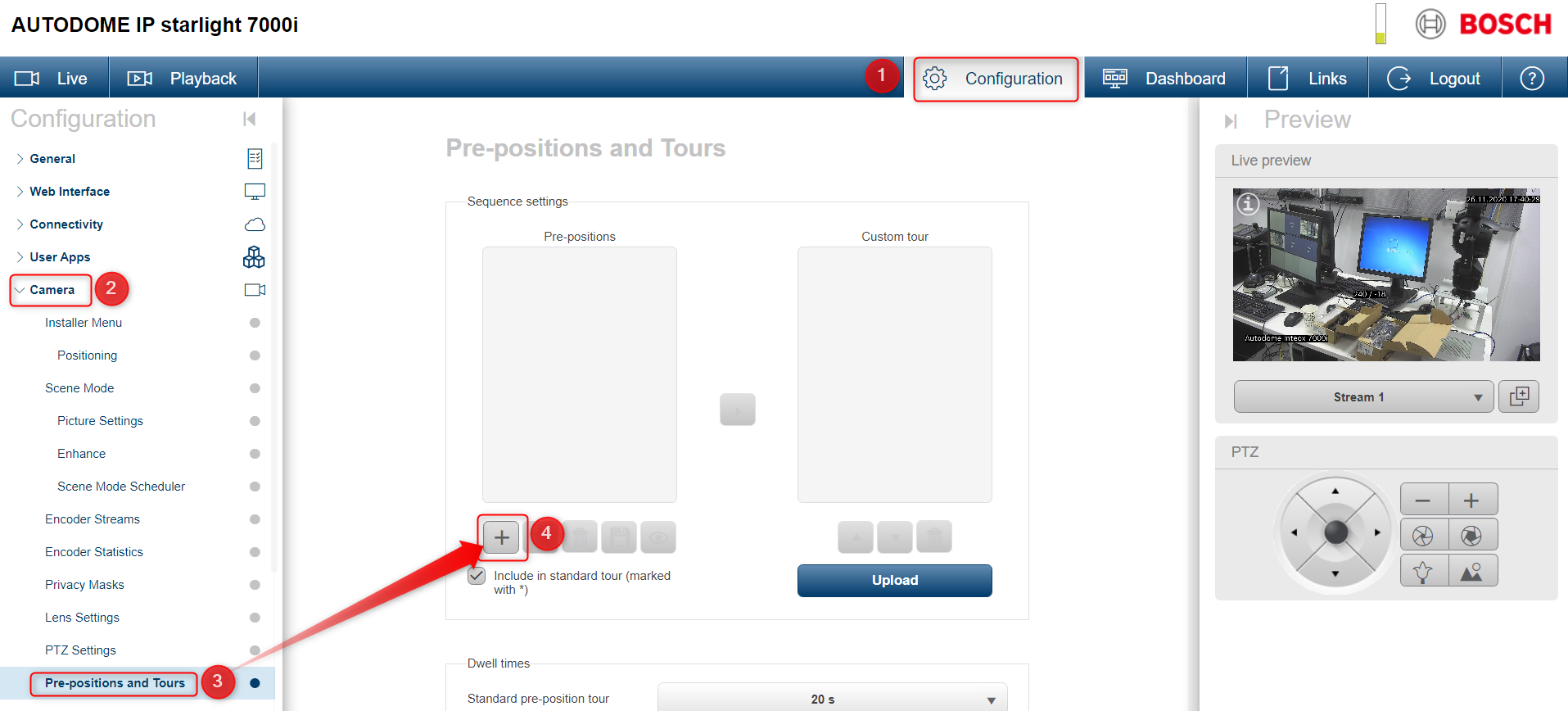
1. Go to Configuration > Camera > Pre-positions and Tours > Pan, tilt and zoom the image you desire and click on the + button for adding the new pre-position
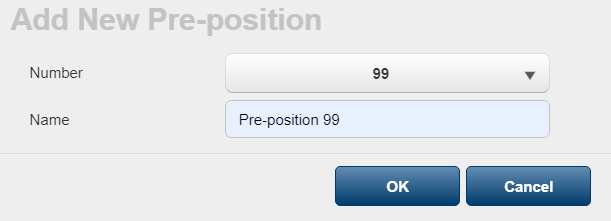
2. Select 99 from the drop-down list, near Number and fill in the pre-position name
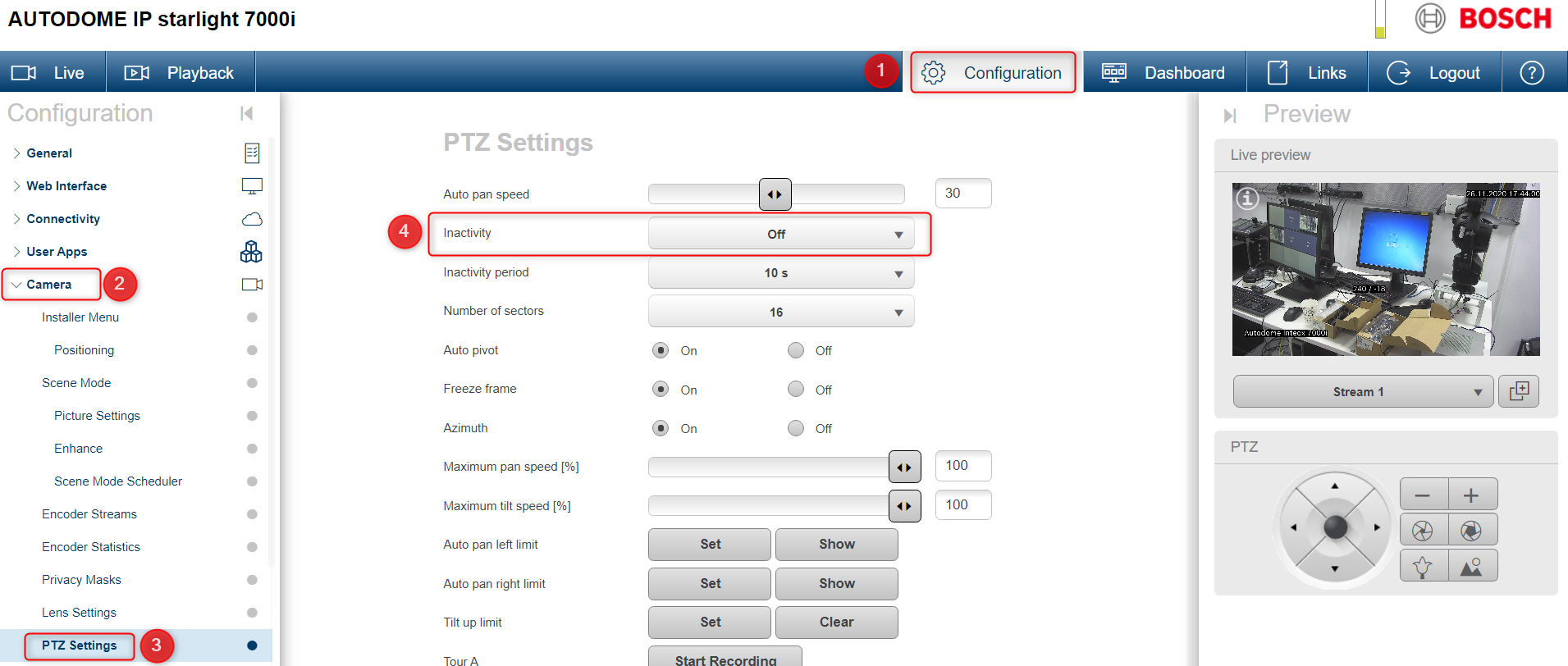
3. Inactivity option must be disabled. Go to "PTZ settings" and make sure that the Inactivity is set to Off
Add the script
1. Select Configuration > Alarm > Alarm Task Editor > paste the script inside of the box and click on the Set button
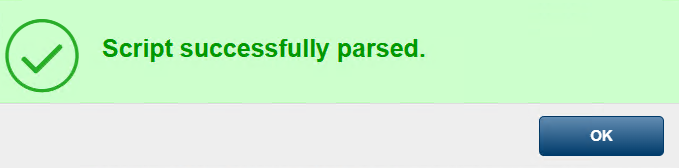
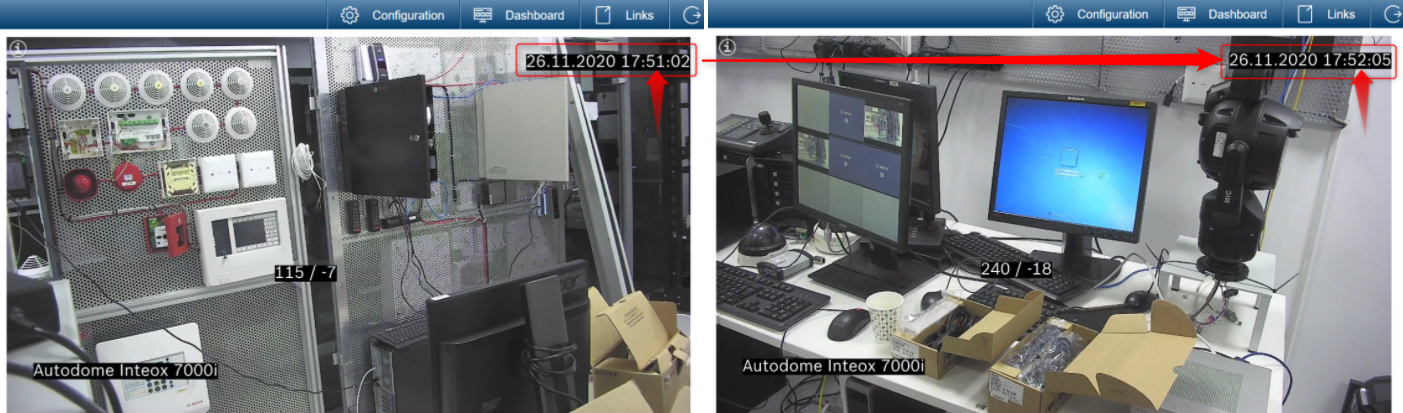
2. Go to the Live view, move the camera in other position and wait for 60 seconds.
The PTZ camera will move to the pre-position 99 during its inactivity: