🕒 This procedure takes in average ~ 2 min to complete
This article explains how can you unregister a DIVAR IP and then disconnect it from Remote Portal.
If for any reason, later on the DIVAR IP needs to be removed from Remote Portal, follow the steps below:
Step-by-step guide
1. Open DIVAR IP System Manager from DIVAR IP Windows Desktop
2. Select the Remote Portal connection tab
3. Click the Disconnect button
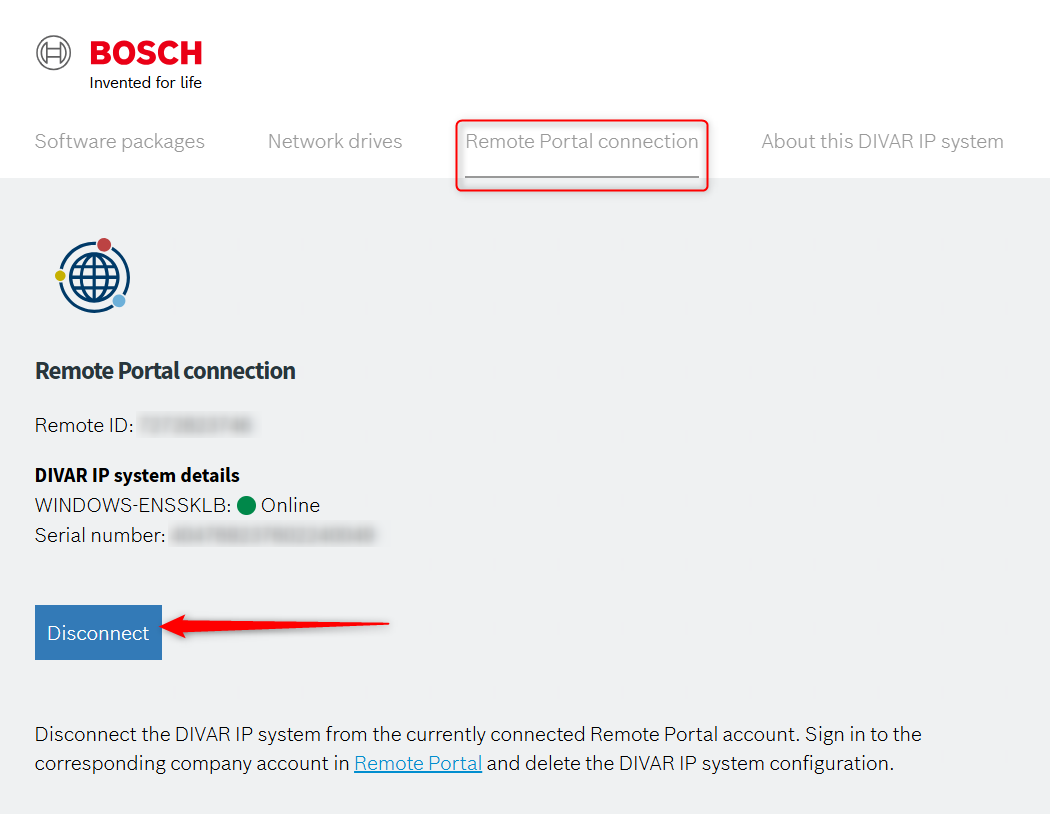
This action will only unregister the device from Remote Portal. To delete the device configuration in Remote Portal, sign in to the corresponding company account.
The DIVAR IP is now unregistered. The next step is to remove it from Remote Portal
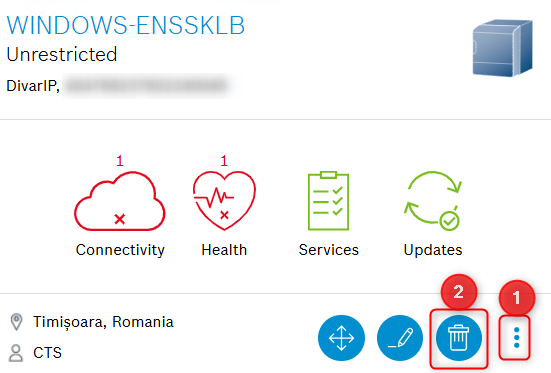
4. Login to your Remote Portal account > go to the System menu > select the Three dots icon on the DIVAR IP to be removed and select Delete

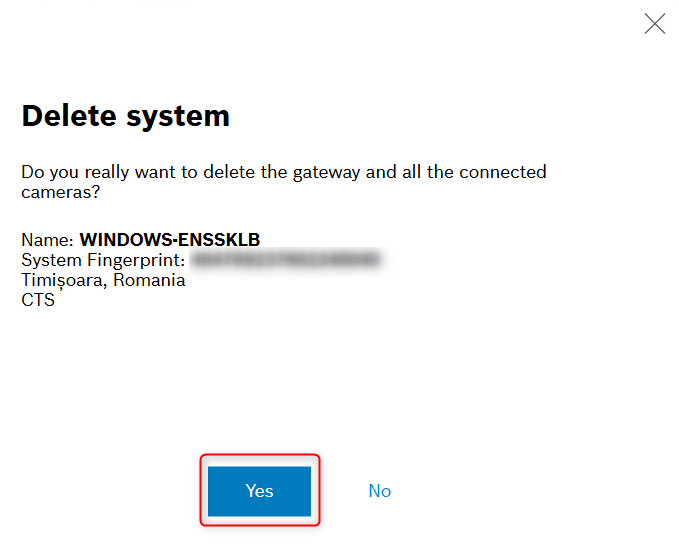
5. Click Yes to remove the system from Remote Portal
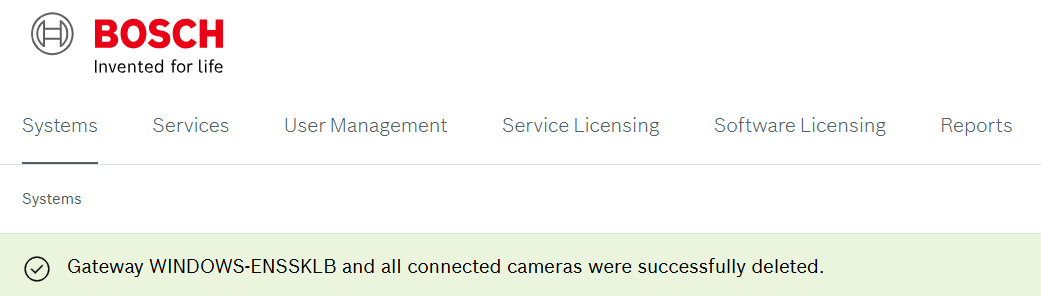
A green banner shows that the DIVAR IP, with its connected cameras was removed from Remote Portal


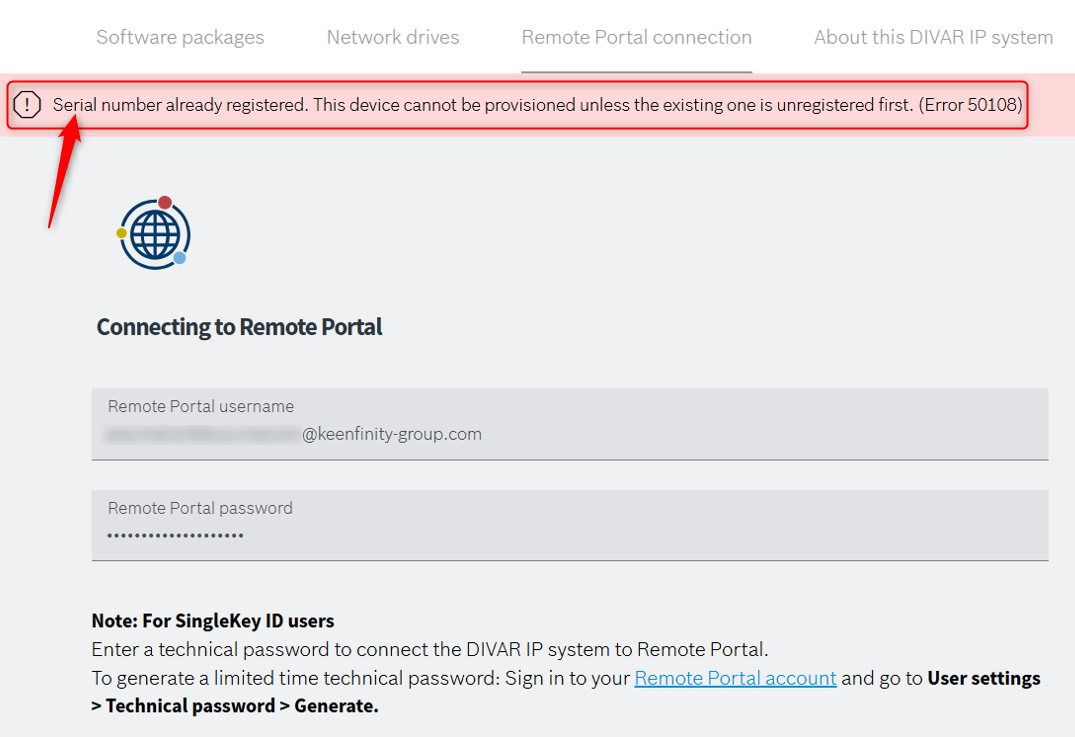
Be aware that you will not be able to register the DIVAR to another account by simply clicking the “Disconnect” button and entering the credentials for the other account. If you will do that, the "Serial number already registered. This device cannot be provisioned unless the existing one is unregistered first. (Error 50108)" message will be displayed.
Therefore, please sign in to the corresponding company account where it was previously registered and delete the device from Remote Portal, after clicking the “Disconnect” button.