📚 Table of contents
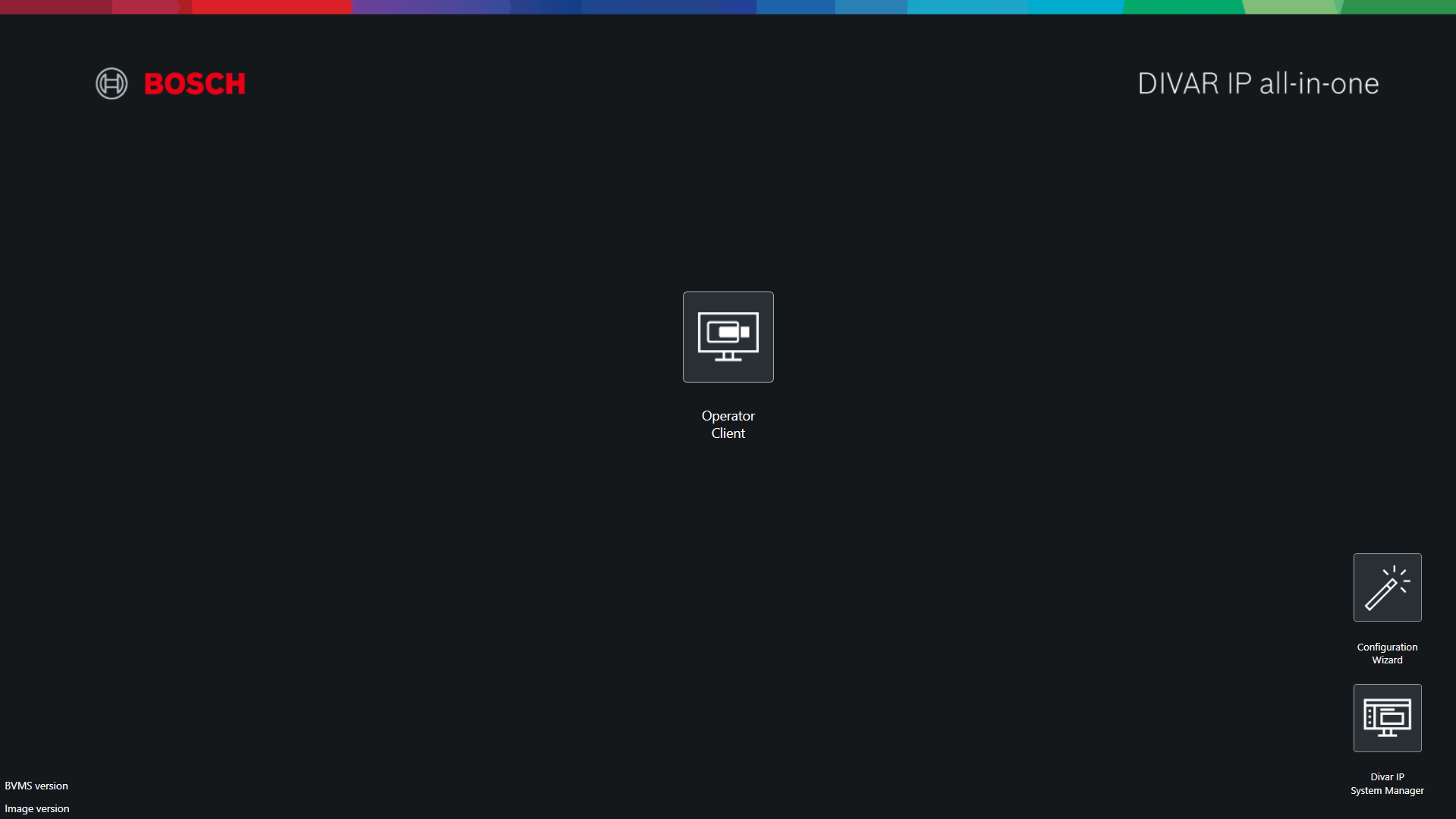
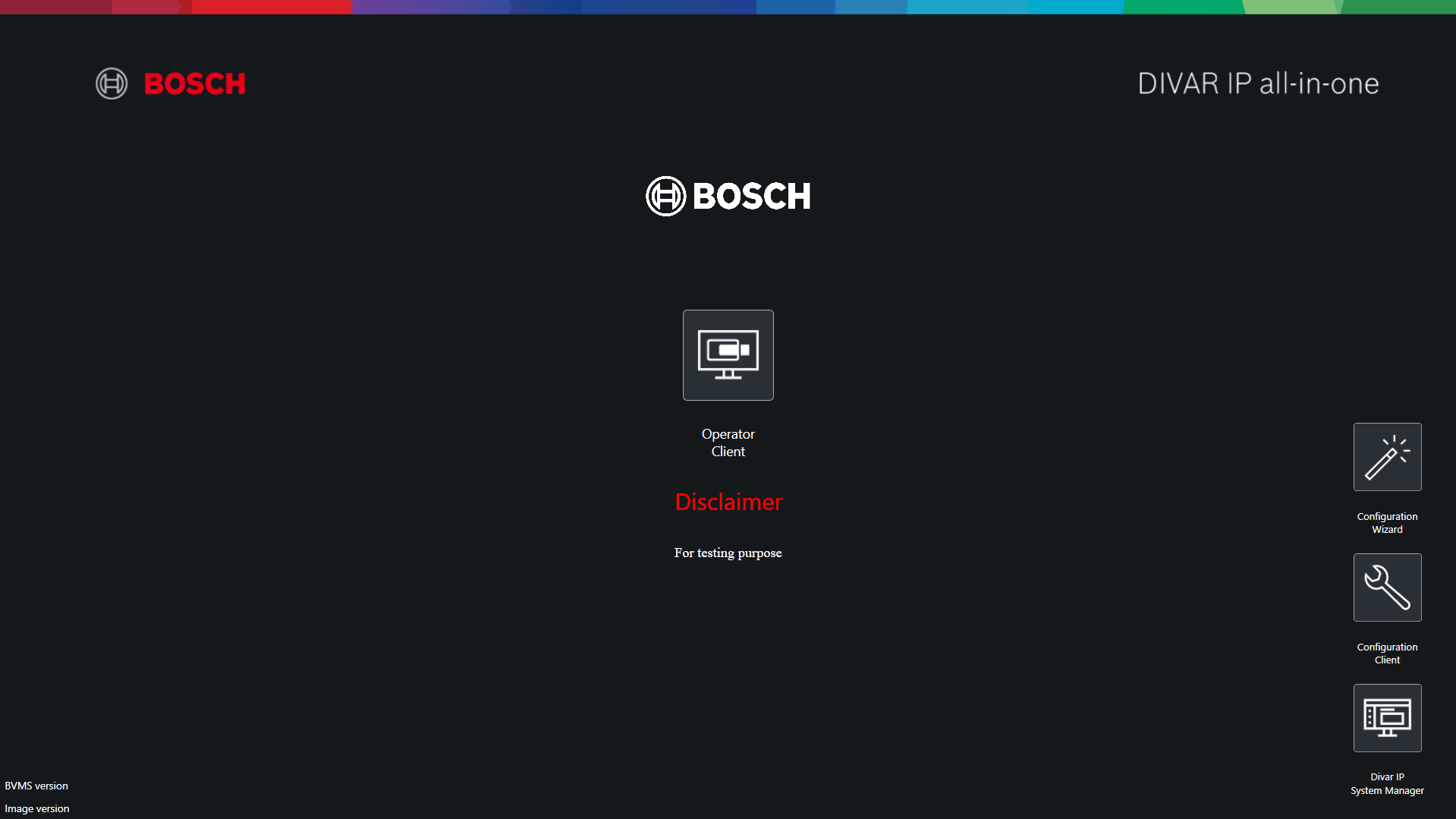
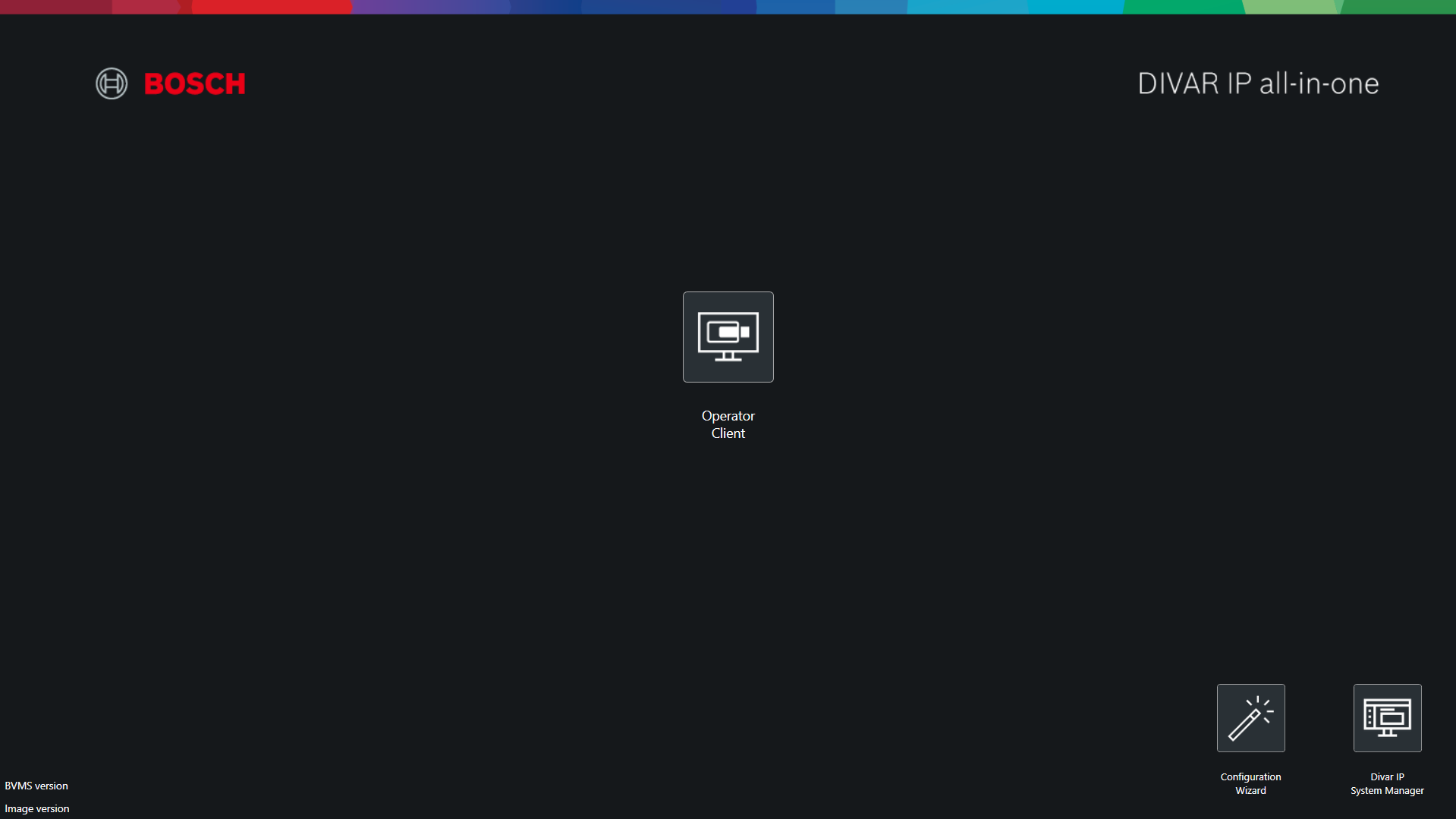
BVMS Desktop screen (BVMS Kiosk screen) has several customization possibilities for introducing a company logo picture and a custom text, as well as selecting if an application icon will appear on the screen or not.
Follow this article to see the guidance on how to make these customizations.
Pre-Requisites
-
DIP on BVMS Operation Mode 12.1.0 or later
Step-by-step guide
1. Log-in to BVRAdmin account as described in the User manual
2. Go to C:\Program Files\Bosch\SysMgmService\apps\kiosk-mode\current\
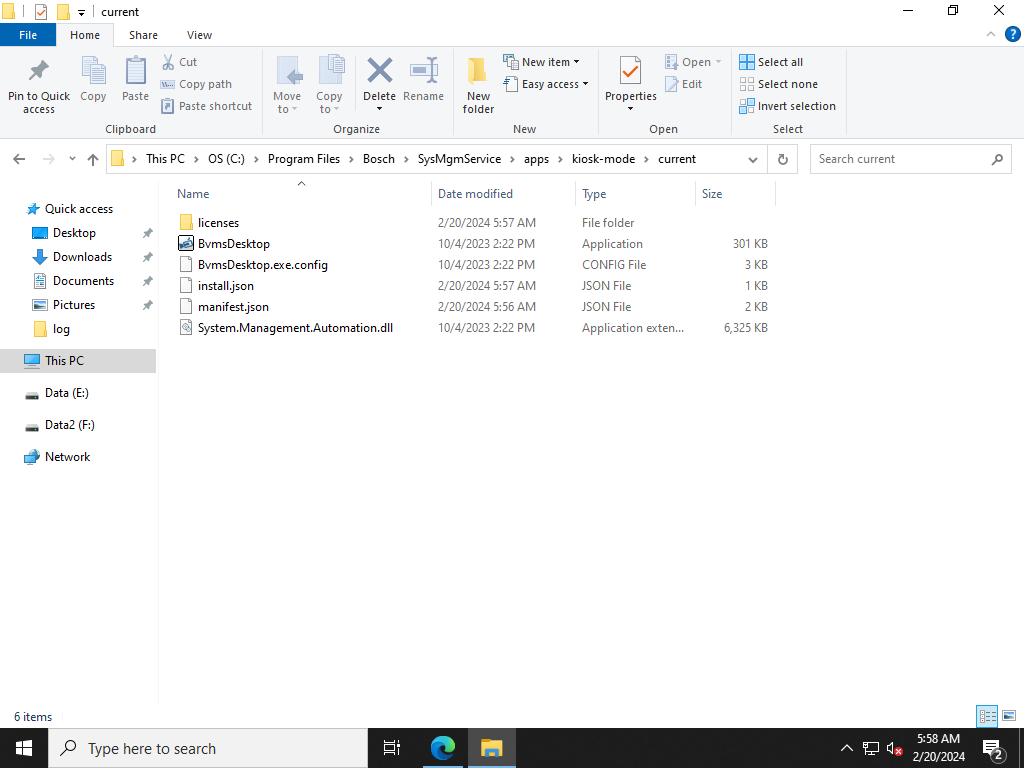
You will find the following files:
-
BvmsDesktop.exe
-
BvmsDesktop.exe.config
-
System.Management.Automation.dll
-
install.json
-
manifest.json
3. Backup the current Kiosk Mode Configuration file BvmsDesktop.exe.config
-
Save this backup in some safe place (e.g. Documents)
-
(warning) It is strongly recommended to do this backup to recover in case of failures
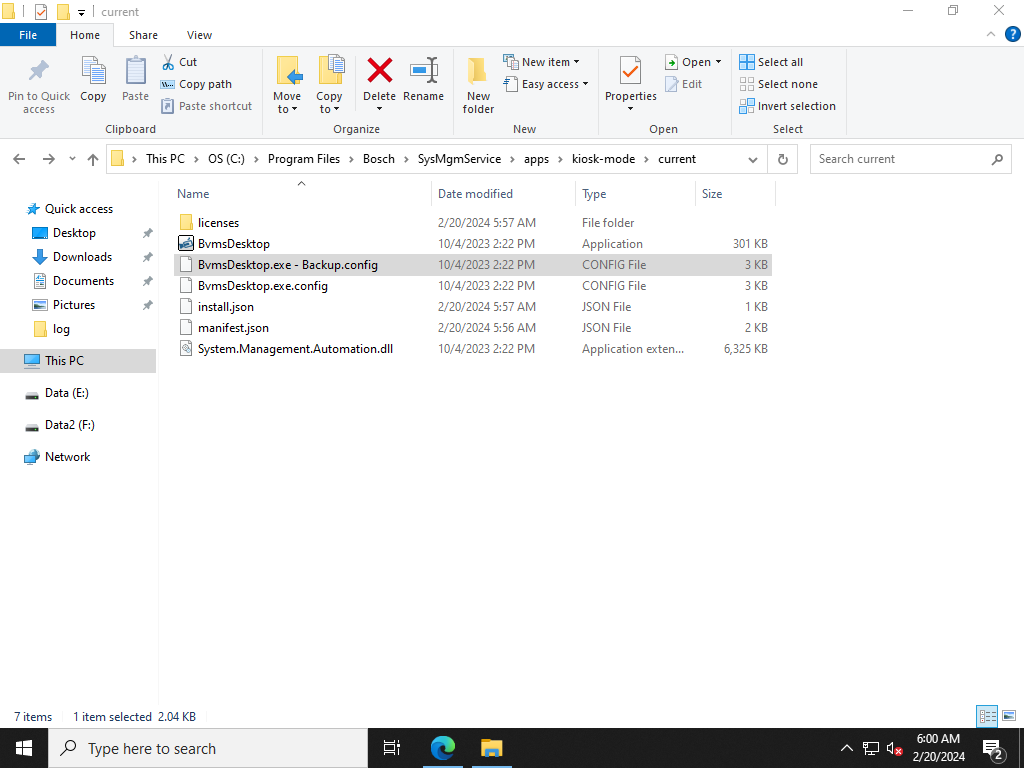
4. Start your customization
4.1. Copy the Logo and the Disclaimer Text in the path as described in the step 2
-
Ignore these steps in case you don't have this files to apply in the customization
-
Please be aware of the supported types in the customization options
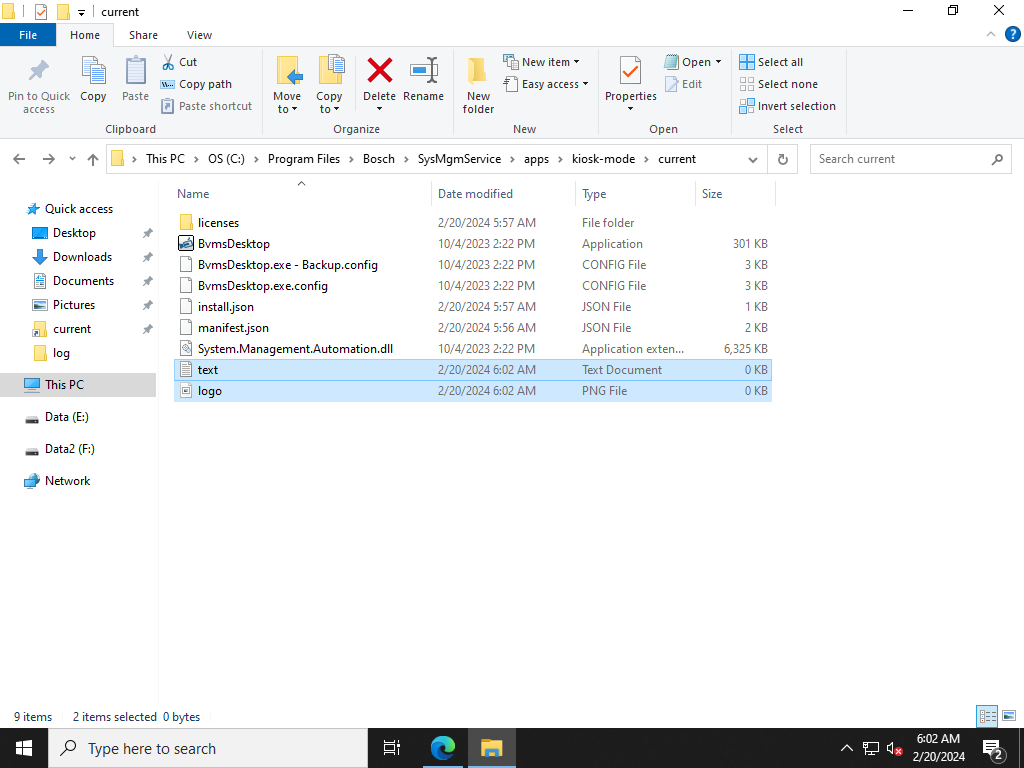
4.2. Edit file BvmsDesktop.exe.config using notepad
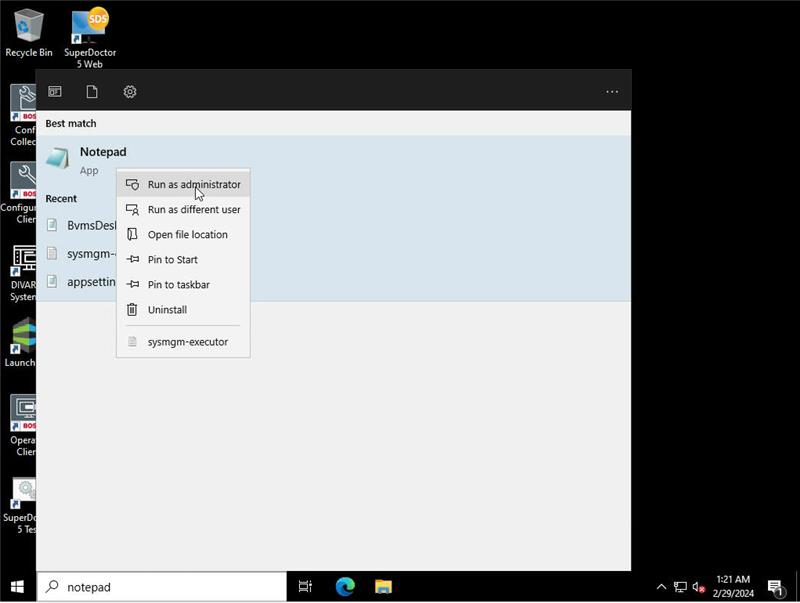
Due to security settings of the device, start notepad as administrator
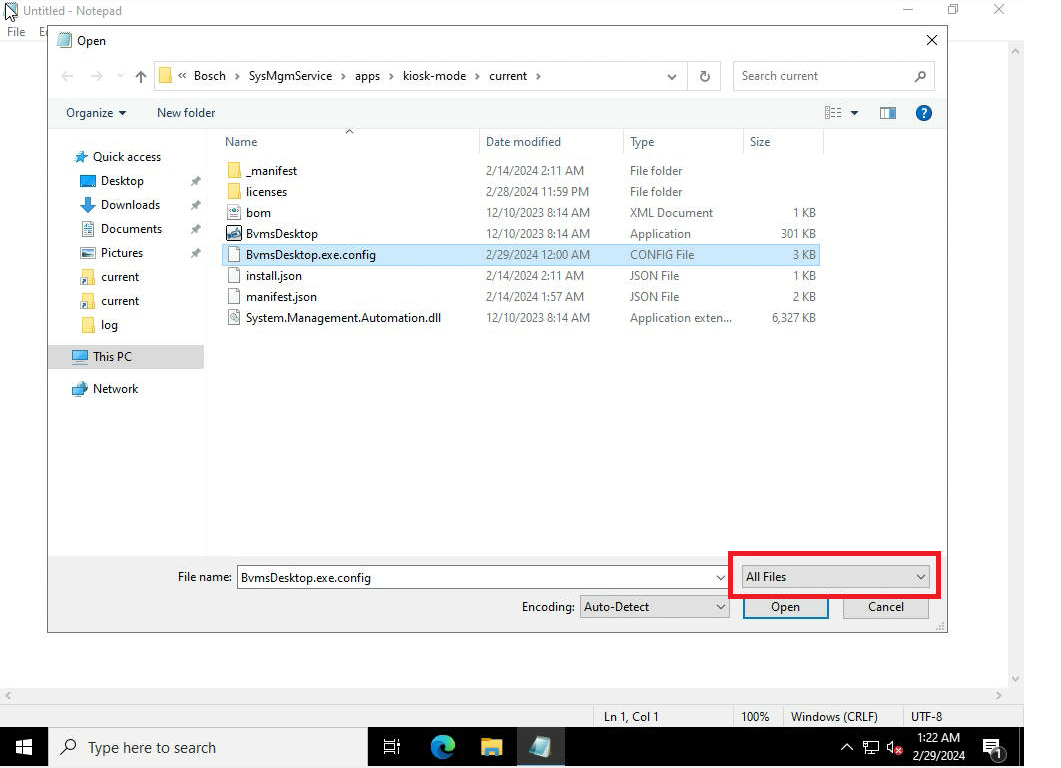
In the file filtering option, select "All files" option
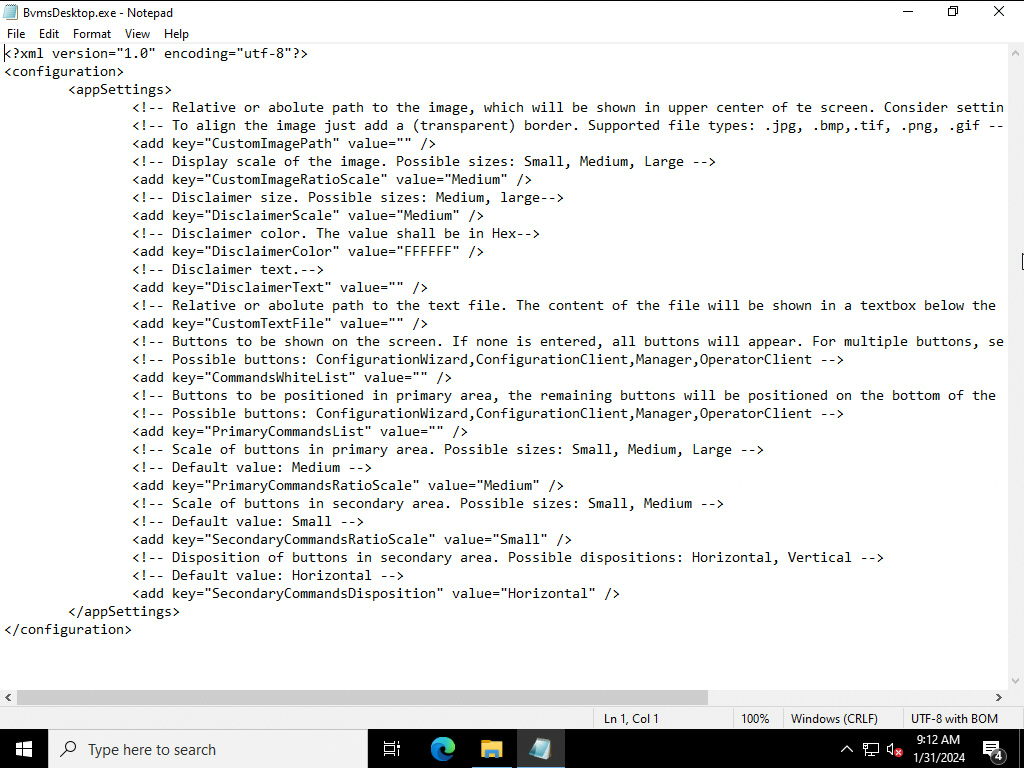
4.3. Change to possible values to apply your customization on BvmsDesktop.exe.config
-
Follow the customization options details to support
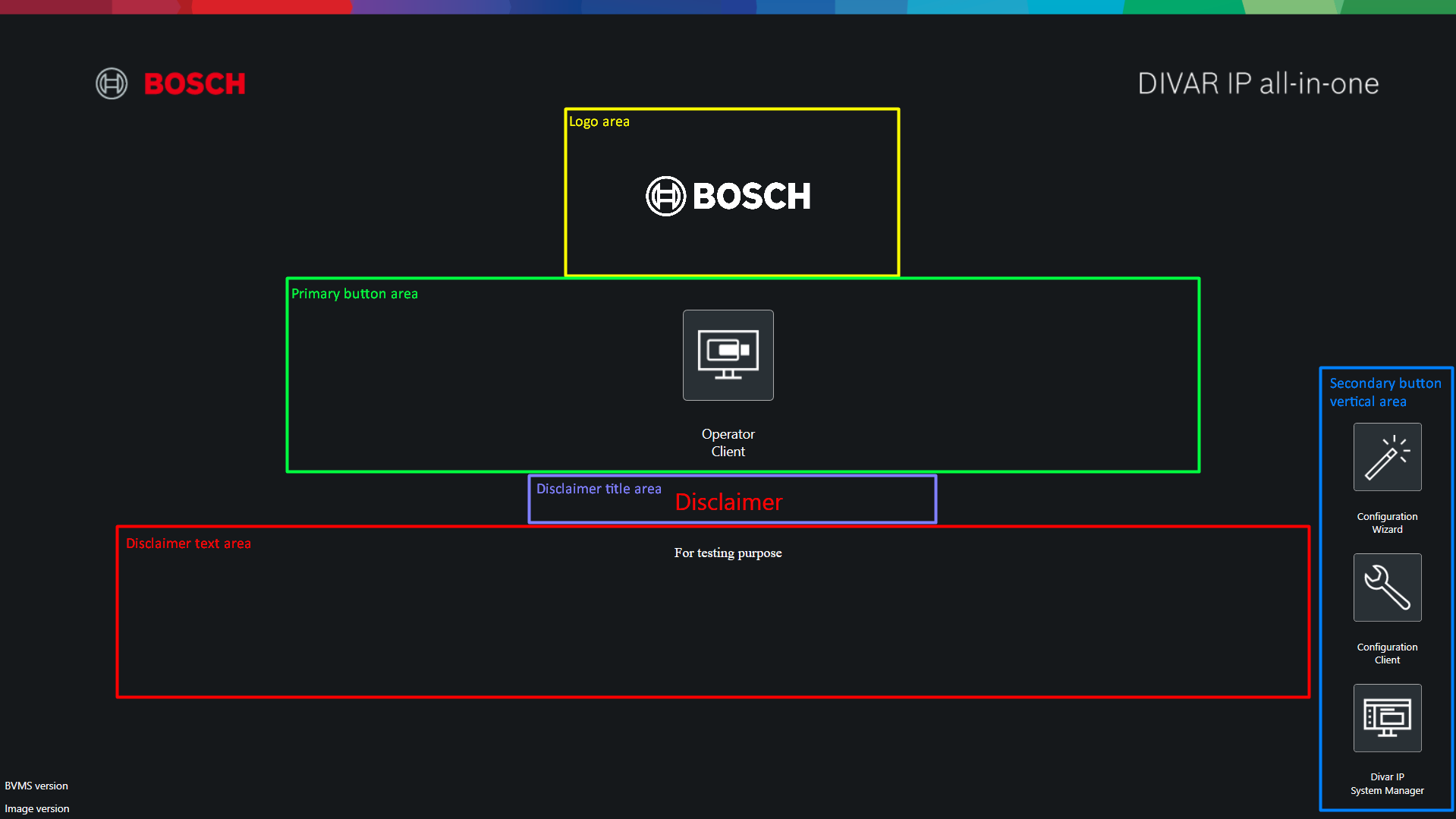
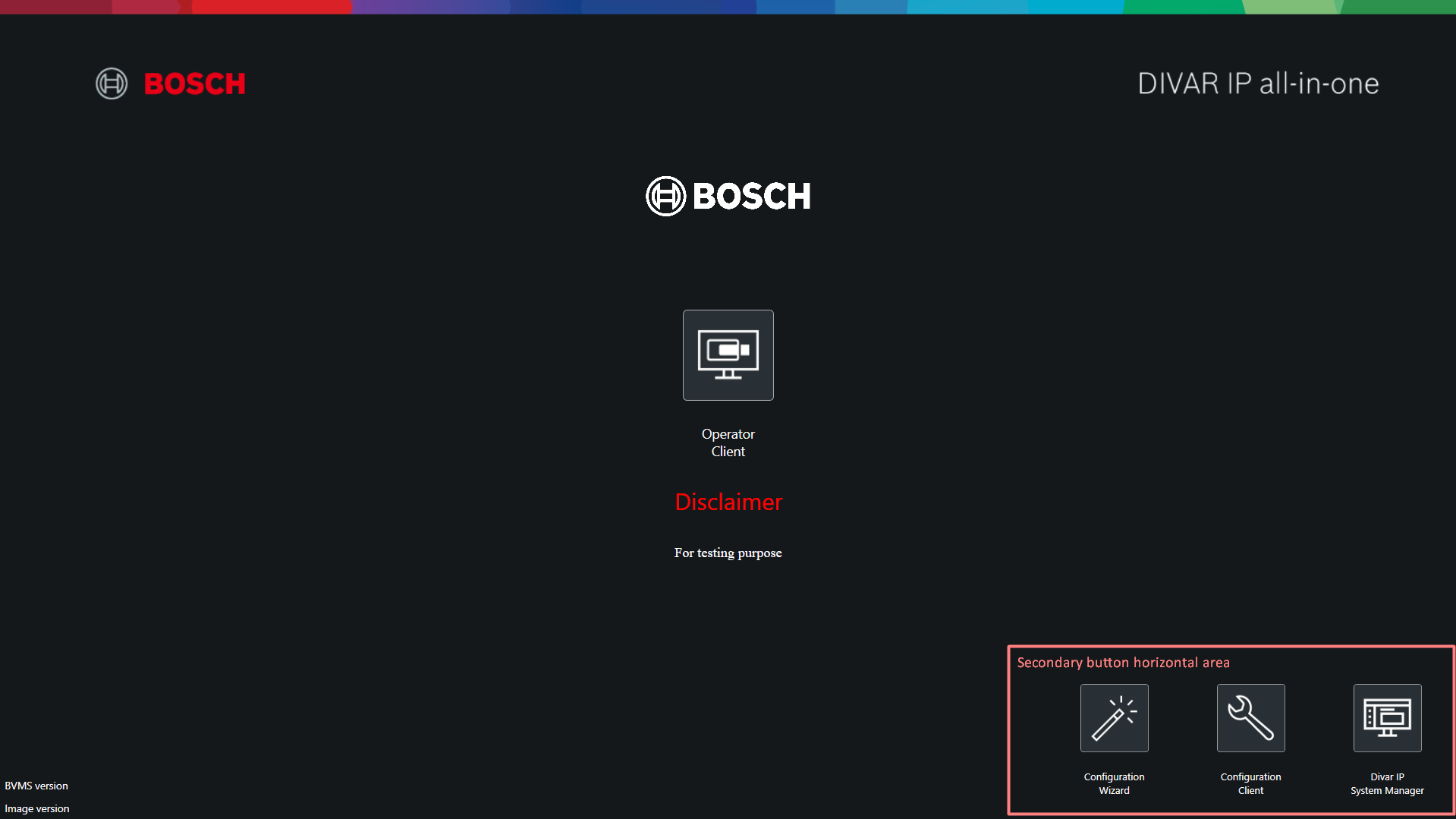
5. Test your customization
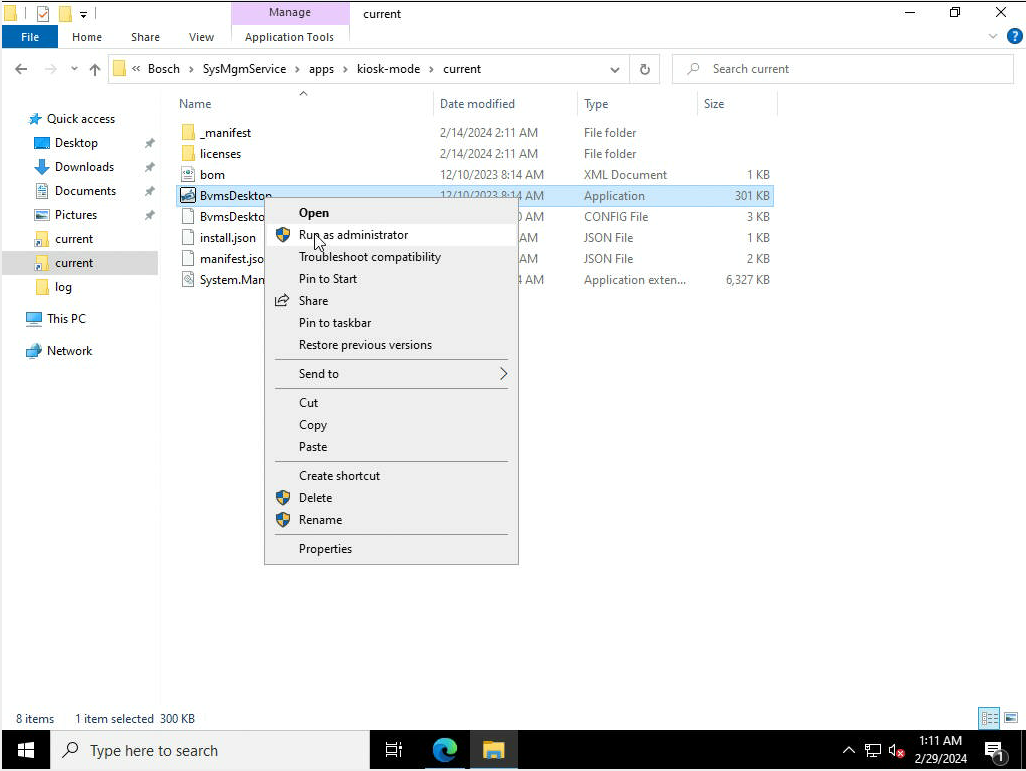
5.1. Right click on BvmsDesktop.exe, and run as Administrator
-
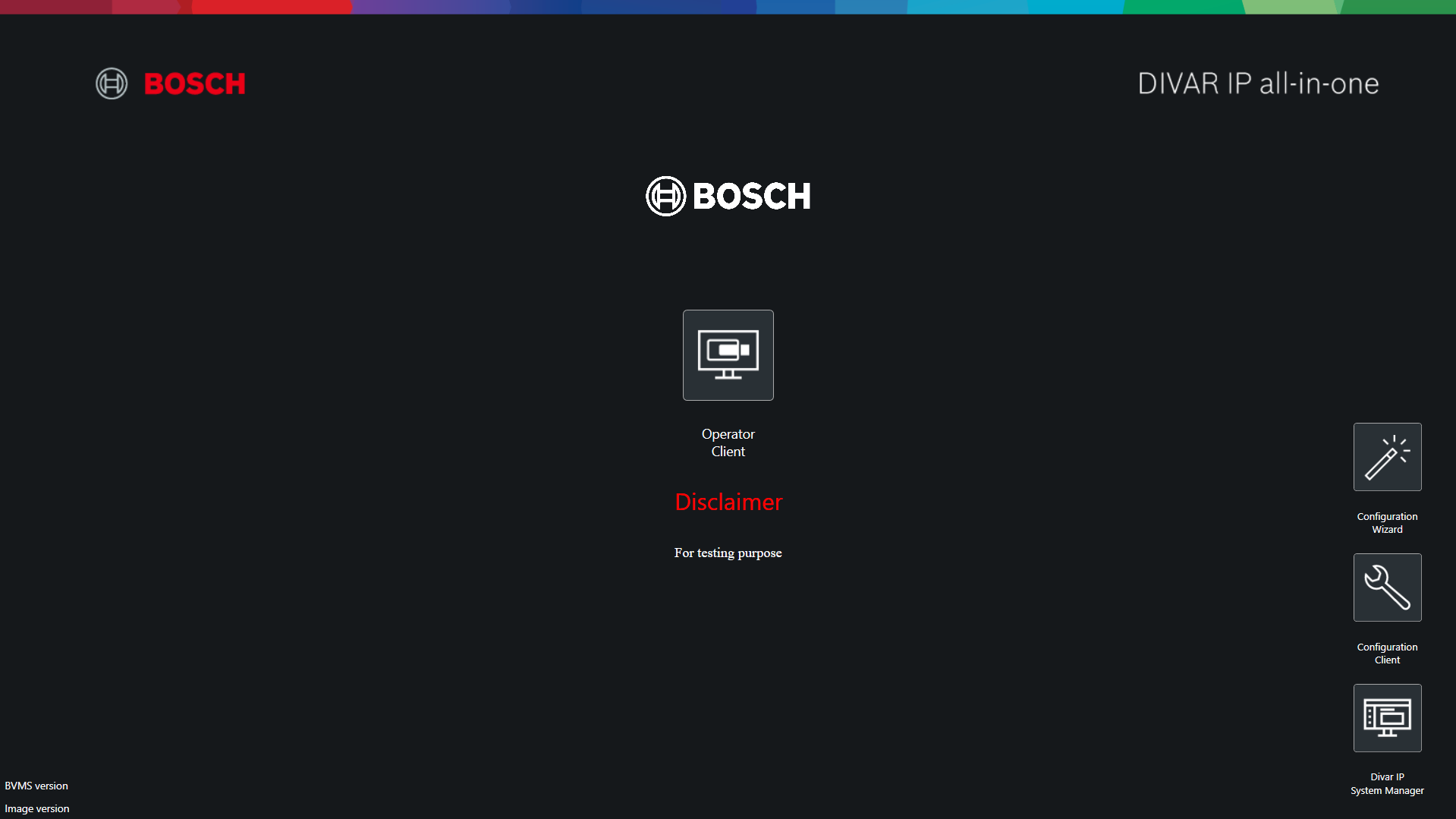
Kiosk Mode will open and you can see the customization result
-
If a black screen appears, it means that the BvmsDesktop.exe.config is broken. Please follow the instructions on point 6.3. (case of mess up)
-
Notice that an introduced misconfiguration could open the doors of the system to be exploited; please change it carefully.
5.2. Close BvmsDesktop.exe
5.2.1. Open Task Manager
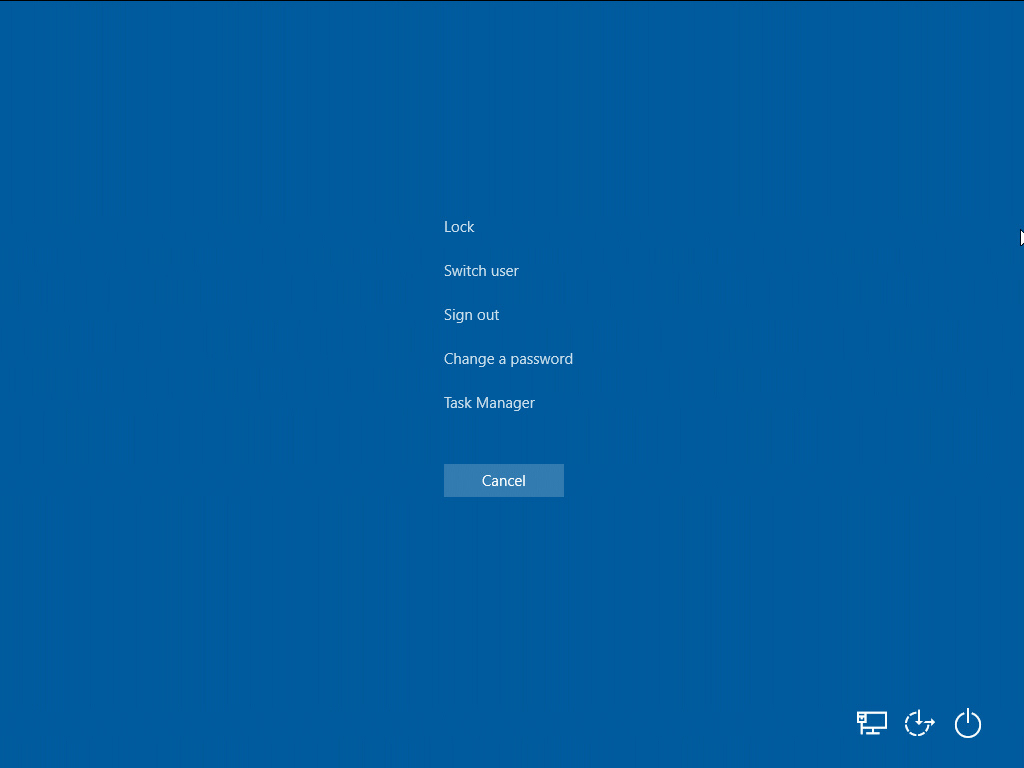
5.2.2. Search for BVMSDesktop Process
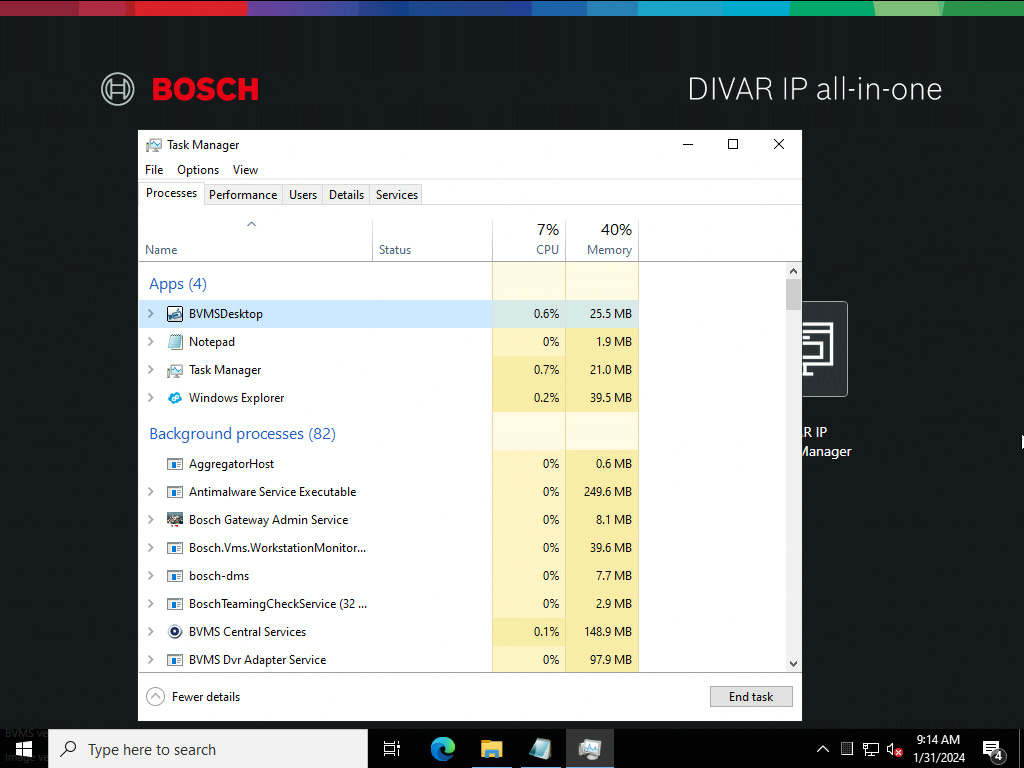
5.2.3. Right click over the BVMSDesktop Process to open context menu
5.2.4. Select the option End Task on the context menu
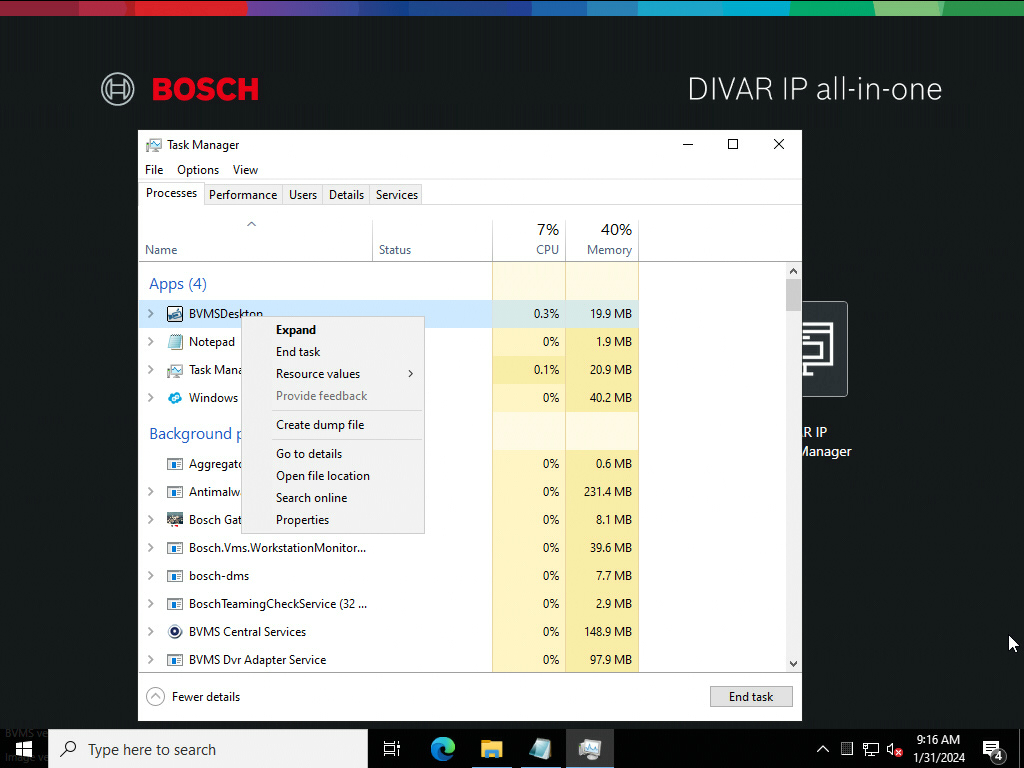
5.3. If you need to change again the customization, please repeat starting on point 5.2.
If you mess up the Kiosk Mode App (black screen), restore by overwrite the BvmsDesktop.exe.config with the backup from step 4 and start again on point 5.2
-
Notice that a introduced misconfiguration could open the doors of the system to be exploited; please change it carefully.
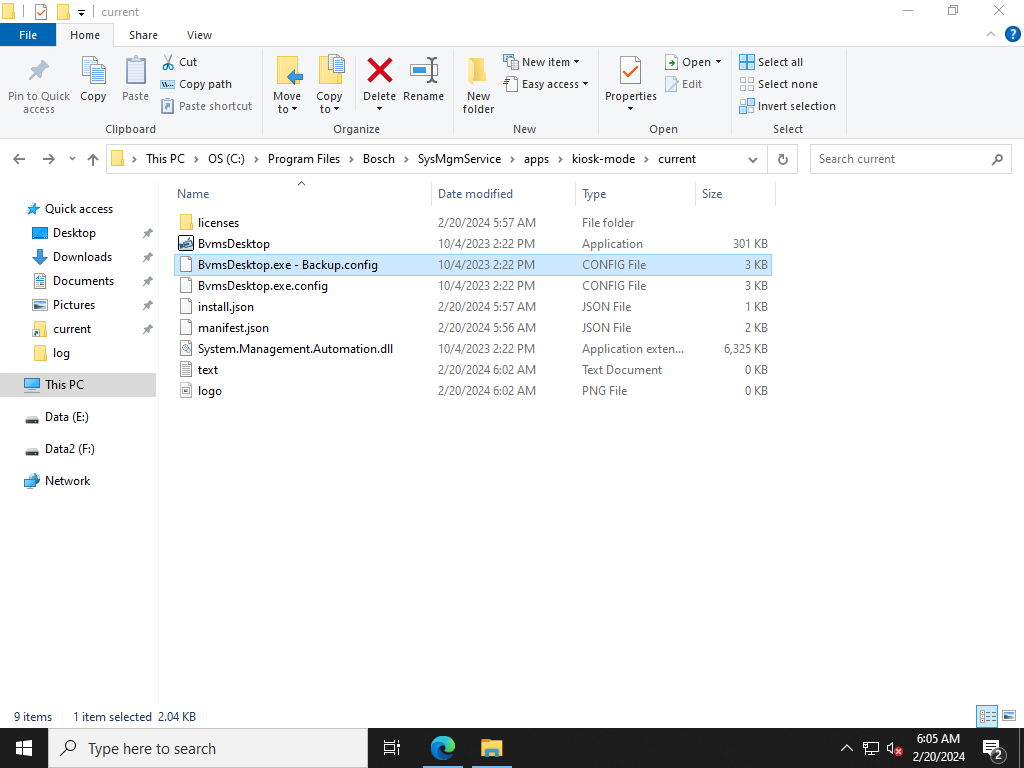
6. Customization completed.
6.1. Sign out from BVRAdmin
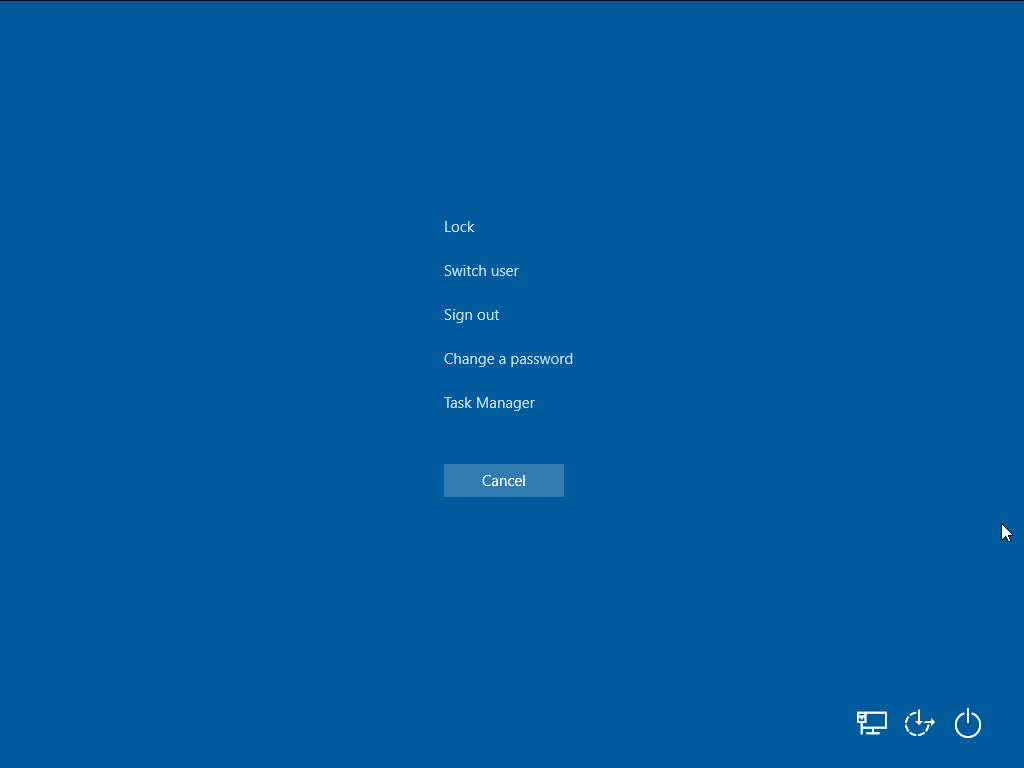
6.2. To ensure the new configurations are reloaded in the limited user account, sign out from limited user
The system will automatically sign-in to the Limited User again and will show the current customized Kiosk Mode
Customization
In short, in the BvmsDesktop.exe.config file we can customize the following components:
-
Logo
-
Disclaimer Info
-
Primary Menu Options
-
Secondary Menu Options
Customization Options
Logo
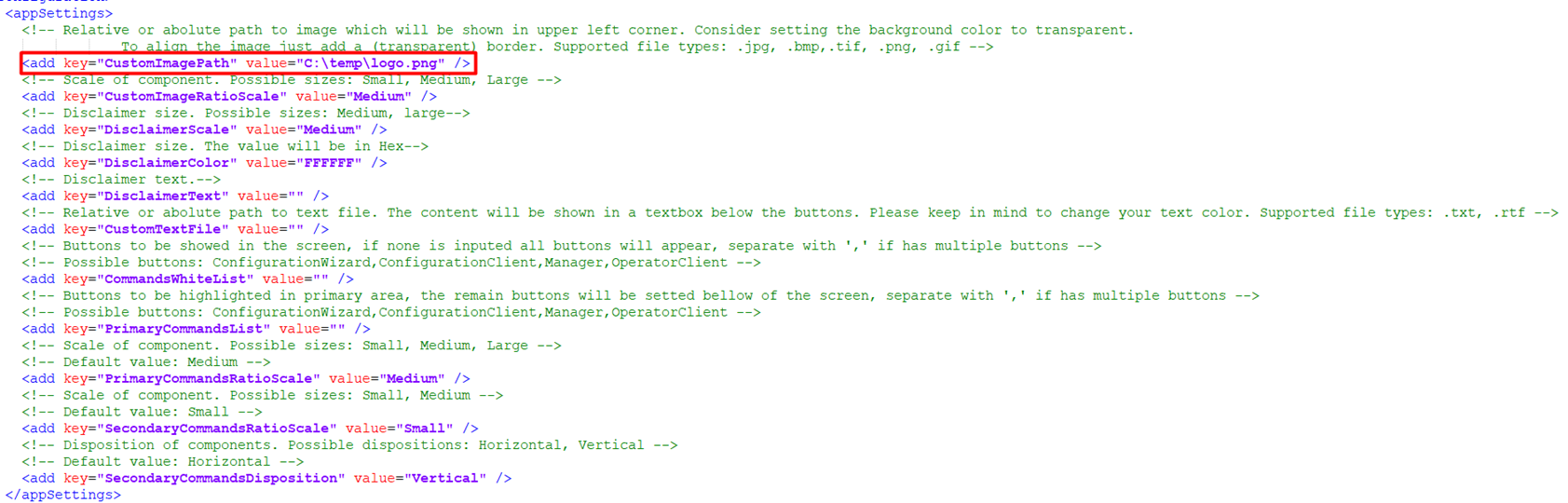
Custom Image Path
-
Key: CustomImagePath
-
Default Value: -
-
Possible Values: Full path to the image file
-
Notes: Supported file types: .jpg, .bmp,.tif, .png, .gif
-
Config:
-
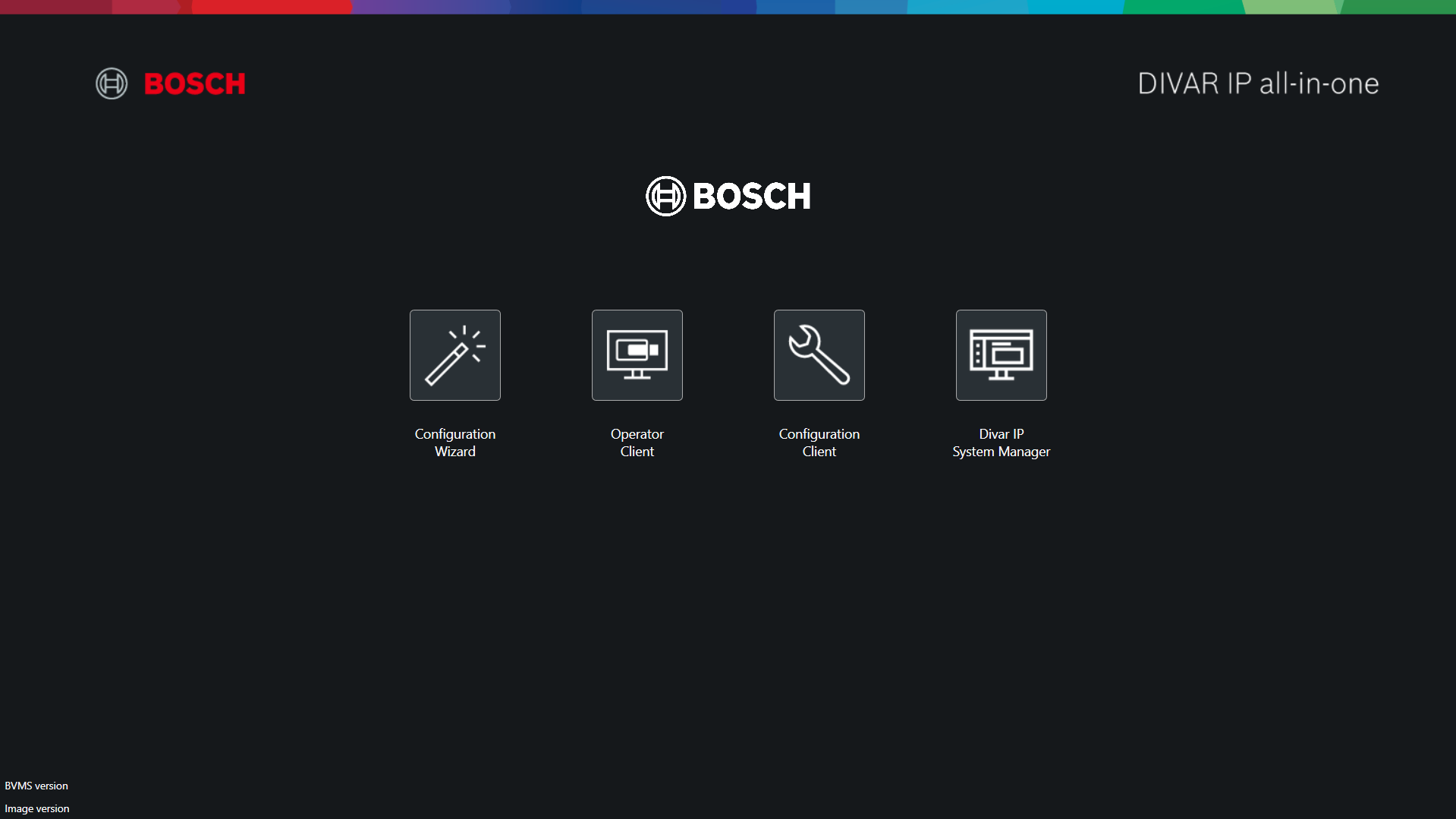
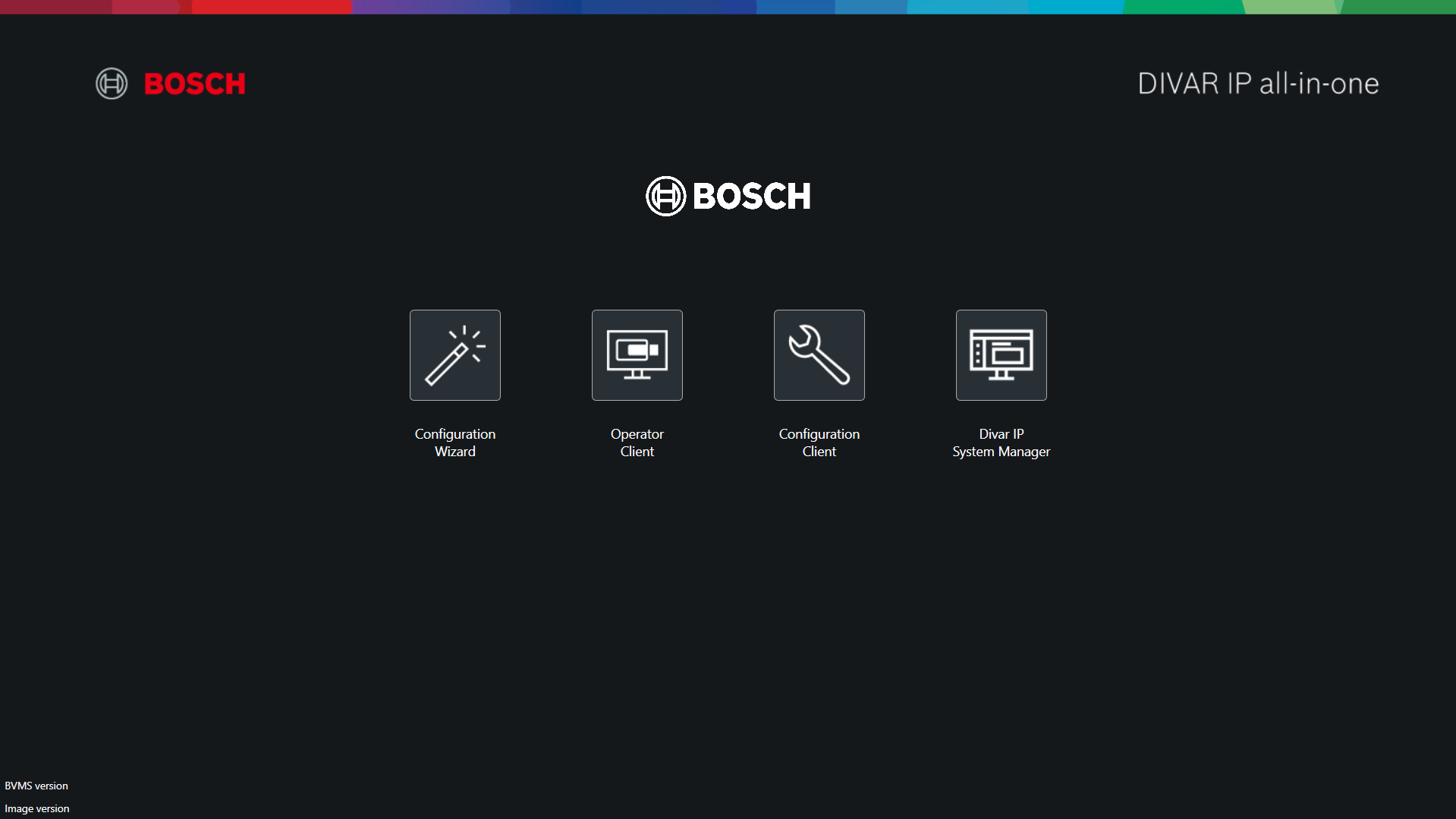
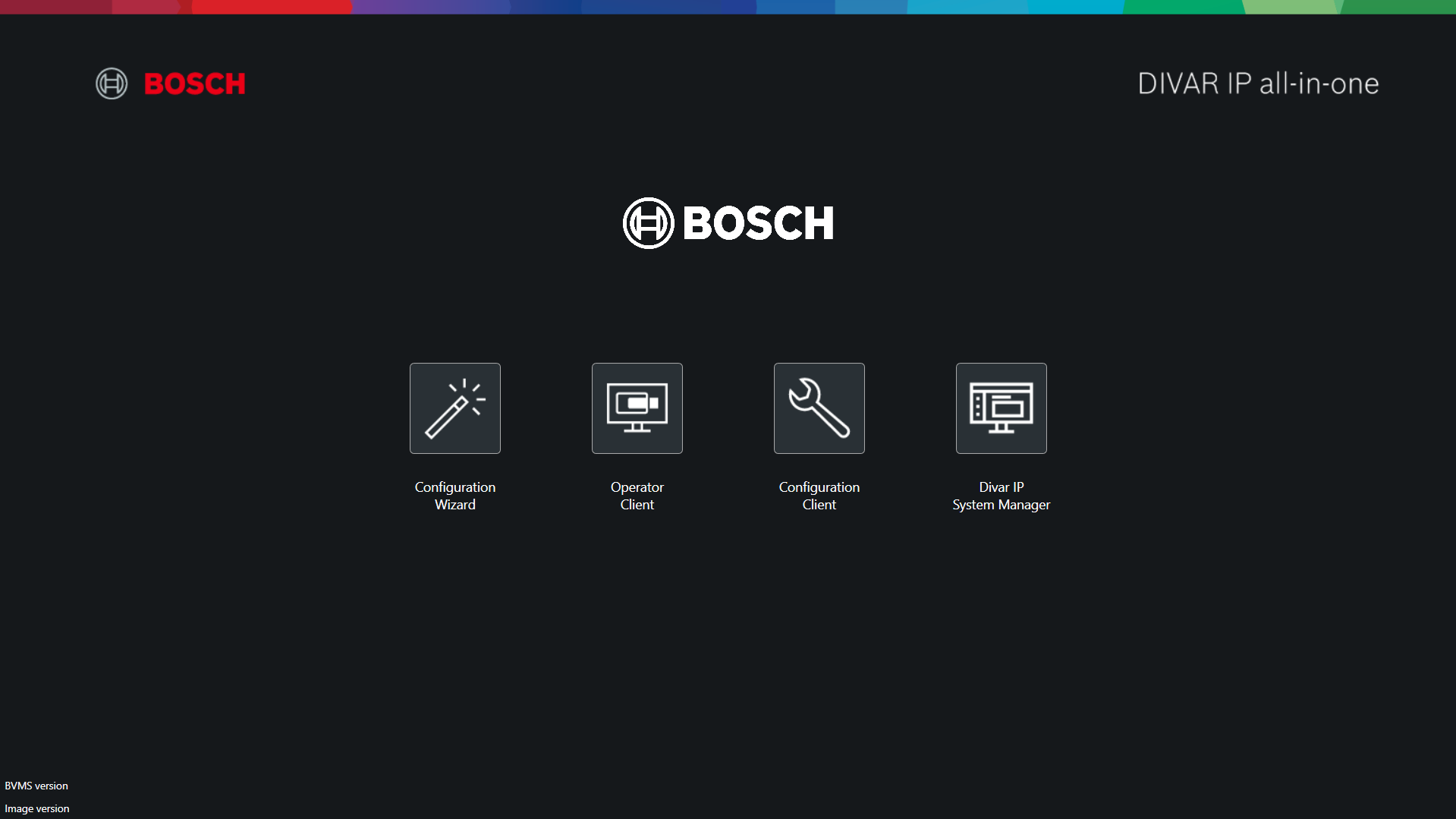
Preview:
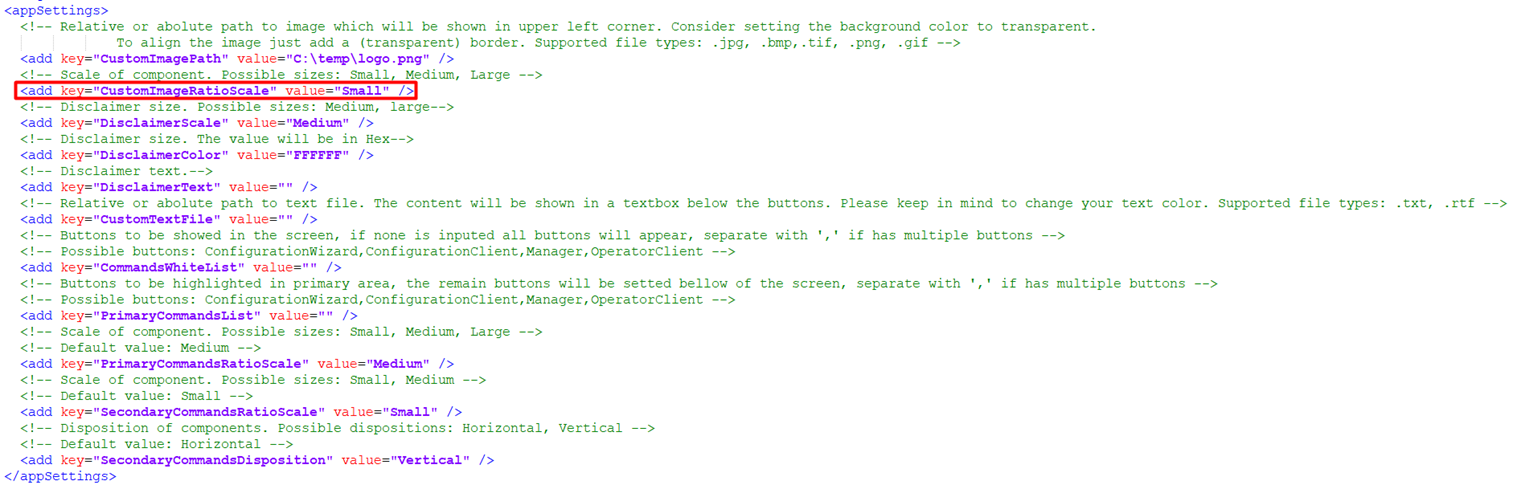
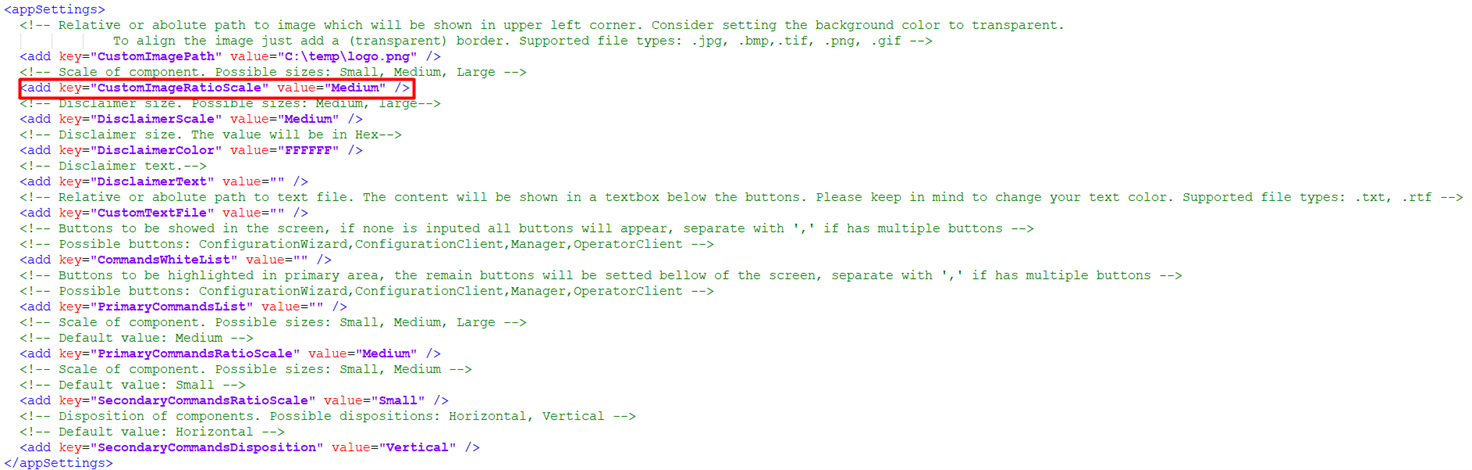
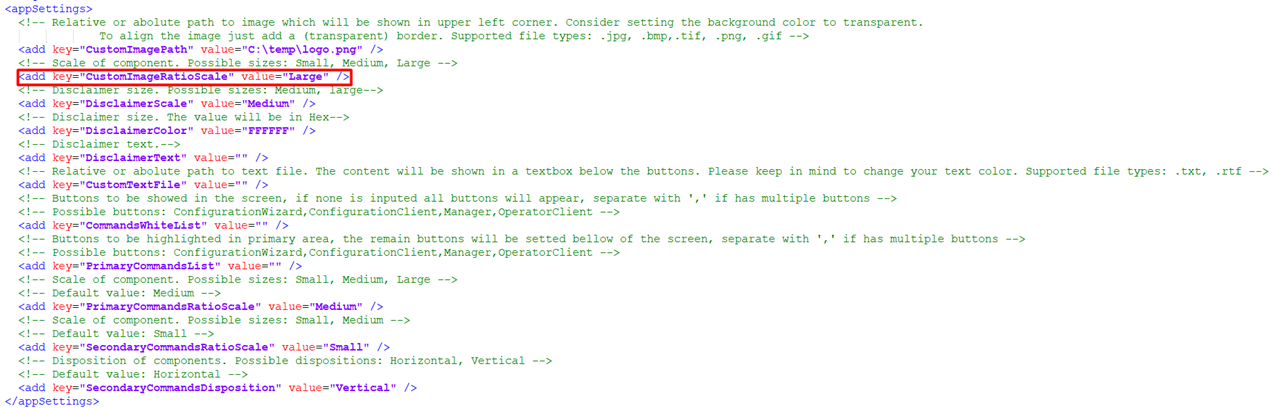
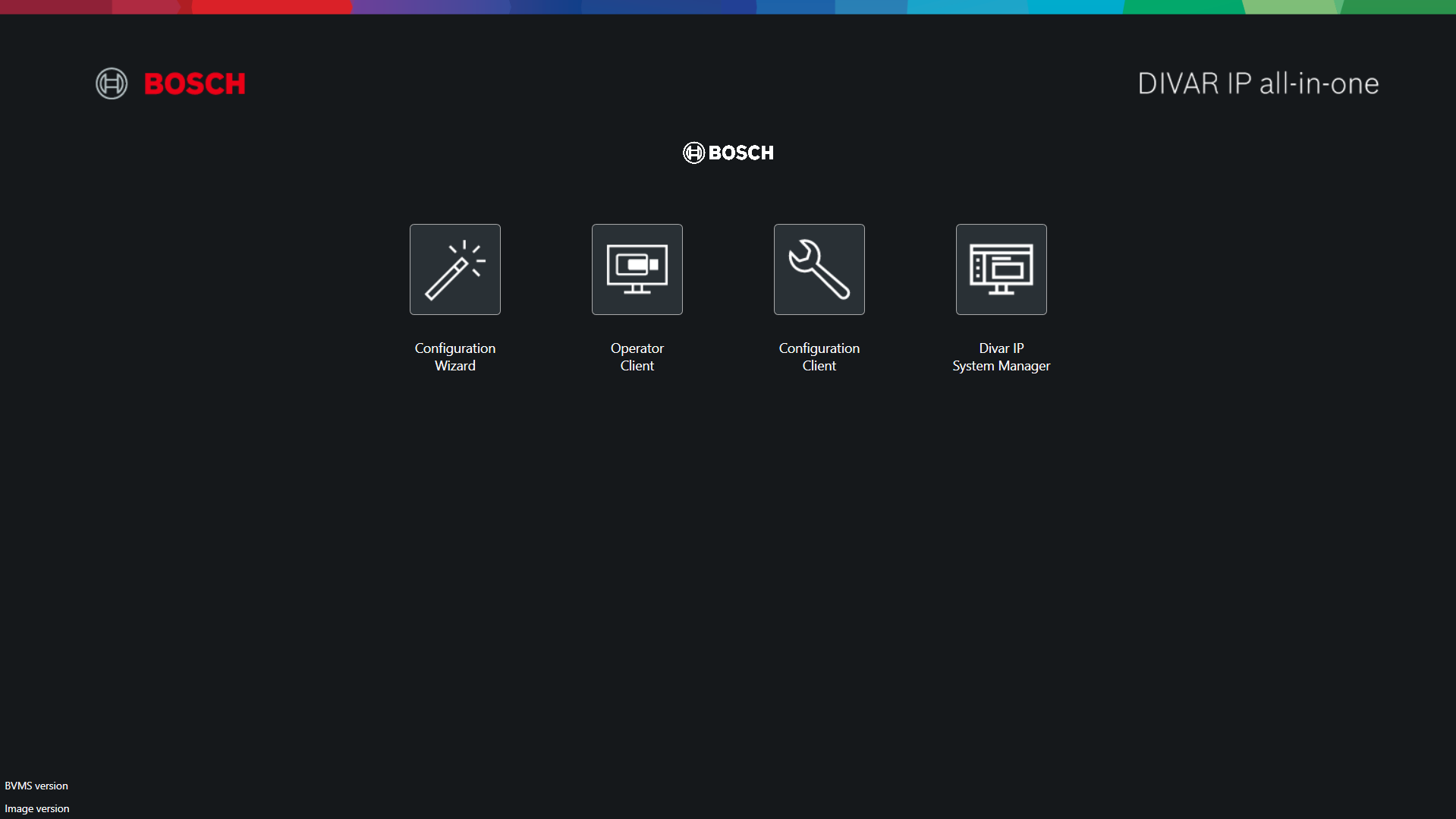
Custom Image Ratio Scale
-
Key: CustomImageRatioScale
-
Default Value: Medium
-
Possible Values:
-
Small
-
Medium
-
Large
-
-
Notes:
-
Small > 110x110
Medium > 200x200
Large > 256x256
-
-
Config:
-
-
Small:
-
-
-
Medium:
-
-
-
Large
-
-
Preview:
-
-
Small:
-
-
-
Medium:
-
-
-
Large:
-
Disclaimer Info
Disclaimer Text
-
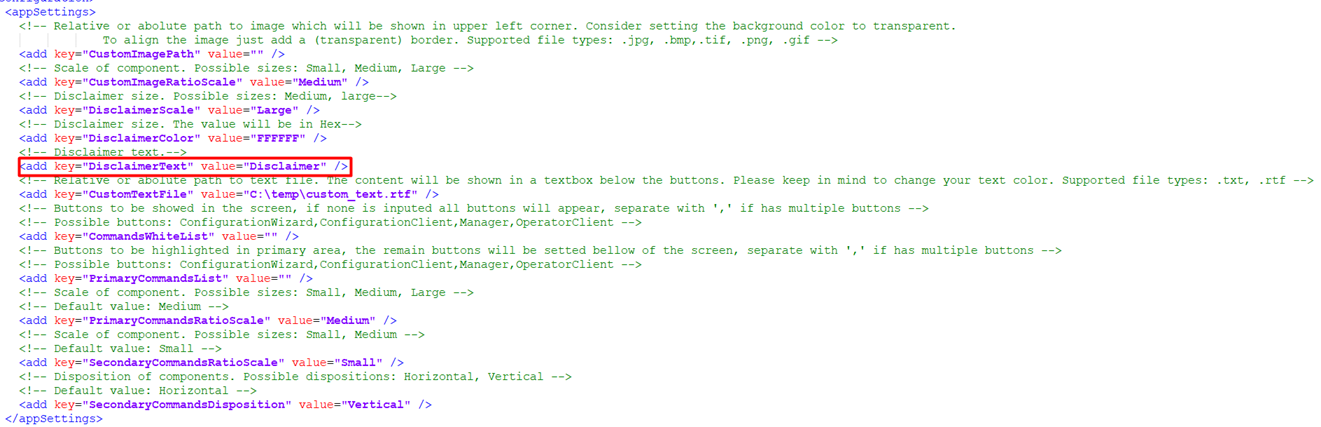
Key: DisclaimerText
-
Default Value: -
-
Possible Values: Any Text
-
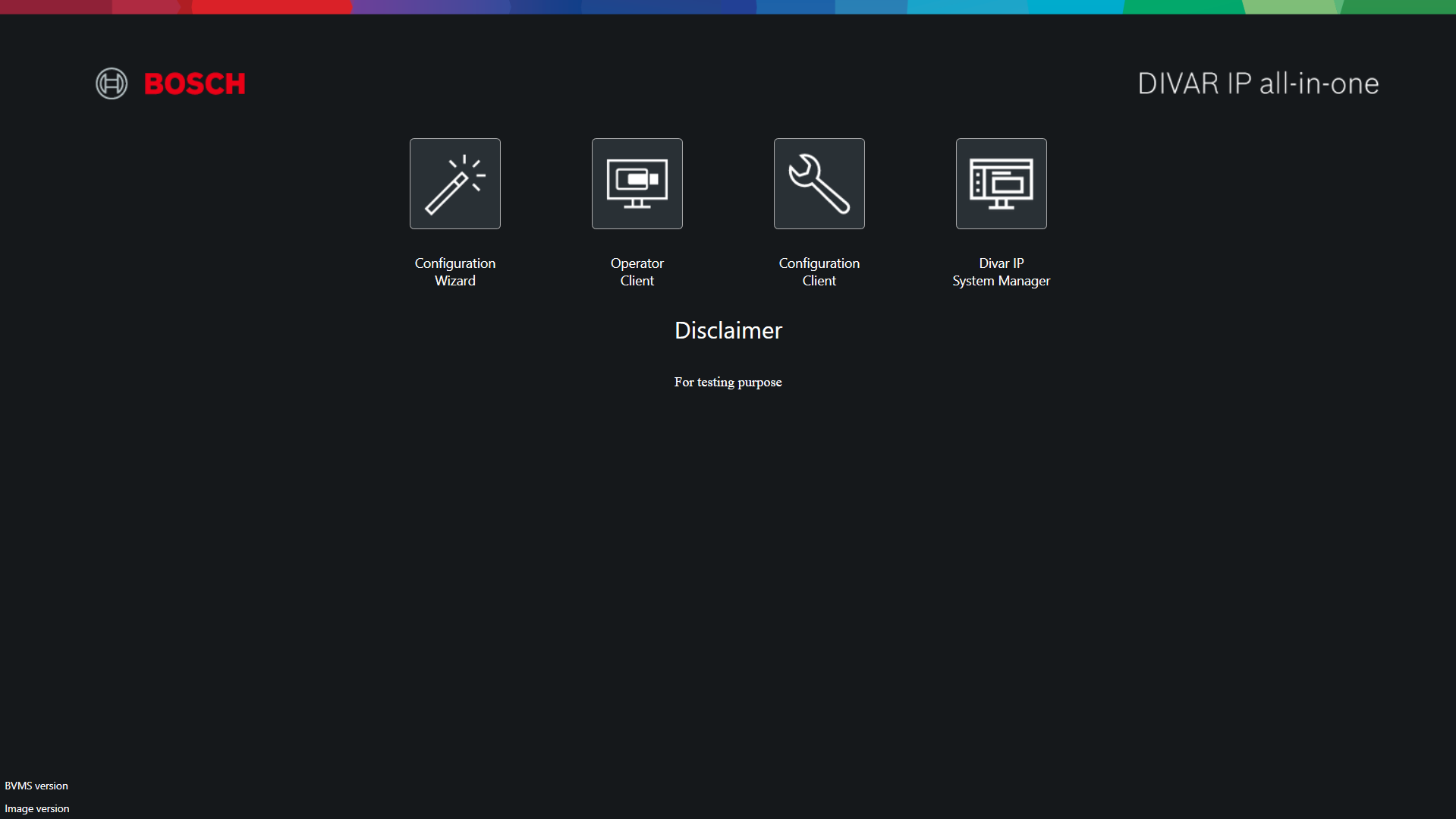
Notes: In this key you should write the Disclaimer Title
PS: The title only will appears if the CustomTextFile attribute value is filled -
Config:
-
Preview:
Disclaimer Scale
-
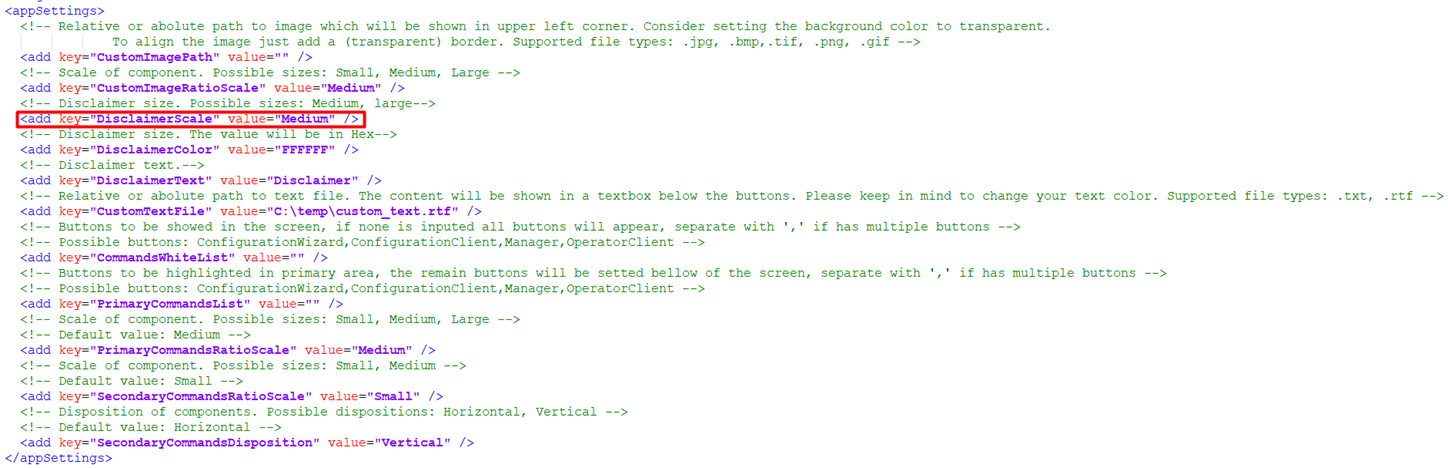
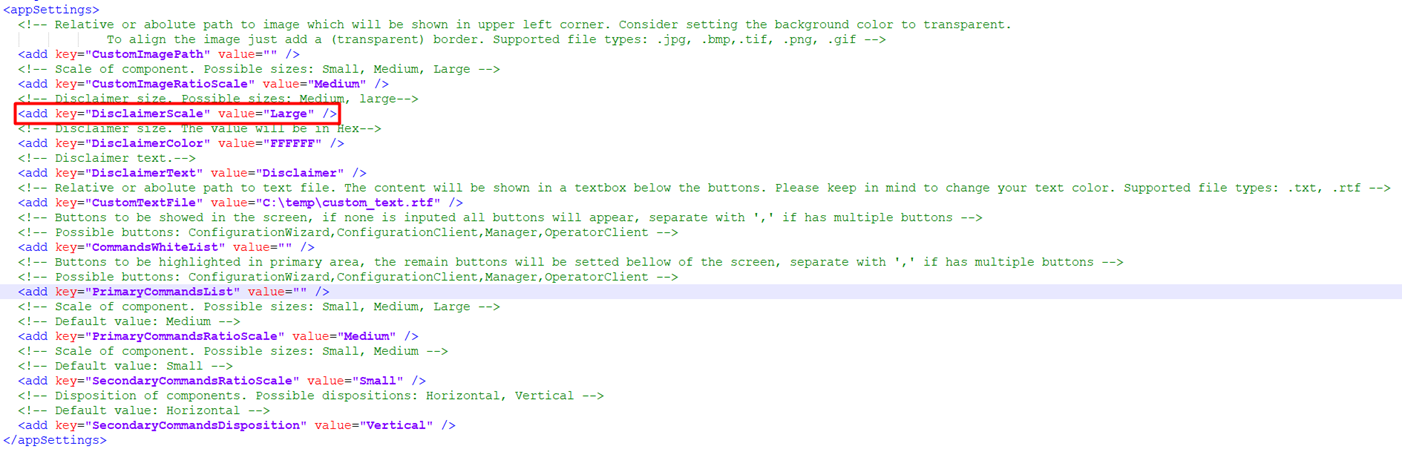
Key: DisclaimerScale
-
Default Value: Medium
-
Possible Values:
-
Medium
-
Large
-
-
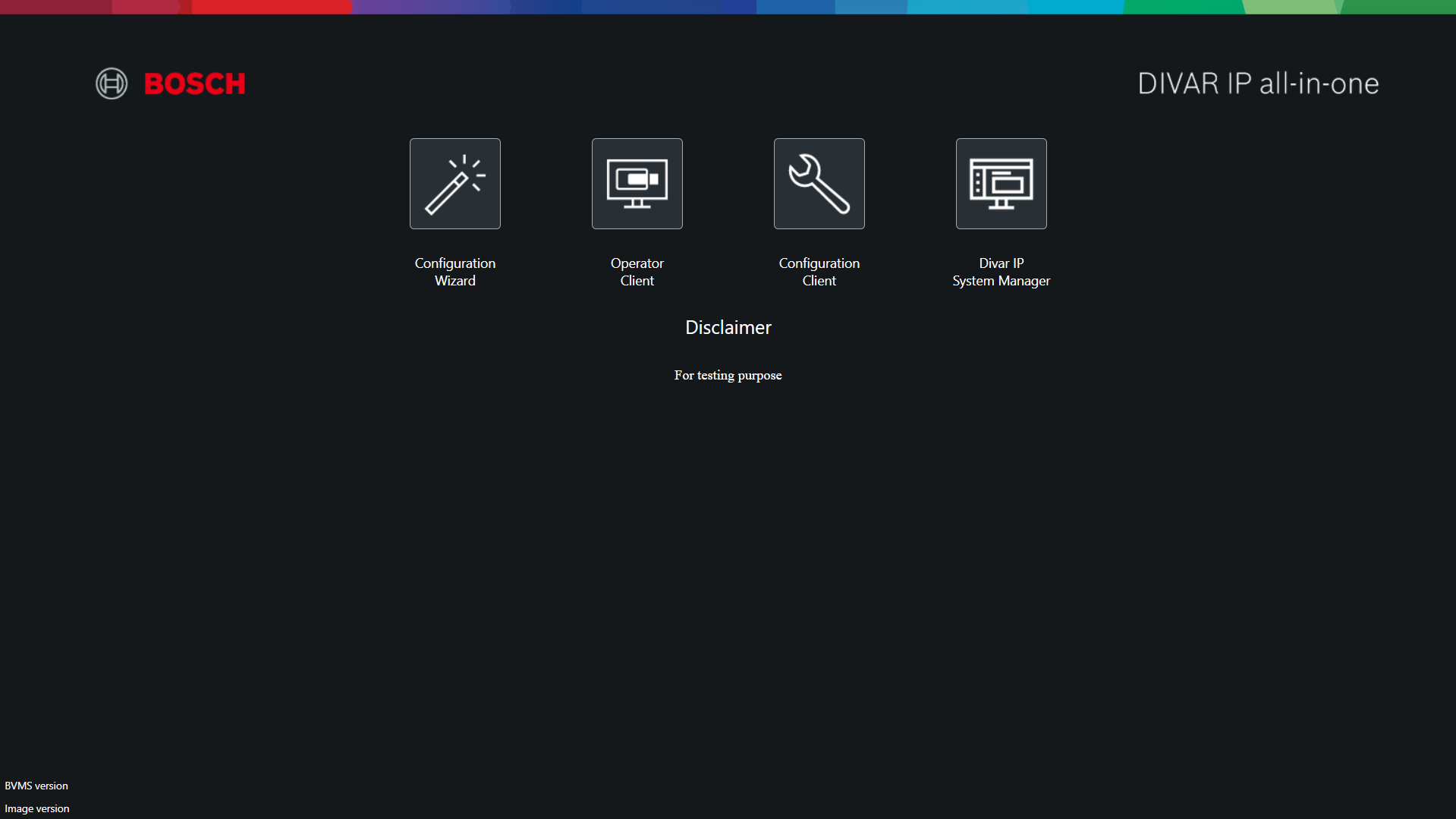
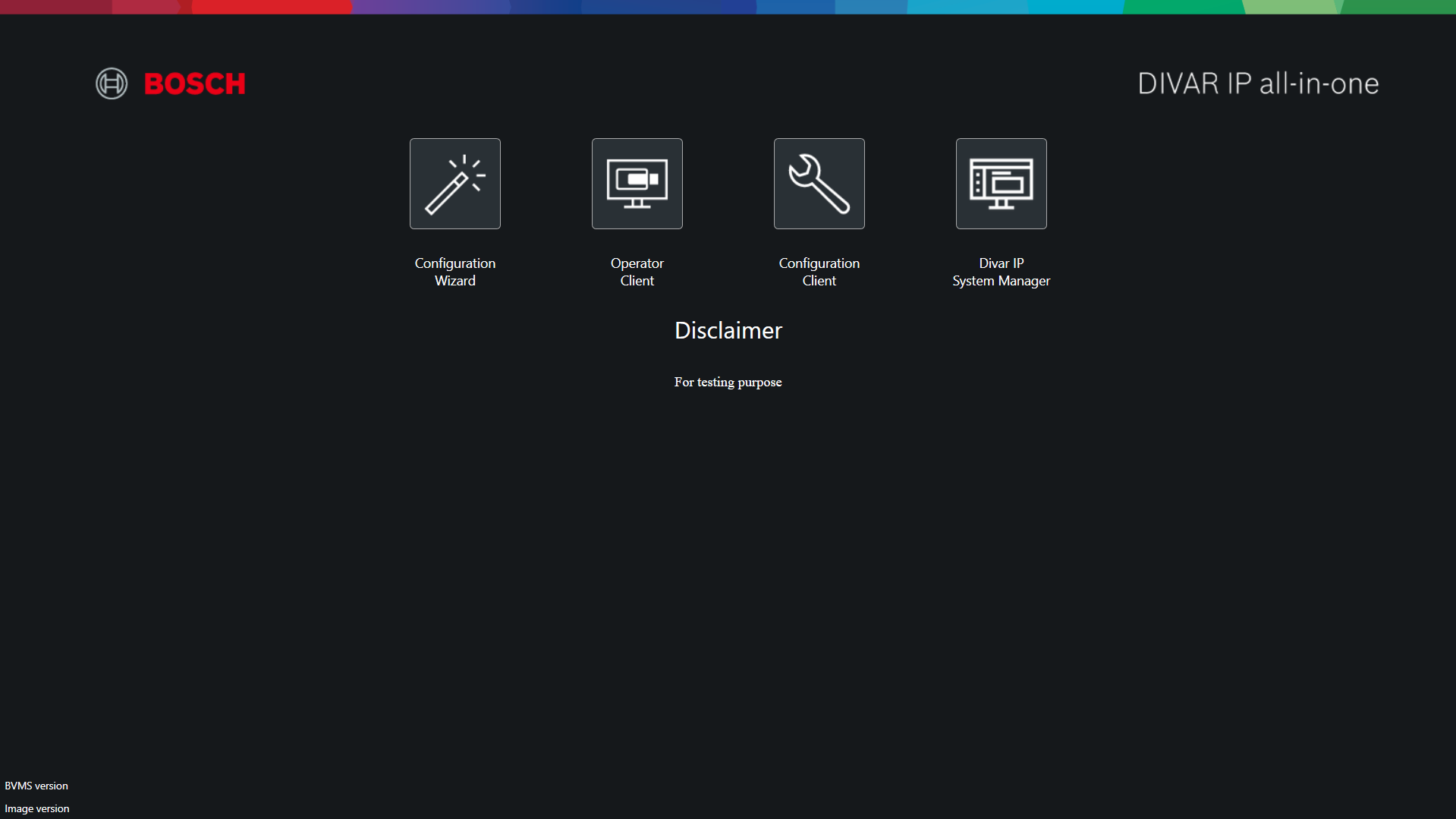
Notes: Here is possible to change the font-size of the Disclaimer Title
Medium > 20 px
Large > 25 px
-
Config:
-
-
Medium
-
-
-
Large
-
-
Preview:
-
-
Medium
-
-
-
Large
-
Disclaimer Color
-
Key: DisclaimerColor
-
Default Value: FFFFFF
-
Possible Values: Hexadecimal Color Code
-
Notes: Here is possible to change the color of the Disclaimer Title
Use this site to get the right color information: https://www.color-hex.com/
-
Config:
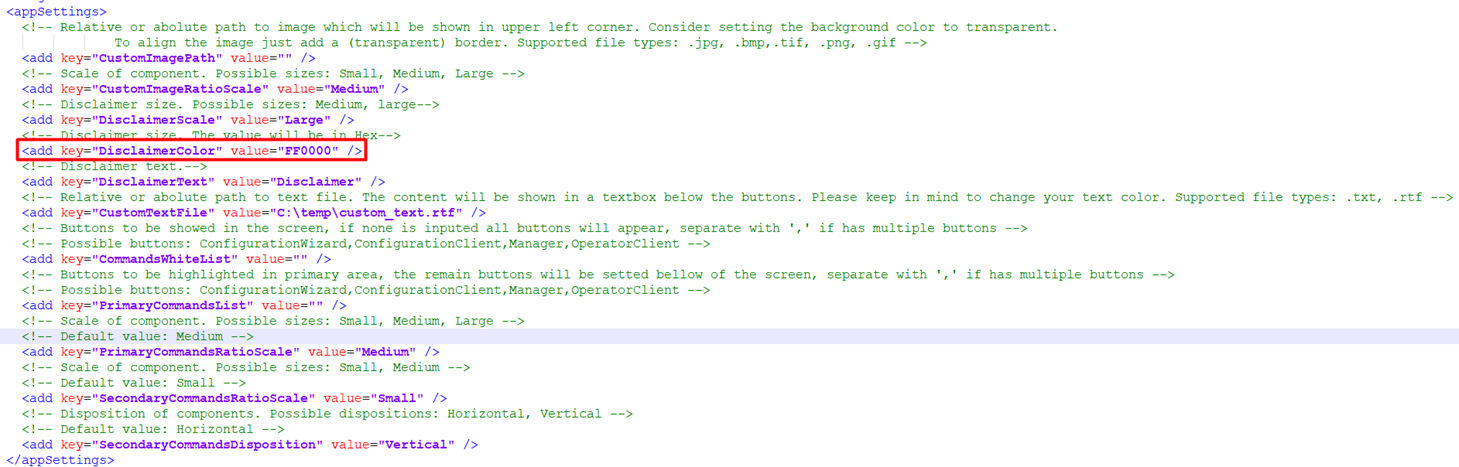
-
Preview:
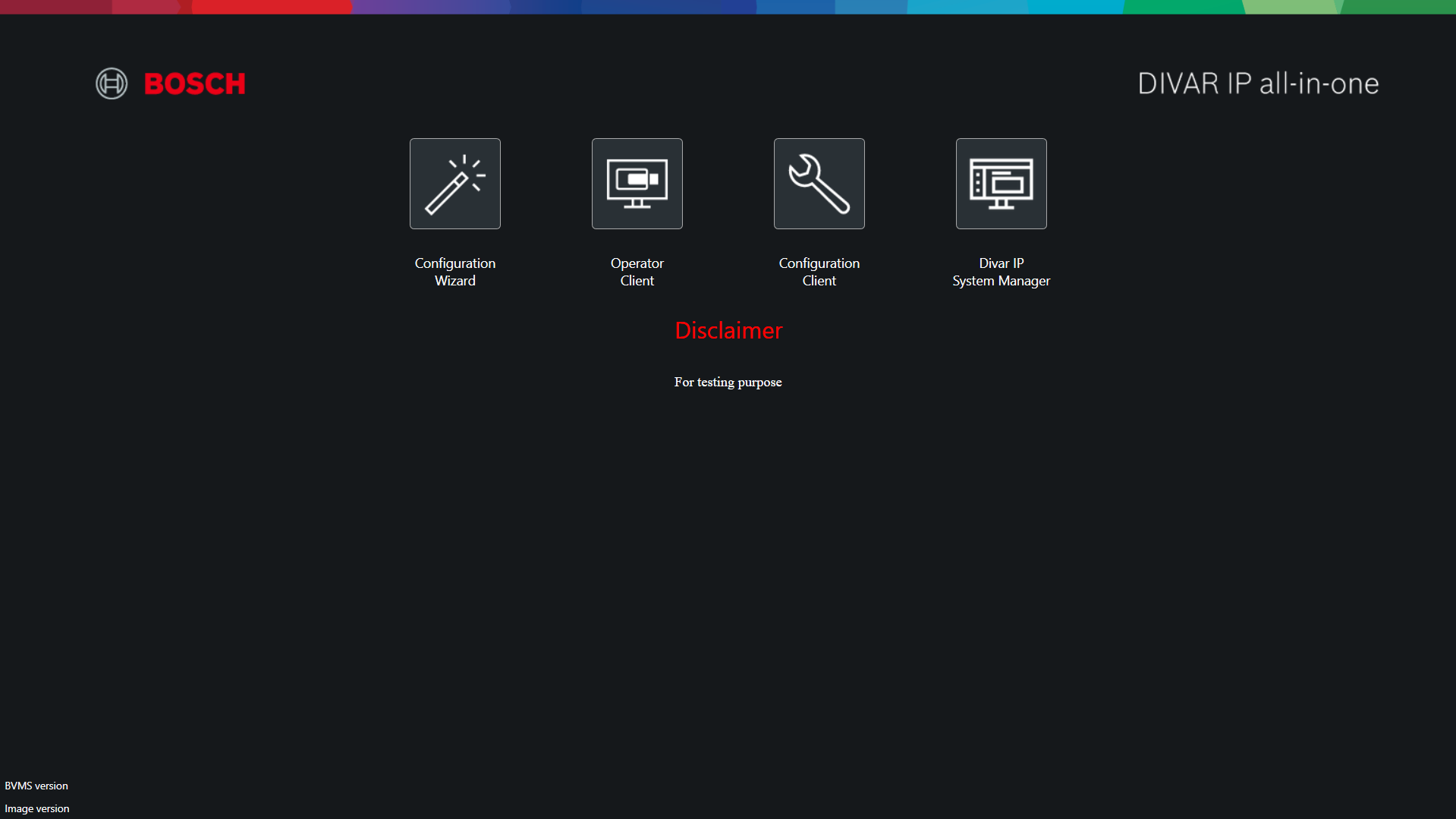
Custom Text File
-
Key: CustomTextFile
-
Default Value: -
-
Possible Values: Full path to the text file
-
Notes: Supported file types: .txt, .rtf
-
Config:
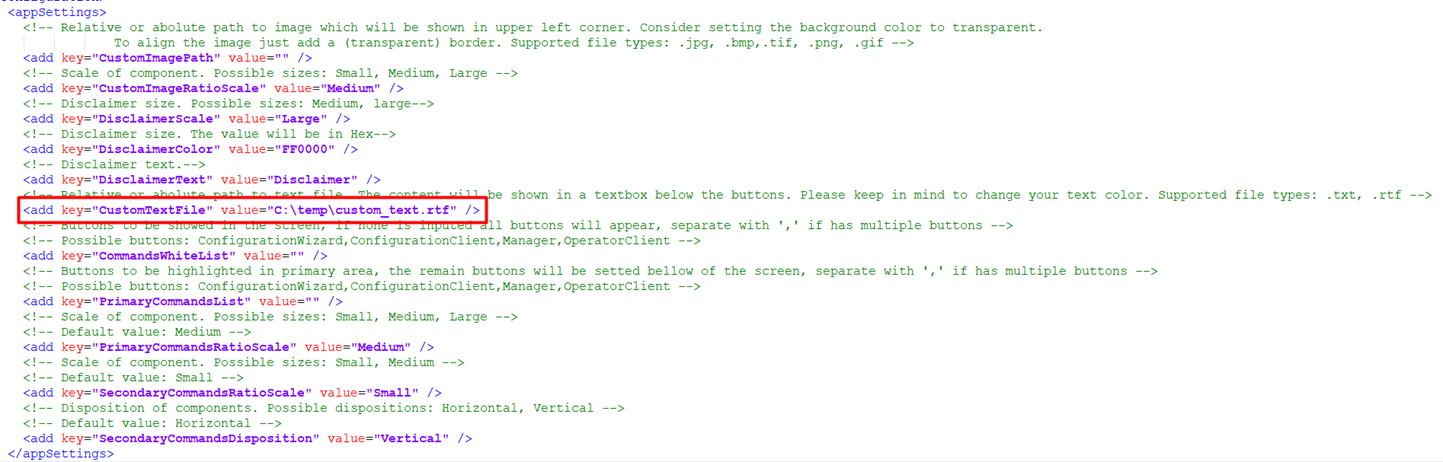
-
Preview:
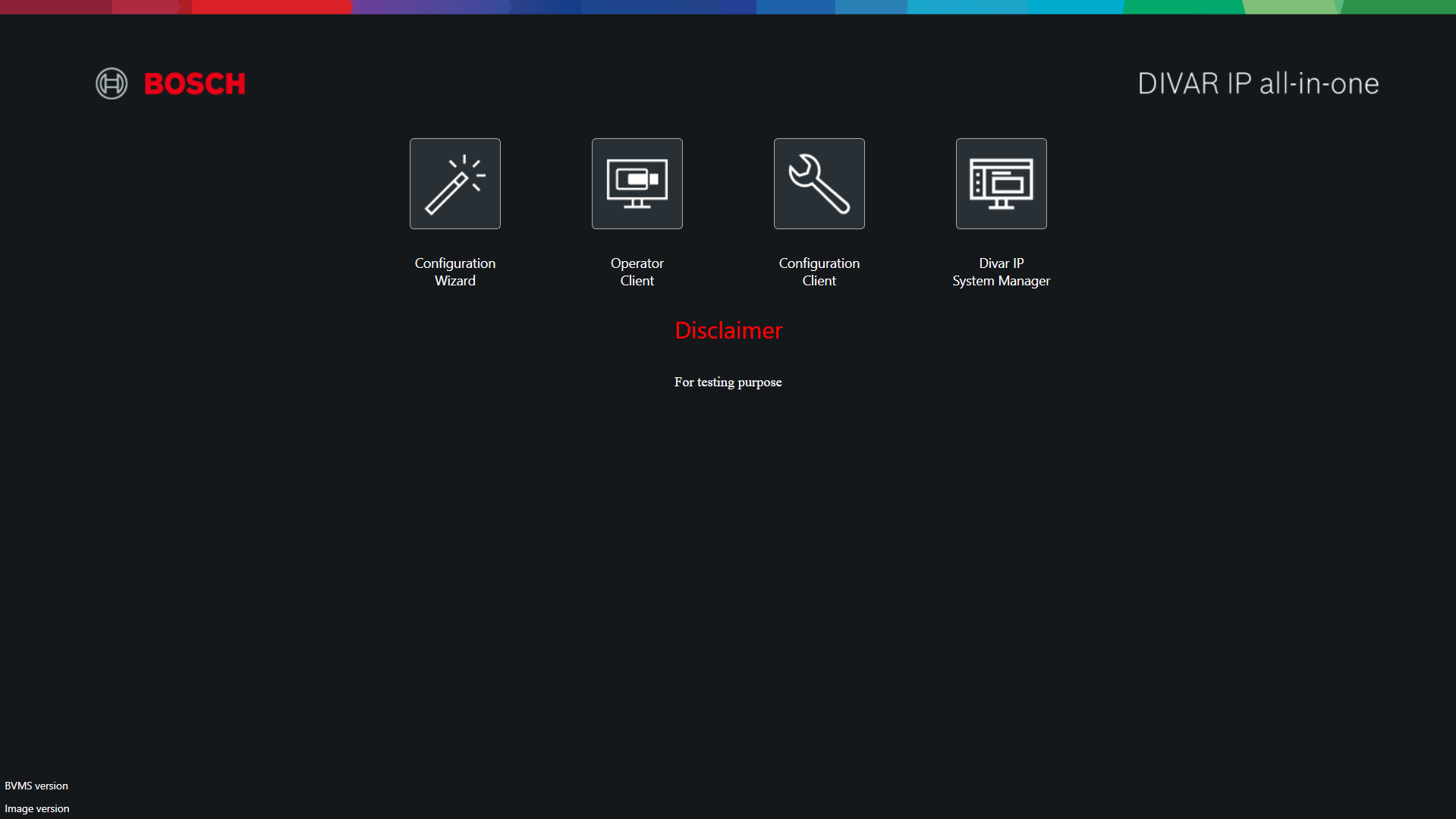
Menu Options
Commands White List
-
Key: CommandsWhiteList
-
Default Value: -
-
Possible Values:
-
ConfigurationWizard
-
OperatorClient
-
ConfigurationClient
-
Manager
-
-
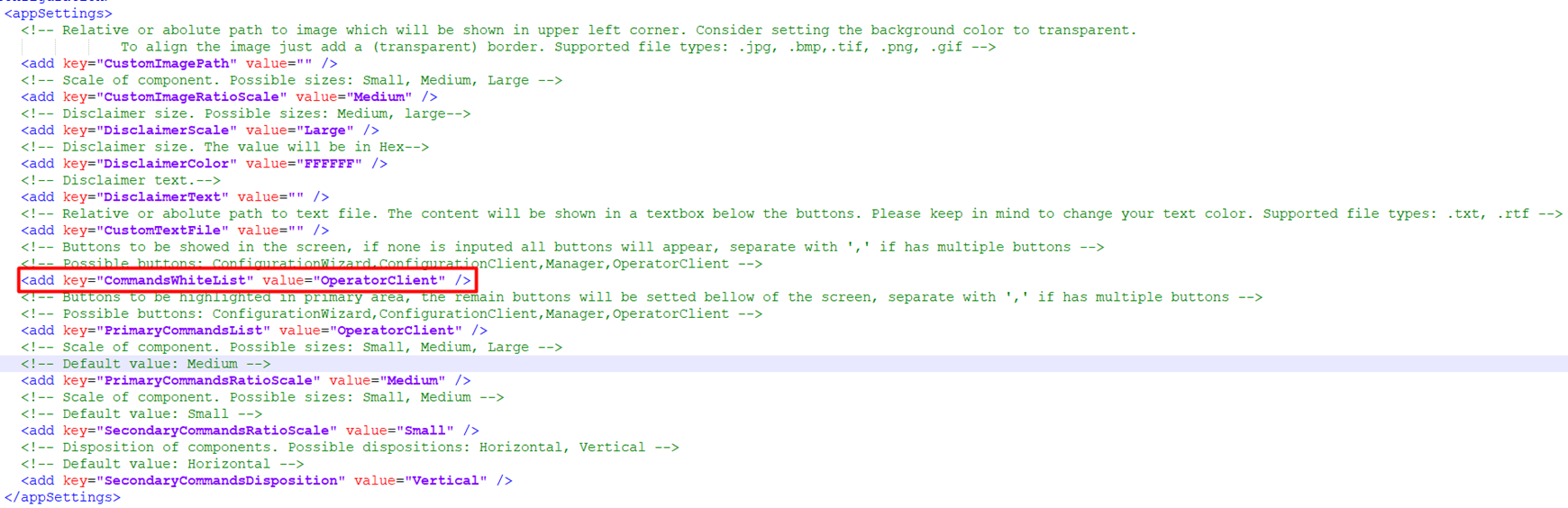
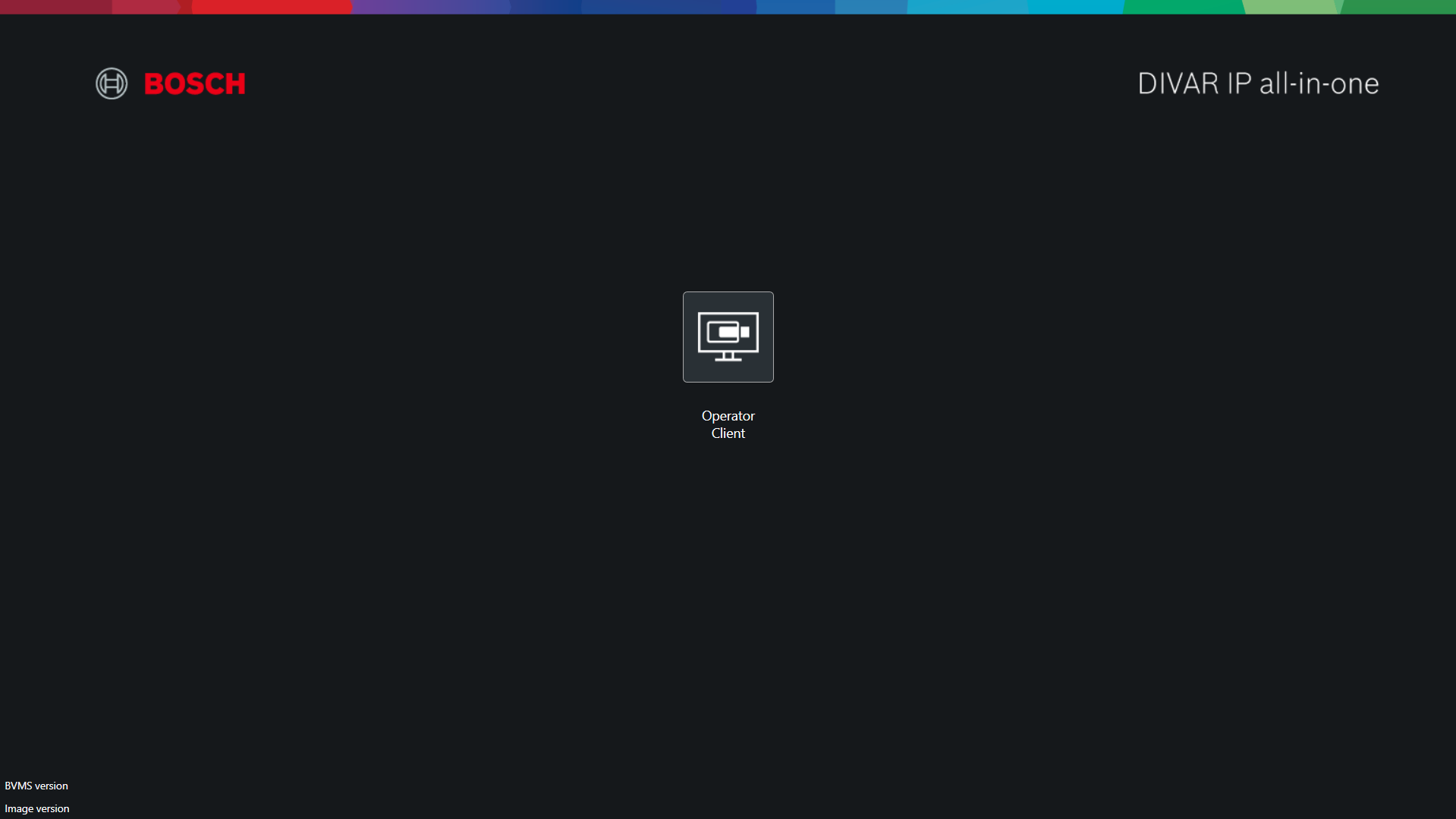
Notes: By default (value empty) all the four options appears.
This field is used to filter the options that we want to show to the client.
Example of test (only show the Operator Client):
-
value="OperatorClient"
PS: The order of display from the options cannot be changed! The order is the same showed in the possible values field
-
-
Config:
-
Preview:
Primary Menu Options
Primary Commands List
-
Key: PrimaryCommandsList
-
Default Value: -
-
Possible Values:
-
ConfigurationWizard
-
OperatorClient
-
ConfigurationClient
-
Manager
-
-
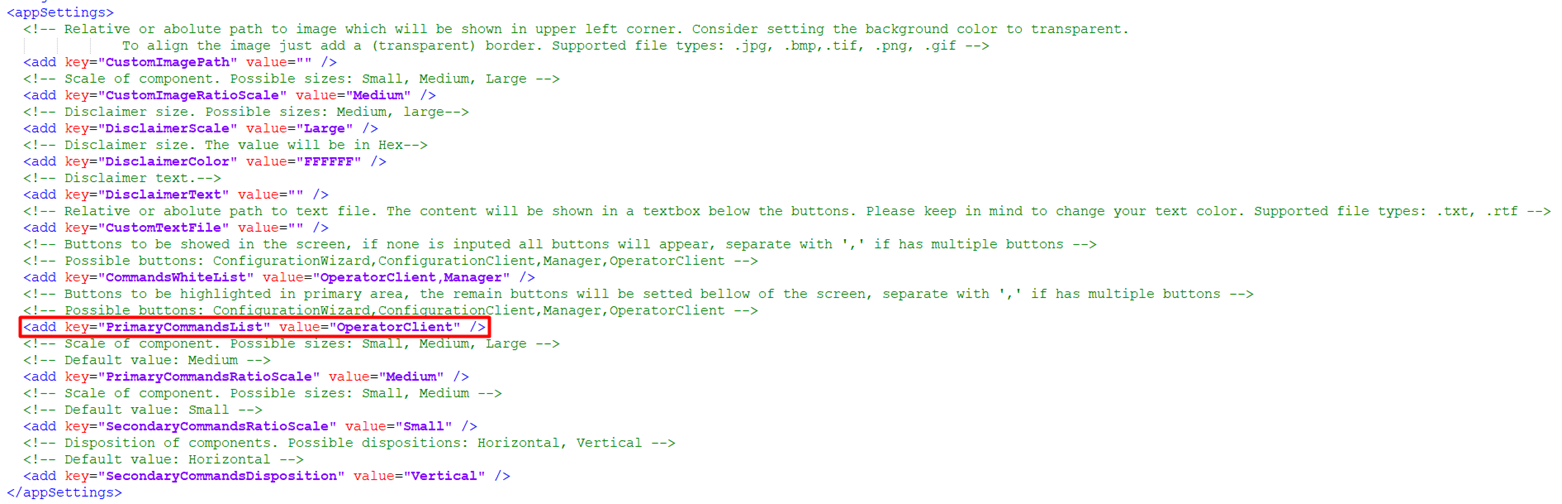
Notes: By default (value empty) all the options available appears as primary.
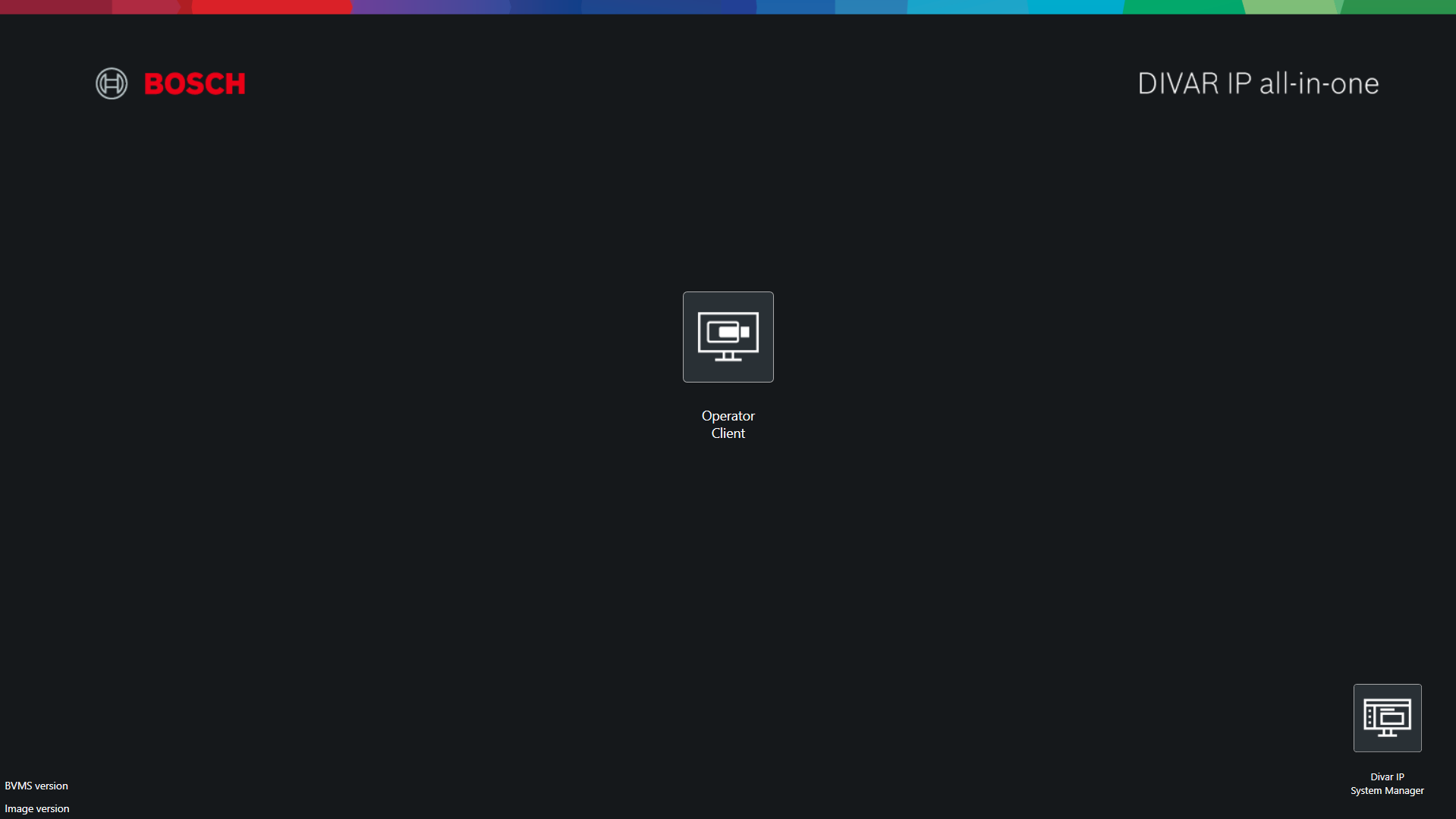
If we want to show some of the options on the secondary menu we need to define here which ones we want to show in primary.
The options available not mentioned here will be display in secondary menu.
Example (show Configurations options as primary and the operator and System Manager as secondary)
-
value="ConfigurationWizard,ConfigurationClient"
e.g: ConfigurationWizard,ConfigurationClient
PS: The order of display from the options cannot be changed! The order is the same showed in the possible values field
-
-
Config:
-
Preview:
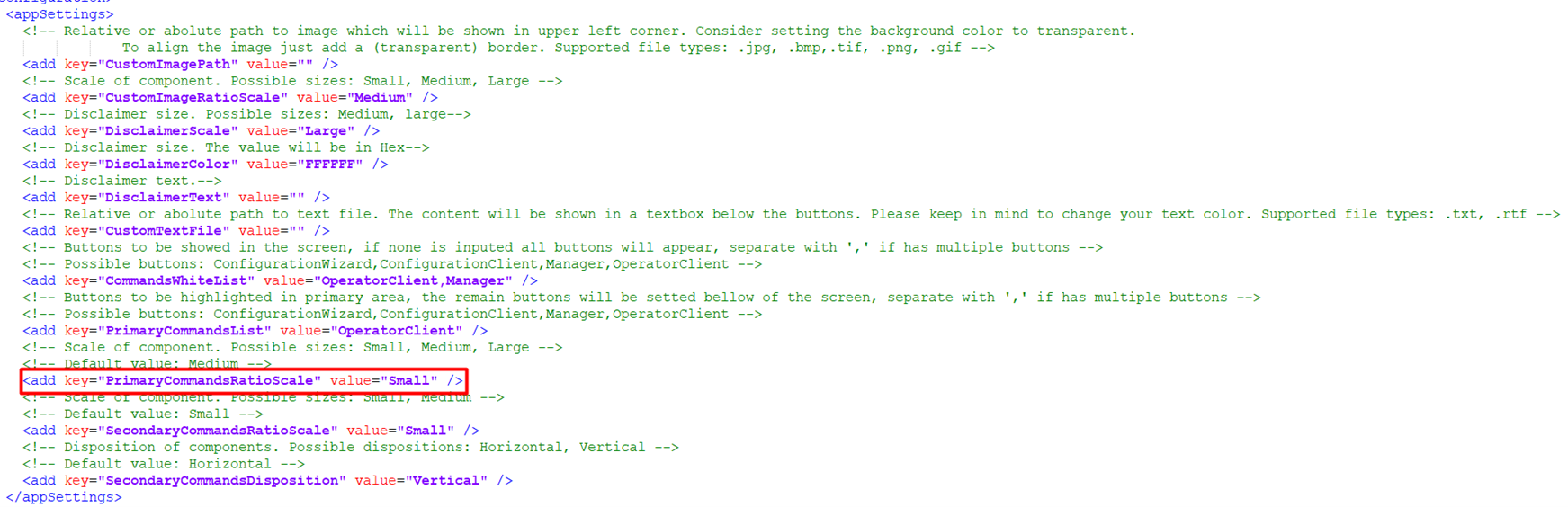
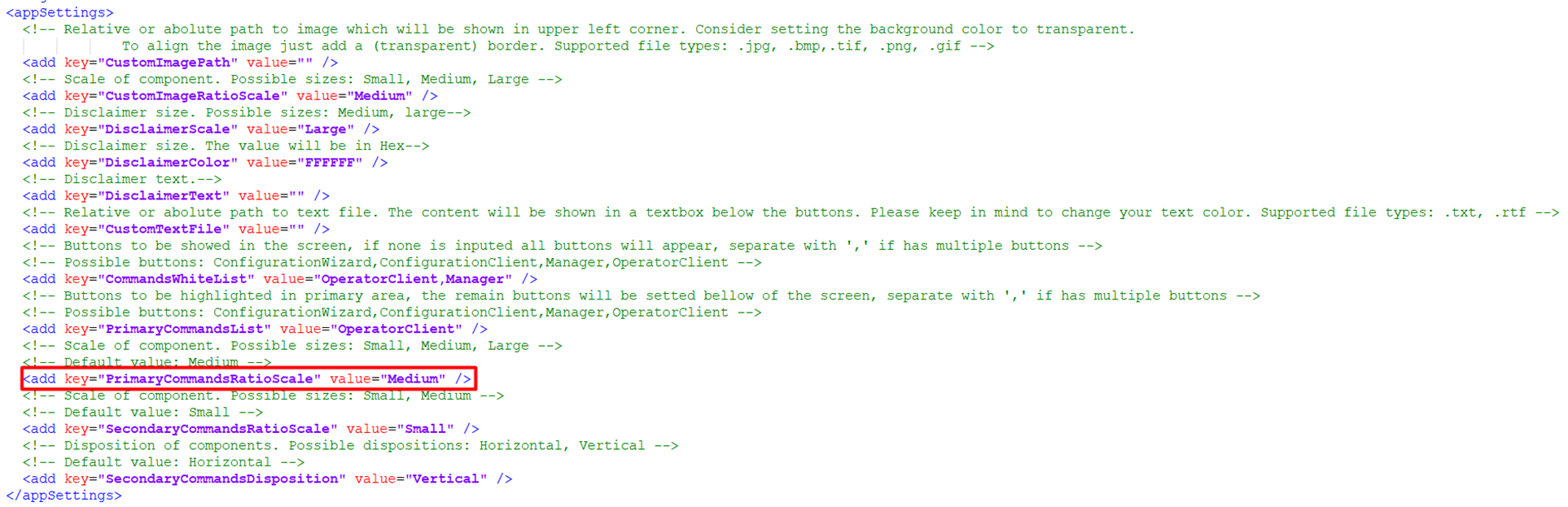
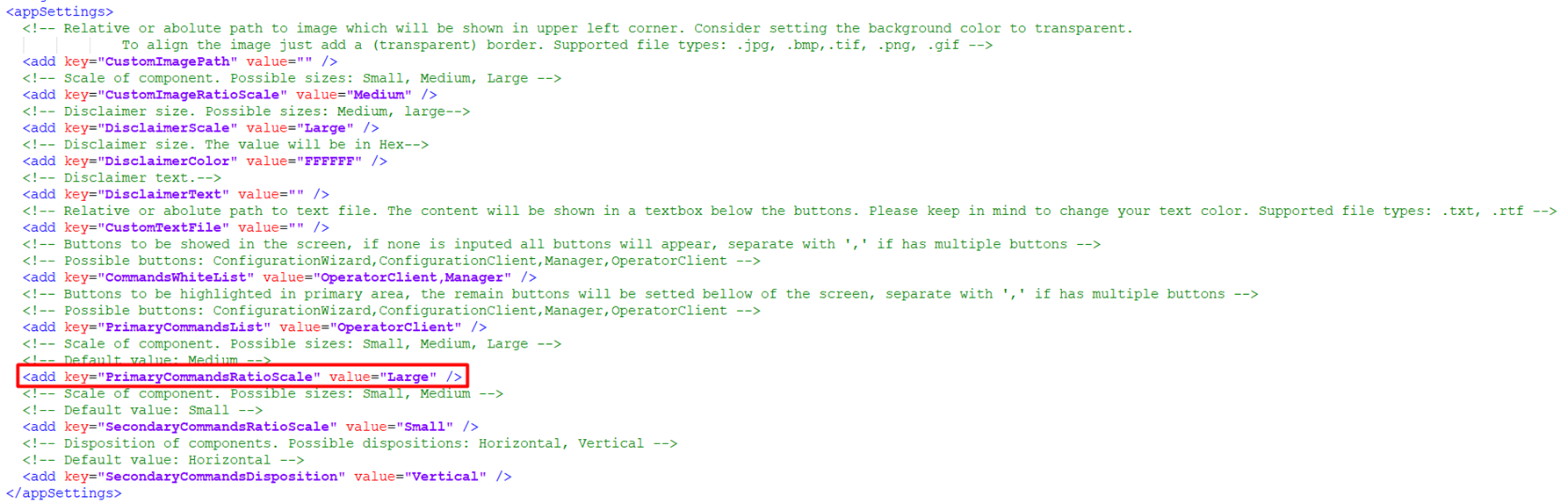
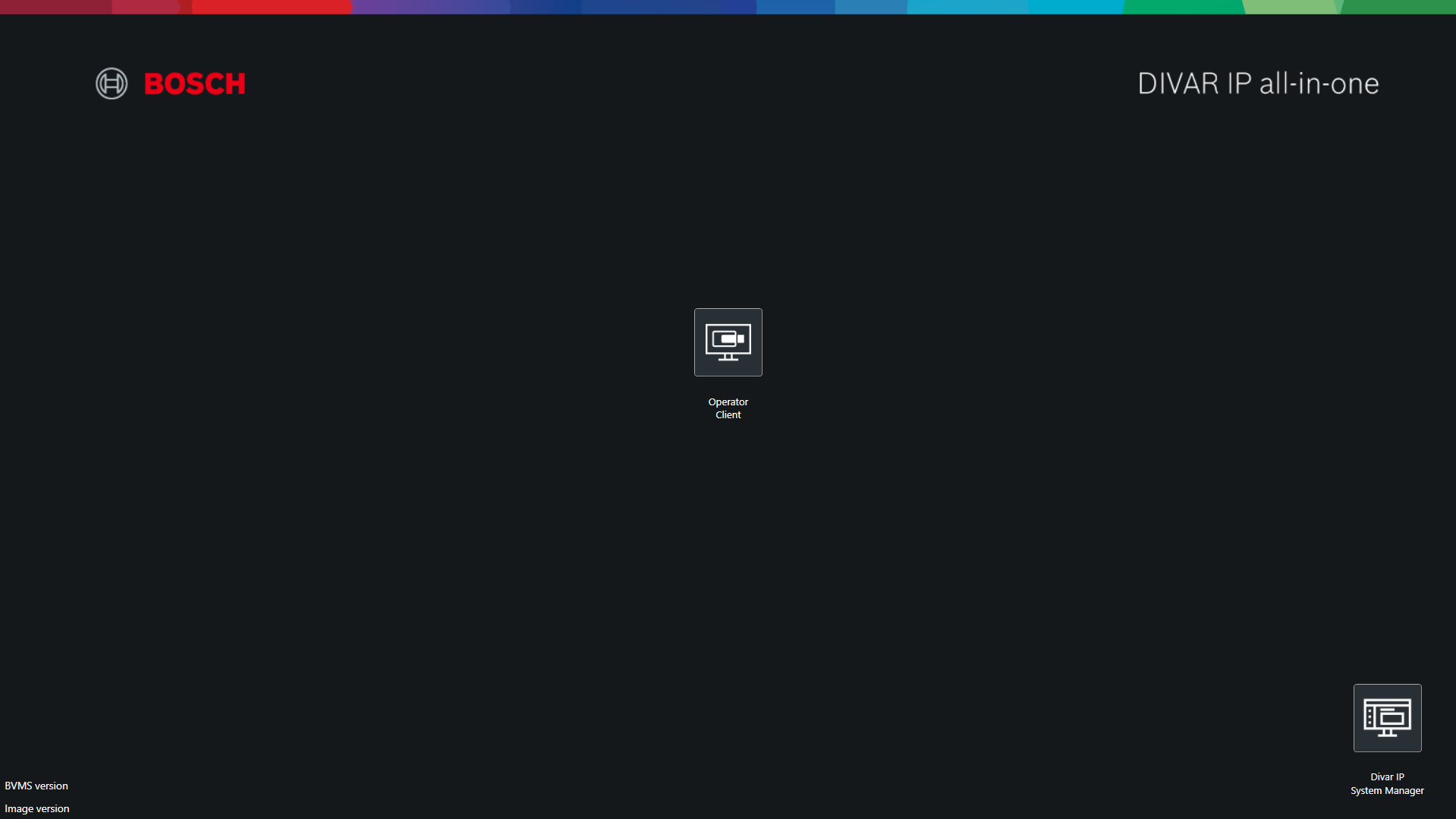
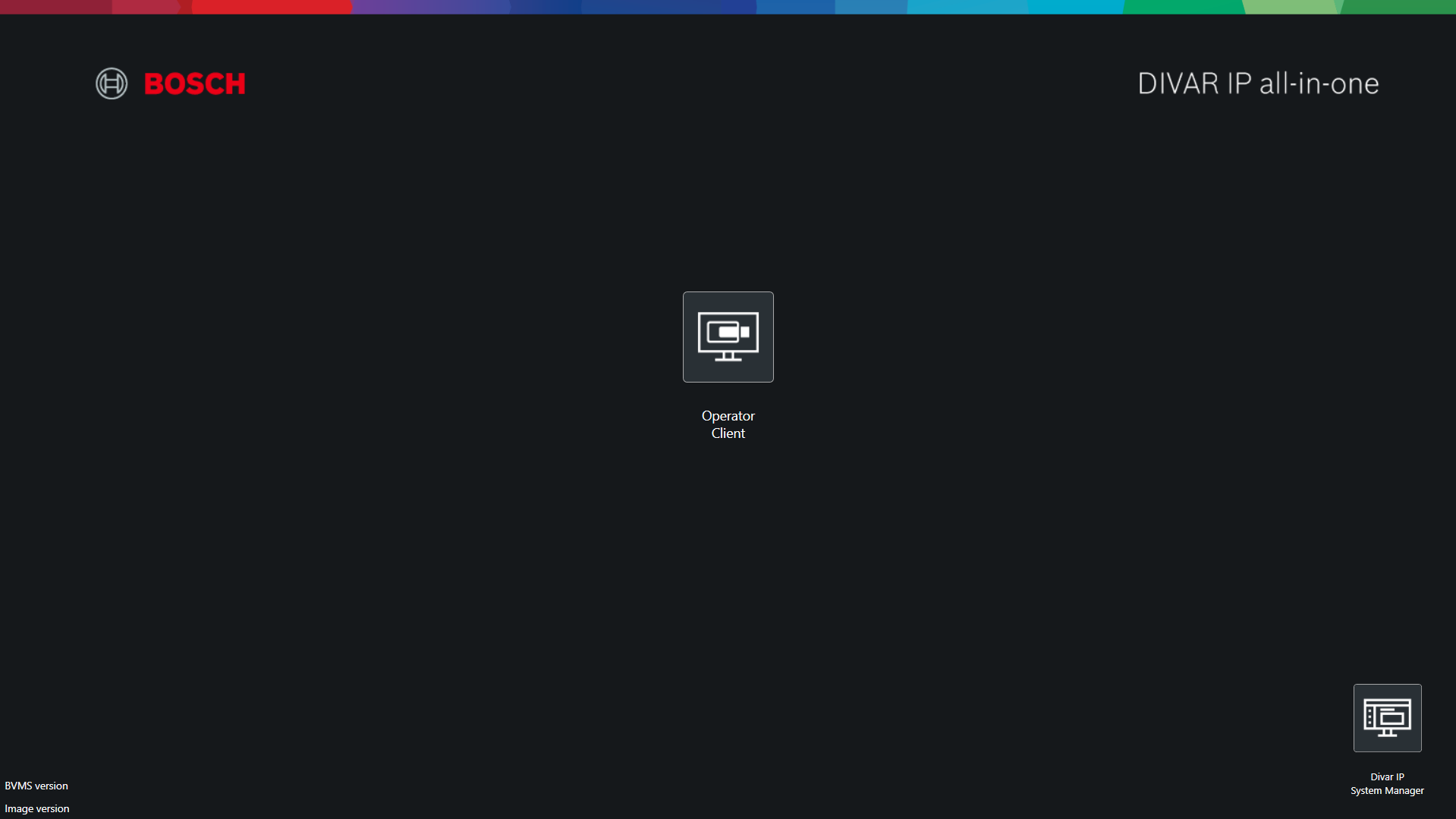
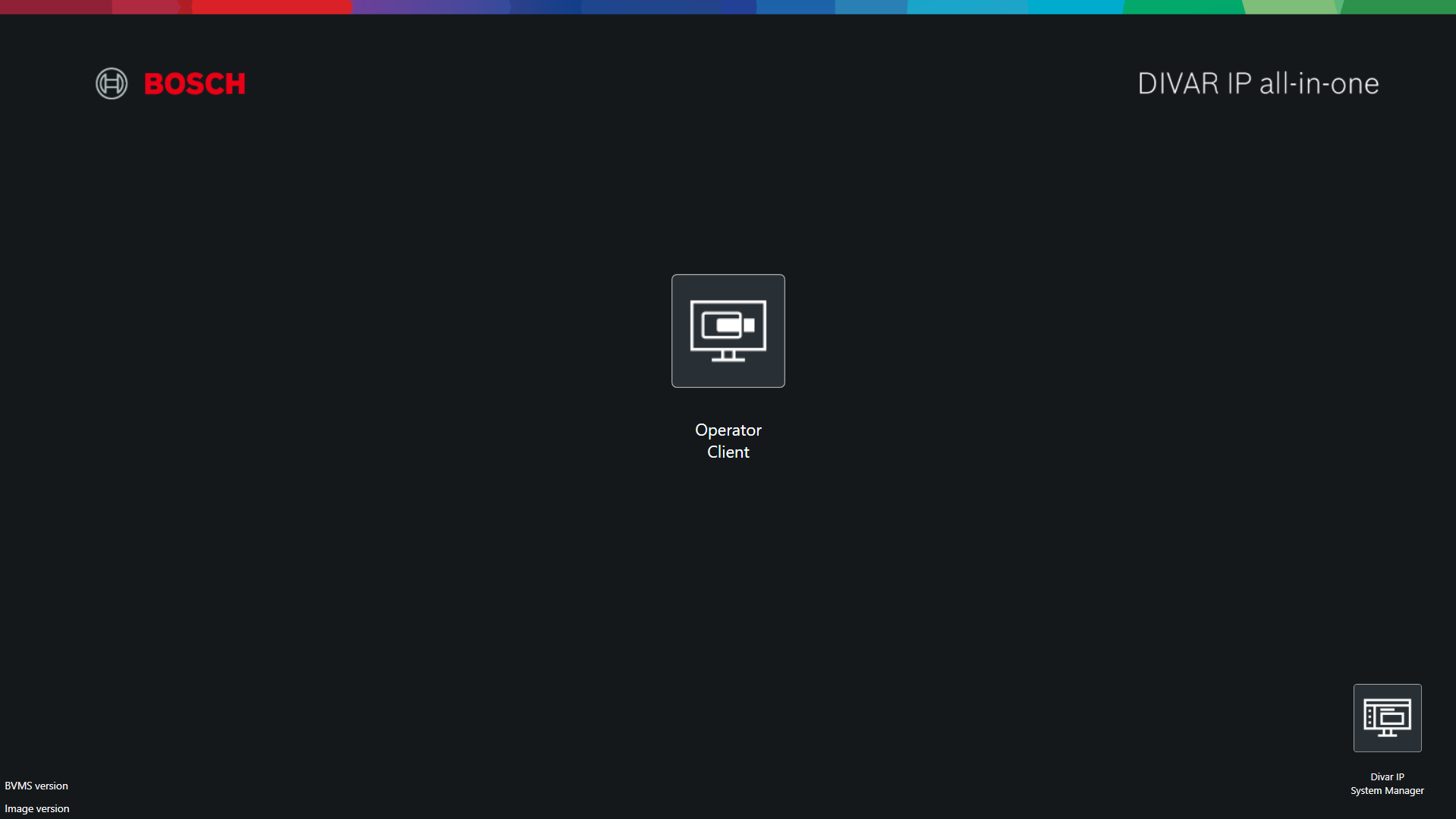
Primary Commands Ratio Scale
-
Key: PrimaryCommandsRatioScale
-
Default Value: Medium
-
Possible Values:
-
Small
-
Medium
-
Large
-
-
Notes:
Small > 60x60
Medium > 80x80
Large > 100x100
-
Config:
-
-
Small:
-
-
-
Medium:
-
-
-
Large:
-
-
Preview:
-
-
Small
-
-
-
Medium
-
-
-
Large
-
Secondary Menu Options
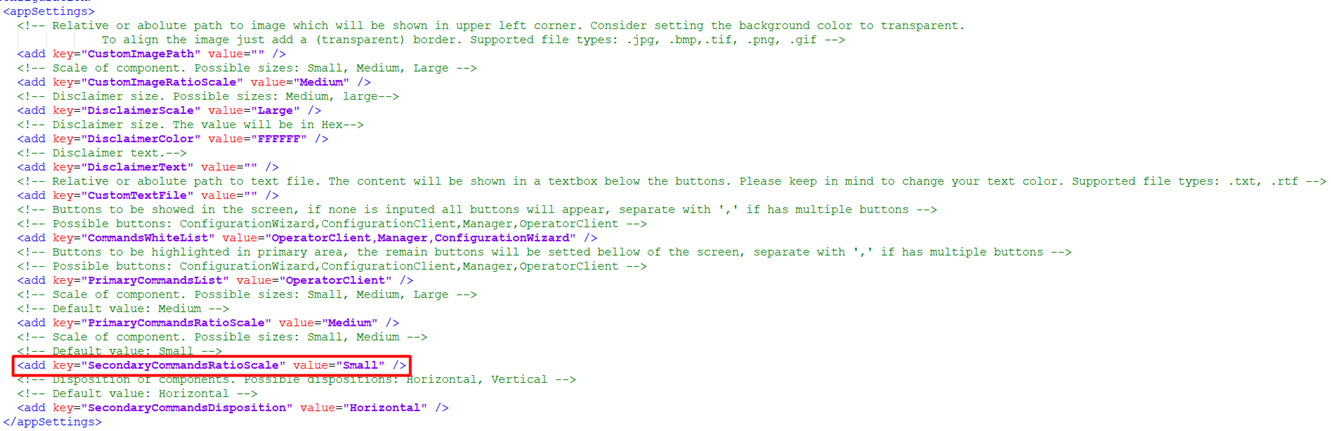
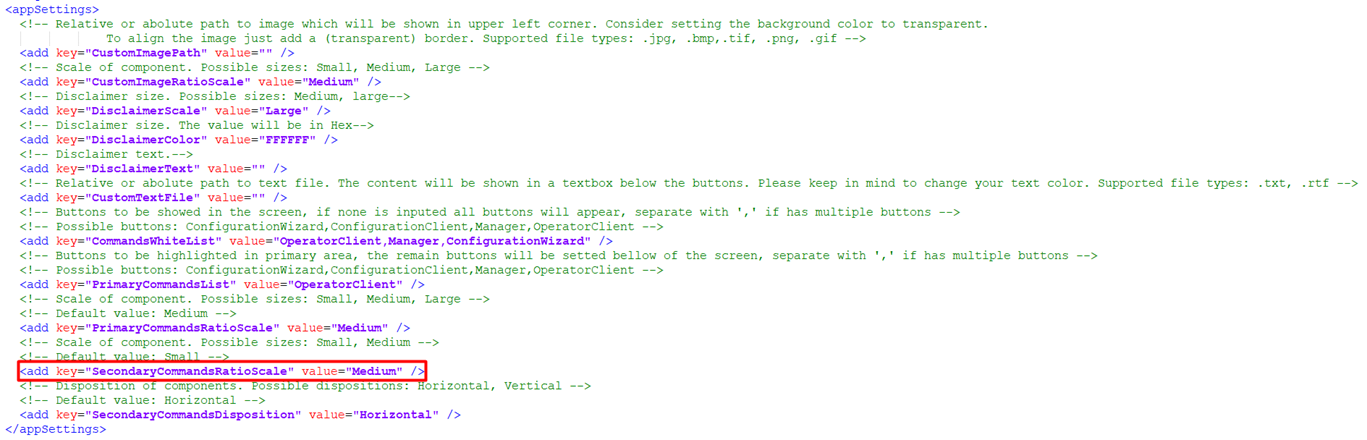
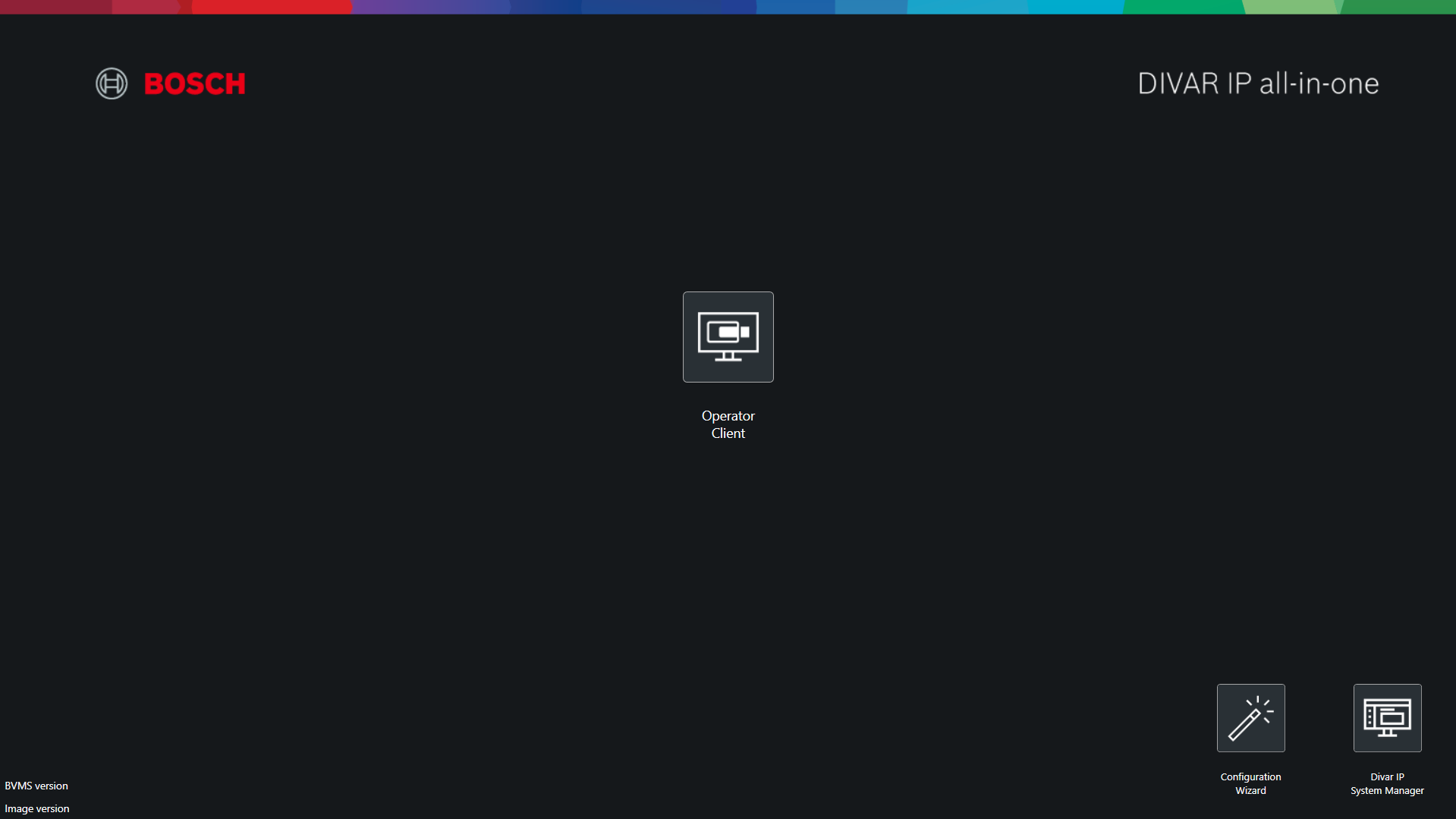
Secondary Commands Ratio Scale
-
Key: SecondaryCommandsRatioScale
-
Default Value: Small
-
Possible Values:
-
Small
-
Medium
-
-
Notes:
Small > 60x60
Medium > 80x80
-
Config:
-
-
Small
-
-
-
Medium
-
-
Preview:
-
-
Small
-
-
-
Medium
-
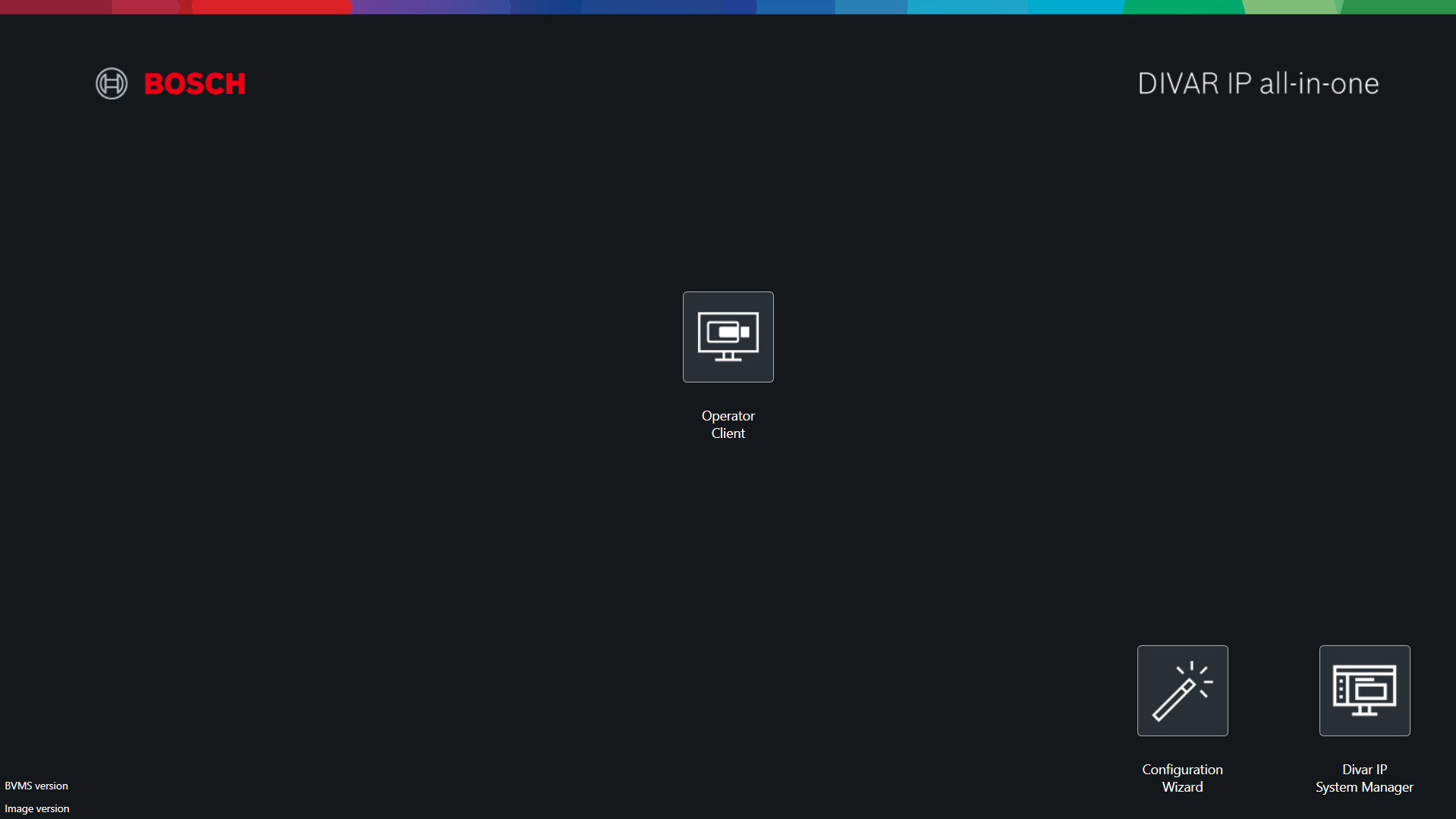
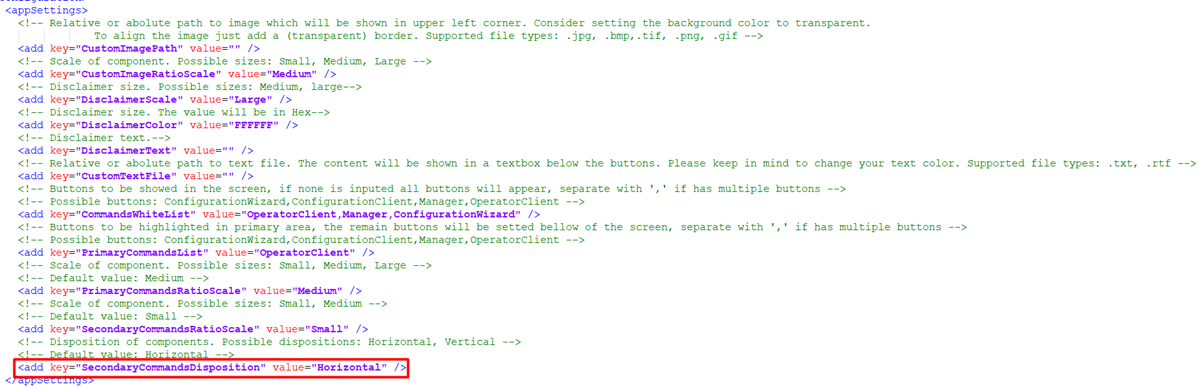
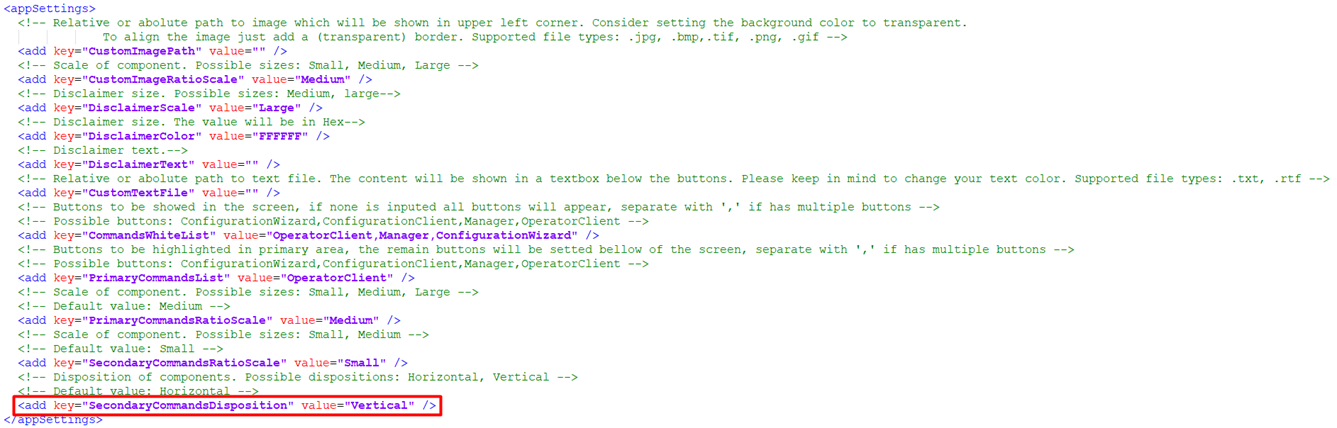
Secondary Commands Disposition
-
Key: SecondaryCommandsDisposition
-
Default Value: Horizontal
-
Possible Values:
-
Horizontal
-
Vertical
-
-
Notes: The secondary options are display in the right bottom corner.
With this option you can choose a display in horizontal (below of the disclaimer info) or a vertical display (side by side to disclaimer info)
-
Config:
-
-
Horizontal
-
-
-
Vertical
-
-
Preview:
-
-
Horizontal
-
-
-
Vertical
-