Step-by-step guide
If you want to clear all configuration including network configuration and passwords information, you can use the SANtricity Storage Manager's Script Editor to run the command below:
-
clear storageArray configuration factoryReset;
1. Open SANtricity Storage Manager App and search for your DSA E2800 under the device menu
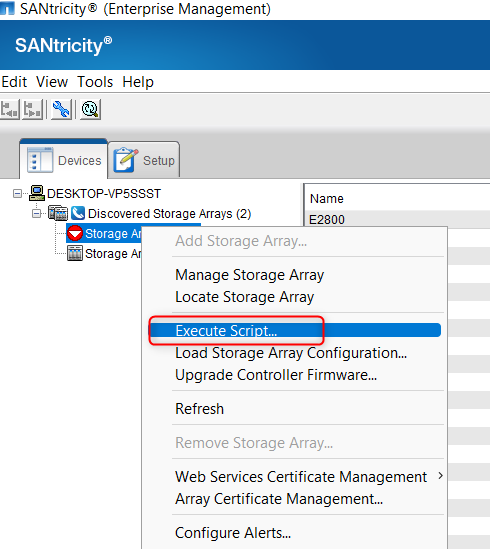
2. Right click on the DSA E2800 unit you want to perform a full factory default for and select "Execute Script..."
3. Paste the following command: clear storageArray configuration factoryReset;
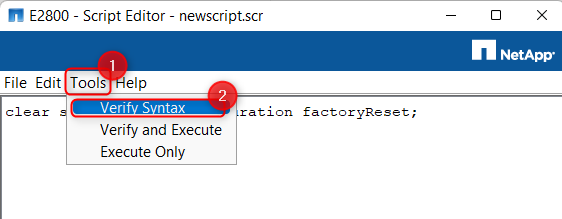
4. Click on the Tool option and select "Verify Syntax"
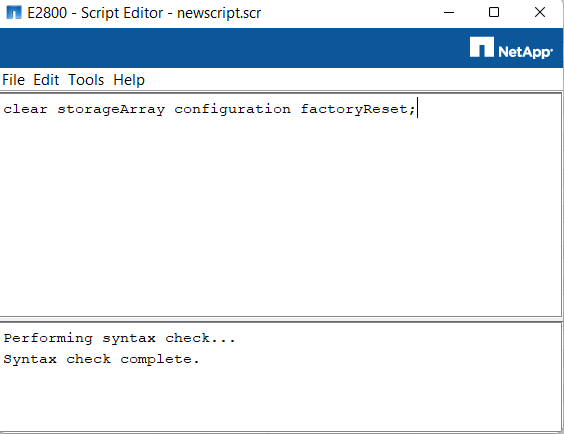
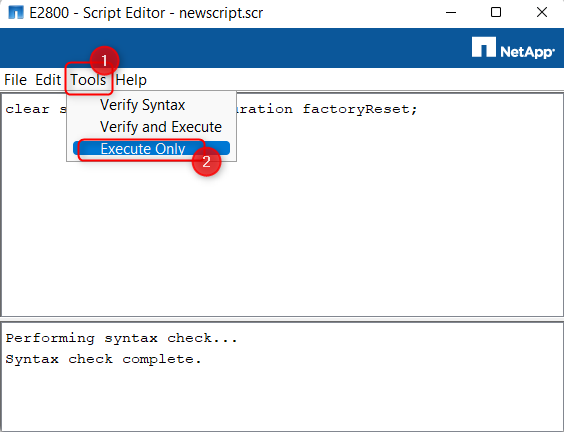
5. When the syntax check is complete, click again on the Tools option and select "Execute Only"
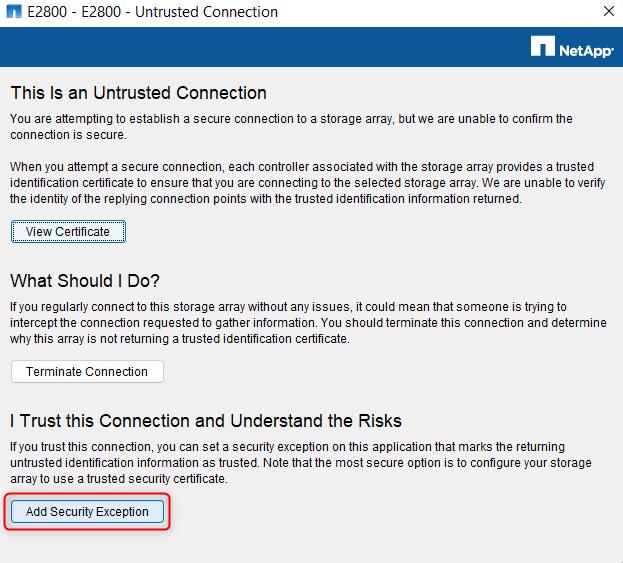
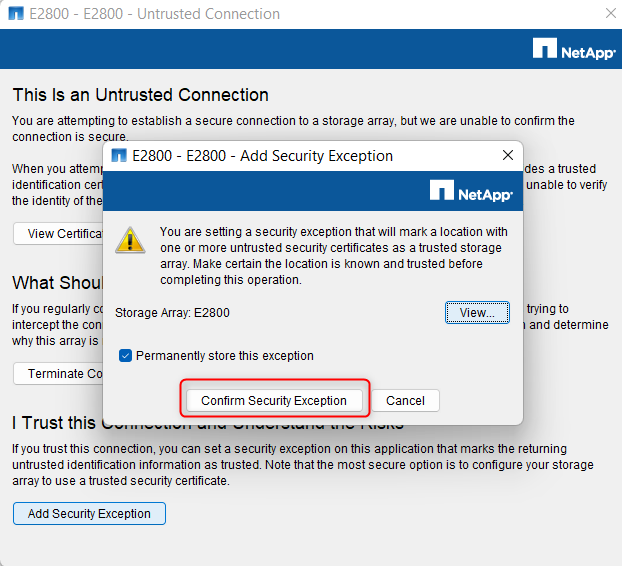
6. Add the Security Exception if the windows below will be displayed and Confirm your action:
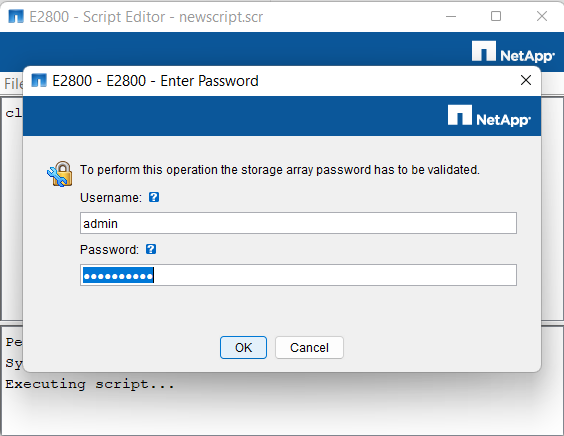
7. Before performing this action, you should enter the credentials of your DSA E2800 unit and click OK
8. The Script executing will start and could takes a while until the execution will be complete
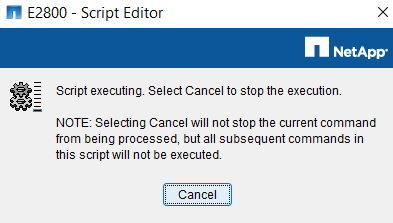
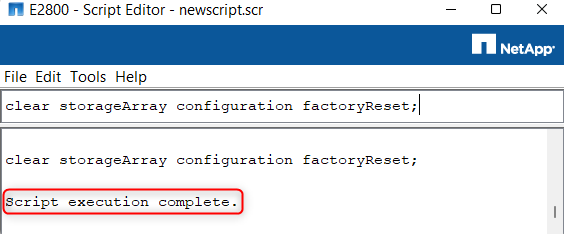
9. When the script execution is complete, close the window.
The DSA E2800 unit will become unresponsive.
Right click on the Discovered Storage Arrays and select "Add Storage Array" in order for your DSA E2800 to be displayed again in the list
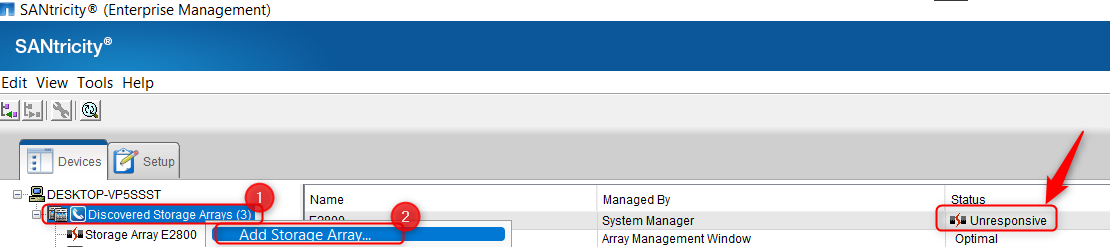
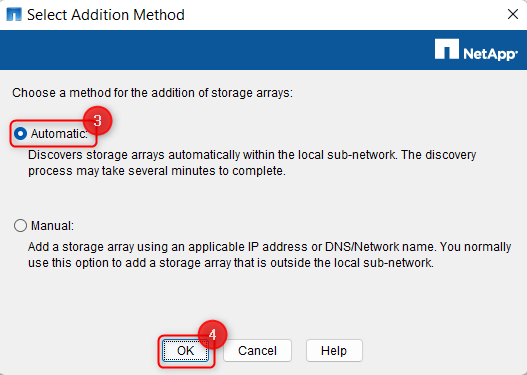
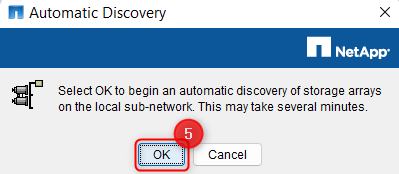
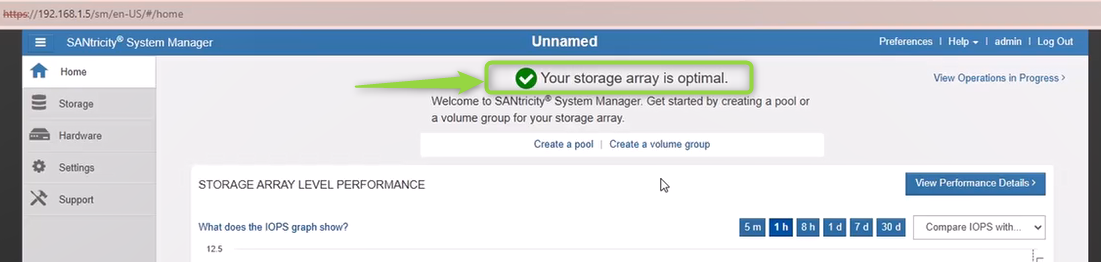
Your DSA E2800 will be displayed as Optimal:

Now, you can start configuring your unit by selecting it from Devices list > right click on it > select Manage Storage Array
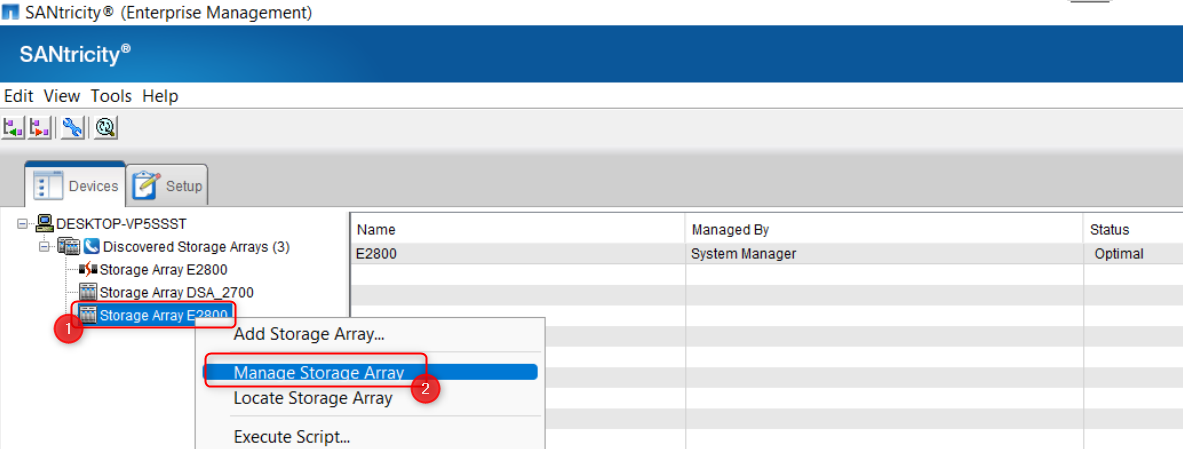
This way, you will find the new IP Address assigned on your unit via webpage. In this step you must add the new credentials of your NetApp DSA E2800
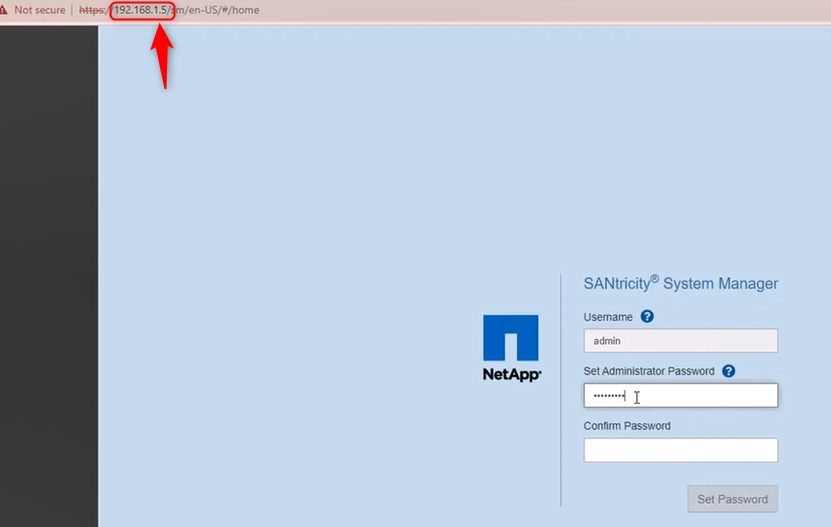
After entering the new credentials on the unit, the message below should be displayed:
If the unit remained in the recovery mode, you must run the following script (as described in the steps 1-8 above):
-
clear storageArray recoveryMode;
Note that Configuration Manager could scan your unit in the network and find it as "Other" under the Type column.
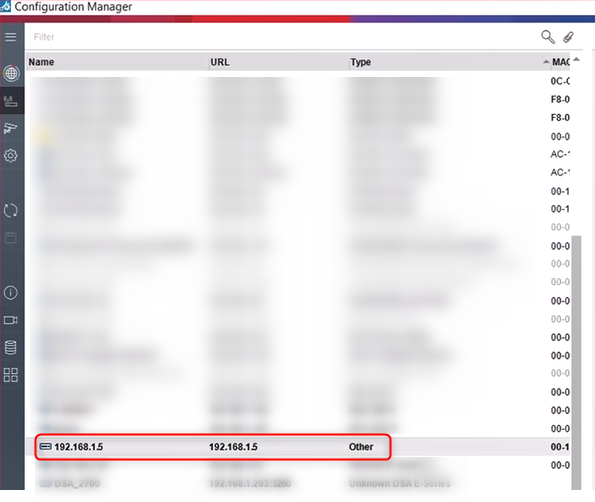
Now, your unit is ready to be configured!