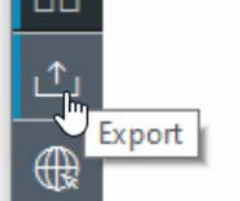
At some point, the Central Technical Support team could ask you to provide them with a Configuration Manager table view export, for further investigation of your devices, such as a full overview of the installed cameras or with the cameras with a specific problem.
This article will help you to learn how to do this export.
Please ensure that CTN + SN + etc are all visible in the .xls table.
Step-by-step guide
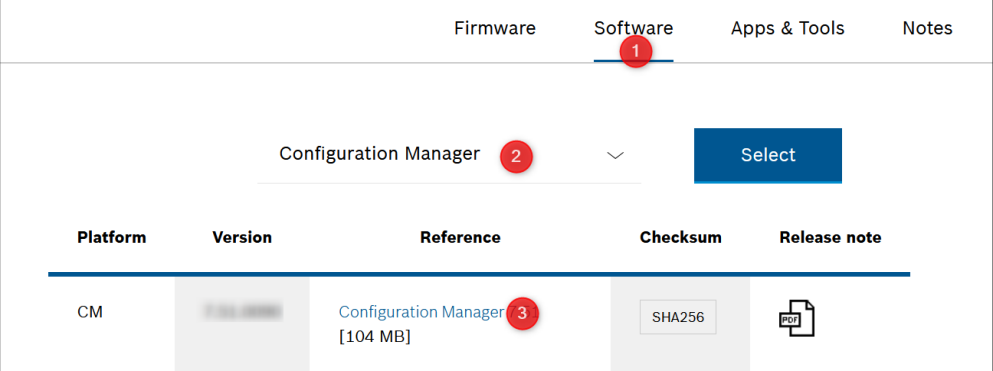
1. Install latest version available on https://downloadstore.keenfinity-group.com/index.php
2. Optional: To remove CM password and make camera access smoother, configure:
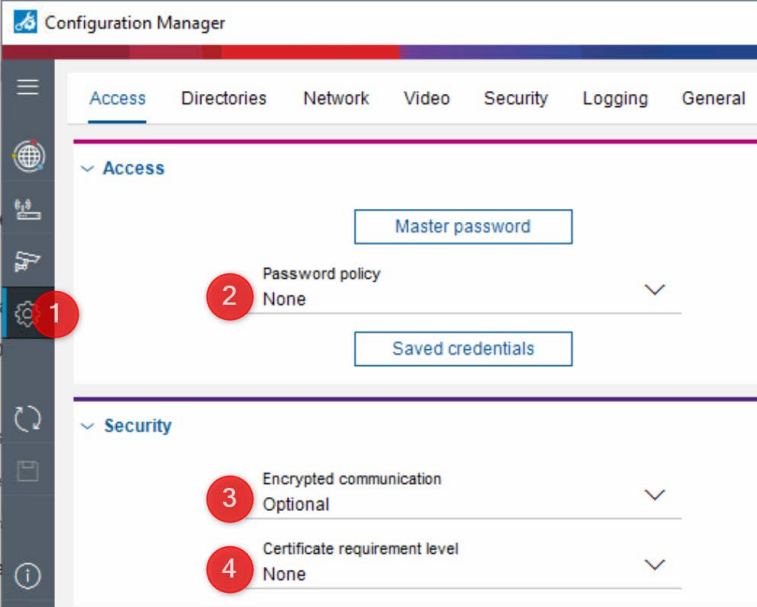
3. Ensure:
a. All cameras of interest are added from ”Network scan” to “my devices”
b. Service password is filled in
c. Note: in case the cameras are not found by the ”Network scan” you can add them manually by right-click in the white area below last camera on the “my devices” page
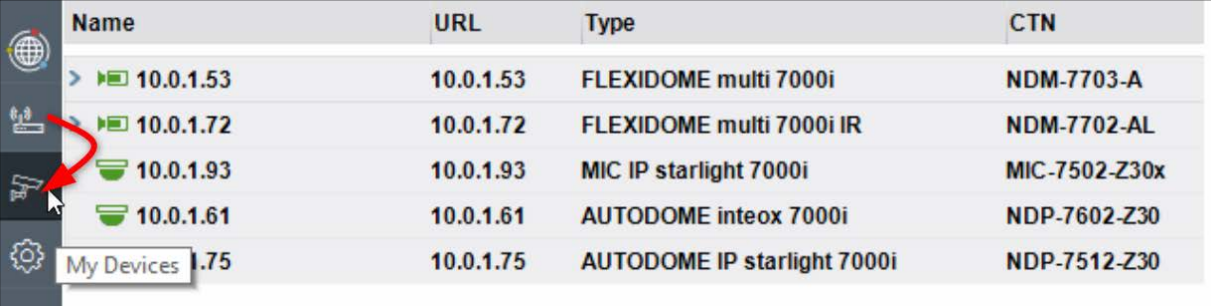
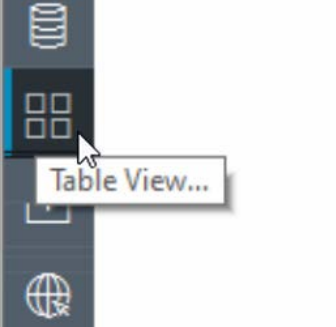
4. Now Switch to table view:
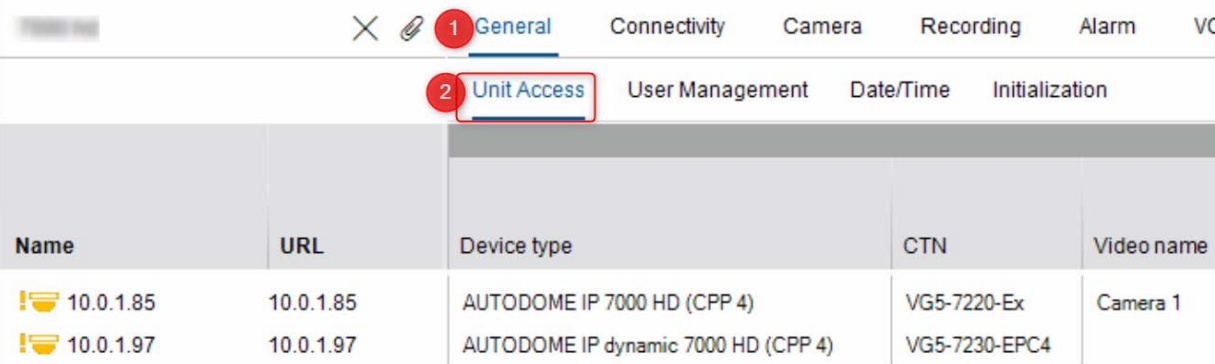
5. Select for example the “Unit Access” tab (most used),
but you can do this for every tab or create your own "custom view":
6. Press and hold the “shift” or “ctrl” to multi select all cameras of interest:
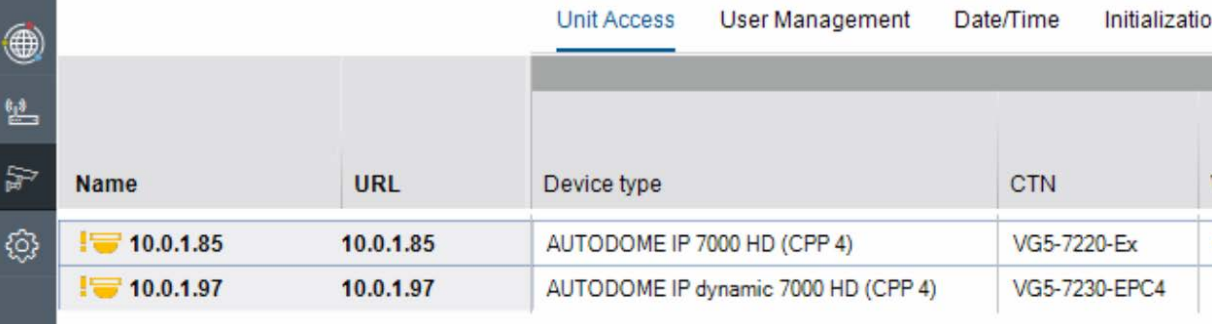
7. Once all cameras are selected + “unit access” page is selected, press export and save: