
📚 Overview
BVMS and VRM Encrypted Recording Prerequisites
Starting with BVMS v10.0, you can leverage VRM Encryption Technology.
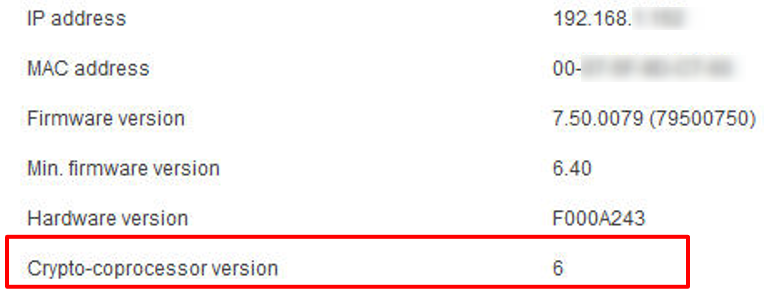
Compatibility requirements are as follows:
-
VRM version 3.82 or higher
-
Camera Firmware 7.10 or higher
-
Camera must have Crypto Coprocessor version 3 or higher
-
Devices “System Overview” web page as noted in the “Lock Down Module”
-
Note
Video Devices that do not meet the prerequisites defined above, or were produced prior to 2014, can be encrypted utilizing VSG
Data Encryption: General Overview
Data encryption on iSCSI storages
-
The payload on an iSCSI drive is encrypted using a symmetric XTS (AES) encryption scheme
-
This is block encryption, NOT Whole Disk Encryption
-
The Step-by-Step Process is covered in this article
-
-
The camera uses the VRM’s public key(s) to asymmetrically encrypt the XTS key for multiple receivers.
-
These public key(s) are maintained in the camera’s certificate store. Usage can be defined as for “REC1 or REC2”.
-
-
VRM decrypts the payload data for replay for supported clients
Supported Clients: VSC, BVMS v10 and Higher
VRM Encryption Operation Overview
The VRM iSCSI encryption process happens in several phases and utilizes two sets of keys:
-
VRM’s Asymmetric Key set

-
The cameras Internal Symmetric Key used specifically for “LUN” Encryption


When cameras are added to the VRM configuration
-
VRM distributes a “Static” public key to all devices
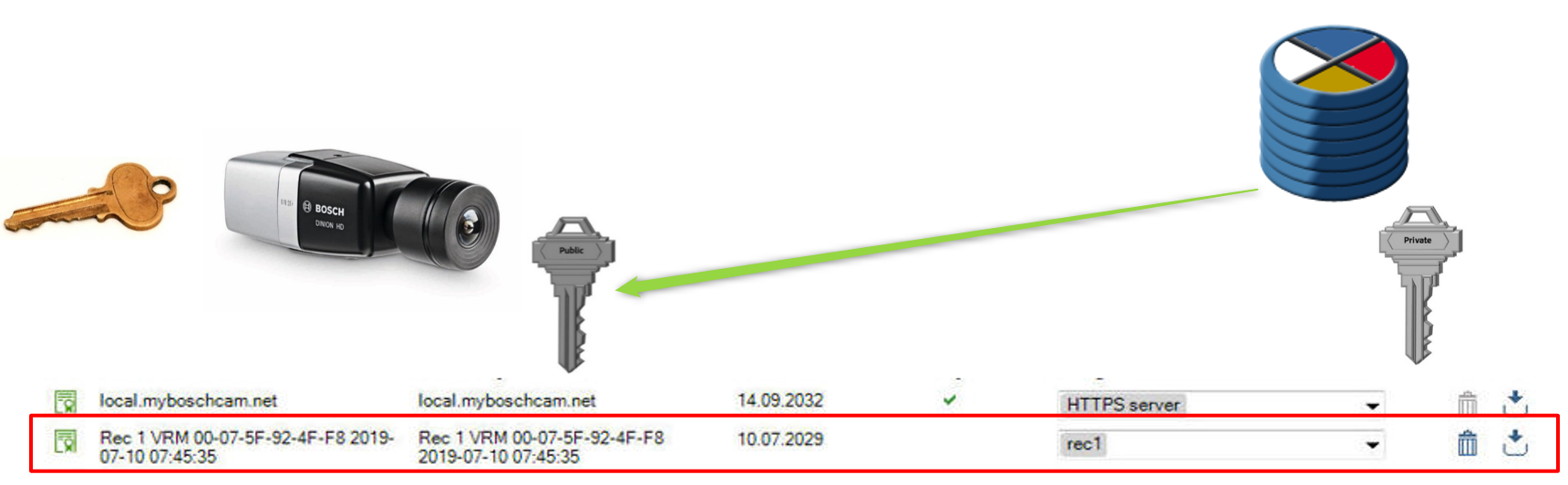
The Camera will encrypt all of it’s “Blocks” with its own dynamically generated Symmetric Keys:
-
The AES Encryption Keys are generated in the cameras Crypto Co-Processor
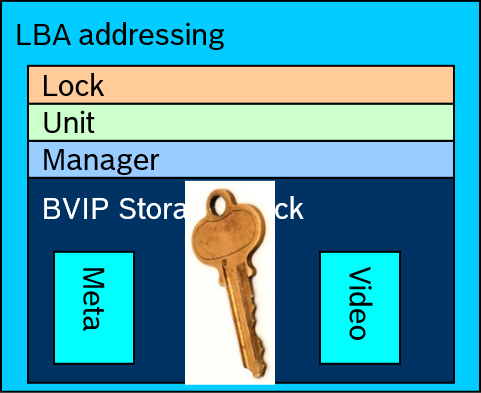
-
Each Block is Encrypted with a Unique Key
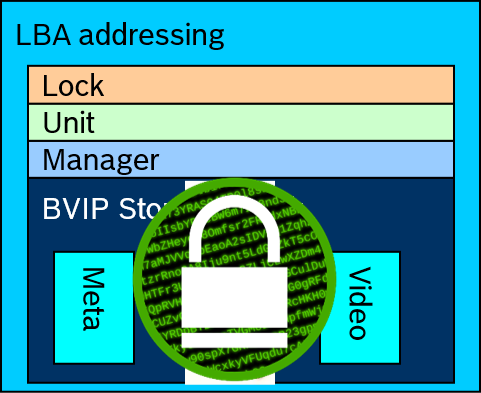

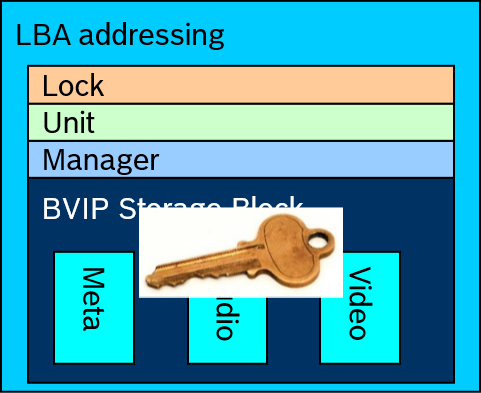
The Camera’s “Symmetric Key” that was used to encrypt the block is then:
-
Encrypted VRM’s “REC1” public key
-
The key is then “Stored” in the block that it encrypted
VRM Encryption Operation Overview: Playback
VRM performs the playback function by retrieving the camera’s Symmetric Key that was encrypted with its “Public Key”, and stored in the block.
-
VRM Decrypts the “Symmetric Key” using its “Private Key”
-
The Video in the AES Encrypted “Block” can now be decrypted and played back to the client

Step-by-step guide
VRM Encryption Configuration
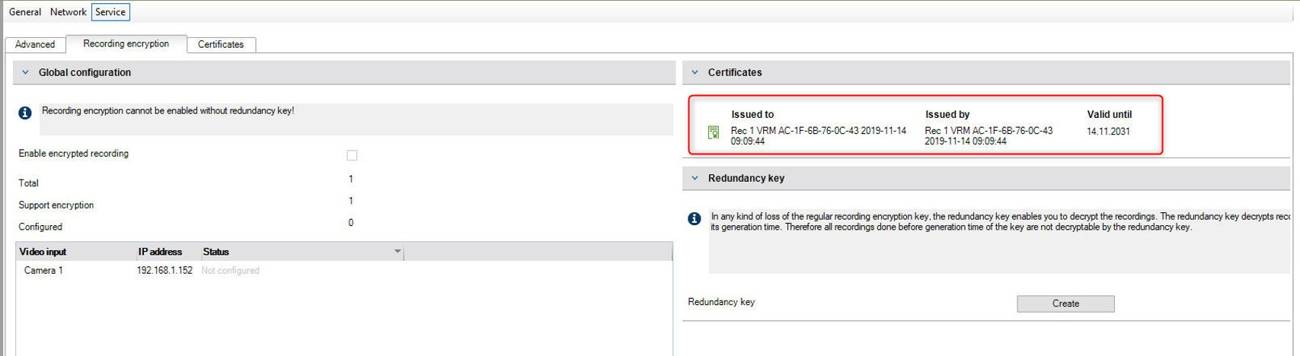
When a VRM service starts for the first time, it will auto generate a self signed “Recording” Certificate (REC1)
Certificates and keys will either be placed in the OS Certificate Store (MMC), or the Crypto Co-Processor of its appliance if equipped.
-
Certificate Structure is the same as discussed in the “Certificate and MCA” module
All capable video devices that are added to the VRM are automatically given the VRM’s static “Public” key:

Step 1
VRM encryption cannot be initially started until a “Backup” of the of its Private “REC1” key is made!
In the Devices Tree highlight the system’s VRM. Navigate to the “Service” menu tab and the “Recording encryption” submenu:
-
Under “Redundancy key” select the “Create” button
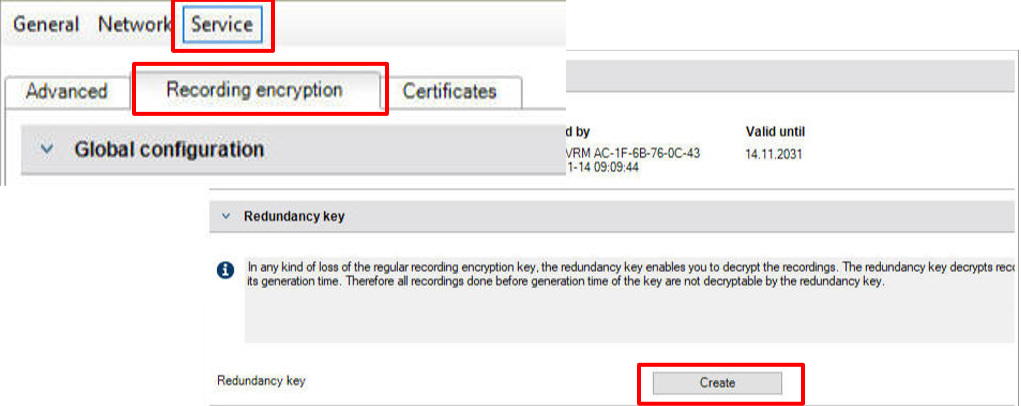
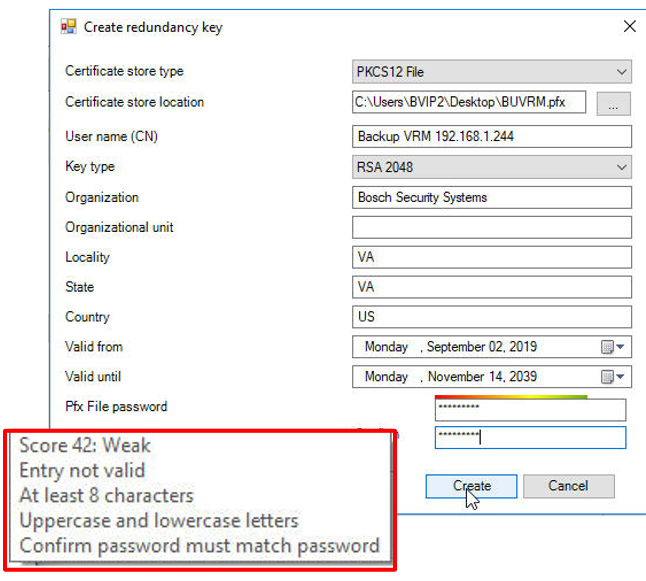
You will receive a “Create redundancy key pop-up menu
-
Select the “Browse” tab
-
Once you select a location …
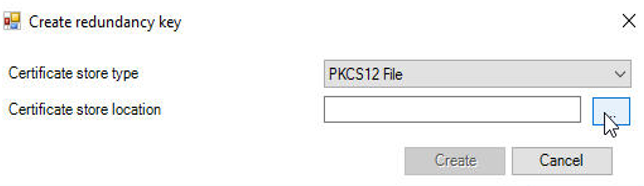
You will receive a key menu similar to the Micro CA
-
Fill in the appropriate data and password
Note
The backup key will be saved as a PKSC12 File (PXF) which will contain the Private Key and X.509 Certificate
Step 2
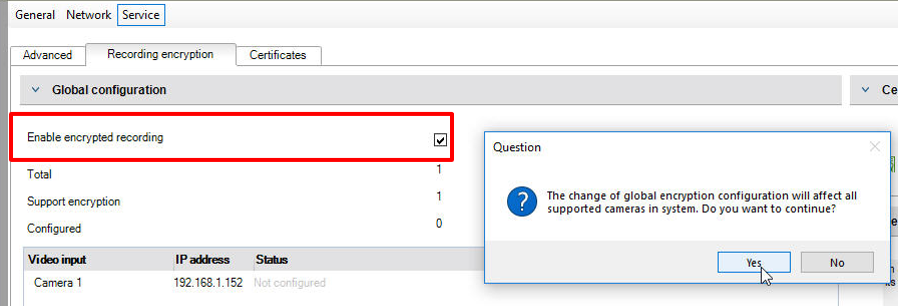
After a Redundancy key has been created you will now have access to the “Enable encrypted recording” checkbox.
-
After you select it you will be asked if you want to proceed: select “Yes”
-
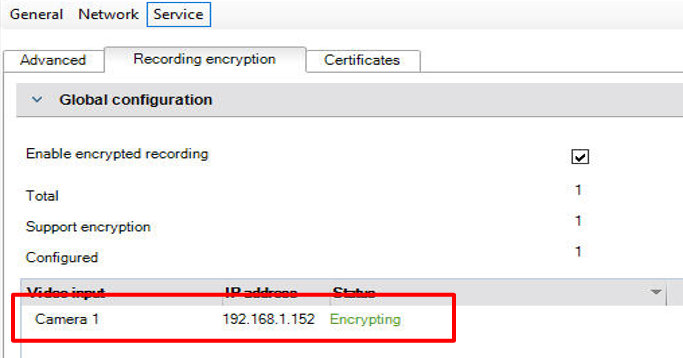
After saving and activating your configuration, all VRM devices should show a status if “Encrypting”
VRM Encryption: Certificate Page
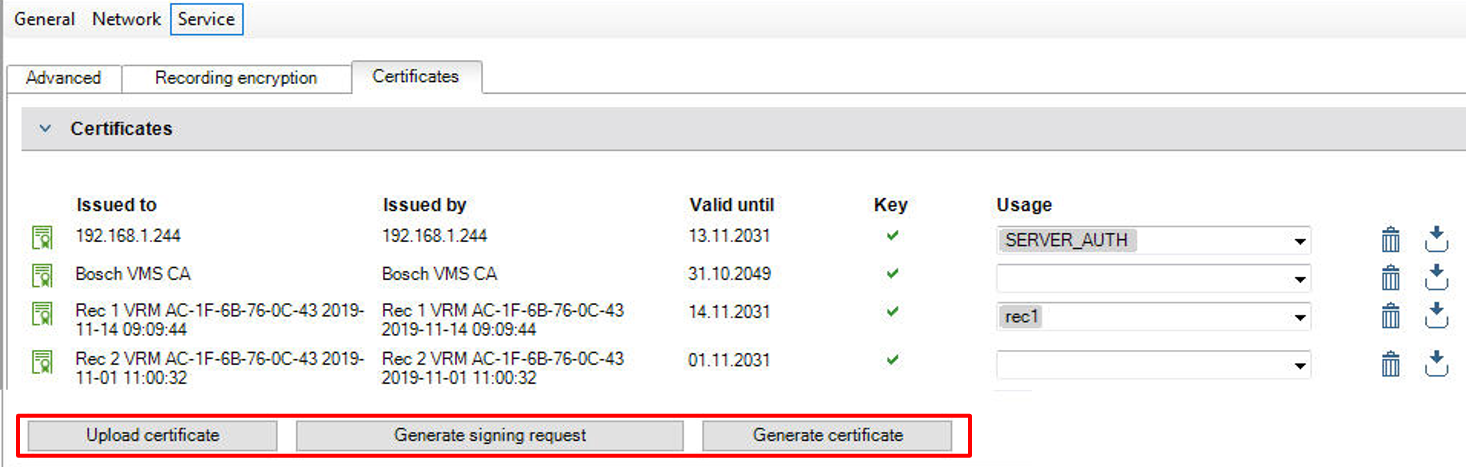
Similar to the Certificate Store in the Cameras and the Micro CA in Configuration Manager, VRM has a “Certificates Page” ( Services and Certificates menu).
-
Back Up certificates can be uploaded using this page: Usage “REC1” needs to be applied
VRM Encryption: Playback
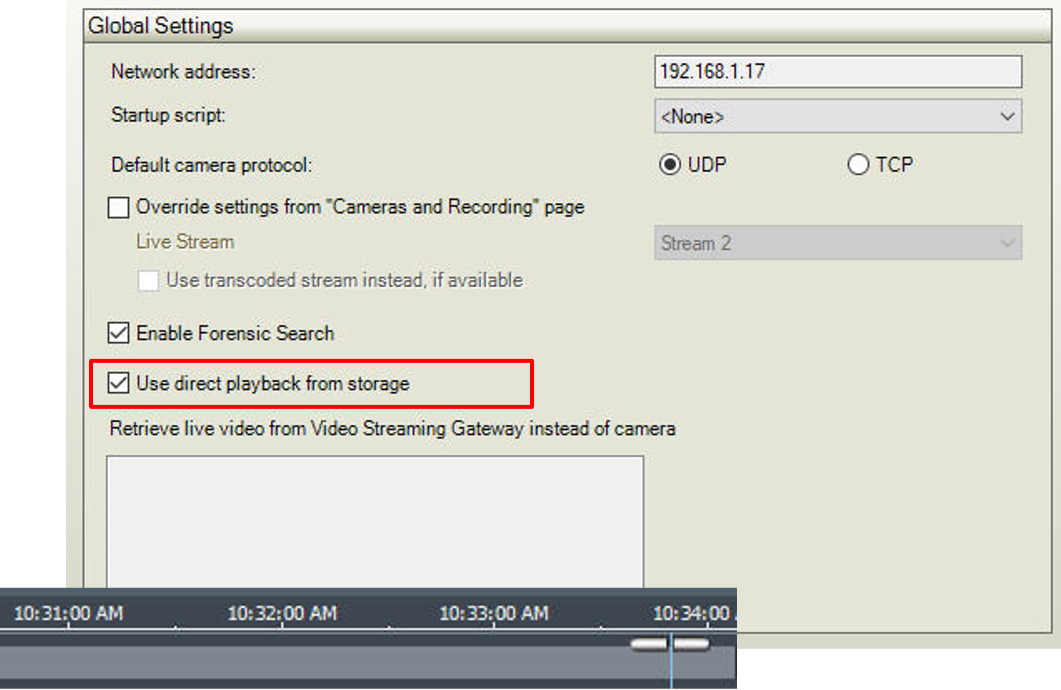
Because the Workstation setting of direct playback from storage will not function if dealing with encrypted video, this setting is automatically ignored if configured:
-
The Workstation will be redirected to utilize VRM Decrypted Playback
VRM Encryption: What’s NOT Supported
-
Encoder 32 Block Playback during VRM Downtime Not Supported

-
ANR Playback does not function when recording are encrypted

VRM Encryption: Old Keys | New Keys
If there is a VRM failure and a new installation has occurred:
-
Video encrypted with the original certificate cannot be replayed unless the “Back Up” key is applied to the new VRM
-
In this example all video using the Certificate from July 2019 would be inaccessible unless the Redundancy Key was utilized:



-
How to play exported recording files from VRM eXporter Wizard in BVMS Export Player?
-
How to export VRM recordings of cameras & convert them to mp4-file (VRM eXport Wizard 2.0)?
-
How to export VRM recordings of cameras & convert them to mp4-file (VRM eXport Wizard 2.10)?