
For the current article, the following devices/firmware/software versions were used:
-
Configuration Manager v.7.72.0106
The Table view provides the option of presenting a summary of specific settings for individually selected devices in the form of a clearly arranged table.
The content of all main tabs and sub-tabs can be exported in *.csv format.
It may happen that the Table view option not being visible in the Configuration Manager menu, on the left side.
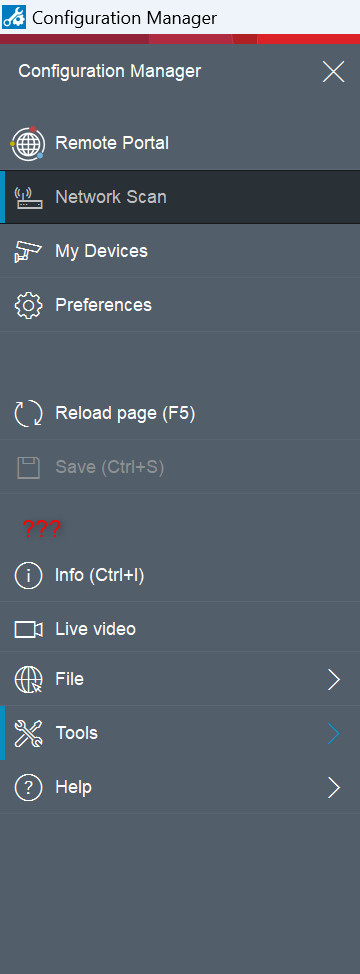
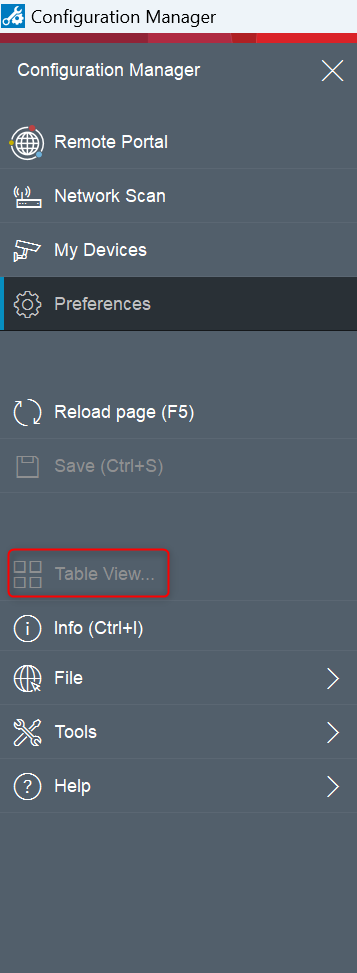
Follow the steps below in order for the Table view icon to be displayed in the Configuration Manager menu.
Step-by-step guide
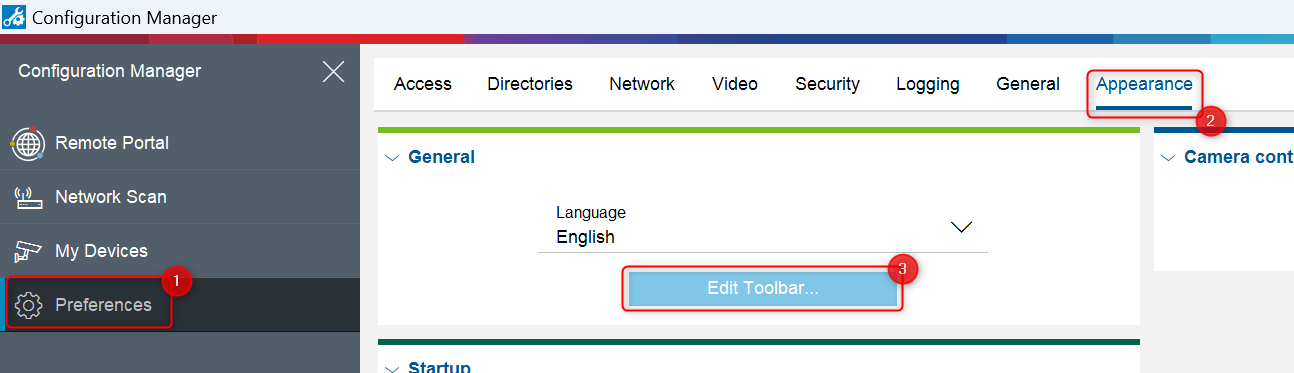
1. Go to Preferences > Appearance > click on the Edit Toolbar... button
2. Select Table View... option from the Available actions list and click on the right arrow to move it to the Showed actions list:
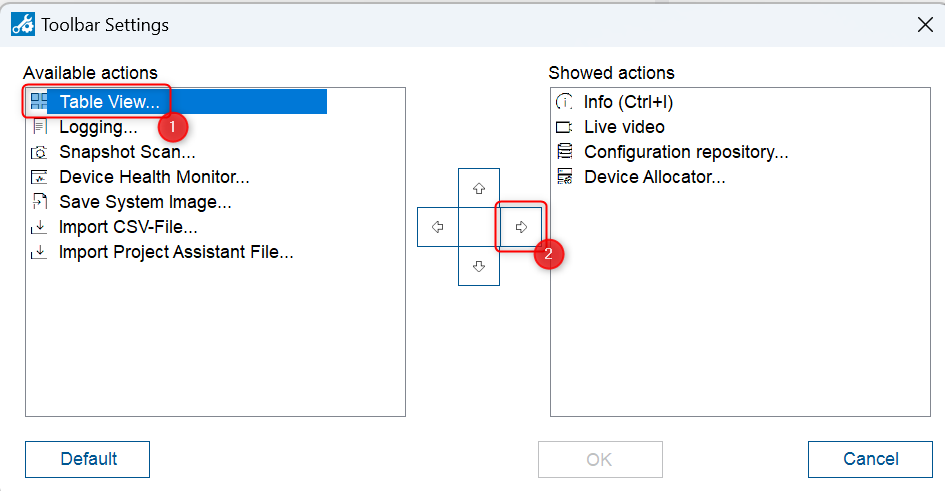
3. Move the Table View... option on the top of the Showed actions list > click OK
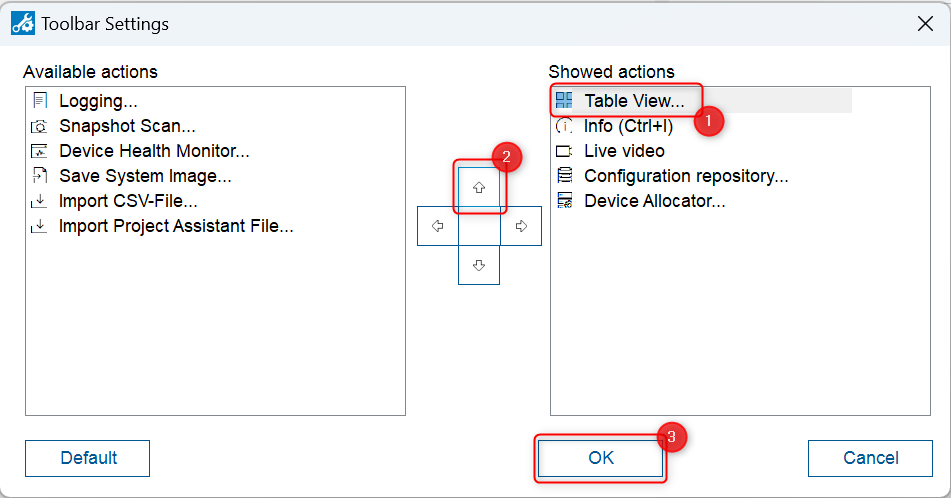
The Table View... option should be now visible in the Configuration Manager menu and you can start using it!
