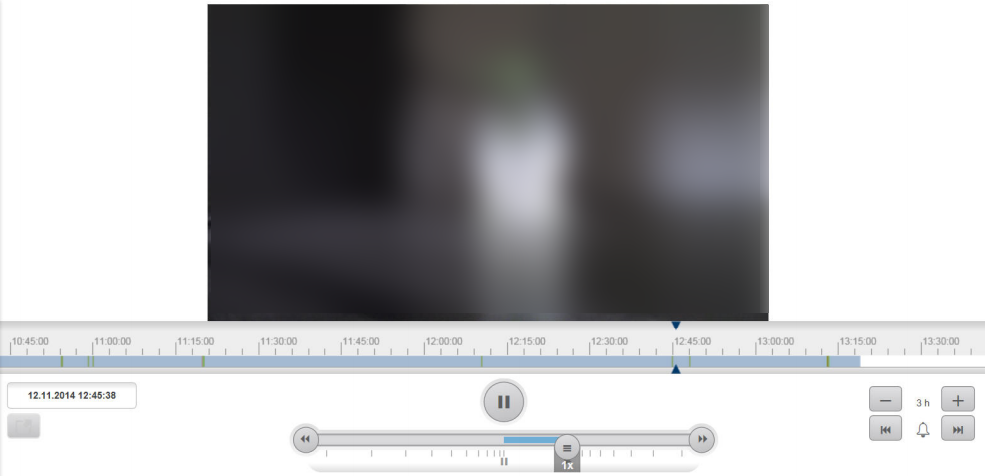
The purpose of this article is to provide a step by step guide about how to perform backup and recovery procedures of the VRM data base in the DIVAR IP 2000 EZ Recording Appliance.
Step-by-step guide
Backing Up the Working Configuration:
1.To backup the working configuration of a DIVAR IP 2000 Recording Appliance, open the Appliance's "Dashboard":
2. From the Dashboard select the "Configuration" tab in the top right hand portion of your browse:
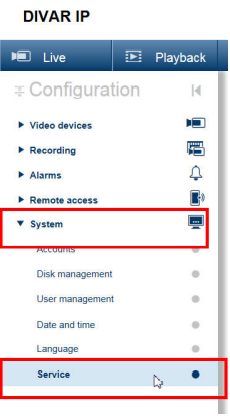
3. Once the "Configuration" menu is open select the "System" menu >"Service" submenu:
4. From the "Service" submenu select the "Backup and Recovery" menu on the right portion of the page > select the "Back up" button
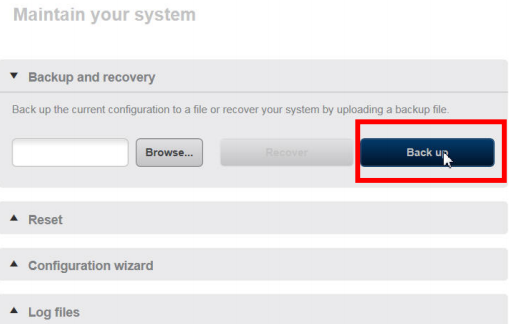
5. Once you have selected "Back up" you will be prompted to save the configuration file.
-
Select The "Save as" option and save the configuration file to the location of your choice
-
The file that is saved is in the following format: config_date_time.vrm

Restoring a Working Configuration:
1.To restore appliance's configuration after a deliberate system rebuild or disaster recovery simply navigate to the appliance's "Dashboard". Then proceed to the Configuration menu > "System" menu >"Service" submenu as you did before
Once at the "Service" menu, select the "Browse" tab in the "Backup and recovery" menu.
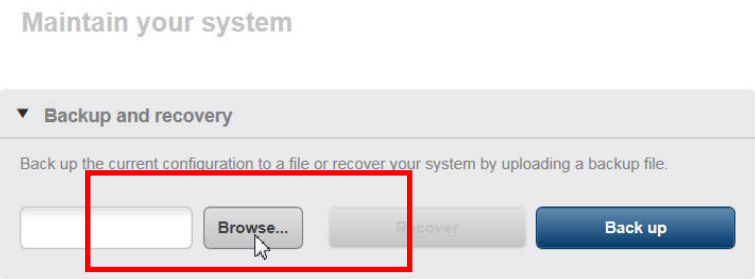
2. This should open up a explorer window. Navigate to the location of the last configuration file you saved for you system and select the file.
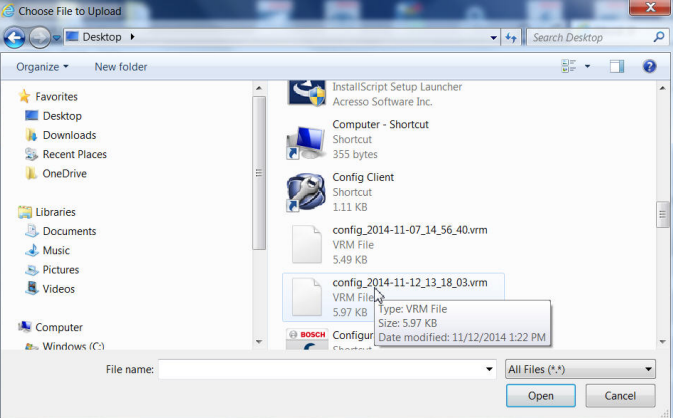
3. After selecting a valid backup configuration file the "Recover" menu tab should now be available. Select it.
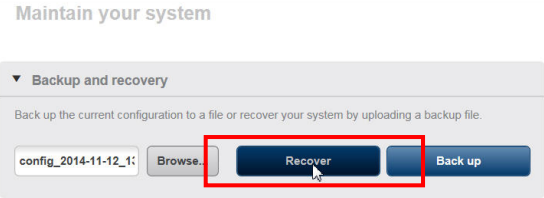
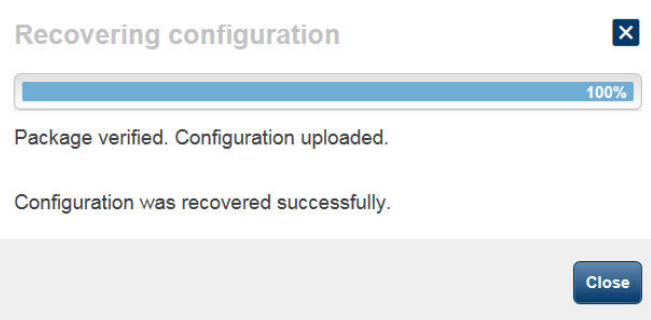
4. After selecting "Recover" the recovery process should begin
After the process is complete you will receive a message Configuration was recovered successfully" > Select the "Close" tab
Note: All previously installed devices should once again be in the appliances device tree.
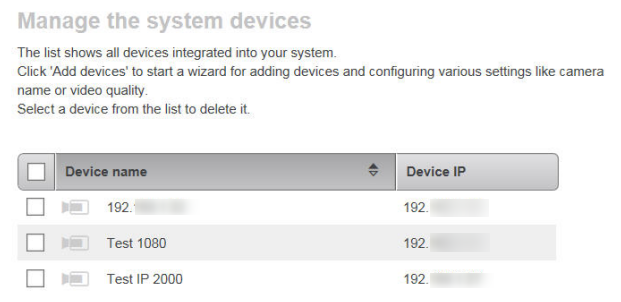
If this was an Operating system or database recovery only, all devices will be associated with previously recorded video.