
Step-by-step guide
Managing Command Scripts
Documentation from BVMS Help → Managing Command Scripts.pdf
You can create a Command Script using the following scripting languages:
-
C#
-
VB.Net
You cannot change the scripting language of an existing Command Script.
You can create a Client Script or a Server Script.
You can add multiple scriptlets to every script.
To get help on entering code, click 
-
To add a server scriptlet:
-
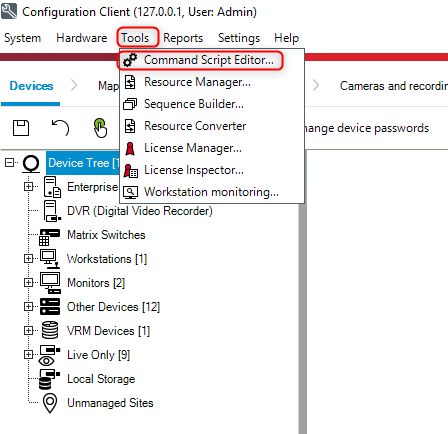
On the Tools menu, click the Command Script Editor... command.
The Select Script Language dialog box is displayed if no Command Script was created yet. -
In the Script Language: list, select the required entry.
The Command Script Editor dialog box is displayed. -
In the left pane of the Command Script Editor dialog box, right-click ServerScript and click New Scriptlet.
A new scriptlet is added. -
Enter your code. Or if you got an example scriplet, copy paste the code.
-
To add a client scriptlet
-
On the Tools menu, click the Command Script Editor... command.
The Select Script Language dialog box is displayed if no Command Script was created yet. -
In the Script Language: list, select the required entry.
The Command Script Editor dialog box is displayed. -
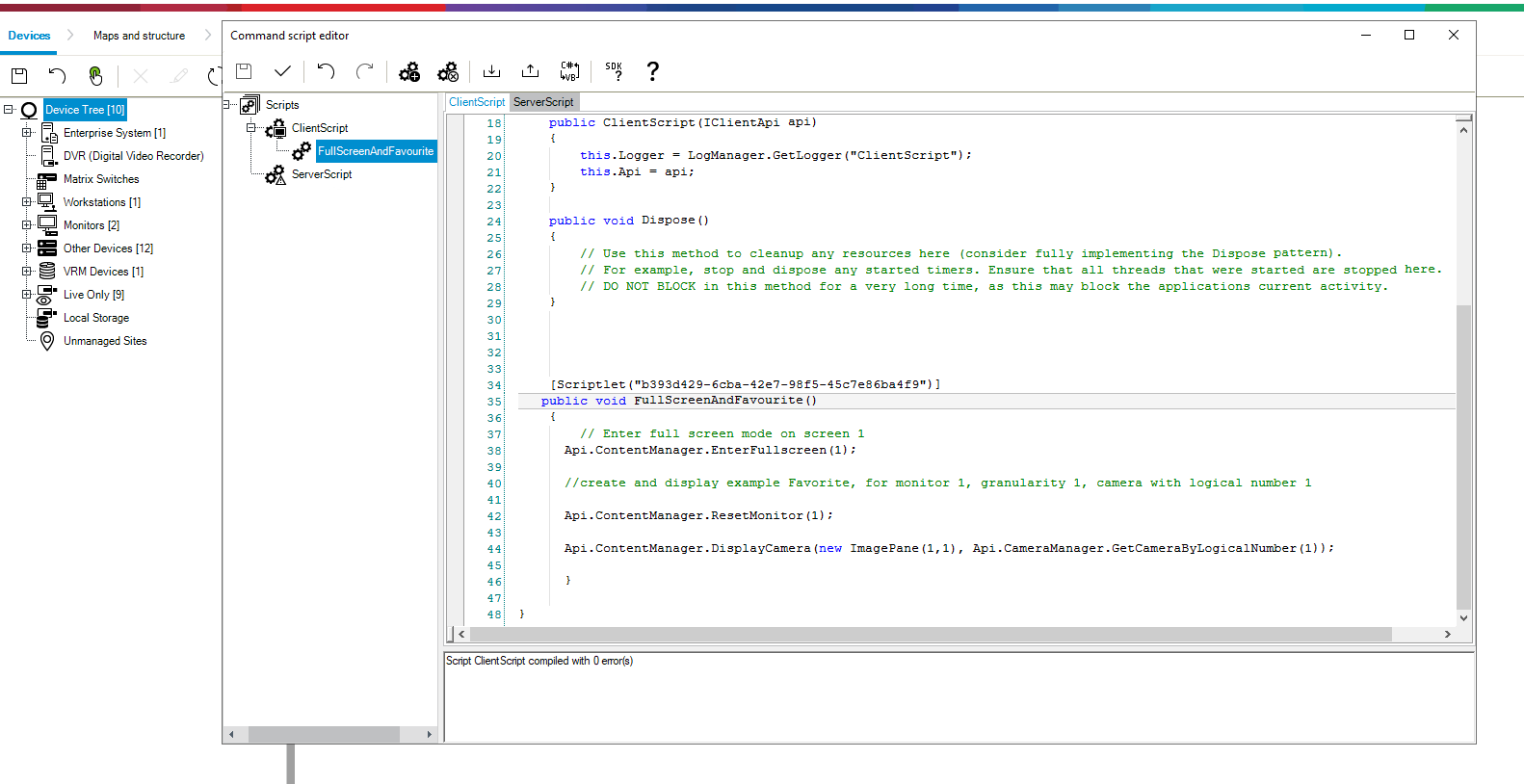
In the left pane of the Command Script Editor dialog box, right-click ClientScript and click New Scriptlet.
A new scriptlet is added. -
Enter your code. Or if you got an example scriplet, copy paste the code.
-
Save the command script editor
-
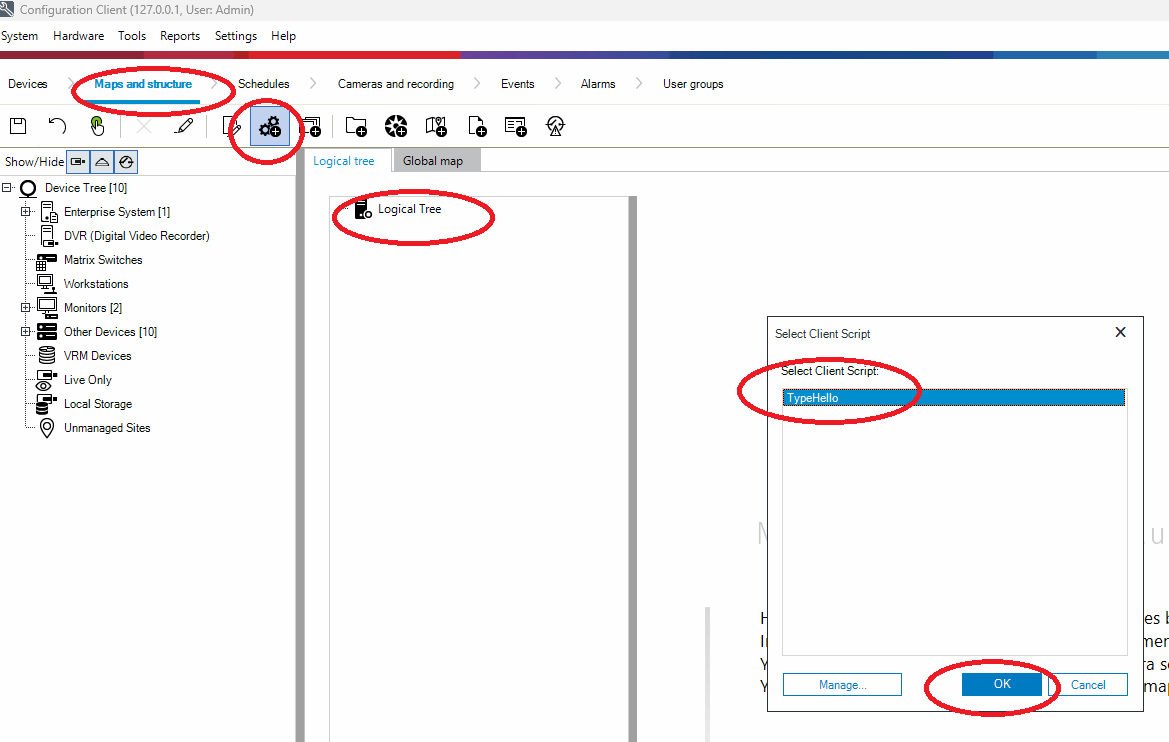
Add the client scriplet to the logical tree. Click on Maps and structure, Logical Tree, Add Command Script, then select the scriplet name and click OK.
-
Save & Activate the configuration

-
How is the example script to set Operator Client in full screen mode & favorites loaded on startup?
-
Is it possible to configure Operator Client to start with Windows startup of the Workstation?