Step-by-step guide
-
First, you have to configure your DIVAR Hybrid 5000 with the cameras you would like to see Live image in BVMS Viewer Operator Client.
-
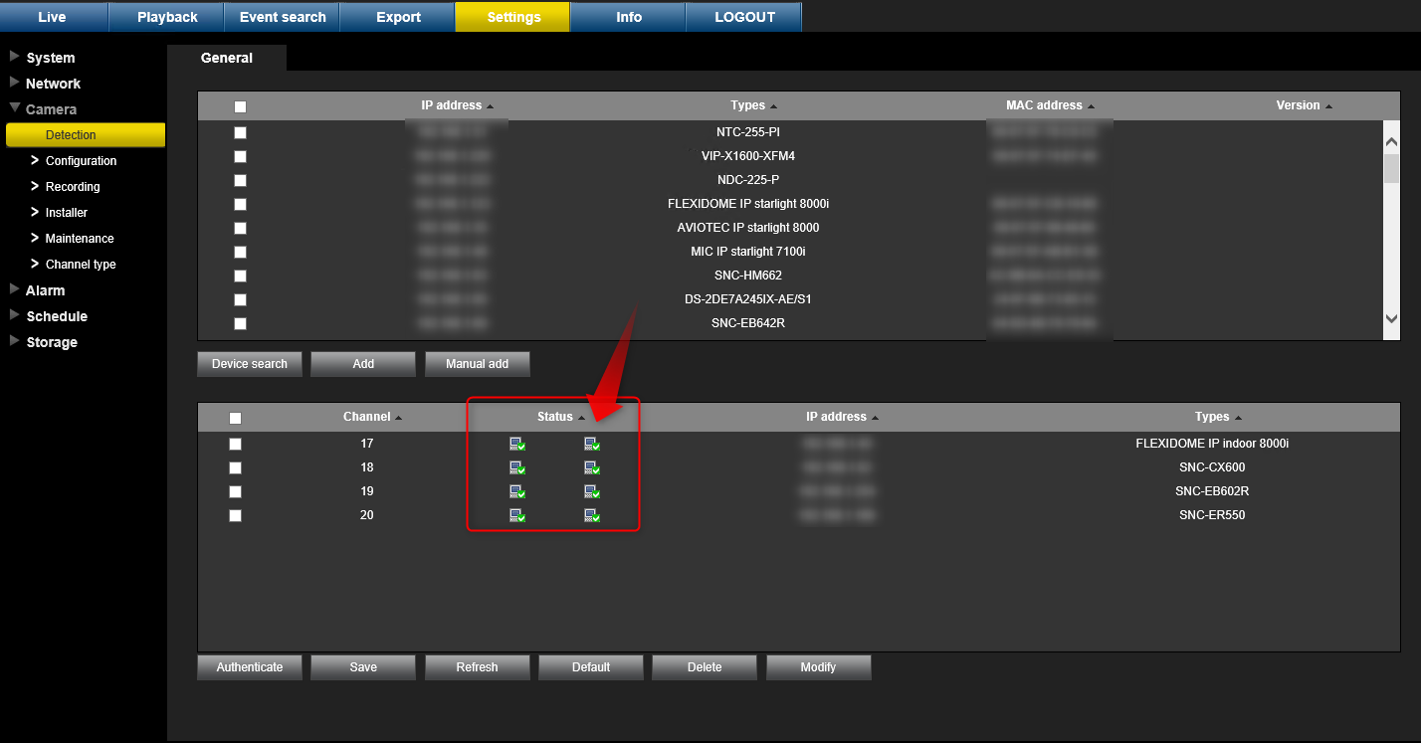
Please make sure that your cameras are connected and visible in Settings > Detection menu of your DIVAR.Select cameras you want to see the image for and click AddWhen all desired cameras are in the list, click Save
-
Fill in the credentials of the cameras you have in the listGo in Configuration menuSelect the channels where your cameras are inType in the User name and Password of your camerasSave your changesDo the same for all cameras you have in the list and you want to see the Live image for.
-
Verify if the status of your cameras is green (Detection)
-
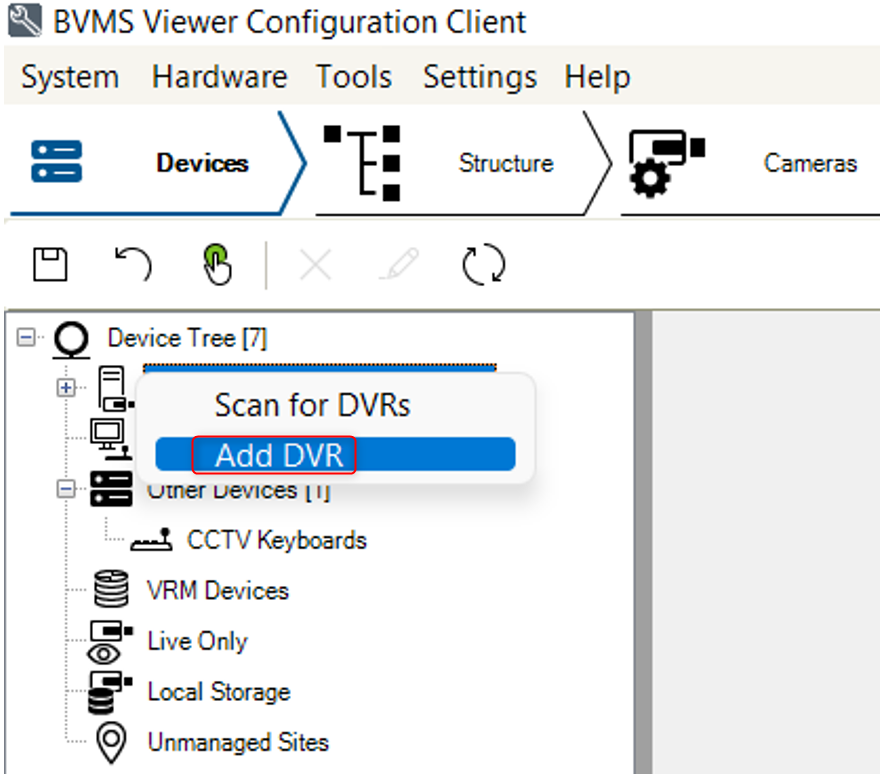
Open BVMS Viewer Configuration Client > go to the Devices menu > right click on the DVR (Digital Video Recorder) > select Add DVR (in this example we will add the IP address of the DIVAR Hybrid 5000. You can also use Scan option)
-
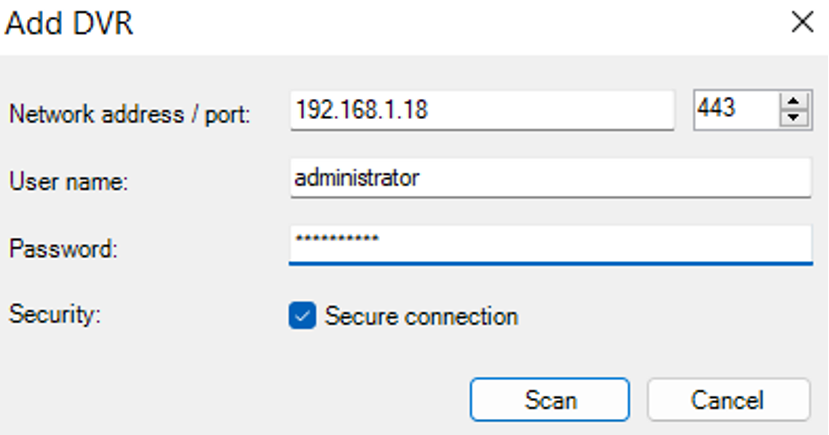
Type in the IP address of your DIVAR Hybrid 5000 and its credentials > click Scan
-
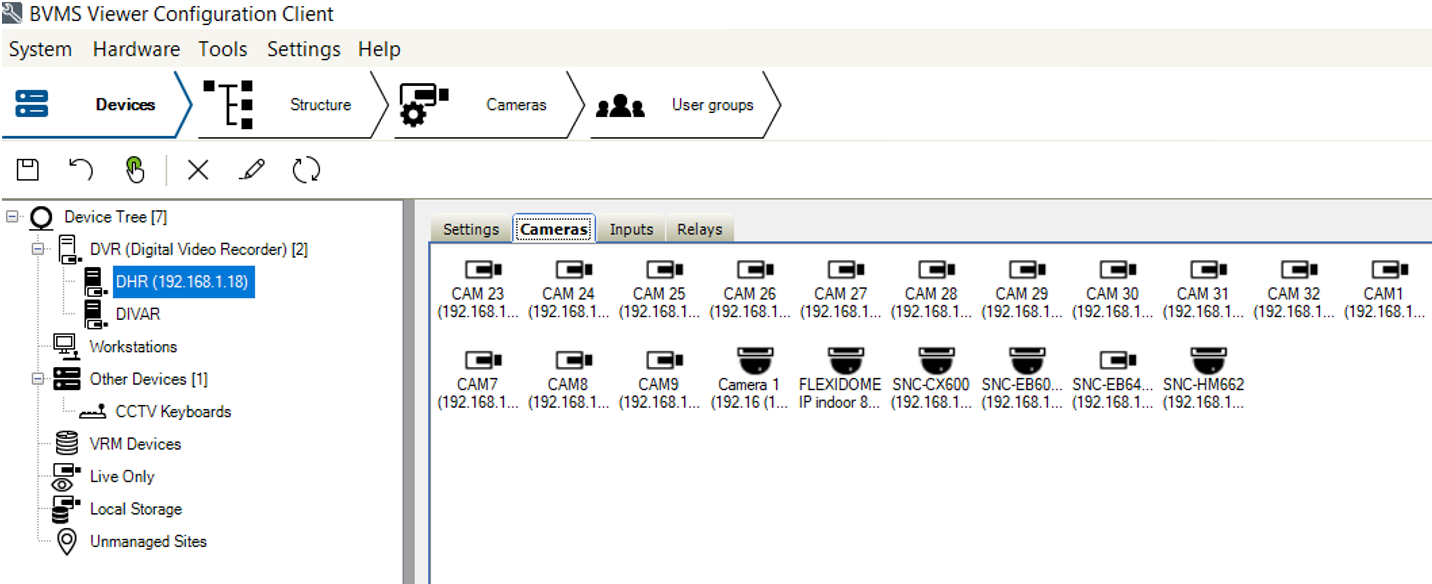
Your DIVAR Hybrid 5000 will be visible in the Device Tree and you can check if the previously configured cameras are visible
-
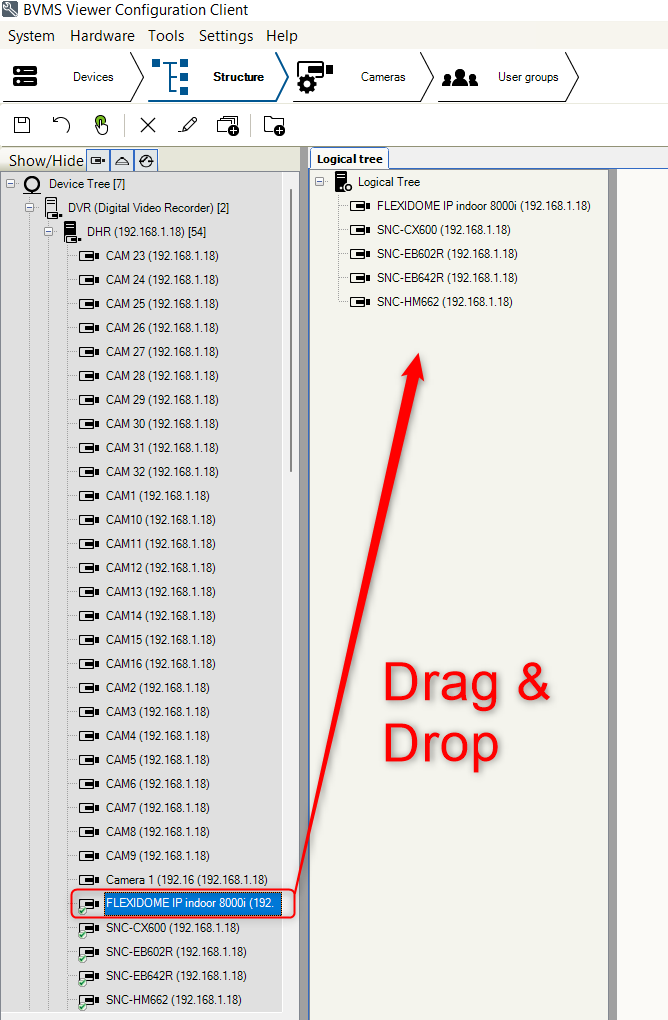
Save your changes and go to the Structure menu and drag & drop your DIVAR or cameras into the Logical Tree list
-
Save & Activate your configuration

-
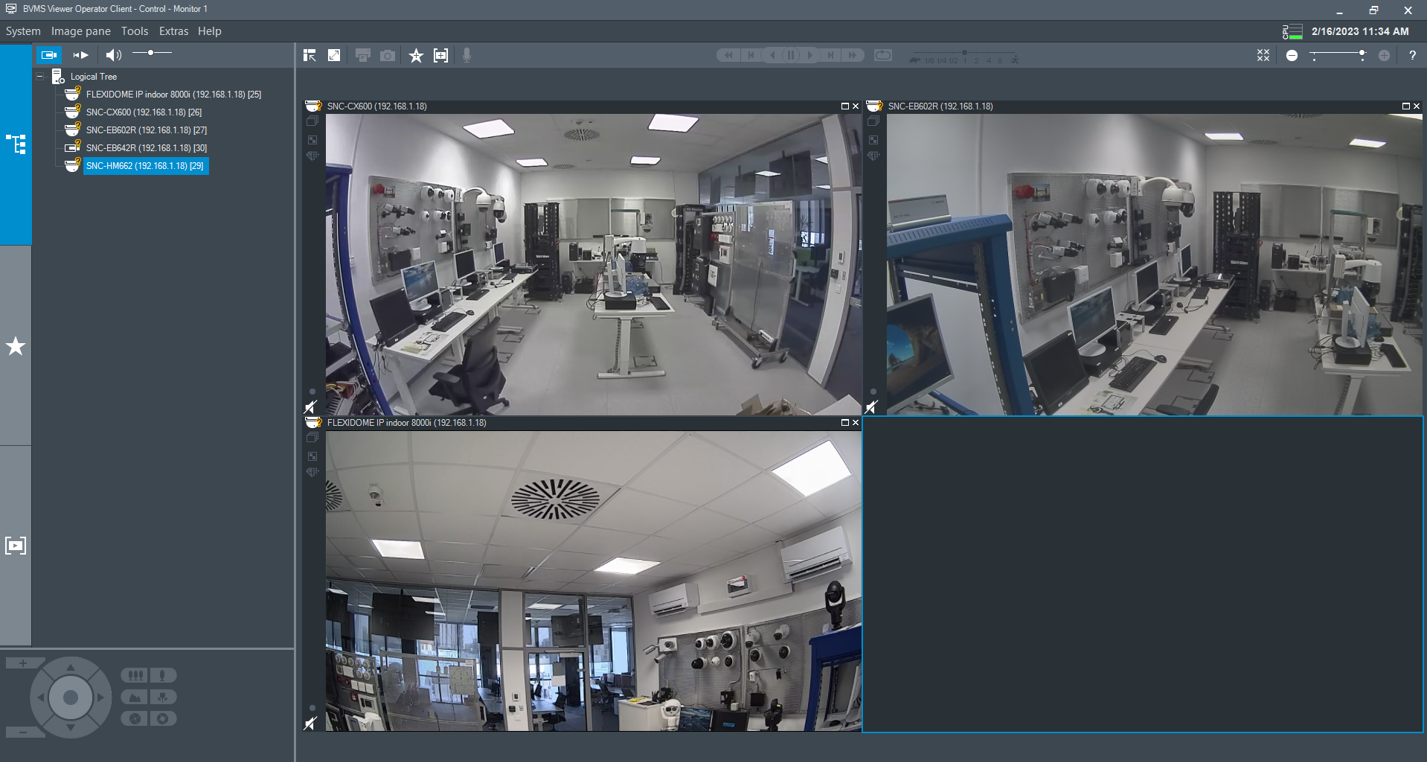
Open Operator Client and drag & drop your cameras in the Image Pane area to see their Live image.