
Question
Do you want to configure Video Content Analysis of your device and "VCA: Authorization required" message is displayed in Configuration Manager?
Find out here why this message is displayed and what you should do to fix it.

Answer
Please be careful if there is a red padlock next to the camera name, in Configuration Manager.
This means that you didn't log in. When this happens, the message "VCA: Authorization required" (when the English interface is used) is displayed in the VCA tab.
Note:
Please note that the VCA configuration can only be changed in Configuration Manager after you have logged into the camera with the service user or a IVA configuration user.
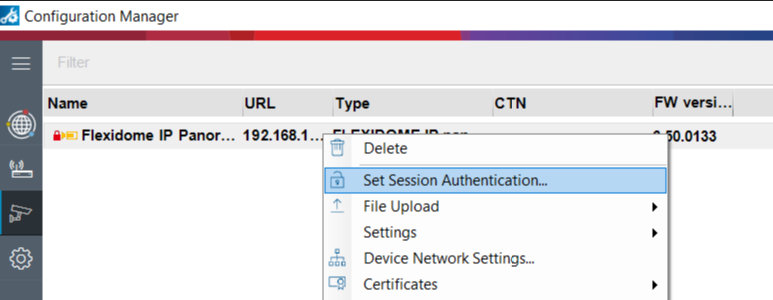
To log in, you will need to right click on the camera and then choose the option "Set Session Authentication..." from the drop-down menu list.
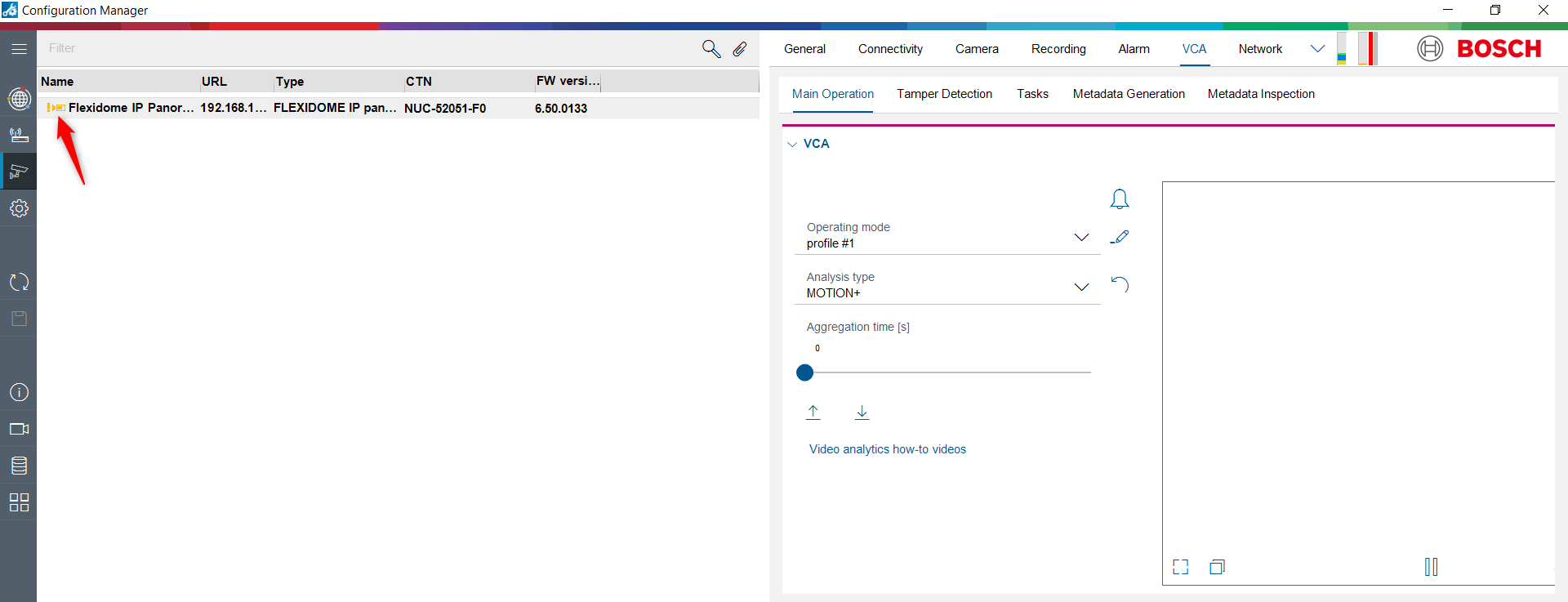
After doing so, the red padlock will be replaced by a yellow exclamation mark, the message "VCA: Authorization required" should disappear and you should be able to configure the VCA without any issues in the Configuration Manager.
The IVA configuration user can be used in Configuration Manager 7.2 or higher and not in the web page, according to the release note (page 7 and 13).
Also, according to the same release note (page 15), "in web browsers that do not support MPEG-ActiveX, VCA configuration is only possible via Configuration Manager. An info message to use Configuration Manager is presented, with a hint where to get Configuration Manager if it is not installed".
You can download the latest version of MPEG-ActiveX using the following link (Software > select MPEG ActiveX) in order to be able to configure VCA in the web browsers that support MPEG-ActiveX.
Additionally, you can find below the VCA manuals, as it might come in handy for the VCA configuration: