Logs are important for troubleshooting and Central Technical Support team can ask for them to investigate certain problems.
The steps below can be used for the following models:
-
DIVAR AN 3000/5000 ,
-
DIVAR Hybrid 3000/5000,
-
DIVAR Network 2000/3000/5000
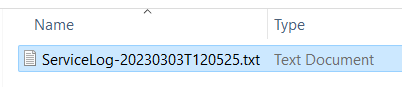
You can collect Service logs from the unit using two methods. Both methods will save the service logs as a password protected ZIP file ( Example: ServiceLog-20141204T172254.zip ).
-
Method 1 : from Local User Interface
-
Method 2 : remote, using a browser
Step-by-step guide
Method 1: via Local User Interface using an USB memory stick:
-
Plug USB stick on the front panel of the unit
-
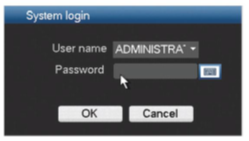
Log in using the administrator account
-
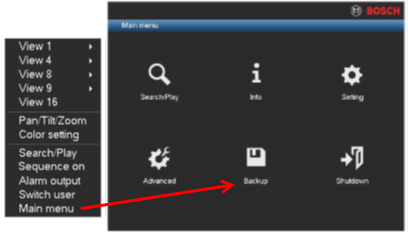
Right click on the Main Menu > select Export ( or Backup – for AN models)
-
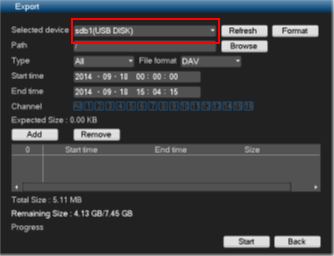
Select the USB drive
-
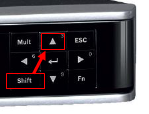
Press Shift button on the front panel and then let go
-
Press Arrow Up button on the front panel and then let go
-
One pop-up message will be displayed to save the service log. Save the service logs on the USB stick.
Method 2: You can also collect the service logs remotely, using Microsoft Edge browser.
(information) How can I access my DIVAR Network or Hybrid web GUI given that Internet Explorer has been retired?
-
Start your browser and make sure that you can reach the recorder by entering the unit <IP-address> as URL.
-
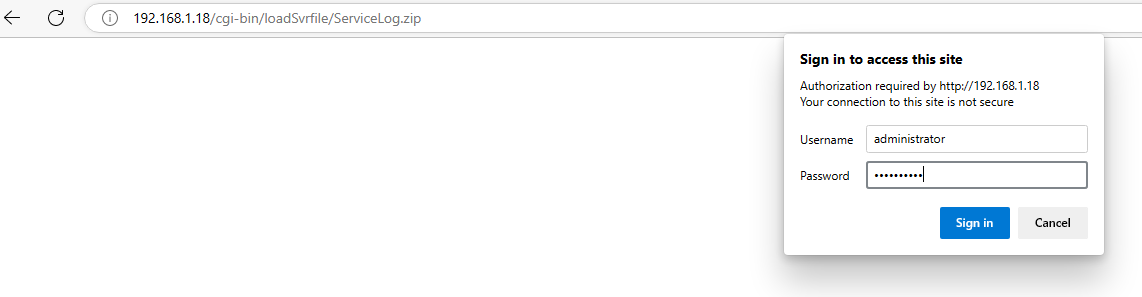
In address bar enter: http://<ip-adress>/cgi-bin/loadSvrfile/ServiceLog.zip
Important: Link is case sensitive!
-
A dialog will popup “The server <ip-address> at Device_CGI requires a username and password”.
-
Enter the recorder credentials for the administrator account
-
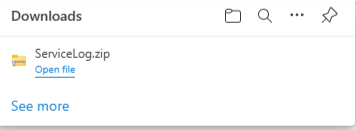
If the link and credentials are correct you should get a dialog box that will notify you the logs are downloaded and by clicking the "Open file" you will be redirected to the ServiceLog file location.