
|
|
|---|
 This procedure takes in average ~ 2 min to complete
The following e-mail is received to notify you that a license expired and you should take an action in this regard:
"Dear Customer,
The license for your system xx-xx-xx-xx-xx-xx (XX-XX-XX-XX-XX-XX) in your account ABC expired and there were no "Available" licenses in your License Pool to renew the subscription automatically.
Thus, the service VideoView+ was stopped.
In order to activate the service again please order the appropriate license and subscribe the service again.
Regards,
Bosch Remote Portal team"
But how can you distinguish the license to know exactly which customer or company it belongs to?
Now, you can get more details by using the license report export feature in Remote Portal!
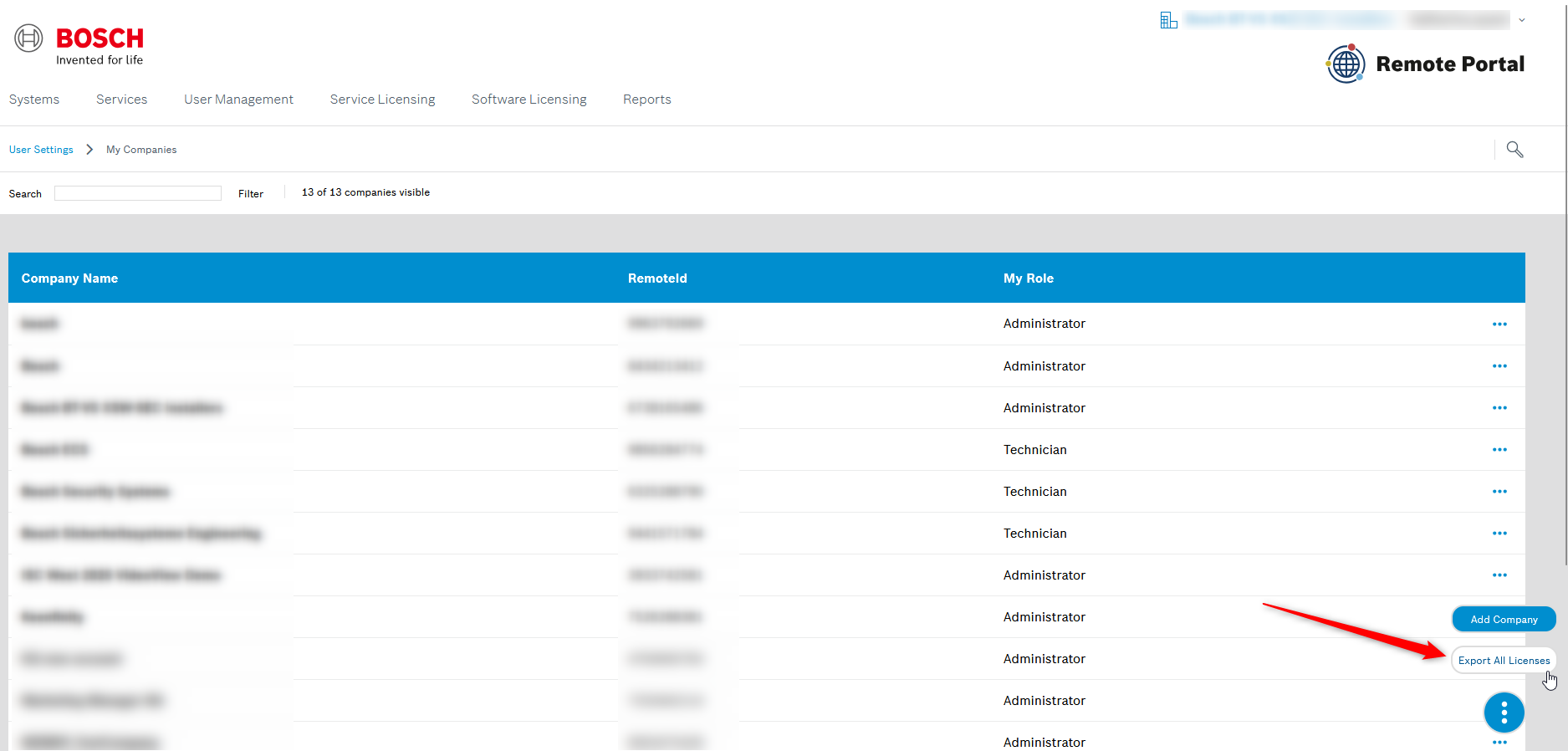
Therefore, you need to select Export All Licenses on the new landing page of Remote Portal, which can be found via the My Companies icon 
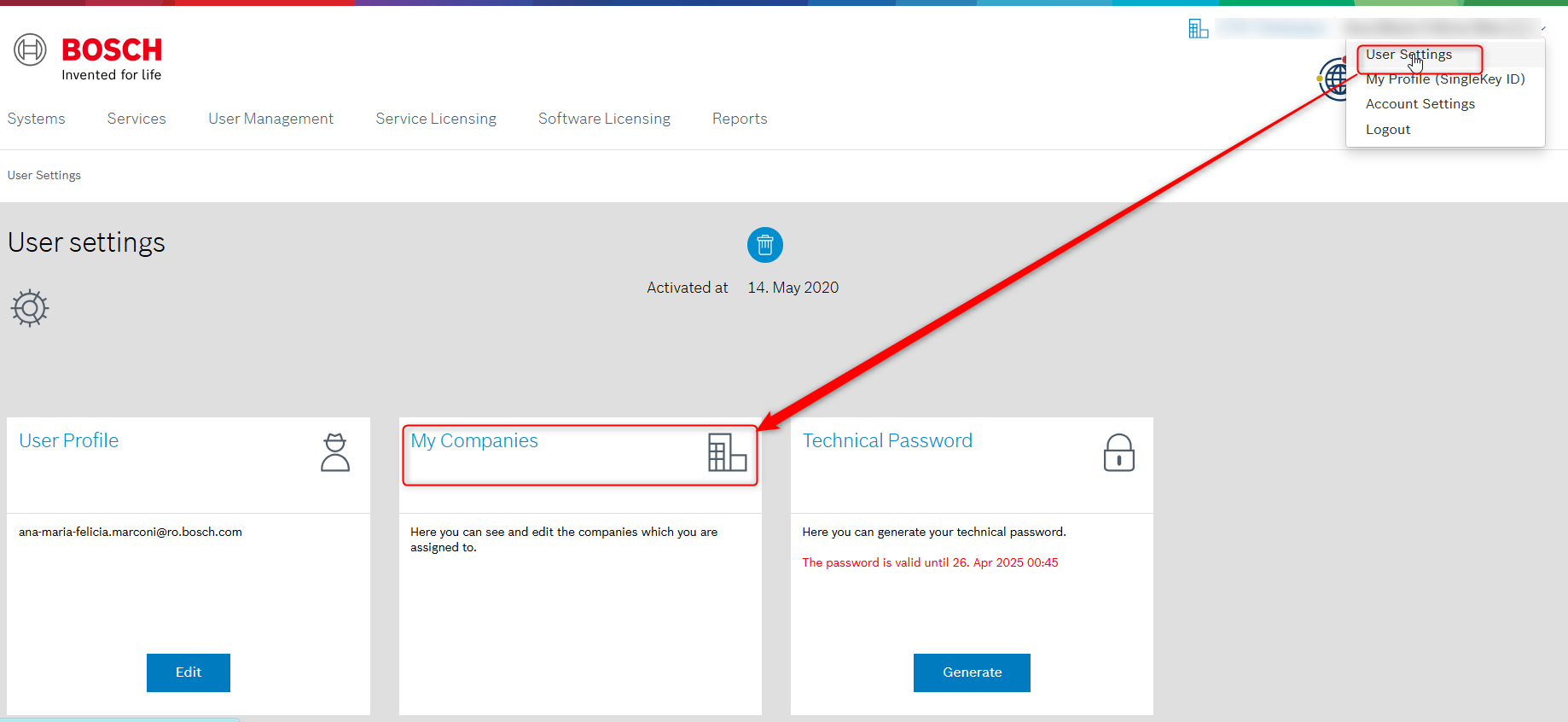
Step-by-step guide
-
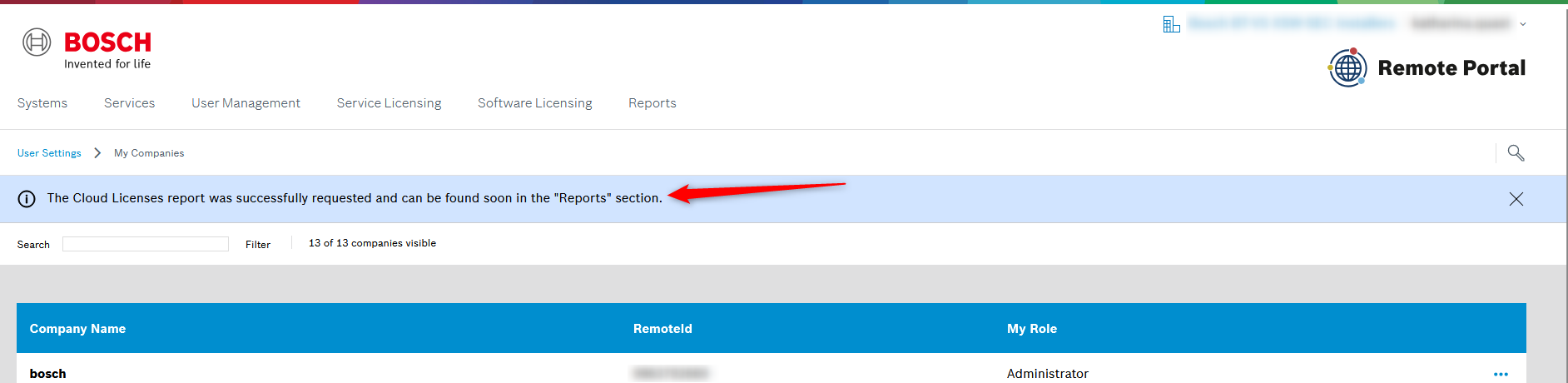
After clicking on Export All Licenses, a banner will inform the user if the report has been successfully generated and can be found in the “Reports” section.
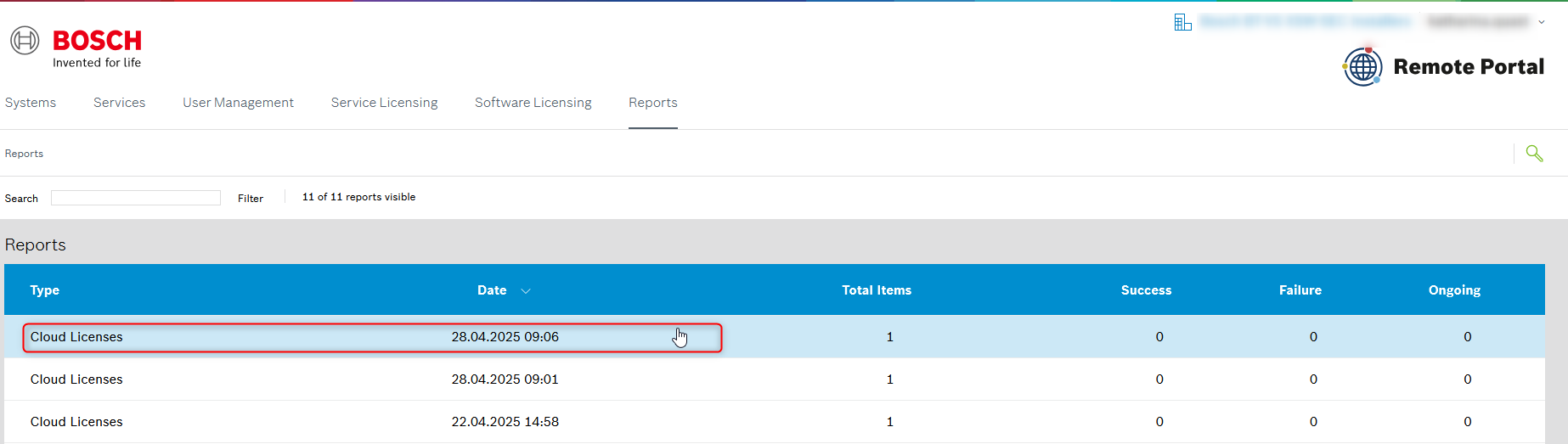
Please note: it can take some time until the generated report appears under “Reports”.
-
The user needs then to select the desired report and click on Export to download the report as a CSV file.
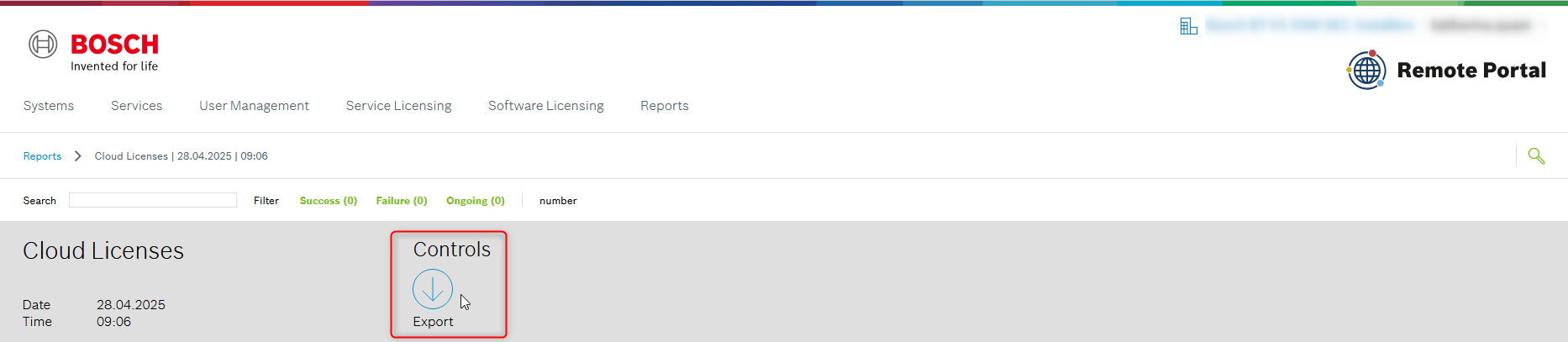
The report will contain the following information:
-
Remote ID
-
RP company name
-
Device name
-
MAC address
-
RP group path
-
Service name
-
License type (trial, demo, paid)
-
CTN
-
Activation date
-
Expiration date
-
Auto-renew status
Compare screenshot below:
