The MBV-MBase is the license that allows you to extend the SMA in Remote Portal. You receive this license when you place an order to Order Desk for SMA extension and it must be activated in the Remote Portal and on the server like any other license.
For more details related to the MBV-MBase, please refer to this White Paper.
Step-by-step guide
1. Login into your Remote Portal account and go to the Software Licensing menu

-
Nice to know: How to check the SMA End Date?
-
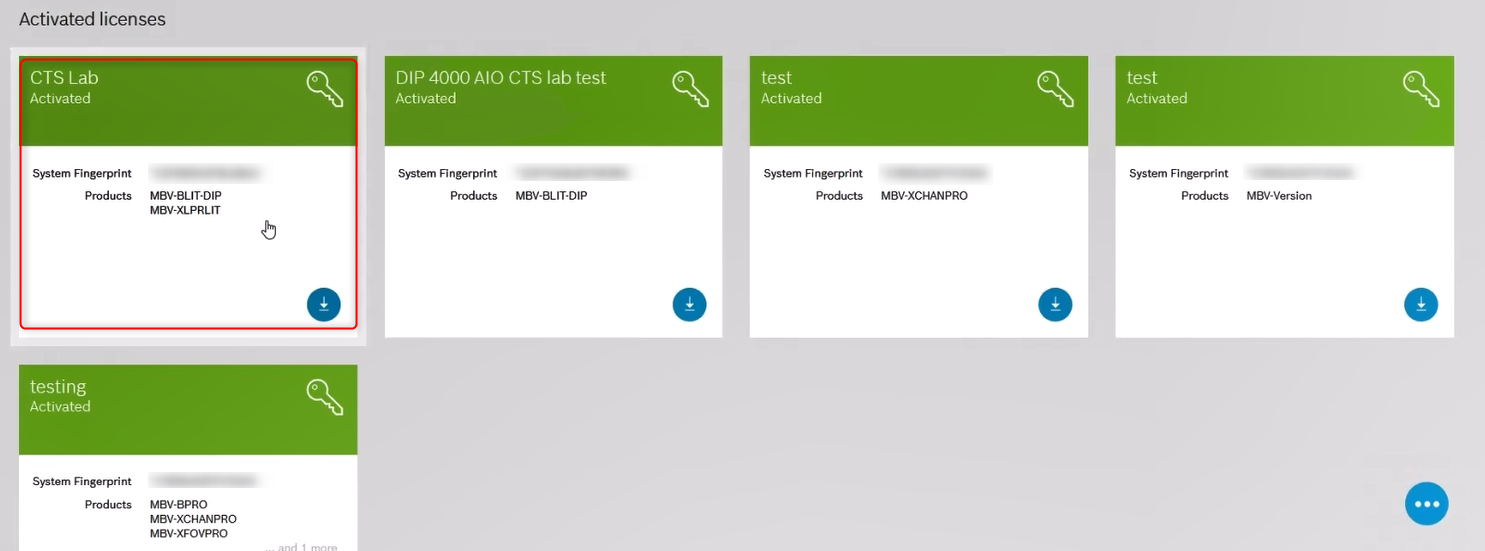
In the Software Licensing menu: Select the license you want to add the MBV-Mbase license for (SMA extension)
-
-
-
You will see the SMA End Date in this section:
-
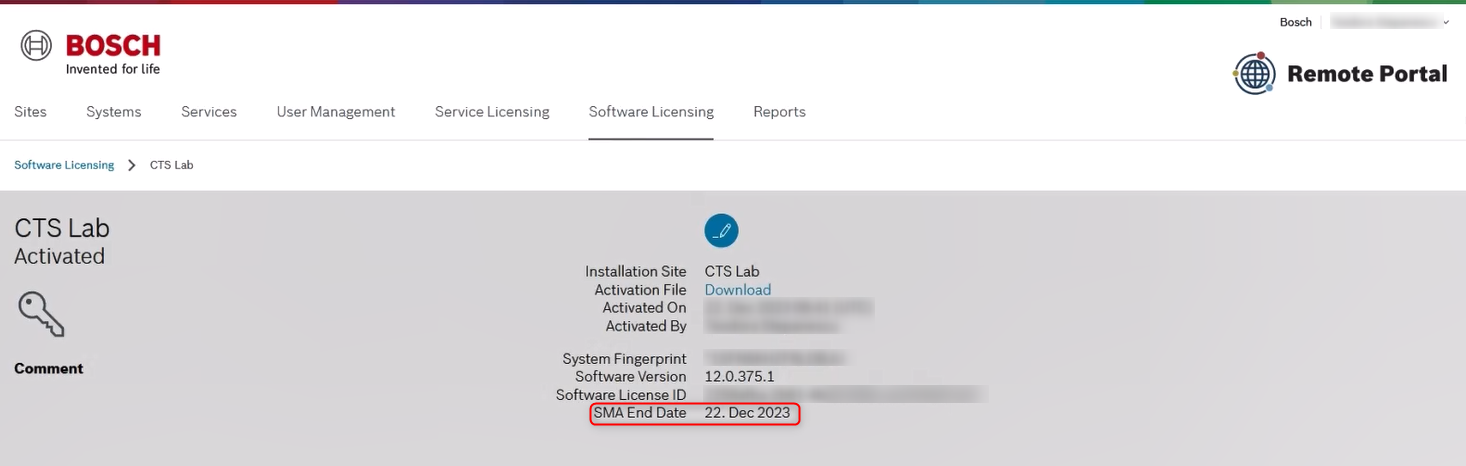
(light-on) Or you can check the software assurance status in Assurance Report from your Remote Portal Account (Software Licensing > 3 dots button > Assurance Report) → How to check the Software Maintenance Agreement (SMA) status of BVMS 11.x via Remote Portal?
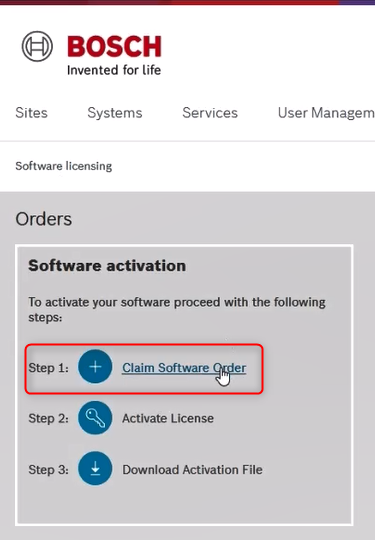
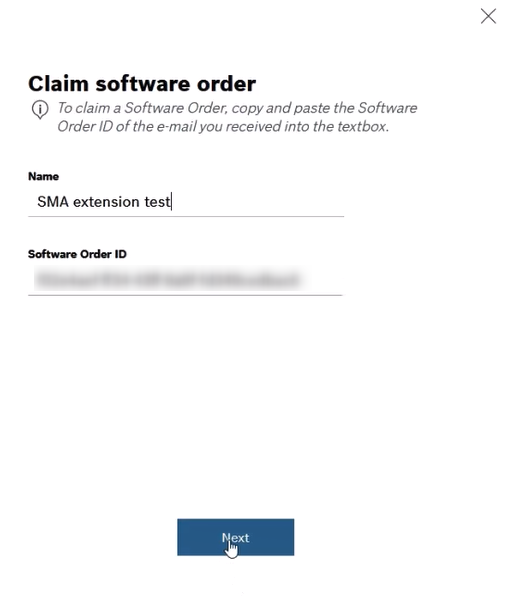
2. In the Software Licensing menu, click on the Claim Software Order and fill in the required details, including the Software Order ID you received it from Order Desk and click Next
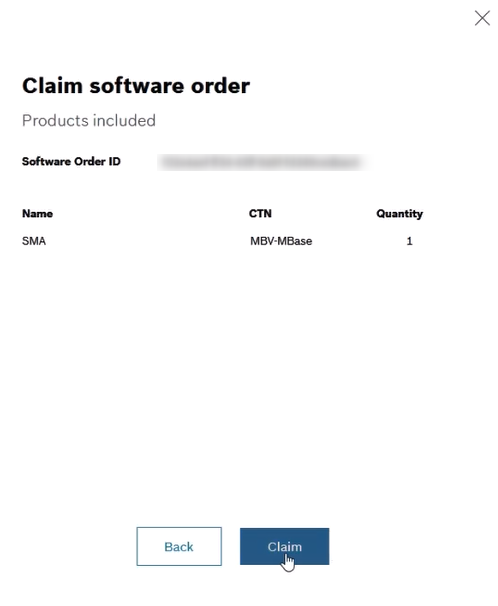
3. After checking the details of Software Order ID, click Claim
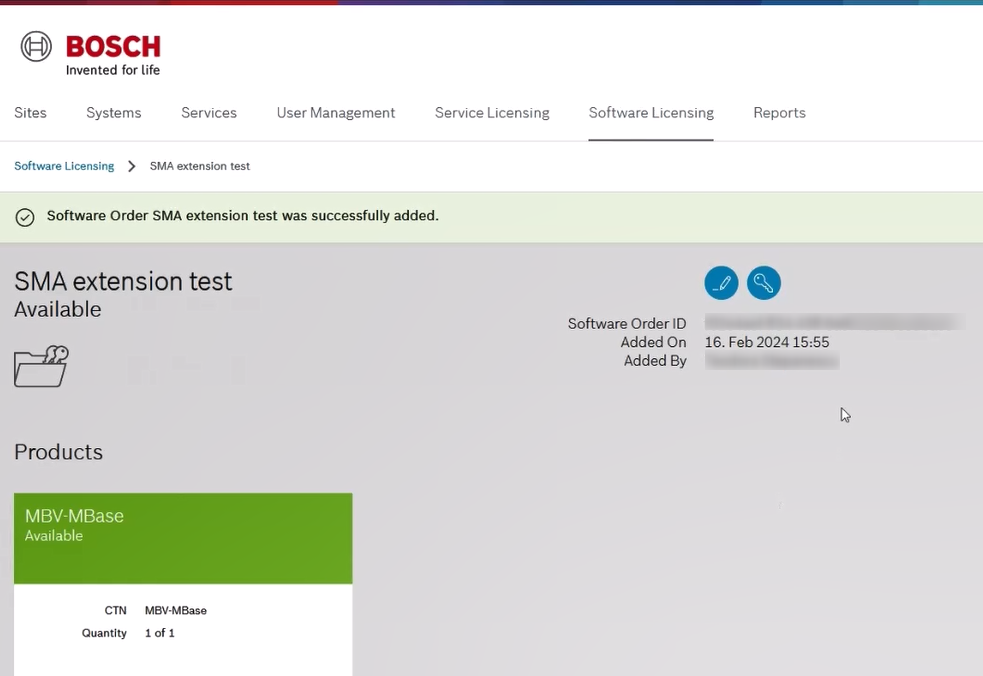
4. Save the system information file from BVMS Configuration Client
-
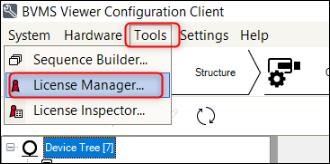
Go to the License Manager from BVMS Configuration Client
-
Click Add and Save the system information file (.json)
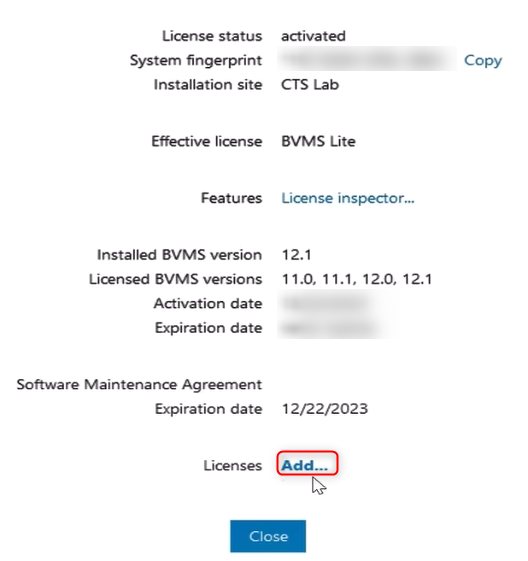
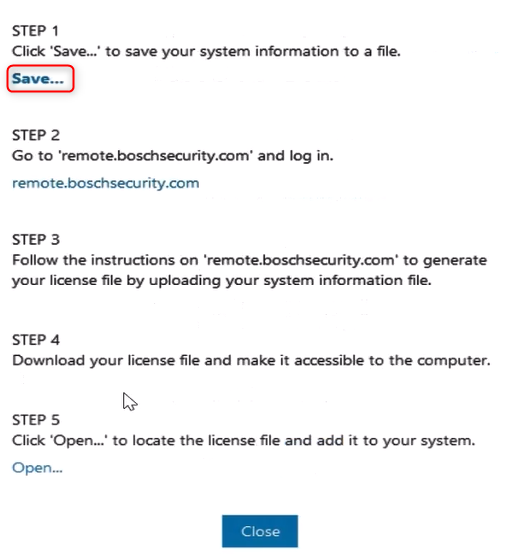
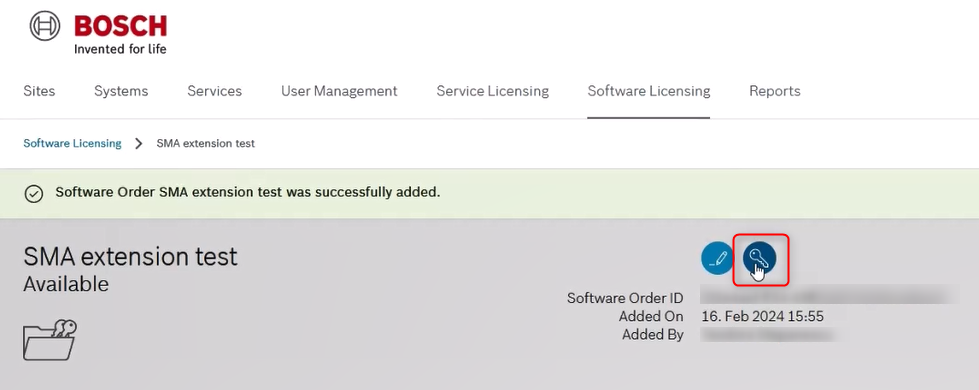
5. Go Back in Remote Portal and click on the Activate license icon
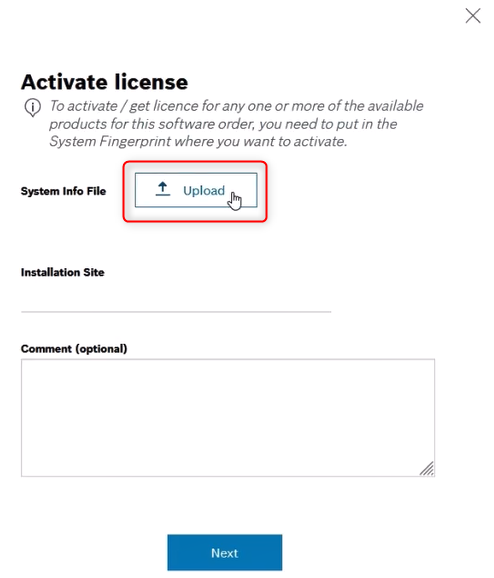
6. Upload the .json file you have just downloaded from BVMS Configuration Client and click Next
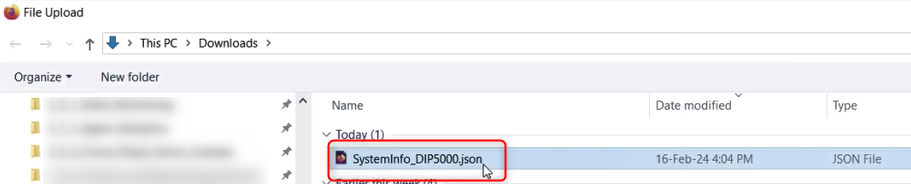
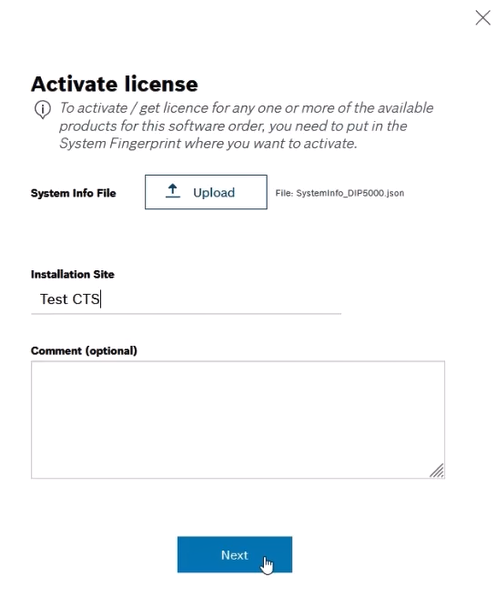
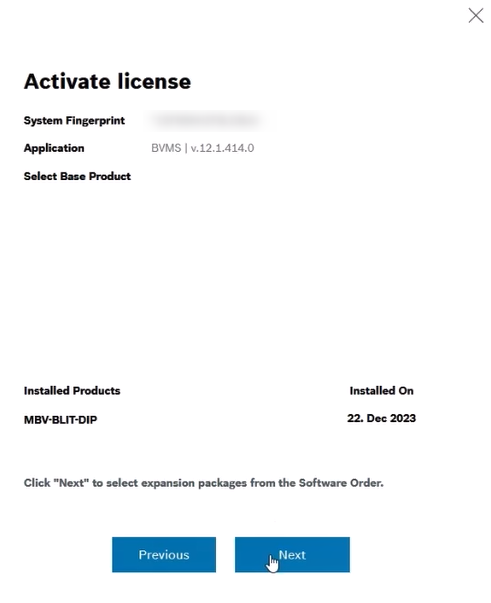
7. After checking the System Fingerprint and all details displayed, click Next to select the expansion packages from Software Order
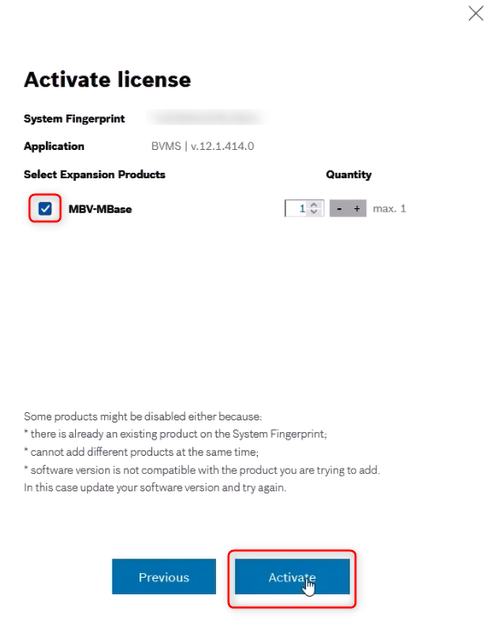
8. Tick the box next to the expansion product and click Activate
9. You will notice that the SMA End Date will be extended
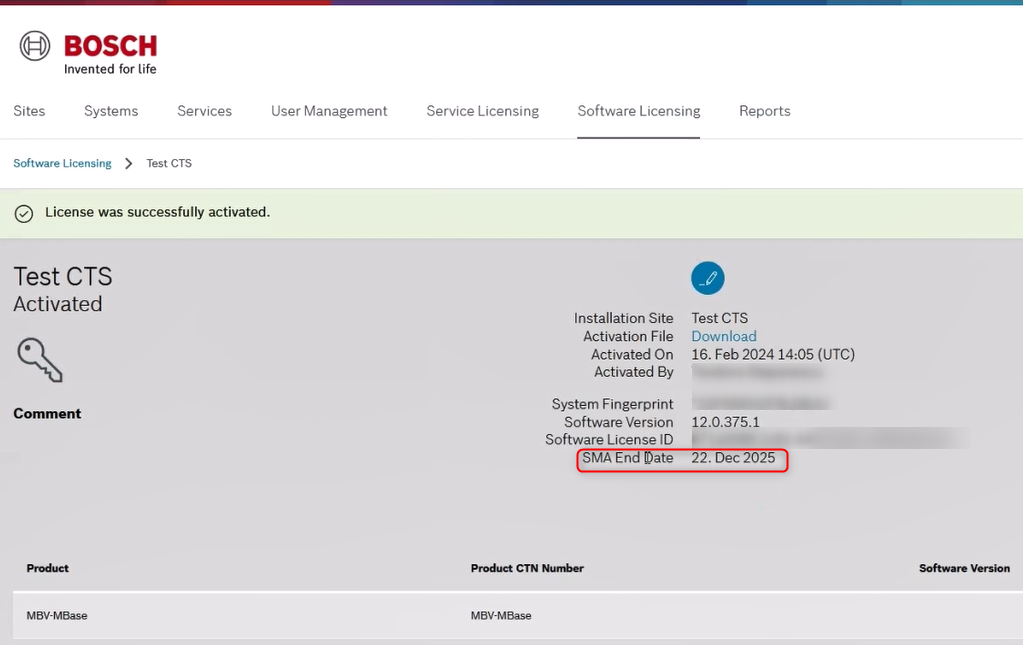
Do not forget to Download the Activation File and upload it to the BVMS Configuration Client to avoid the behavior explained within this article: Why is the BVMS SMA validity expired in License Manager, but SMA is valid in Remote Portal?
10. Download the Activation File (lservrc file) from the MBV-MBase license
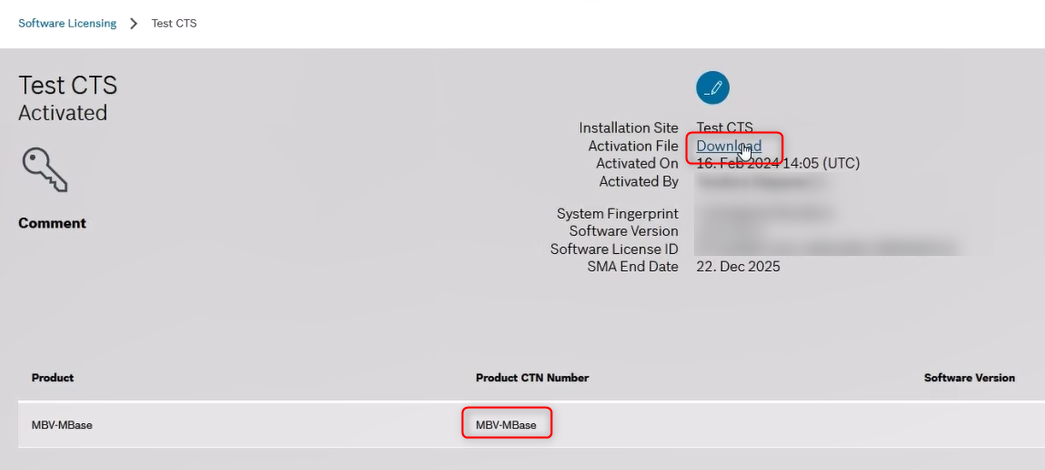
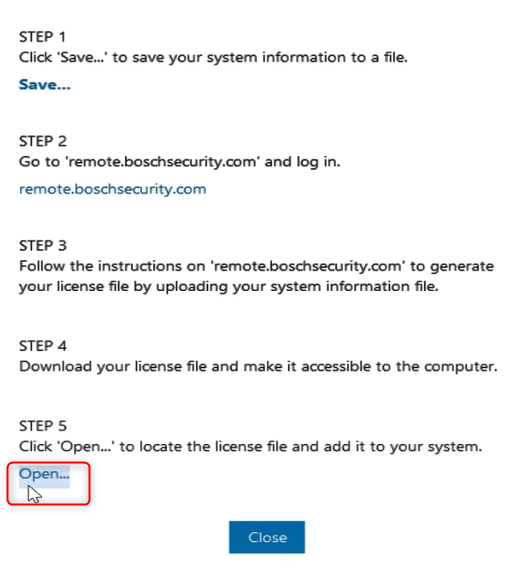
11. Go to the License Manager from BVMS Configuration Client and click Add > Open > select the lservrc file downloaded from Remote Portal > click Open > License has been successfully activated message will be displayed
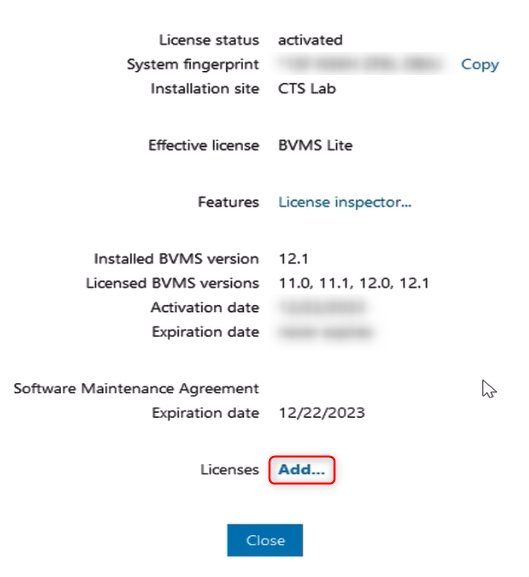
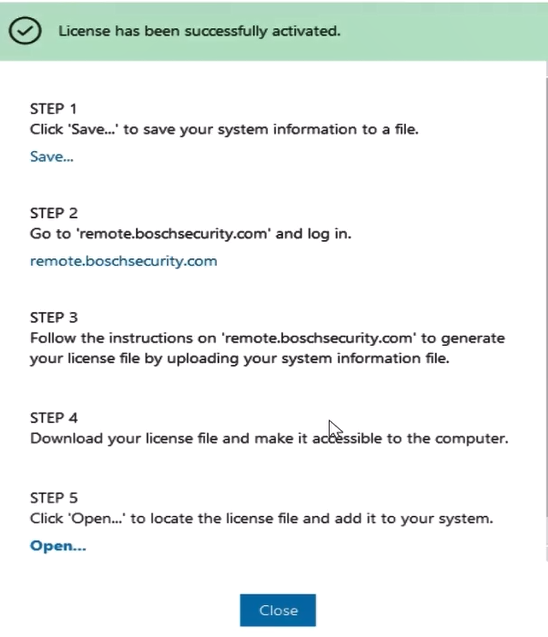
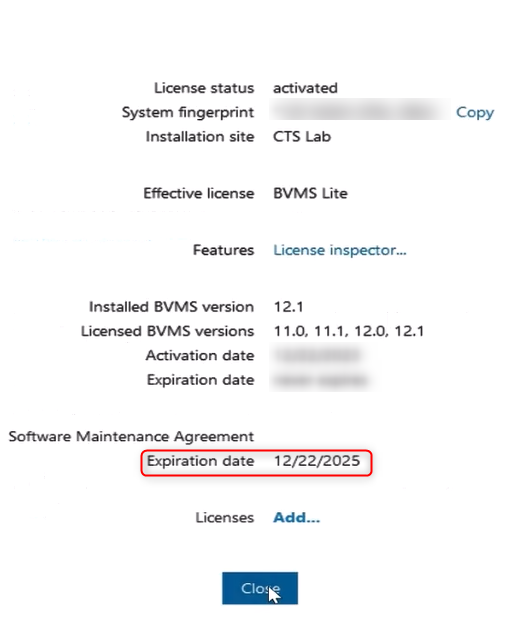
And the Expiration date from BVMS Configuration Client will match the SMA End Date from Remote Portal: