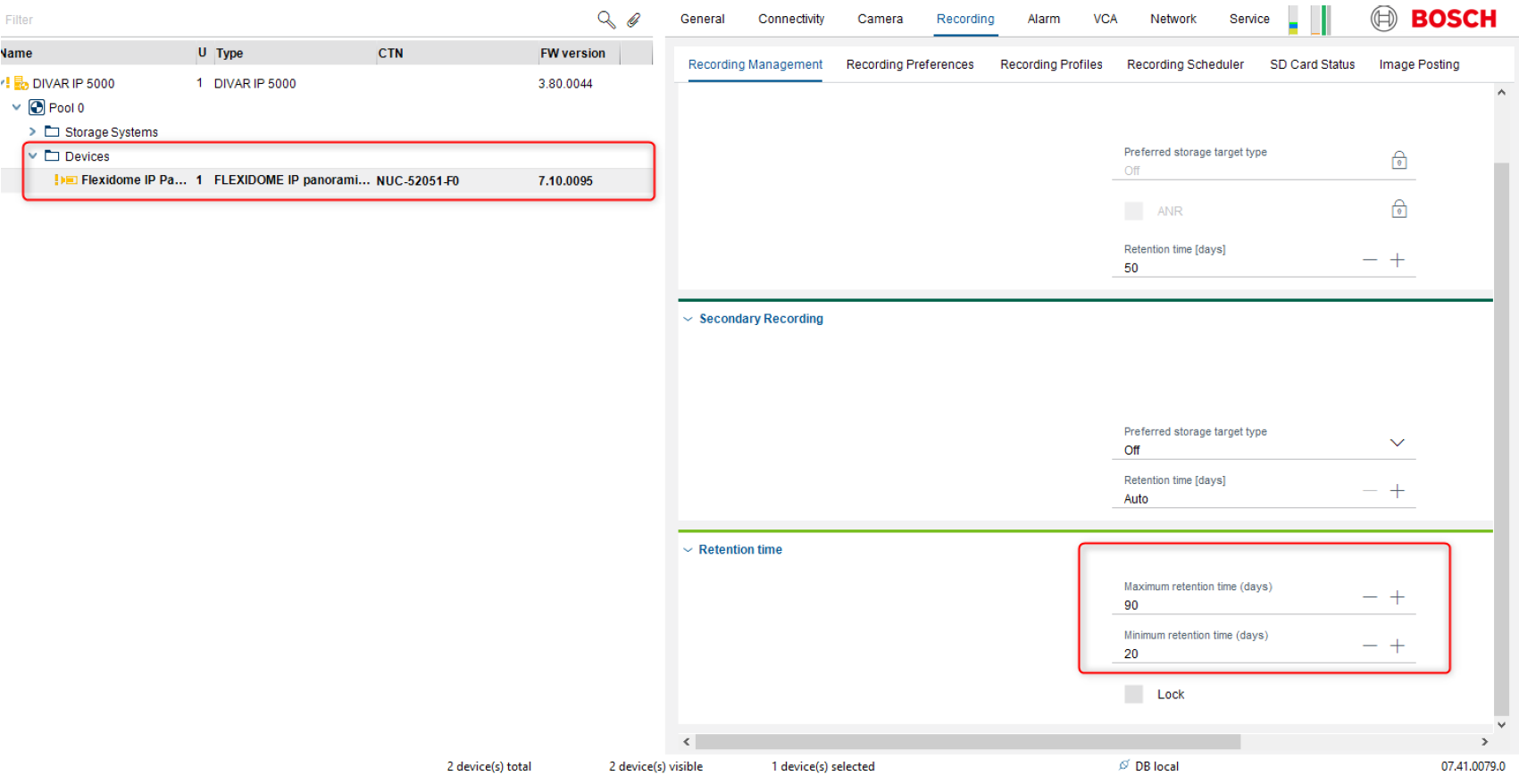
In many cases a minimum and maximum retention time needs to be defined in a video surveillance systems due to legal requirements.
While the minimum retention time defines the time period for how long video recordings need to be stored, the maximum retention time defines after which period of time the recordings have to be deleted.
Thus, the minimum retention time is going to influence the amount of storage needed. The higher the minimum retention time the more storage space is required.
In this article we are going to show you how to add DIVAR IP 5000 EZ in My devices (Configuration Manager) and configure max & min retention time.
Step-by-step guide
1. On a PC on the same network segment as the DIVAR, install Configuration Manager
https://downloadstore.keenfinity-group.com/index.php
We used: CM 7.41.0079 Configuration Manager 7.41 [96.6 MB]
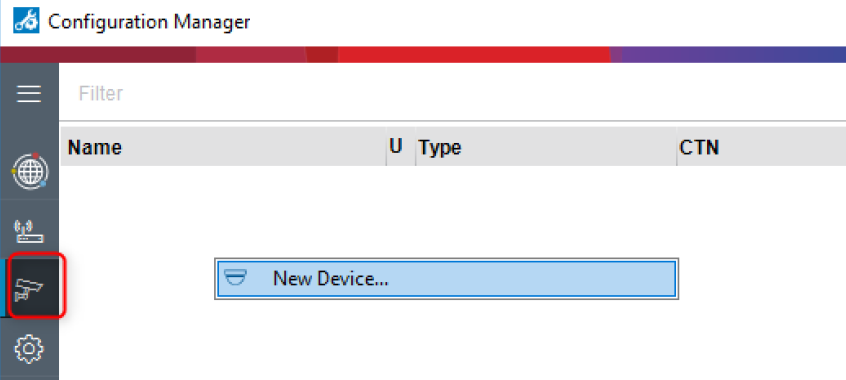
2. Go to My Devices > Right click > Add New Device
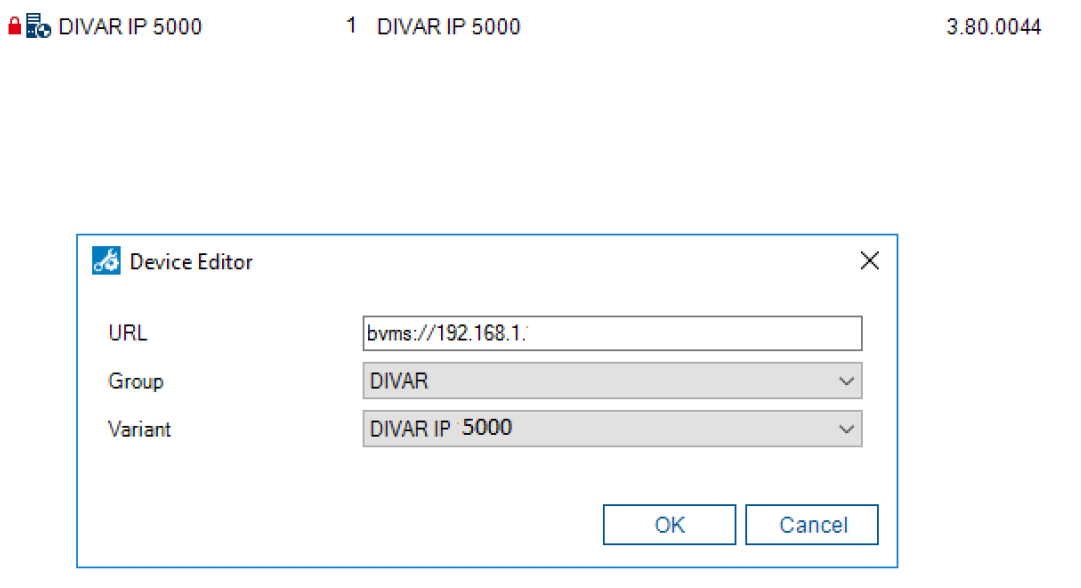
3. Type in the IP address of the unit > Select Group: Divar > Select Variant: Divar IP 5000
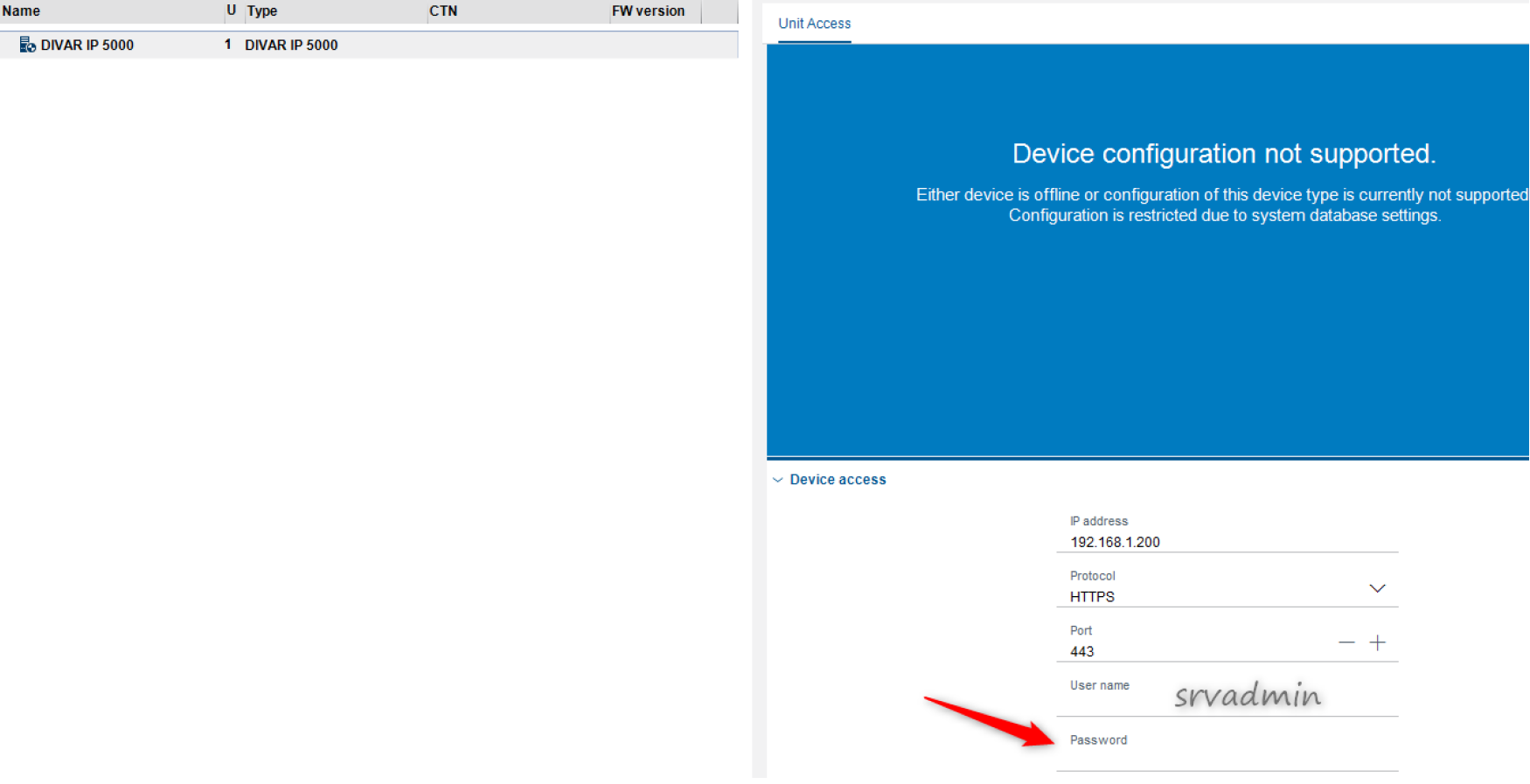
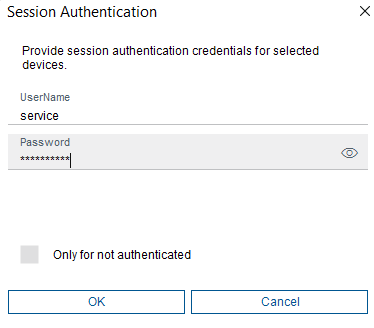
4. Set Session authentication > srvadmin / <password>

5. Enter Credentials under Device Name
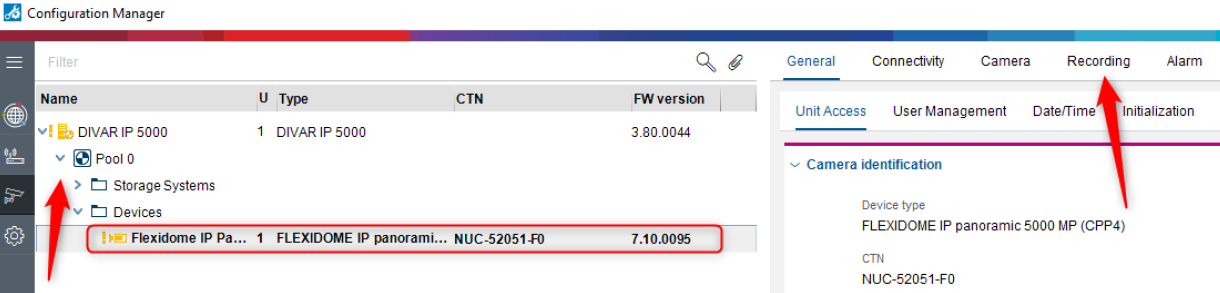
6. A blue arrow appears next to the unit. > Expand the arrows as below, click on the camera and select Recording from the right side menu:
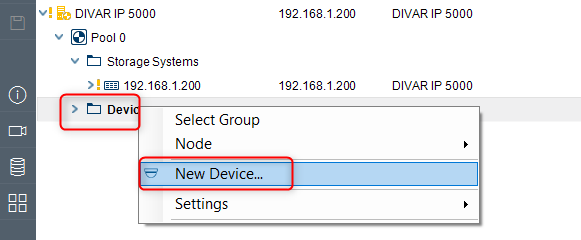
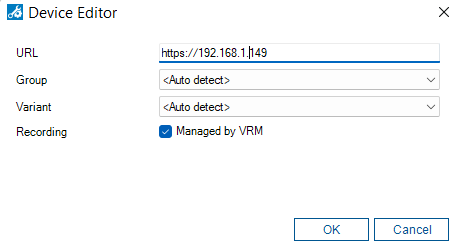
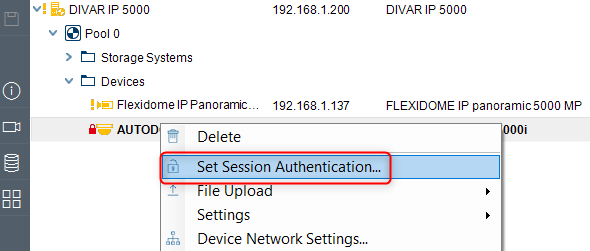
Note: In case you have more cameras and they are not added to the Pool in Configuration Manager, you can add them by expanding the Pool icon > go to Devices > right click on it > select New Device... > Add the camera's IP address > OK and authenticate on it with its credentials
7. Modify the maximum and minimum retention time as desired > Click outside the window> Save Changes when prompted