Question
How can you change the layout and what camera to be displayed through RCP+ command via CGI (VJD 7513)?
Answer
Open a web browser and add the RCP+ commands below:
-
Single view full screen :
-
Quad view and multi view
http://service:Password@<IP-address>/rcp.xml?command=0x09a2&type=P_OCTET&direction=WRITE&num=1&payload=0x0002
You can add the user name and password of the VJD in the string. If you do not do that, there will be a prompt requesting the login credentials of the decoder.
The above 2 commands change only the layout of the VJD and not the camera to be displayed.
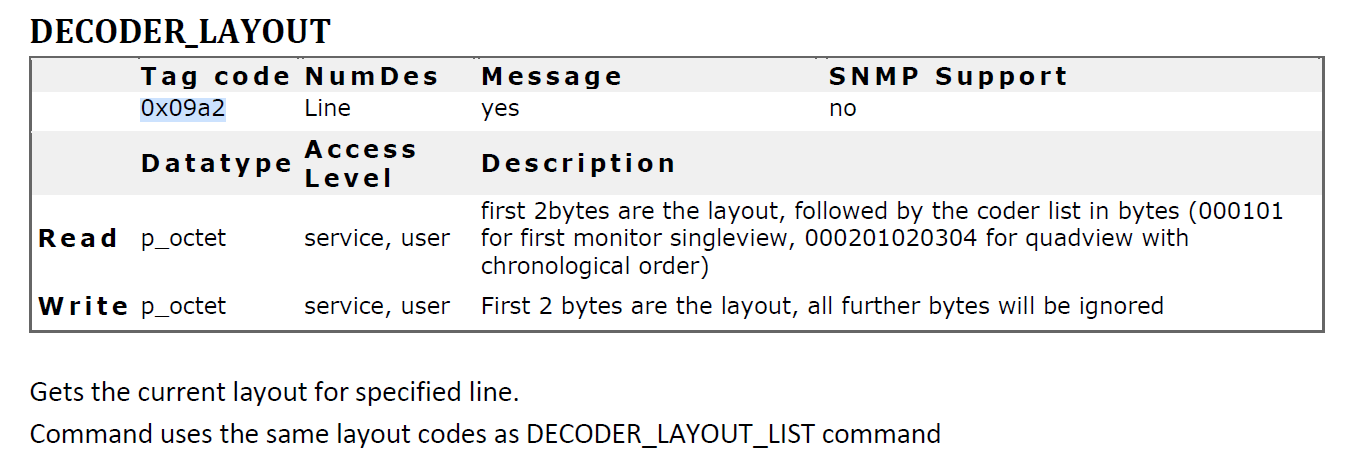
Change 01, 02 etc. according to the desired layout you want to use (example ...1&payload=0x0003 or ....1&payload=0x000271)
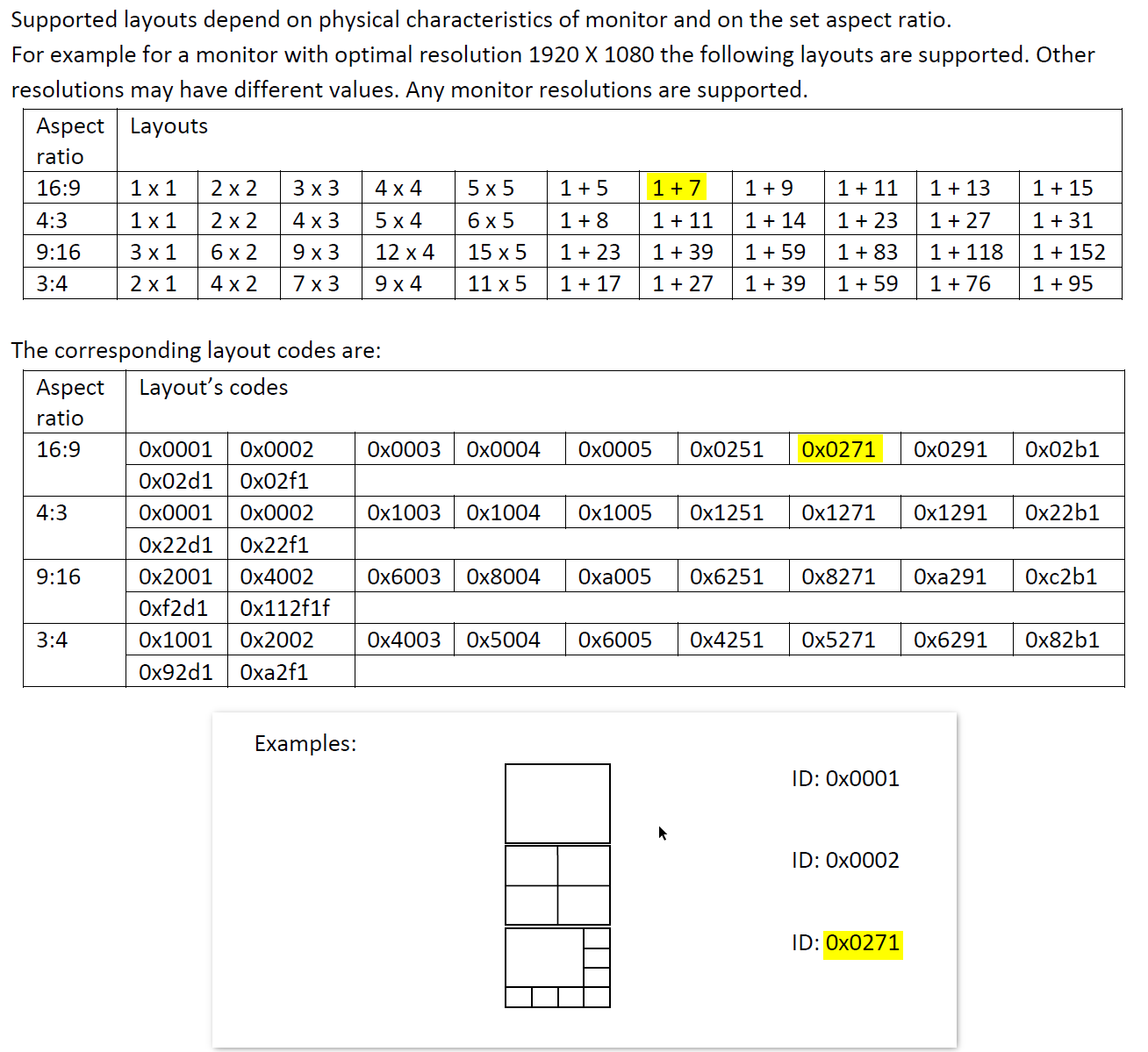
To display the desired camera connected to a specific tile/cameo, please use the RCP+ command below:
-
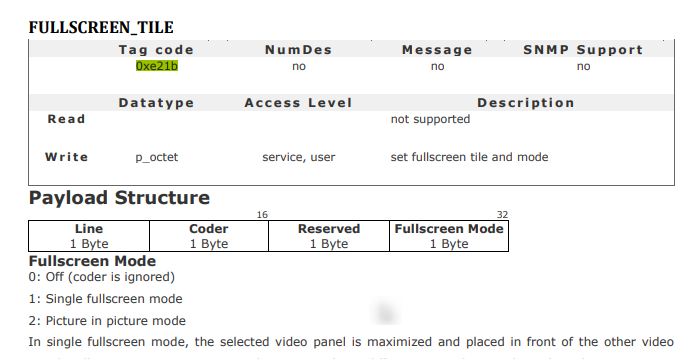
http://<IP-address>/rcp.xml?command=0xe21b&type=P_OCTET&direction=WRITE&num=1&payload=0x01030001
where the <IP-address> is the IP of your VJD 7513-
01: Line (monitor output decoder)
-
03: Coder (tile/ cameo selection can also be 01, 02, 04)
-
00: reserved just put in 00
-
01: full screen selection. (change to 00 to disable full screen and go back to previous screen)
02: picture in picture
-
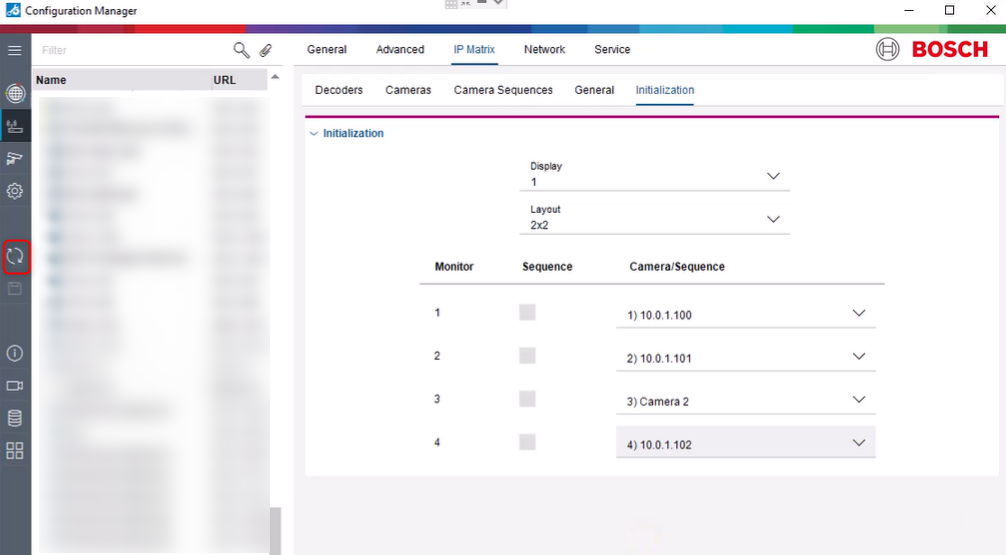
To get the current layout and available coders per Monitor/Display, use 0x09a2 to READ and the num to select the Monitor/Display output
Note: In the MonitorWall-based VJDs, we ignore all coder IDs in the set-command. We only use the first two bytes which define the target decoder layout.
When switching from 2x2 (available coder IDs 1, 2, 3, 4) to 1x1 (available coder ID 1), always the upper left video remains active. This is not considered as a full screen mode, this is a layout change, video connections 2 to 4 will then be closed.
For the actual full screen mode, please refer to the MW RCP Documentation.pdf:
Examples on Monitor Wall :
-
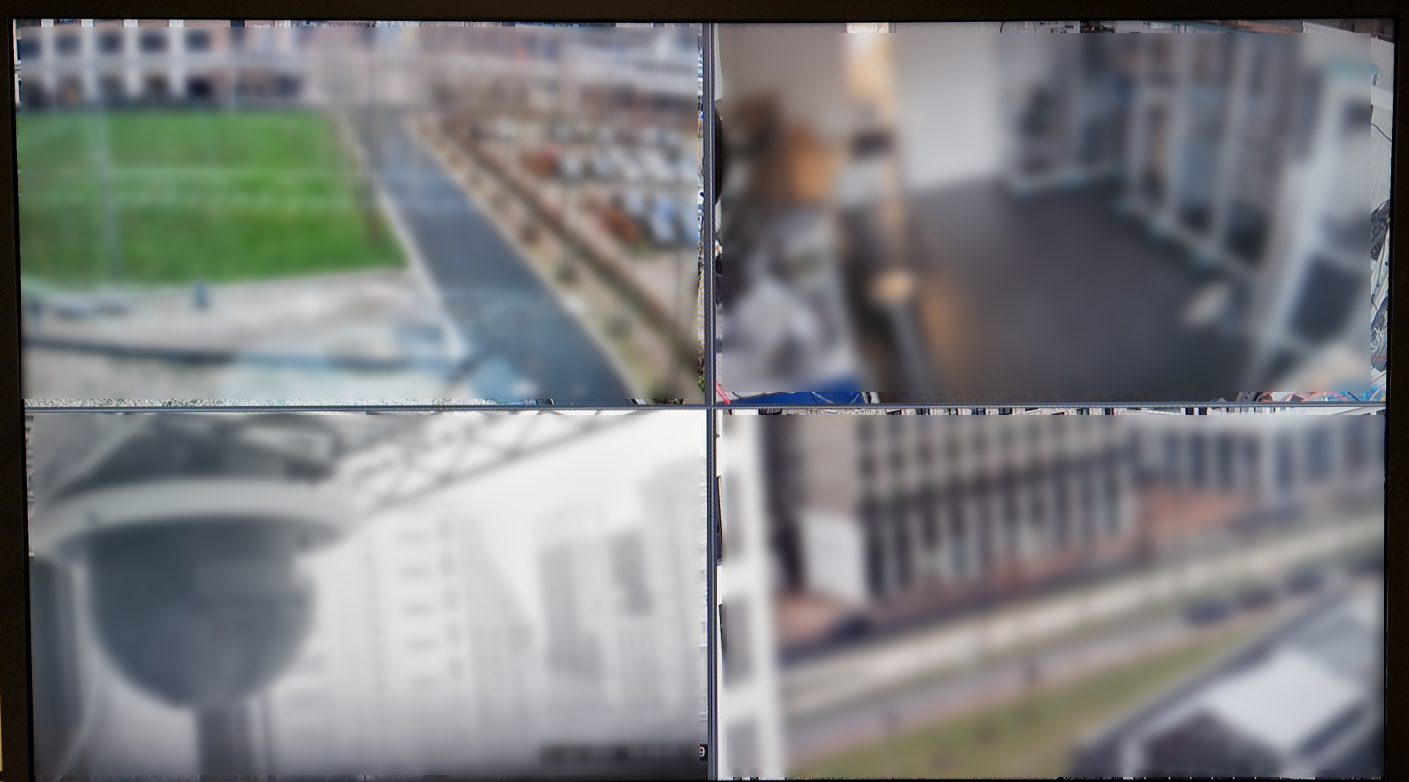
Normal ‘start’ screen in quad view:
-
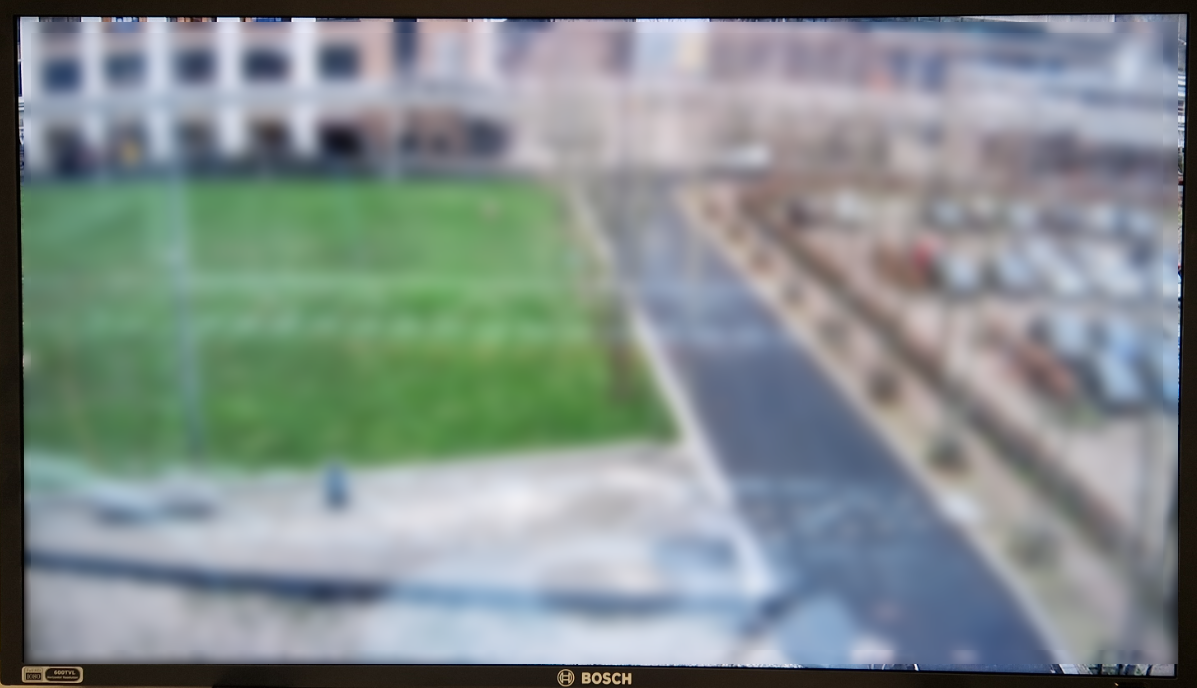
Full screen cameo 1:
http://<IP-address>/rcp.xml?command=0xe21b&type=P_OCTET&direction=WRITE&num=1&payload=0x01010001
-
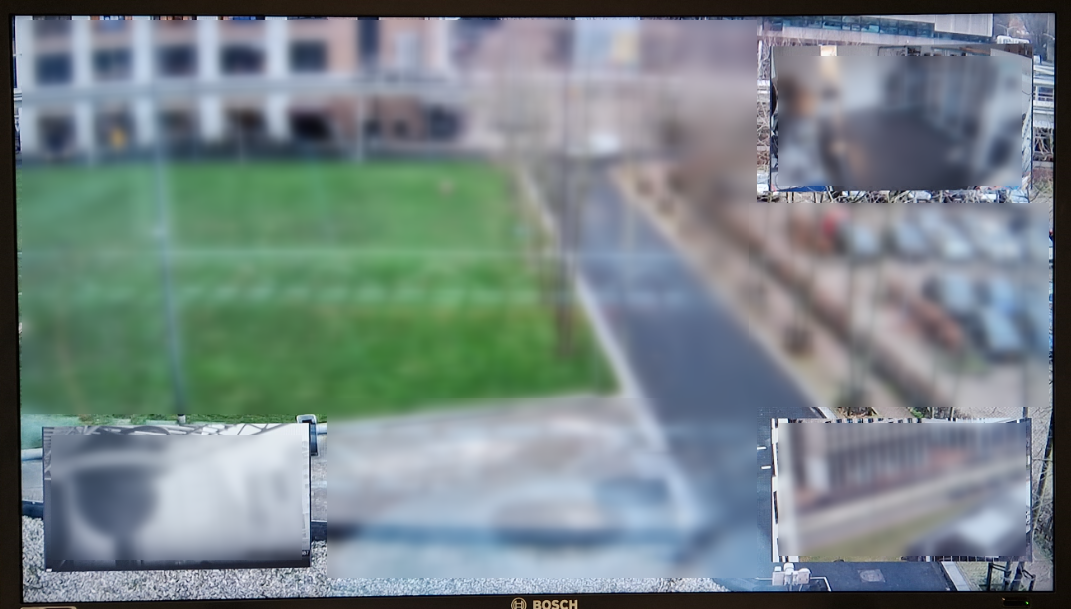
Picture in picture Cameo 1:
http://<IP-address>/rcp.xml?command=0xe21b&type=P_OCTET&direction=WRITE&num=1&payload=0x01010002
-
Full screen cameo 2:
http://<IP-address>/rcp.xml?command=0xe21b&type=P_OCTET&direction=WRITE&num=1&payload=0x01020001
-
Picture in picture cameo 2:
http://<IP-address>/rcp.xml?command=0xe21b&type=P_OCTET&direction=WRITE&num=1&payload=0x01020002

The following command : http://<IP_Address>/rcp.xml?command=0xffc1&type=P_OCTET&direction=READ&num=1
helps you to see which cameras are connected to your VJD (Gets list of all active connections)
See more details at page 34 from this MW RCP Documentation.pdf.
<str>c0 a8 96 69 01 01 00 00 00 01 01 01 01 01 00 00 00 00 00 04 00 00 00 07 c0 a8 96 6a 02 01 00 00 00 01 01 02 01 01 00 00 00 00 00 04 00 00 00 07 </str>
Using the simple conversion to ASCII:
<str>192 168 150 105 1 1 0 0 0 1 1 1 1 1 0 0 0 0 0 4 0 0 0 7 192 168 150 106 2 1 0 0 0 1 1 2 1 1 0 0 0 0 0 4 0 0 0 7</str>
c0 a8 96 69 = 192.168.150.105
Next 1 Byte is Local Coder ( camera) number which is 1 and Line number is also 1.
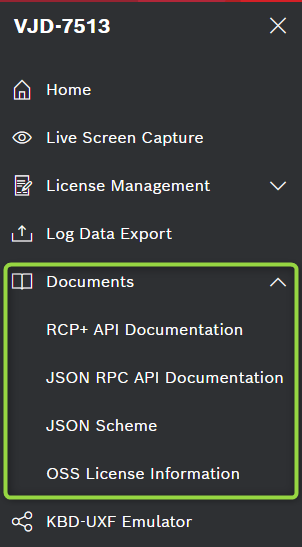
The decoder Web GUI has a section where the latest files can be download from: