
This article explains how to set an Unconfigured Bad Drive to Unconfigured Good on a DIP.
This step is required if the new drive is not listed under Unconfigured Drives. A possible reason for the Unconfigured Bad status is when a device that has not been removed properly is reconnected to the controller.
Step-by-step guide
Configuration at MegaRAID Storage Manager (MSM)
To change from ''Unconfigured Bad'' to ''Unconfigured Good'' in MSM, follow these steps:
=== Unconfigured Change bad status ===
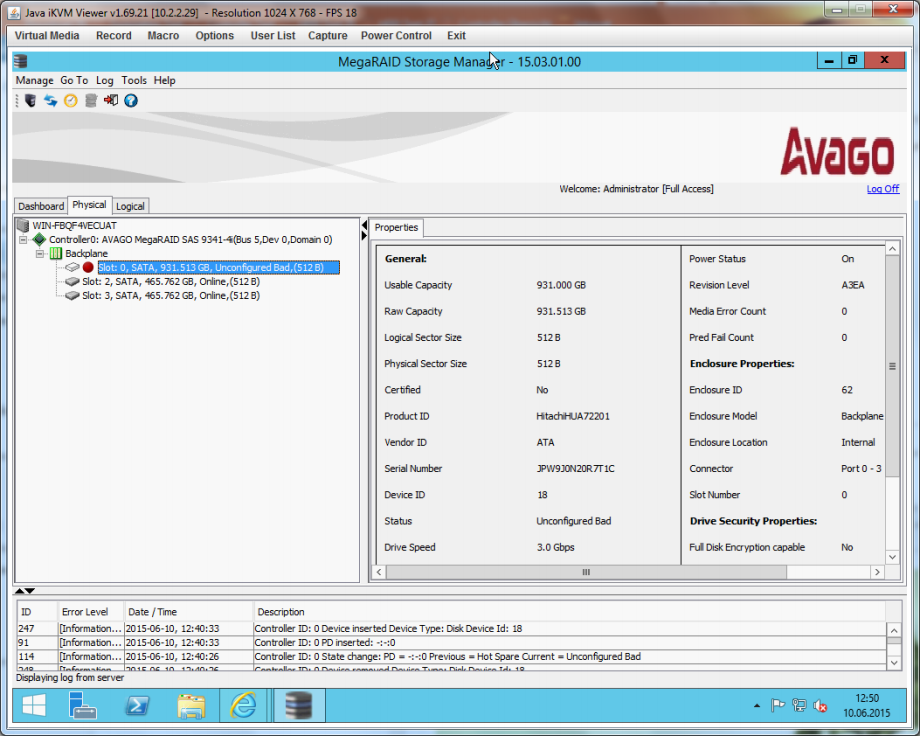
In the tab ''Physical'' the drive is displayed as ''Unconfigured Bad''.
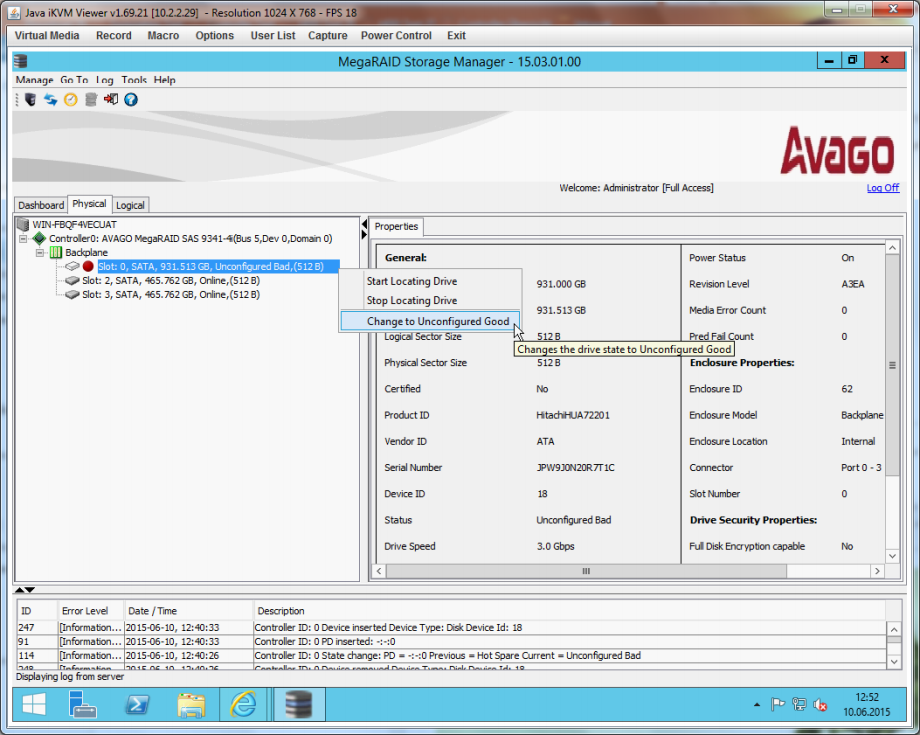
Right click on the ''Unconfigured Bad'' drive and select ''Change to Unconfigured Good''.
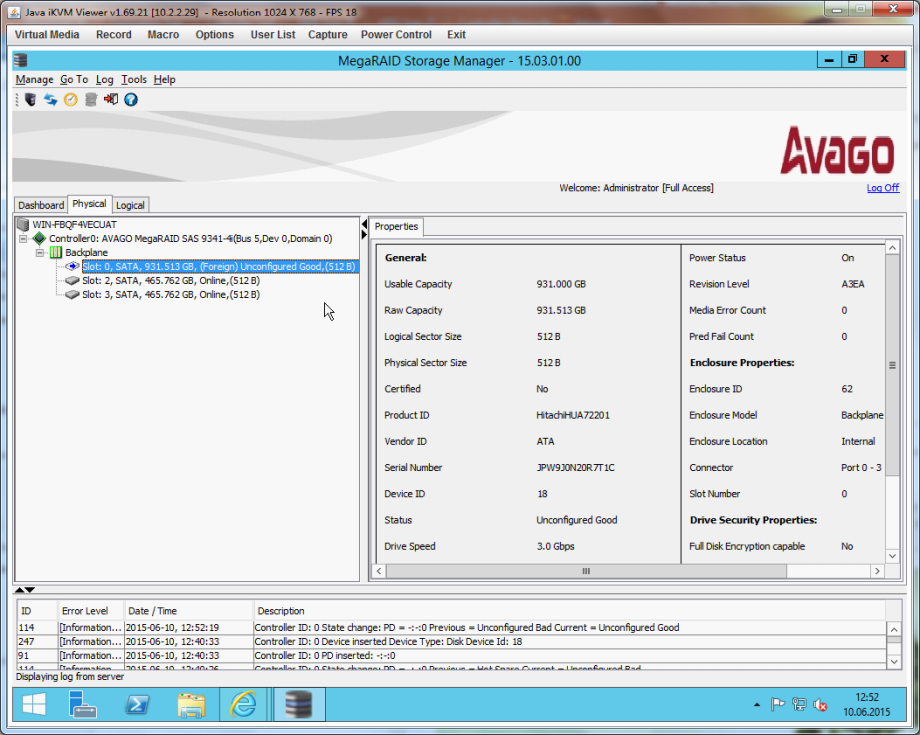
The drive is now displayed as ''Unconfigured Good''.
WARNING! If the drive is in "Foreign" status after the Change status, the recognized drive configuration must be deleted or imported.
==== Import foreign configuration ====
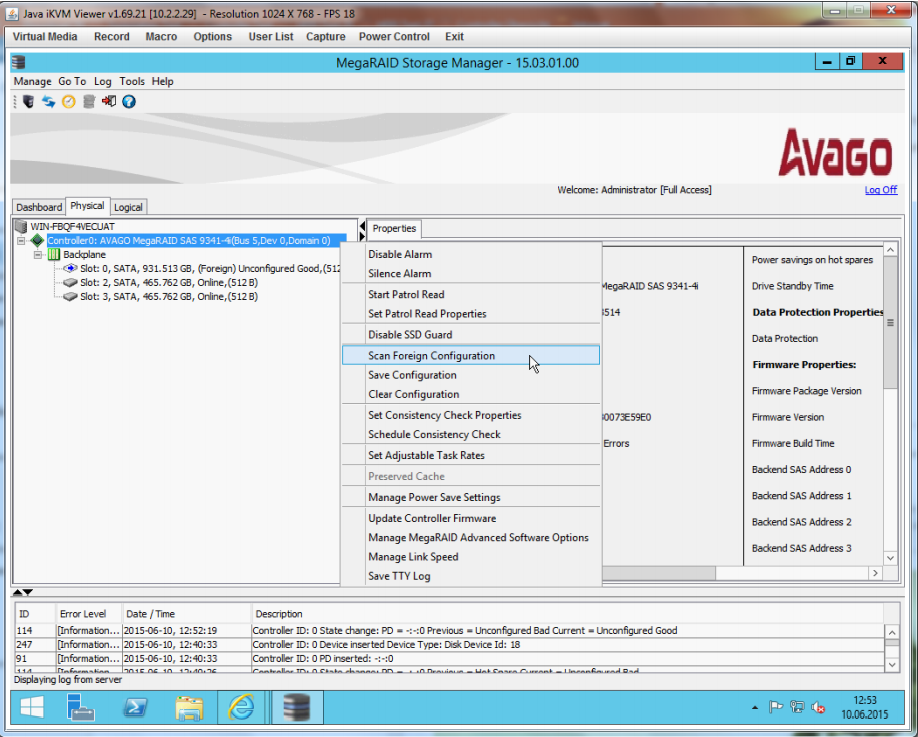
Right click on the controller and select ''Scan Foreign Configuration''.
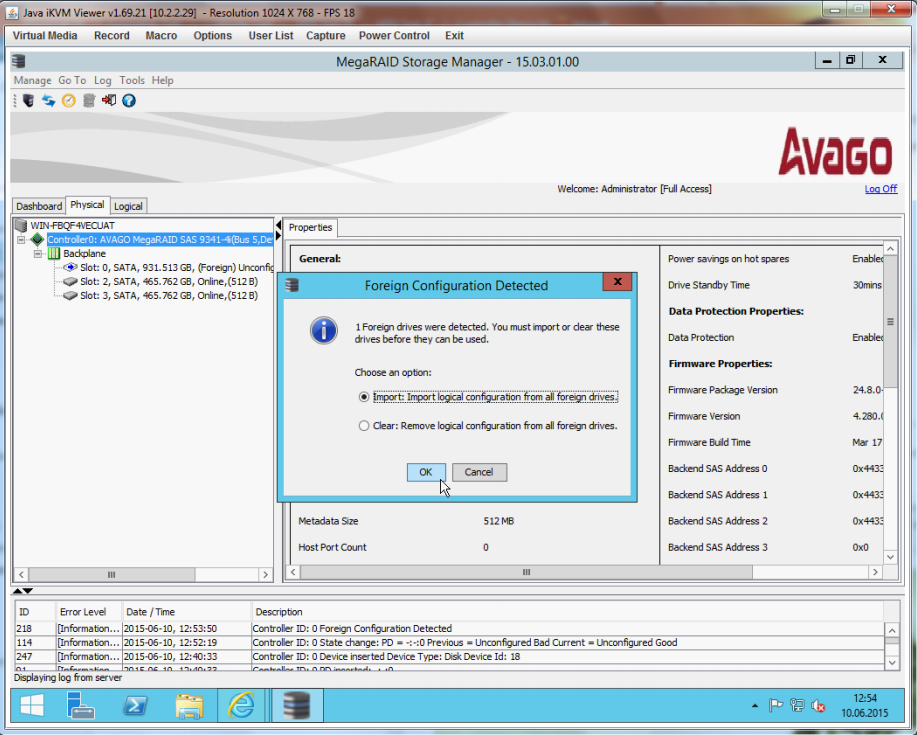
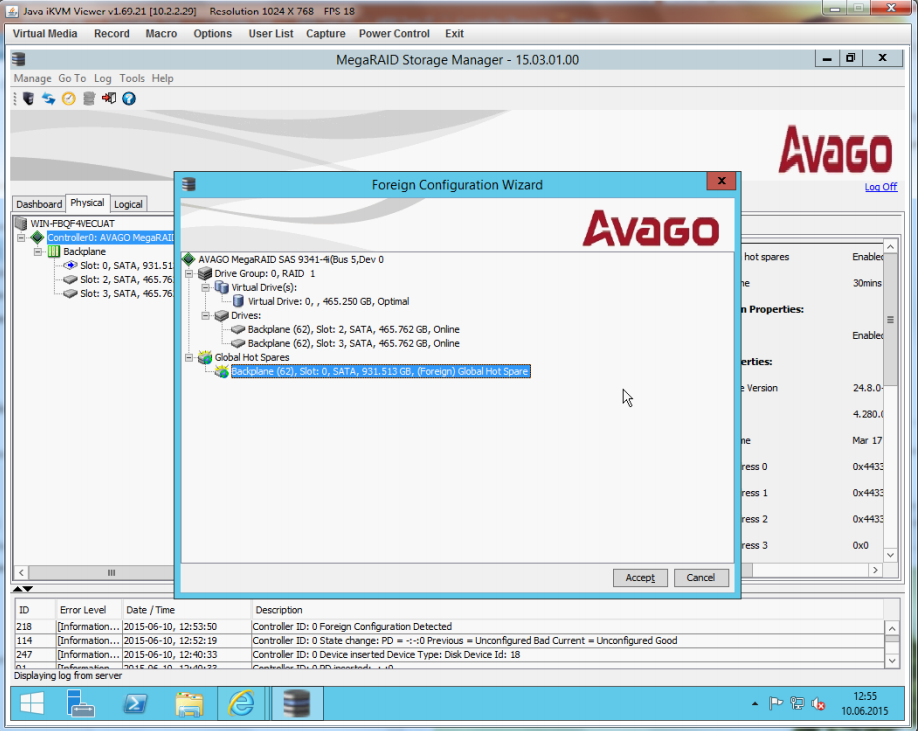
The configuration to be restored is displayed.
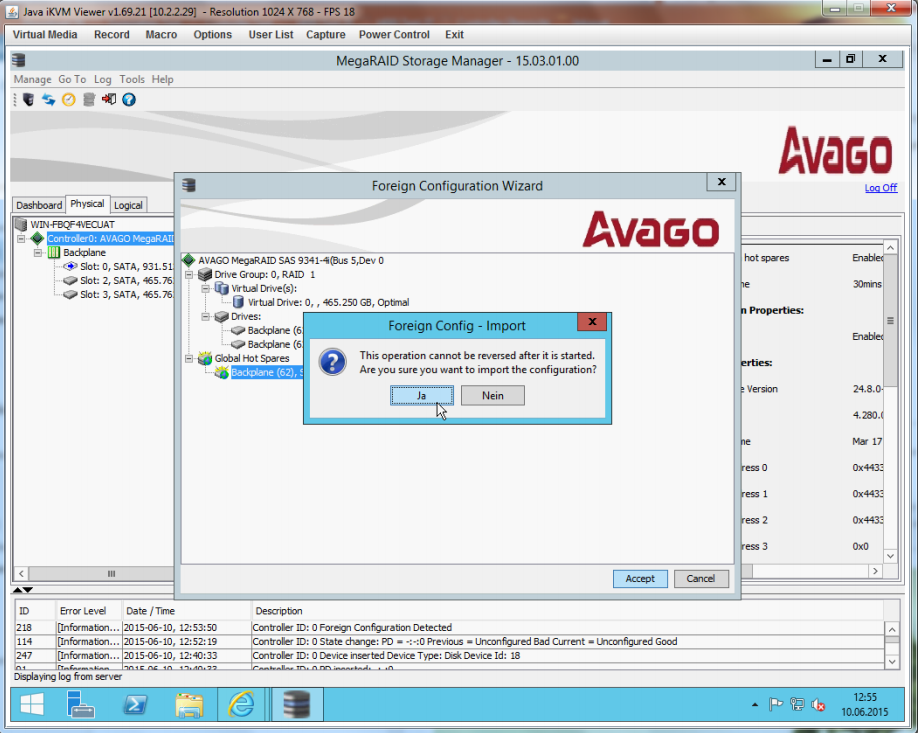
Confirm message to start the configuration import.
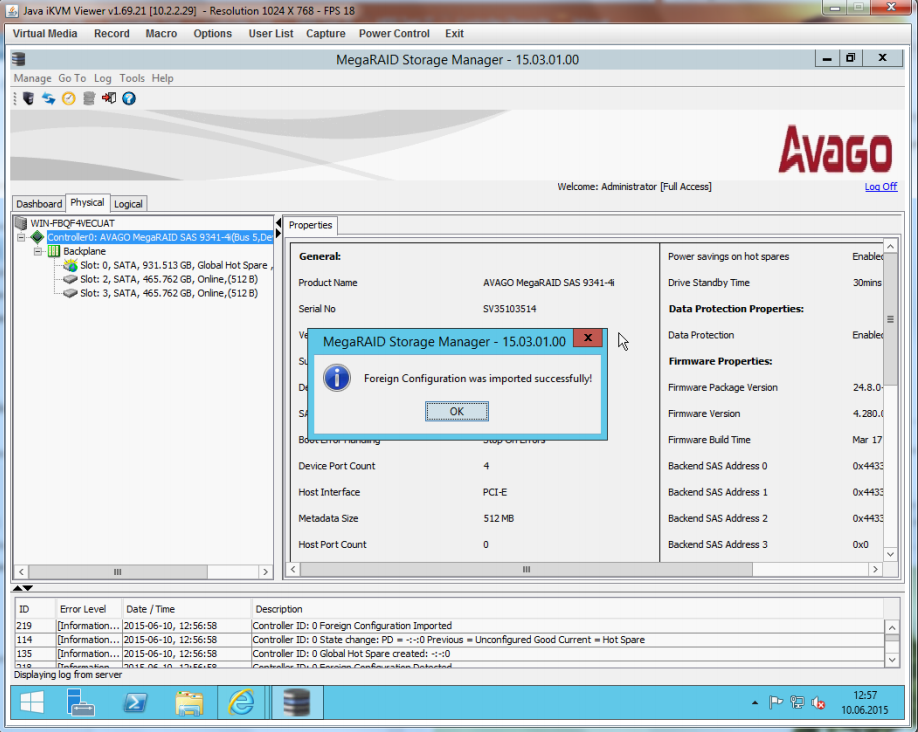
A message is displayed after the import.
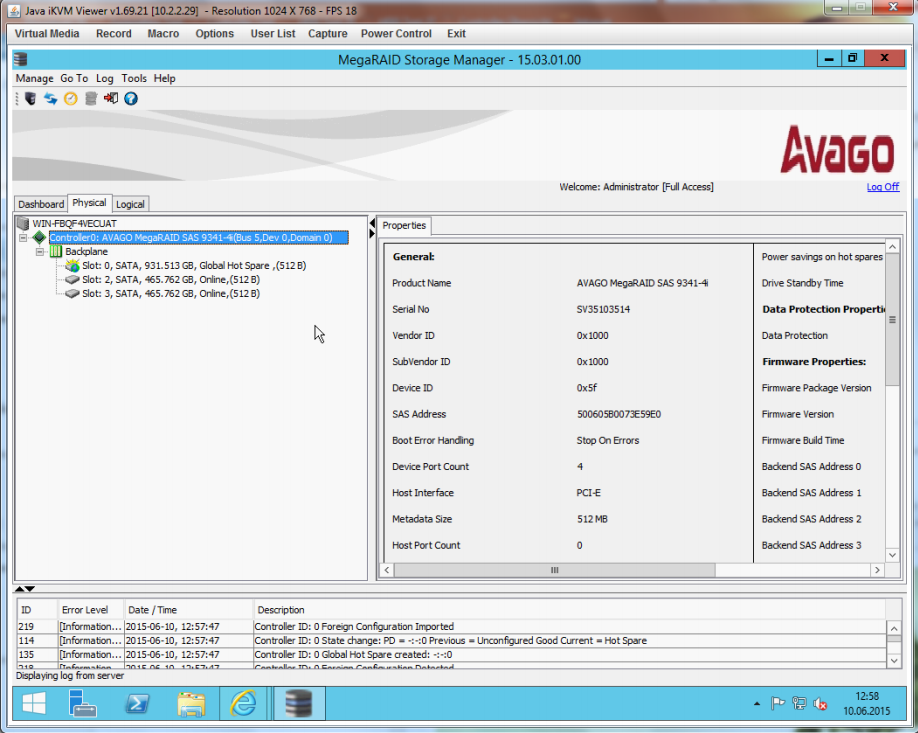
The HDD is now integrated as HotSpare again.
=== Delete foreign configuration ====
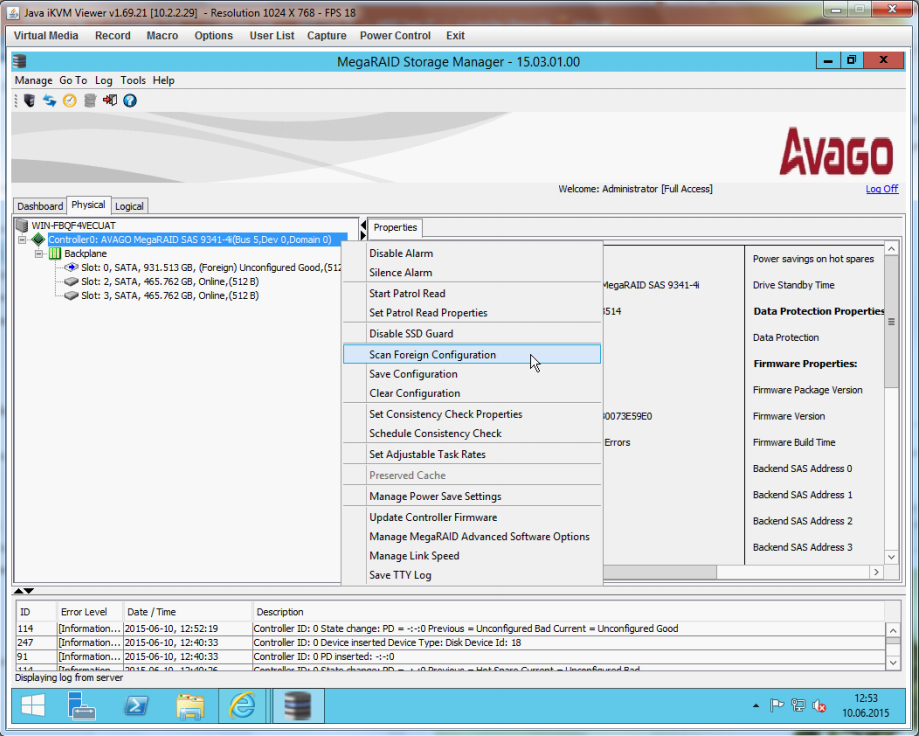
Right click on the controller and select ''Scan Foreign Configuration''.
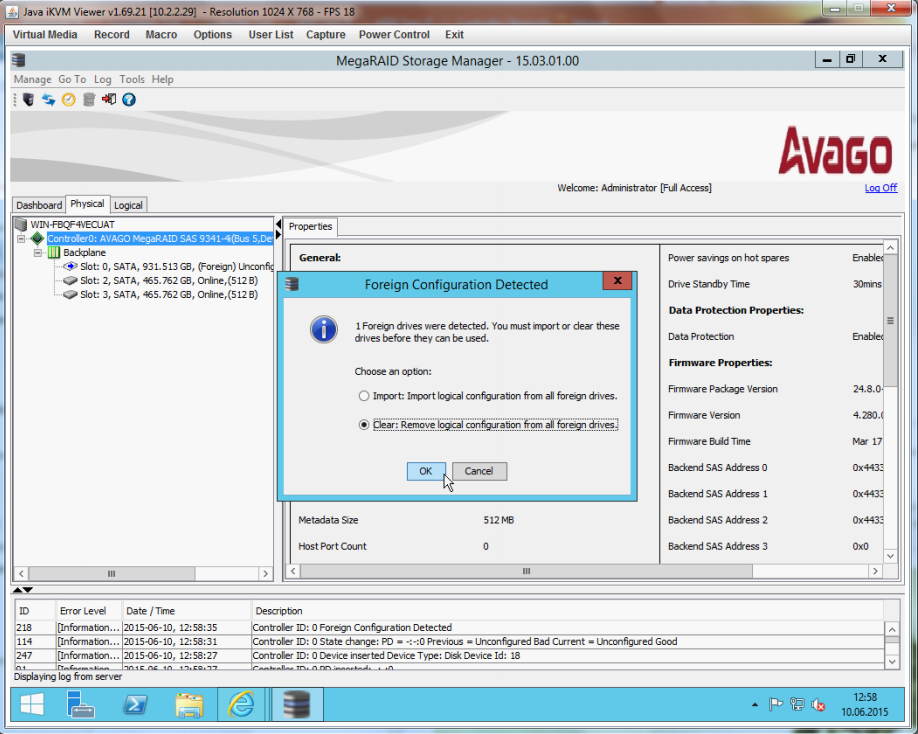
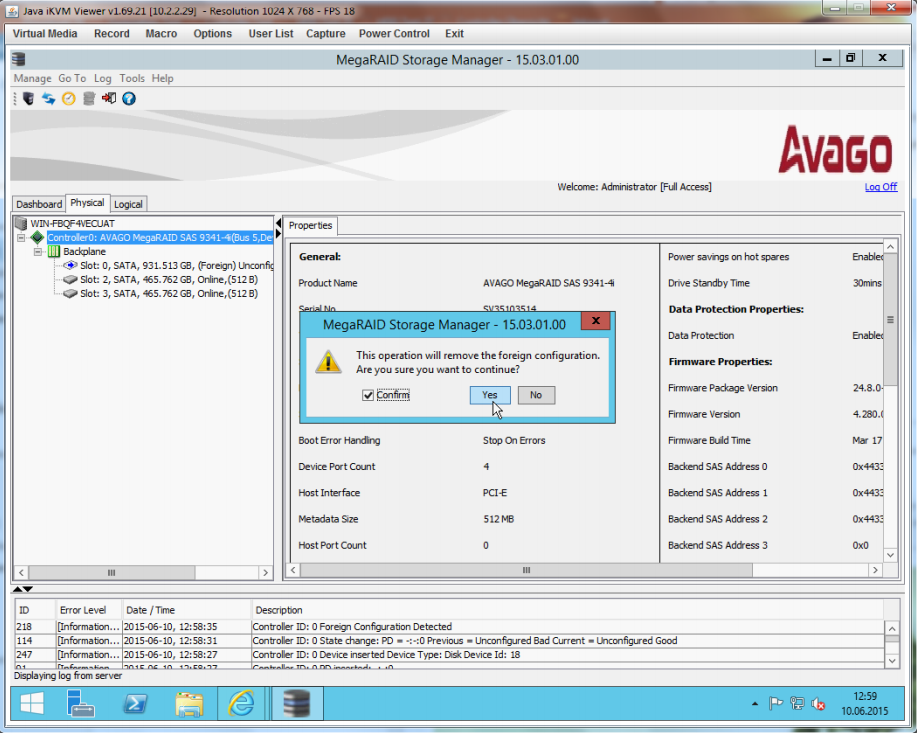
The deletion of the detected configuration must be confirmed.
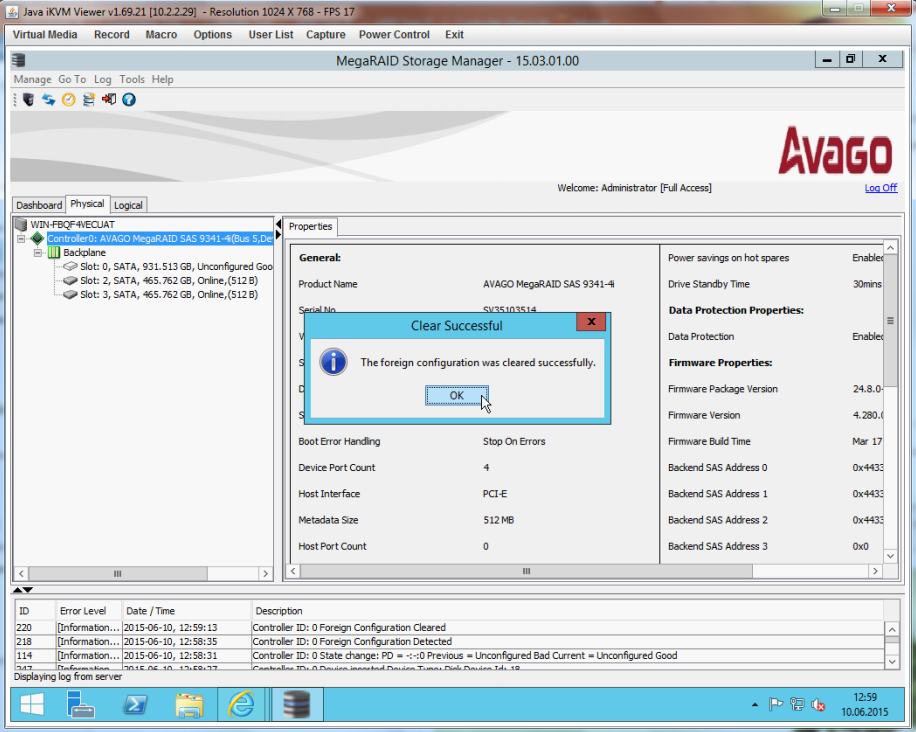
The detected configuration was deleted.
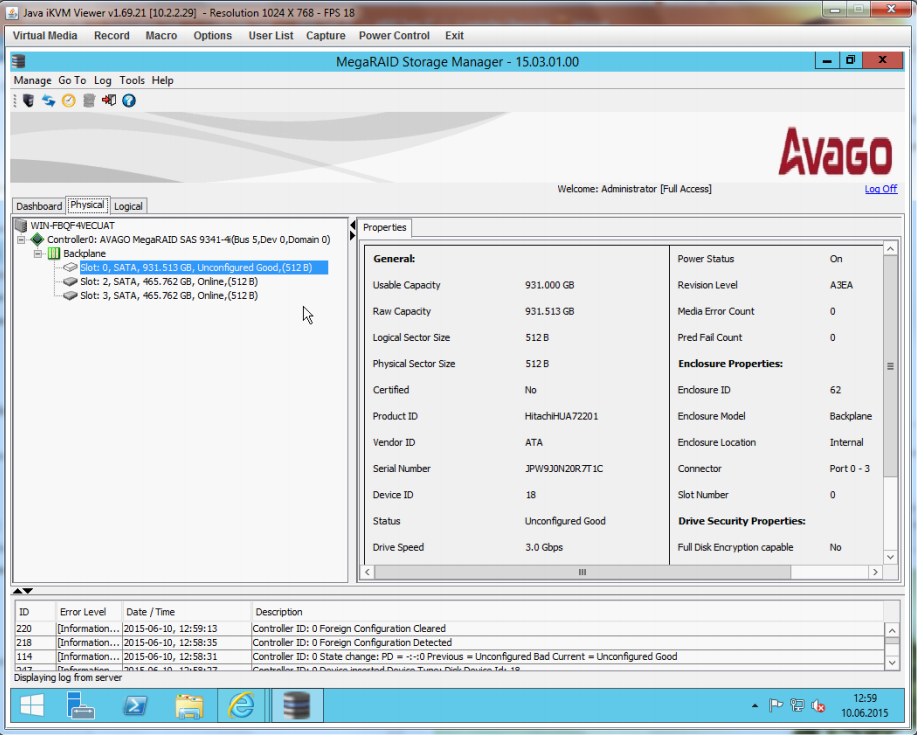
The HDD is recognized as ''Unconfigured Good'' again and can be reconfigured.