Question
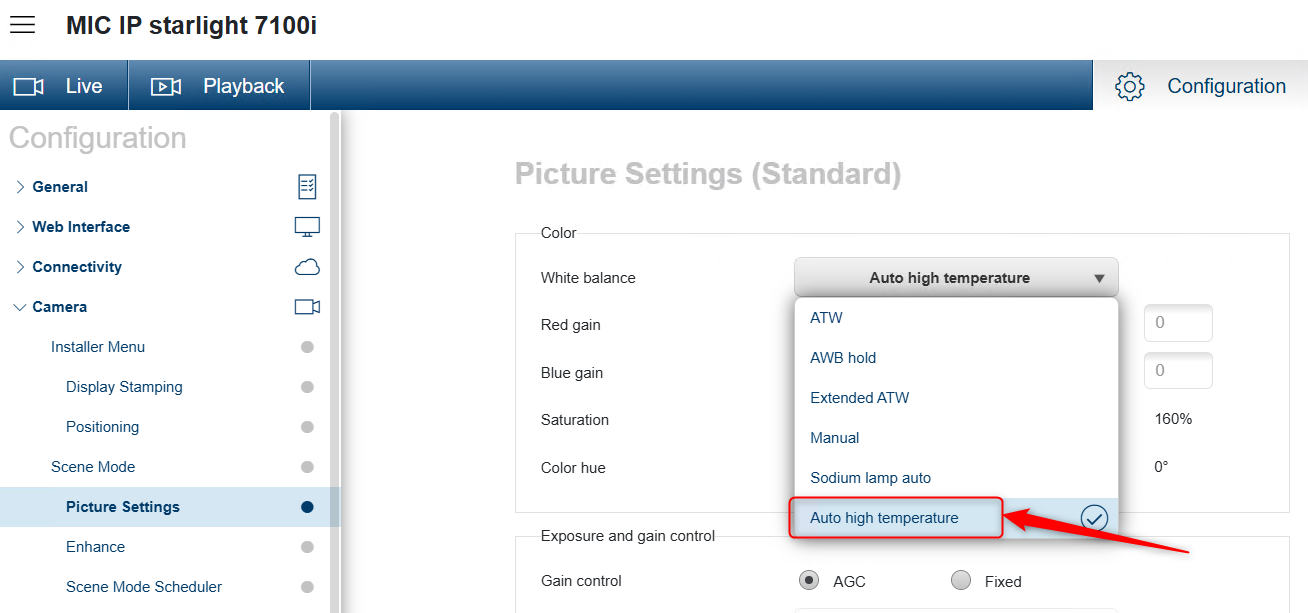
Why cannot I see the ‘Auto High Temperature’ option of White Balance mode of MIC IP Starlight 7100i camera?
Answer
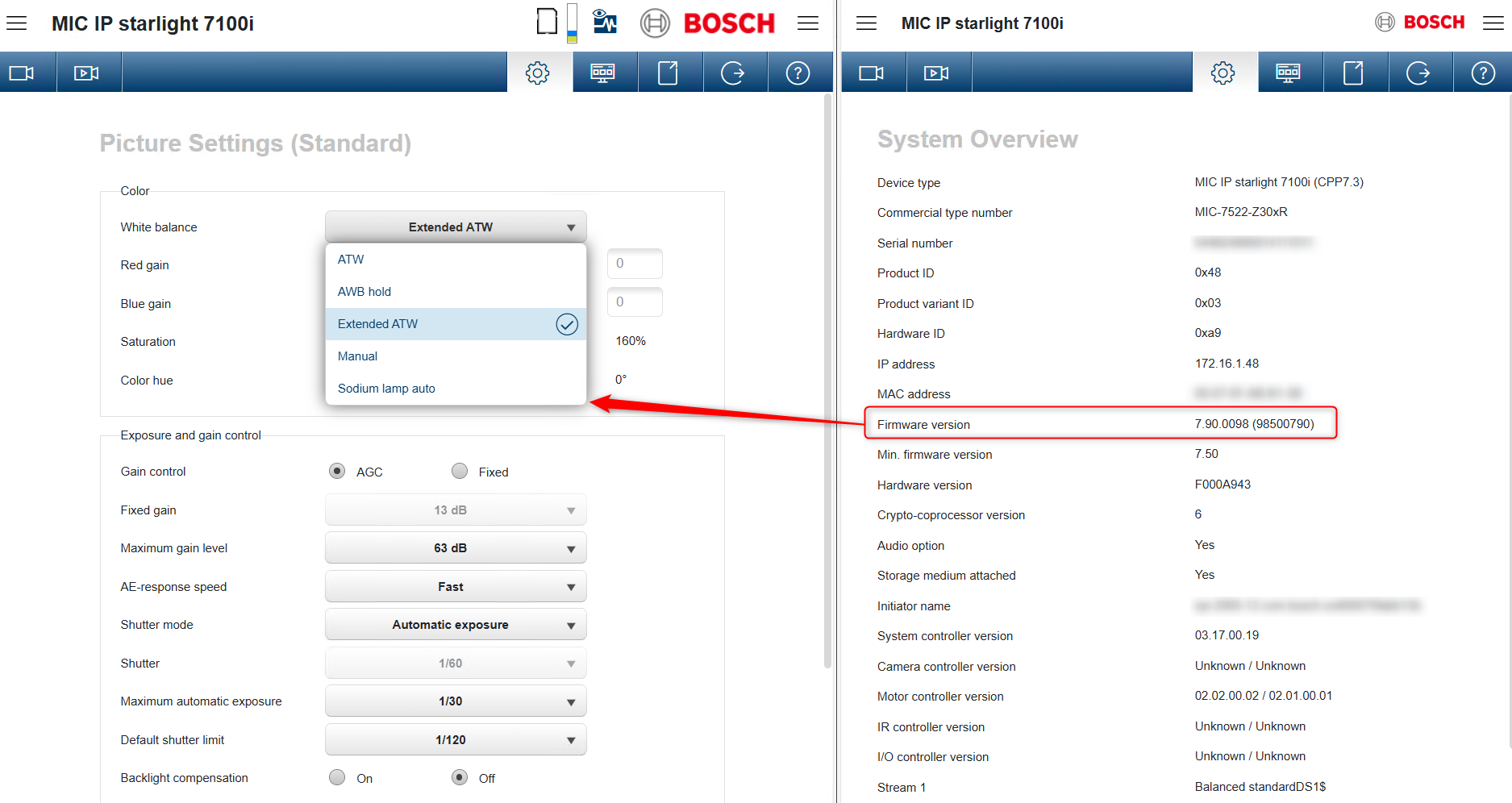
Please be sure that you have upgraded your camera Firmware to 7.90.0098 version: CPP7.3_FW_7.90.0098.fw
The latest camera Firmware is available on Download Store > select Firmware > Cameras and Encoders > CPP7.3 > click Select
This Firmware added the new White Balance mode for the MIC IP Starlight 7100i, named "Auto High Temperature". This mode is designed for scenes where shadows are present while the sky remains bright, helping to maintain natural color balance in high-contrast lighting conditions.
Note
Configuration Manager v.7.74 doesn't have this "Auto High Temperature" option of White Balance mode. This will be implemented in a later version of Configuration Manager.
Therefore, use the camera WebGUI until a new version of Configuration Manager will be released.
1. First step is to upgrade your camera to FW v.7.90.0098
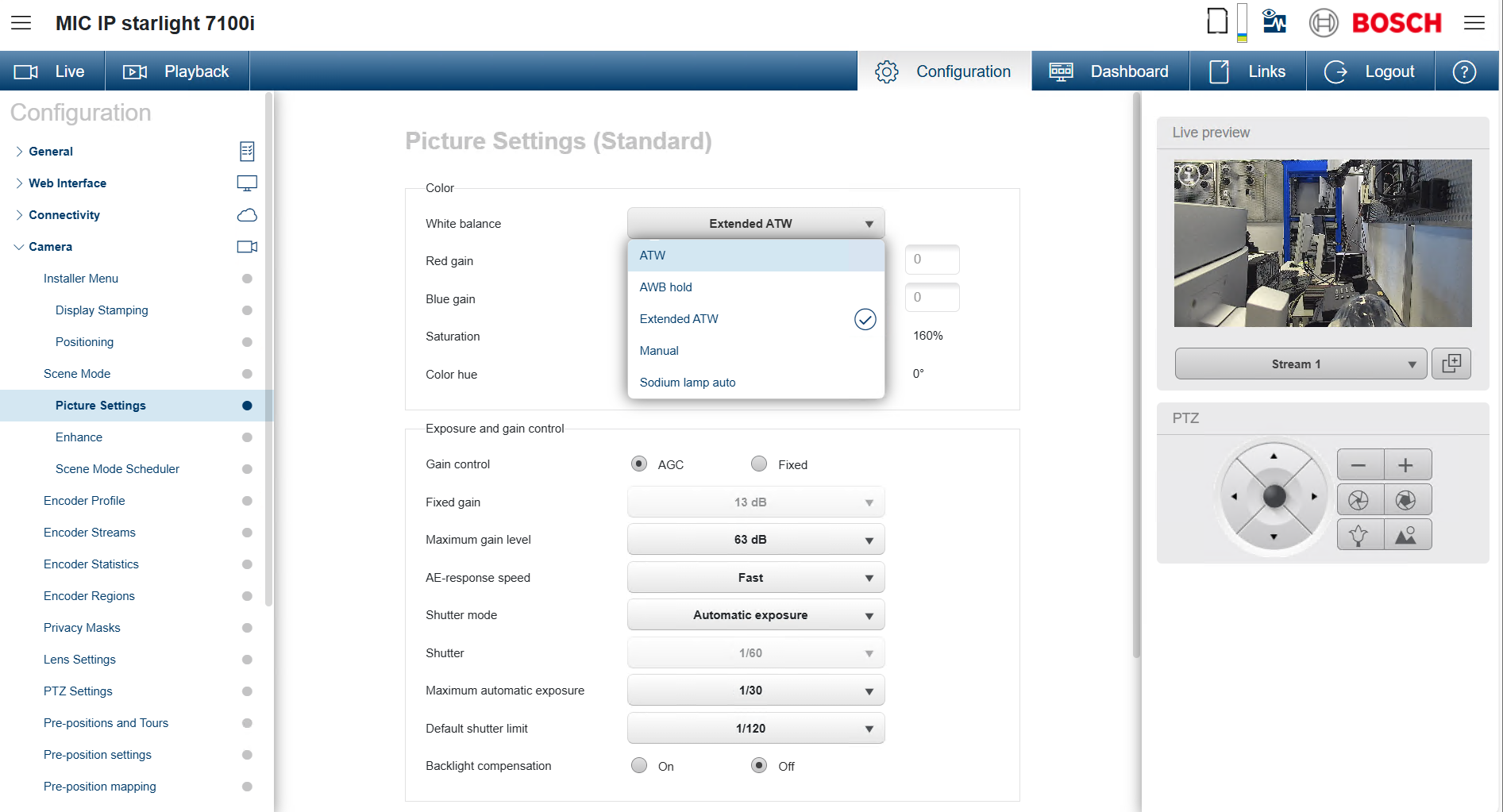
In the first instance, the "Auto High Temperature" option will not be available in the White Balance drop-down list:
-
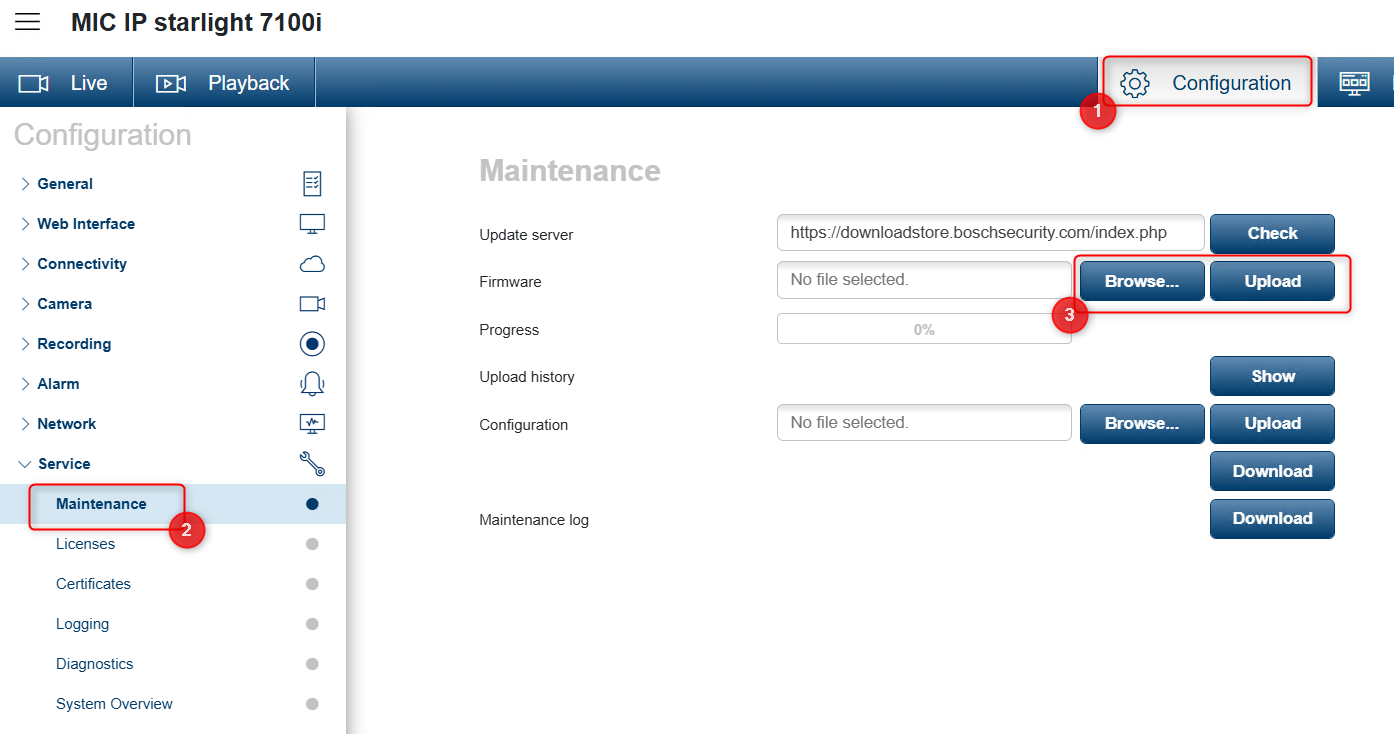
Therefore, you have to update the camera block by accessing this link: http://IP_Address/Settings.html#page_cam_upload
where IP_Address is the IP Address of your camera.
ℹ Please note that this action could take more than 10 minutes.
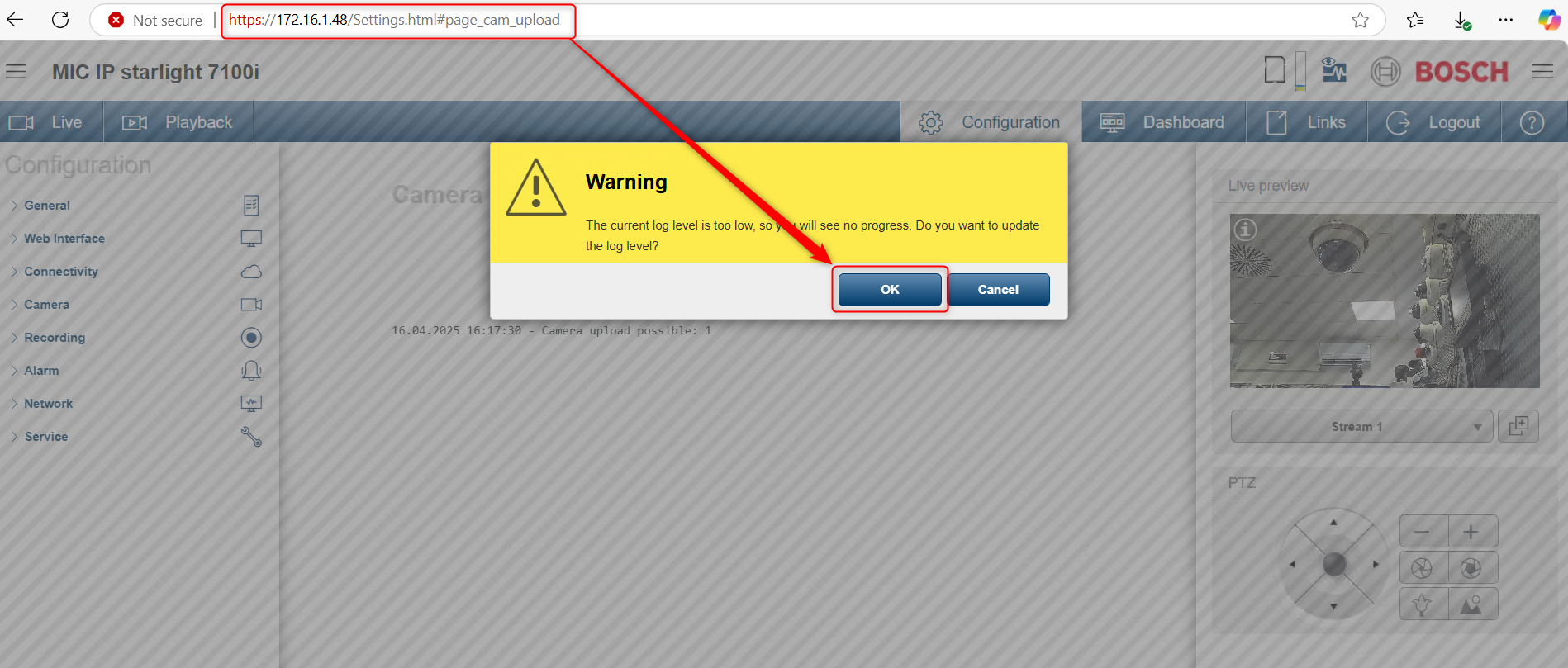
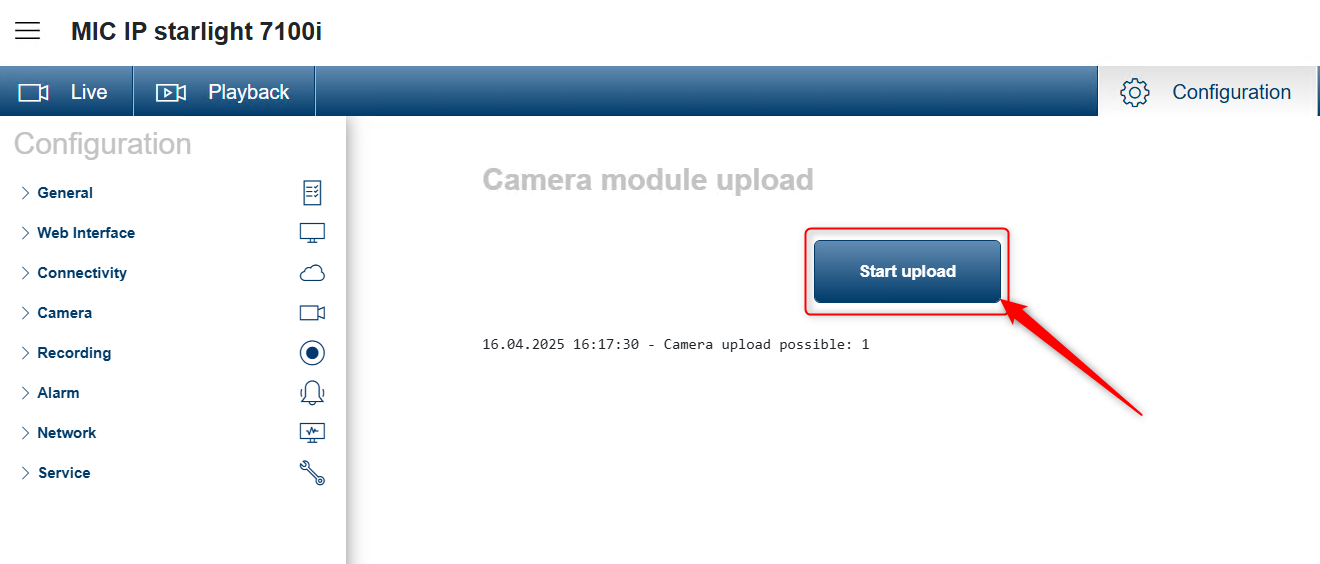
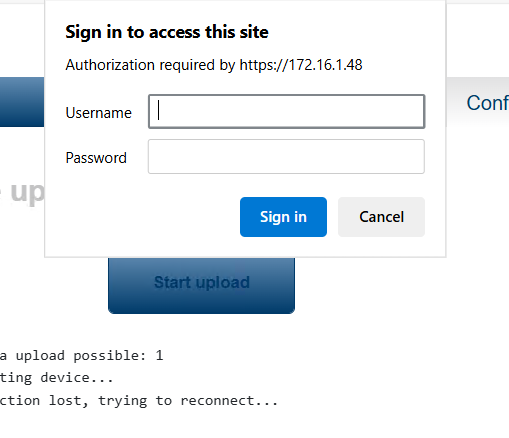
It might happen to ask you several times during the update process for the camera's credentials of the service user. Fill in the credentials and click Sign in
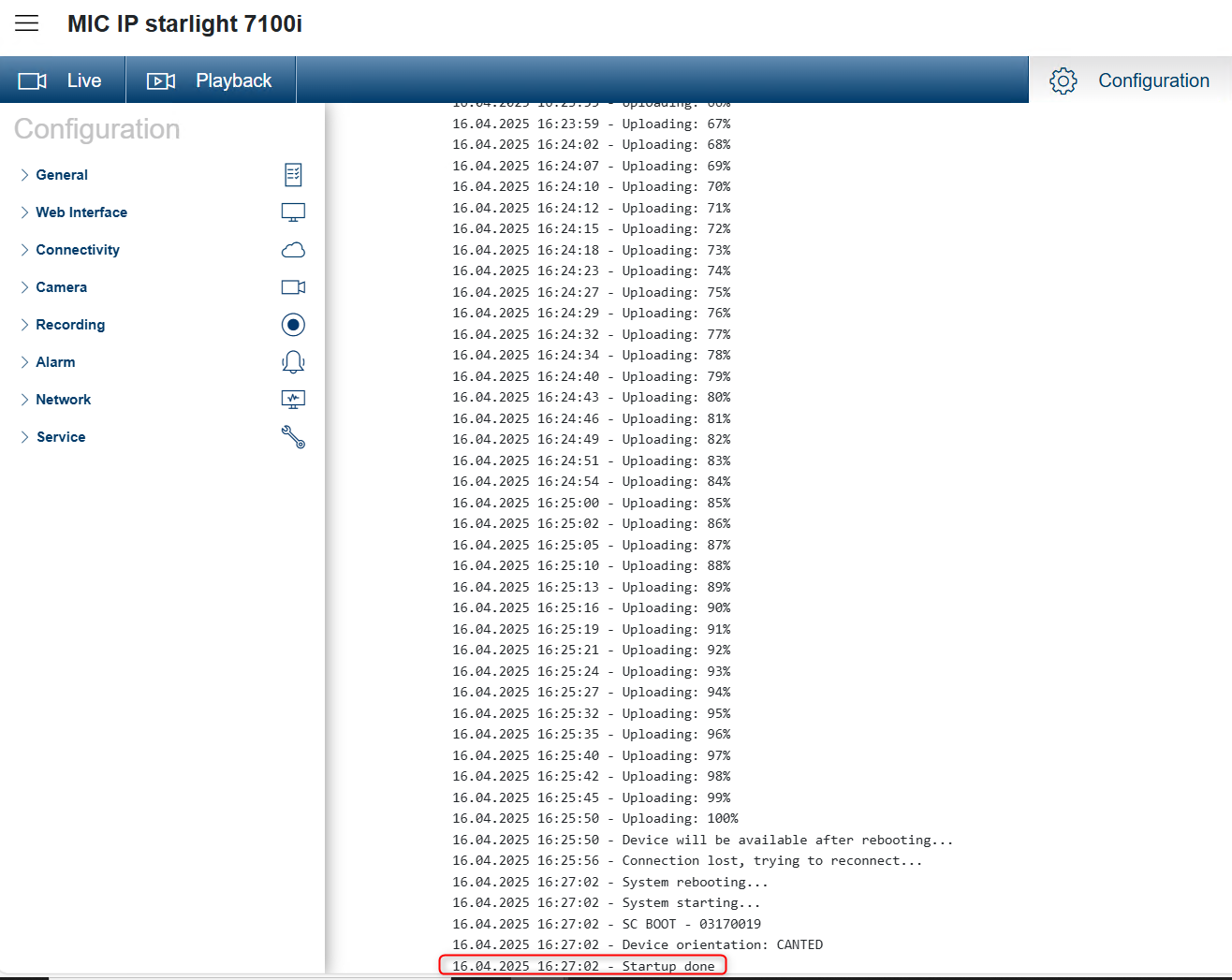
Wait until the "Startup done" message is displayed:
-
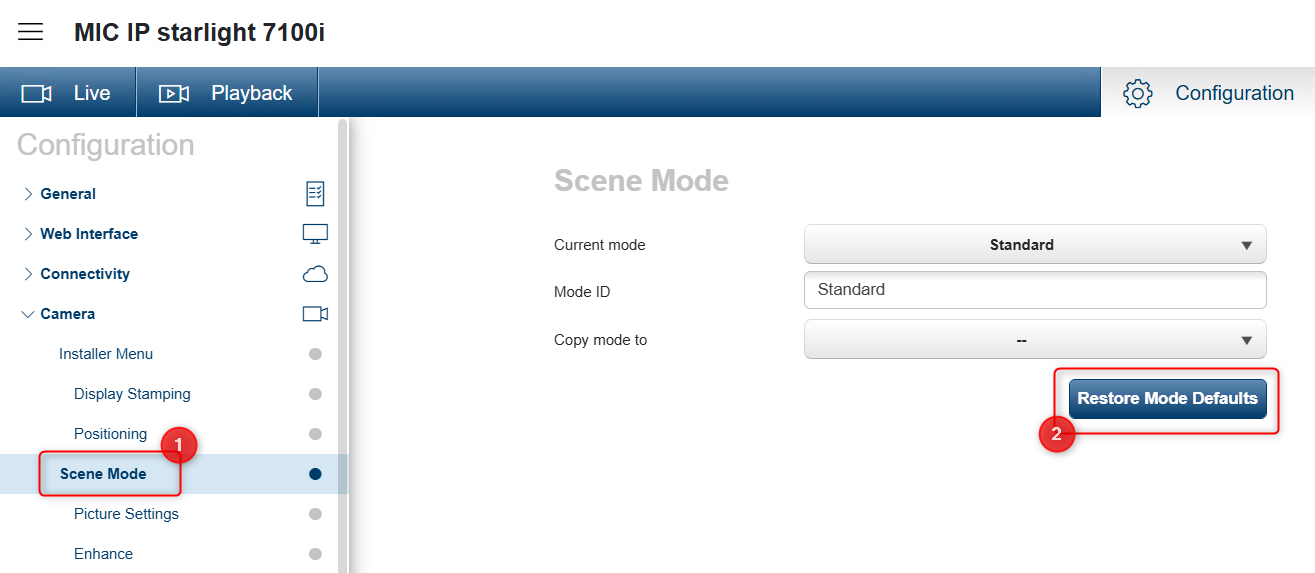
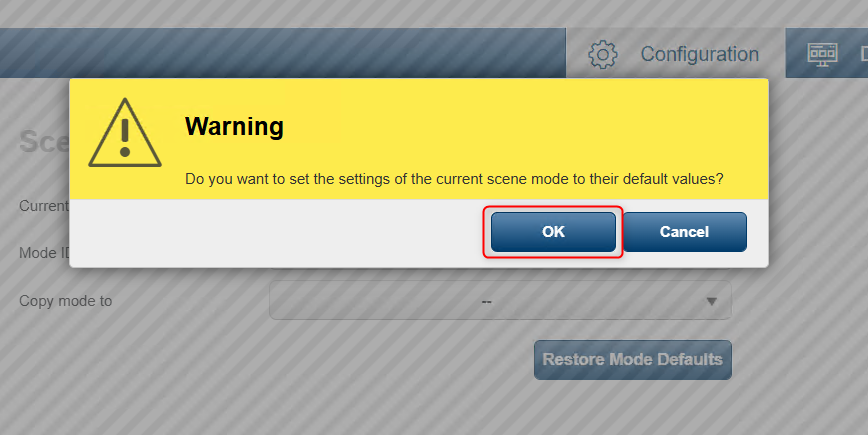
Then, restore the scene mode to defaults:
Now, you can select the new white balance mode: