
This article explains how to receive analytics events from IQSIGHT cameras in Milestone XProtect® using Dynamic Events.
As of Milestone XProtect Device Pack 10.5, the Milestone drivers for IQSIGHT camera devices support Dynamic Events.
What Are Dynamic Events?
As of Milestone XProtect Device Pack 10.5, the Milestone drivers for IQSIGHT camera devices support Dynamic Events.
A Dynamic Event is an event that is automatically detected and exposed by the camera itself, rather than being predefined within the VMS. This allows event names and configurations created on the camera to be carried directly into XProtect.
Key benefits include:
-
Events are configured only once on the camera.
-
Event names defined by the user are preserved in XProtect.
-
No manual event mapping is required.
-
Events can be used in XProtect Rules, Alarms, and Automations.
XProtect categorizes IQSIGHT Dynamic Events into:
-
Audio Events
-
Input Events
-
Video Events
Any uncategorized event is automatically added as a Video Event.
Note: Some Dynamic Events may appear to duplicate existing predefined events. This behavior is intentional and ensures backward compatibility with older camera models and existing XProtect installations.
Step 1: Configure an Analytics Event on the Camera
-
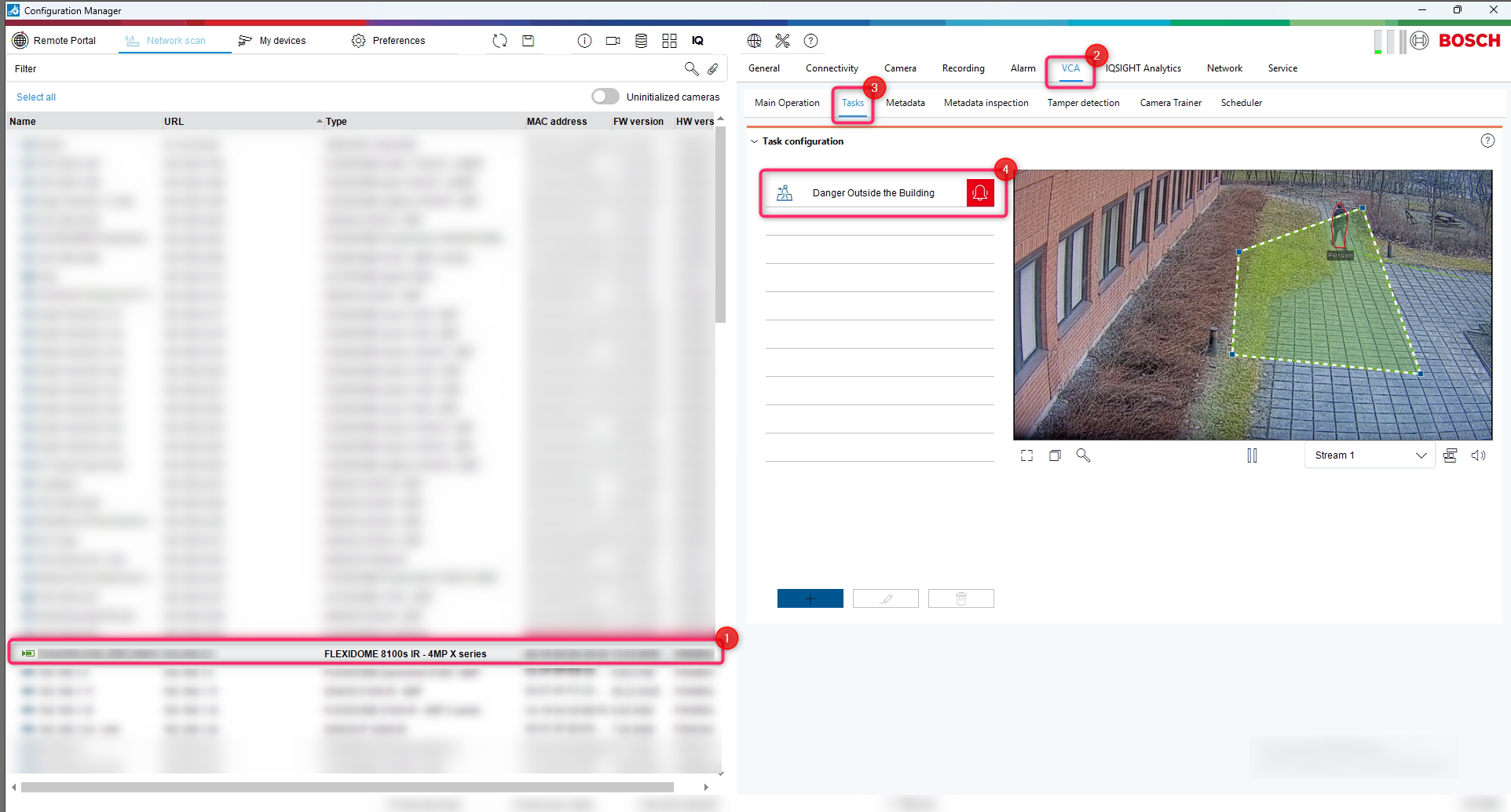
Open IQSIGHT Configuration Manager.
-
Select the camera you want to configure and log in.
-
Navigate to: VCA → Tasks
-
Create or modify the analytics task.
-
Give the task a meaningful name. (In our example: “Danger Outside the Building”)
-
Save the configuration (Ctrl + S).
Step 2: Update the Camera in XProtect
-
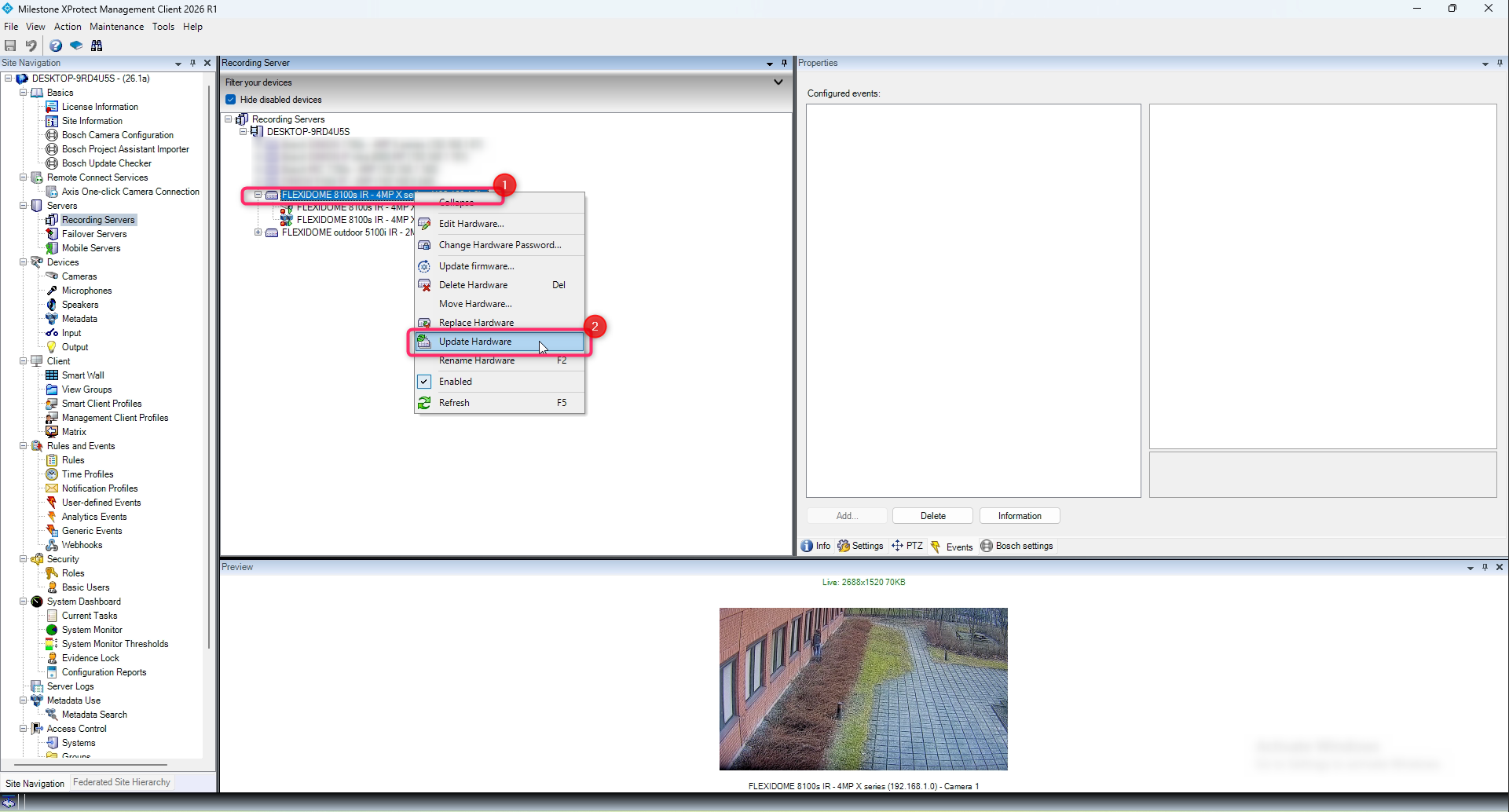
Open Milestone XProtect Management Client.
-
Locate the same camera.
-
Right-click the camera and select: Update Hardware
This forces XProtect to retrieve the latest Dynamic Events from the camera.
Step 3: Verify the Dynamic Event
After the hardware update completes, there are two ways to verify the event.
Option A: Use “Events” tab in XProtect
-
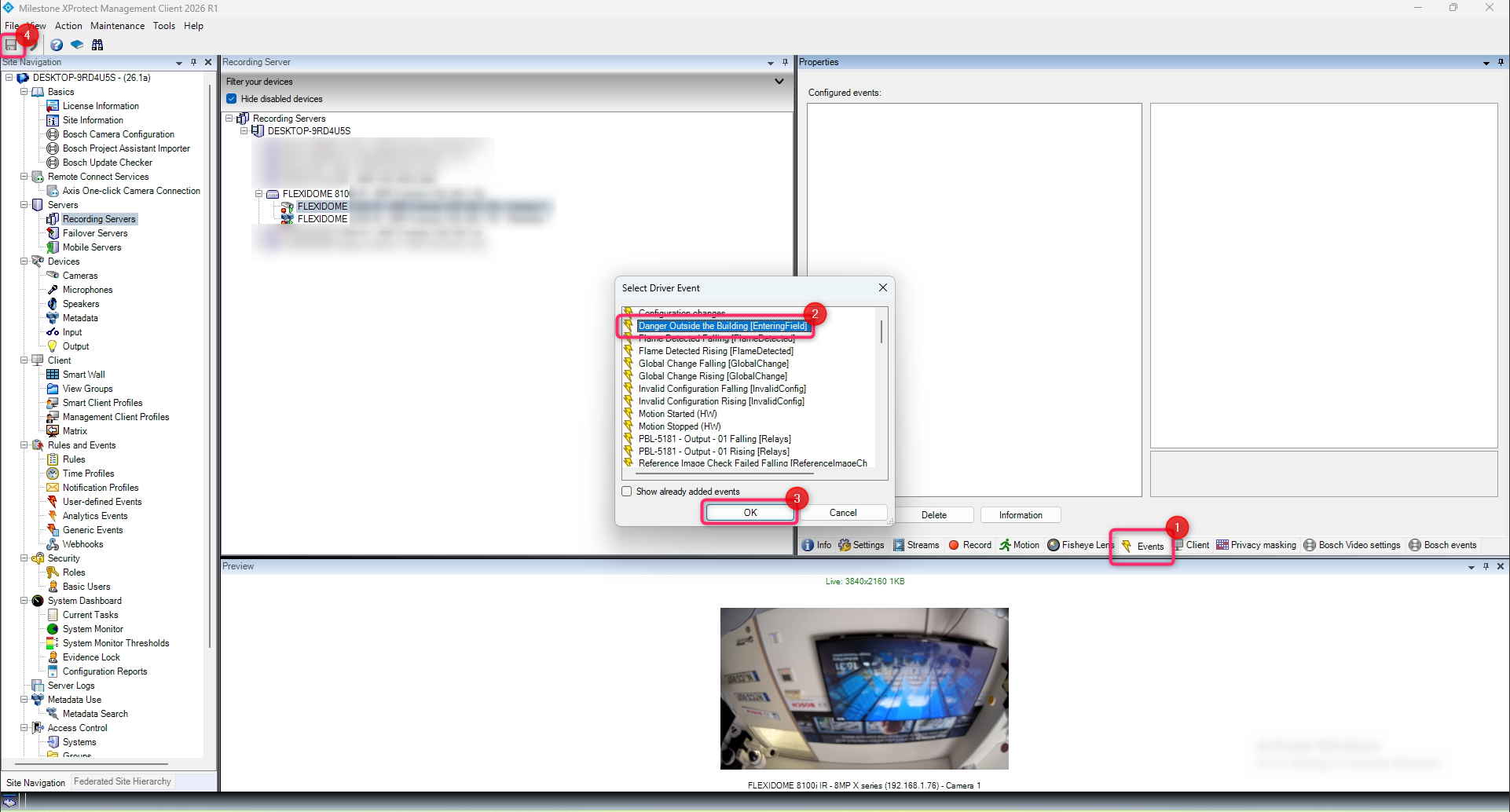
Open the camera configuration.
-
Navigate to the Events section.
-
Search for the configured event name.
The event should now appear in the event list.
Option B (Recommended): Use IQSIGHT SmartSuite for Milestone XProtect
If SmartSuite for Milestone XProtect is installed:
-
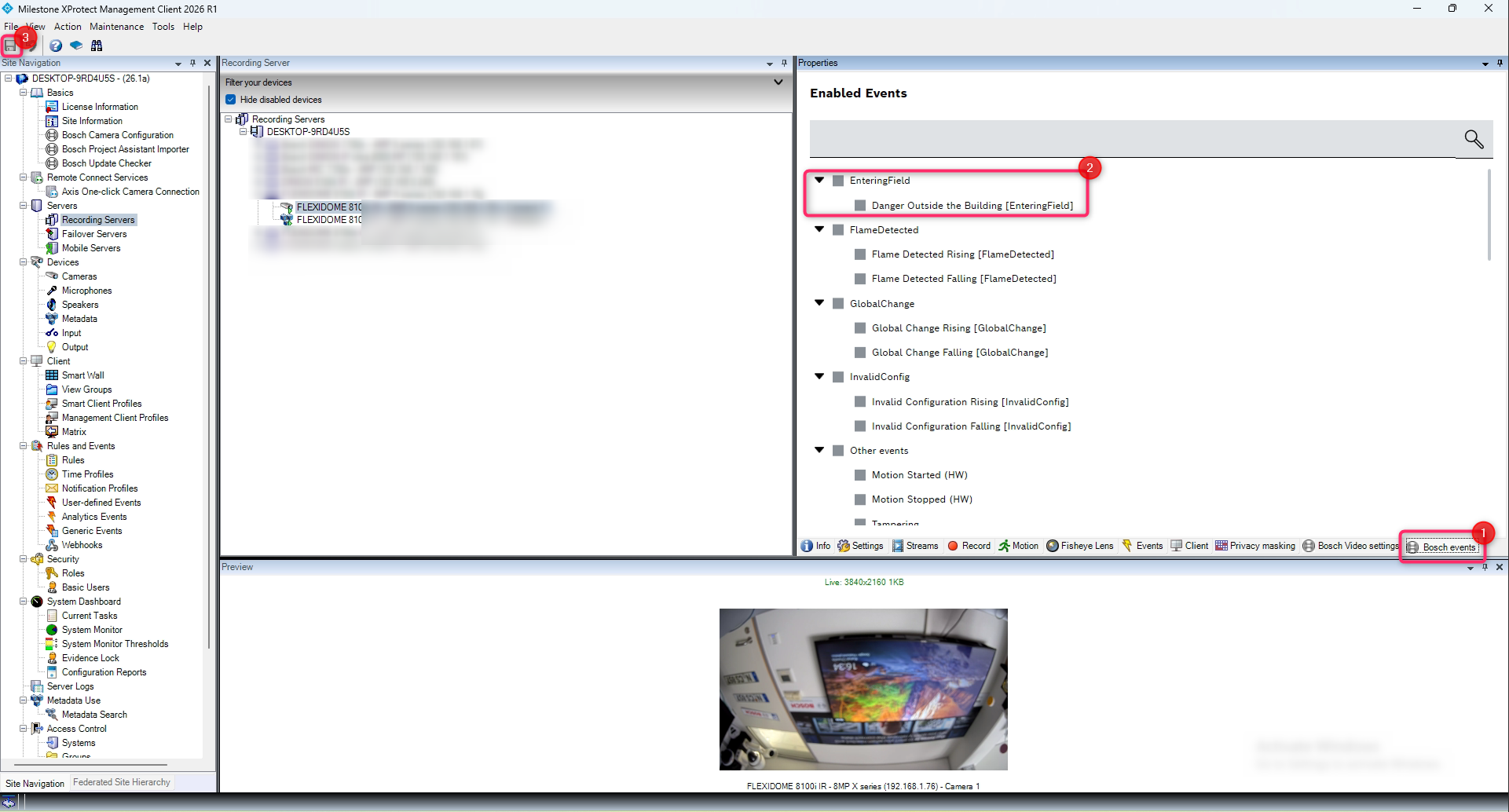
Open the camera configuration in XProtect Management Client.
-
Navigate to the Bosch Events tab.
-
Browse and subscribe to the event. (In our example: “Danger Outside the Building”)
This provides a faster and more convenient way to work with only camera-generated events, and avoids unnecessary mouse clicks.
Step 4: Use the Event in Rules and Alarms
Once the Dynamic Event is available within XProtect, it can be used throughout the platform, including:
-
Rules and Events
-
Alarm Management
-
Notifications
-
Recording Triggers
-
External Integrations
Open XProtect Management Client and configure the desired automation using the newly available Dynamic Event as a trigger.
Result
You have now successfully configured a Dynamic Event that is generated by the AI running directly on the IQSIGHT camera, fully utilizing the camera analytics. The event can be consumed by Milestone XProtect and incorporated into rules, alarms, and automated workflows without requiring any manual event creation within the VMS.