How does the BVMS - Operator collaboration with Slack work?


Question

How does the BVMS - Operator collaboration with Slack work?

Answer

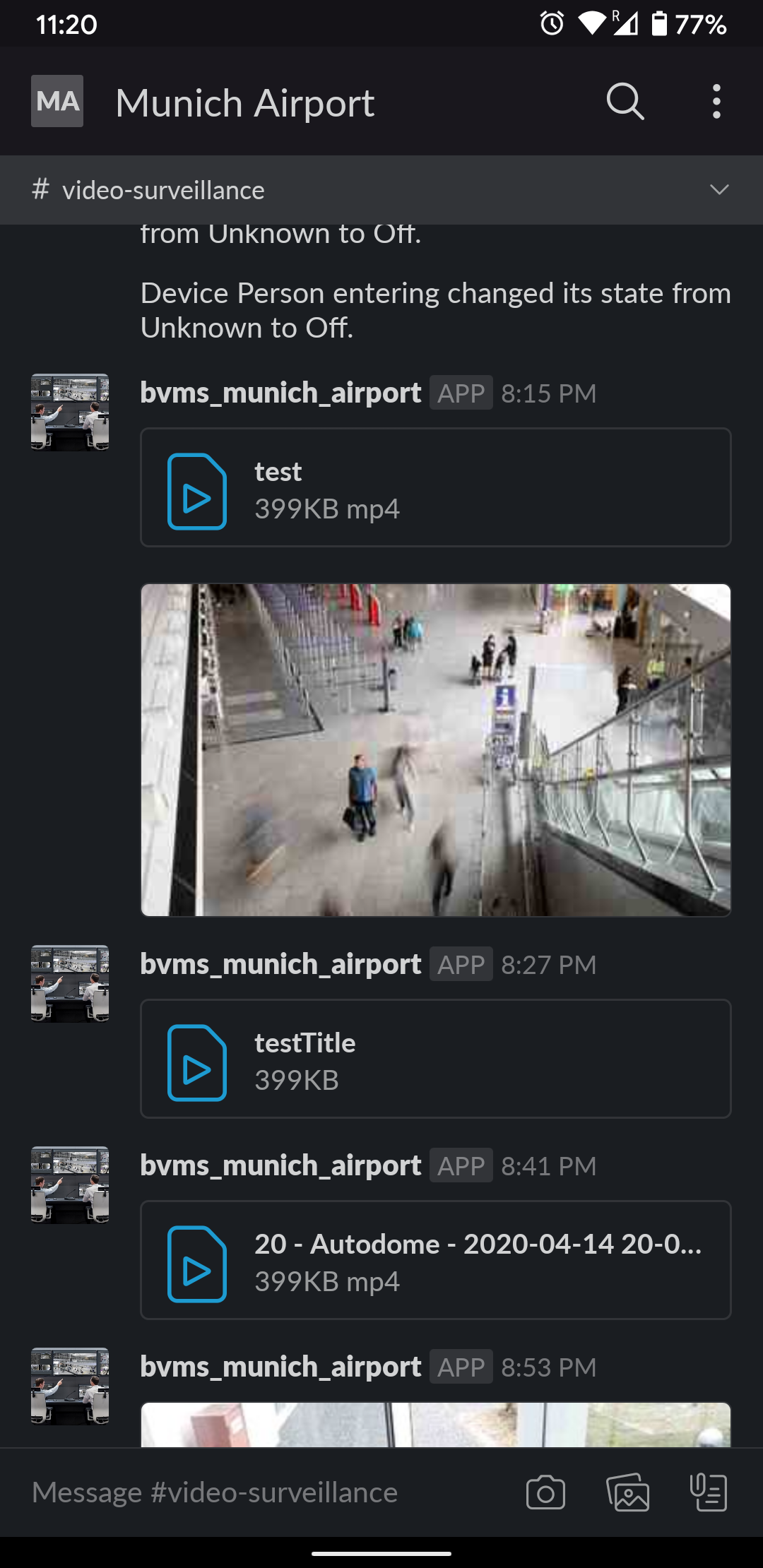
Security guards as well as operators are all member of this Slack channel and use the channel to collaborate. Guards can use their mobile phones to upload still images or movies to the channel for archiving by the security operators. Security operators are able to send snapshots (directly from BVMS), videos (exported), or chat messages to instruct security guards.

BVMS automatically posts events to the channel and, optionally, can post camera snapshots or short video clips of incidents into the channel automatically.

Screenshots

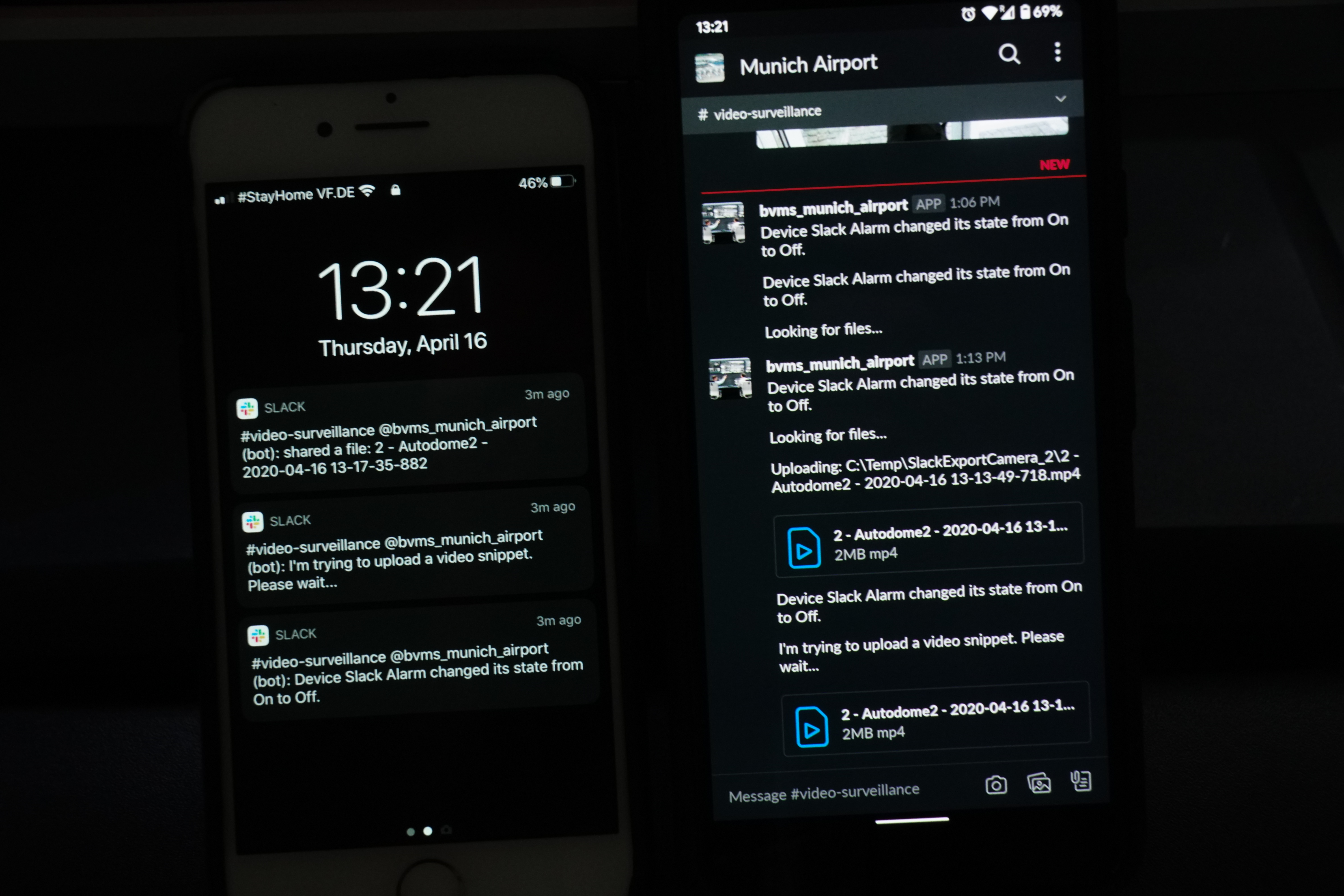
Mobile clients

iOS, Andriod.
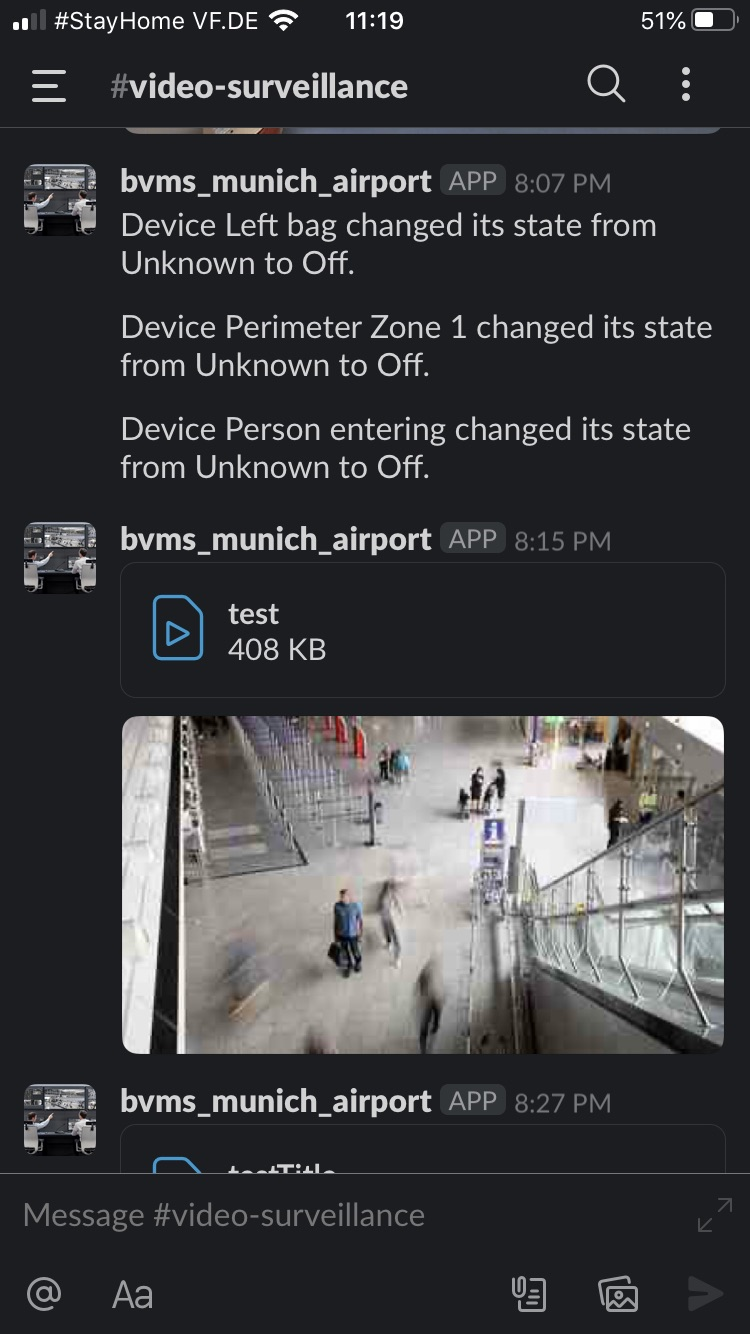
image2020-4-16_11-22-47.png image2020-4-16_11-23-22.png

Notifications on iPhone (7) and Slack app on Android.
DSC04608.JPG

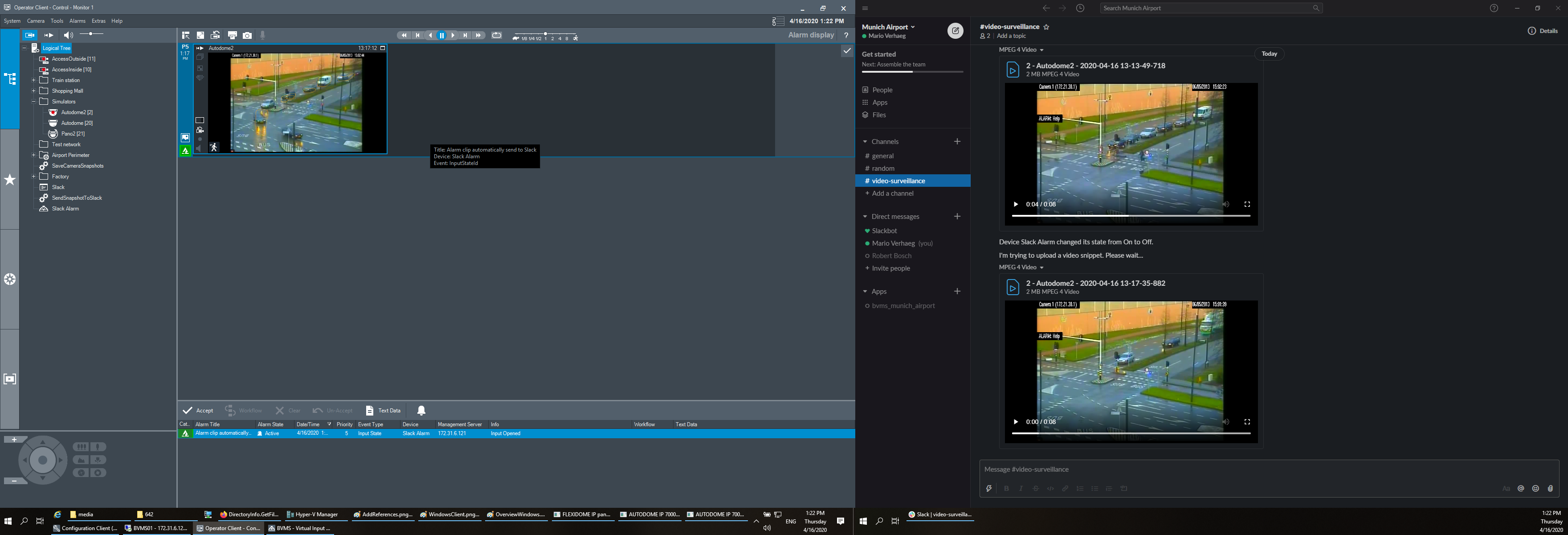
Windows client

Alarm comes into BVMS. BVMS tries to export the related video footage and it appears as small (~10 seconds) clips in Shacl after ~10 seconds.
OverviewWindows.png

The operator can also send the content of an image pane to Slack:
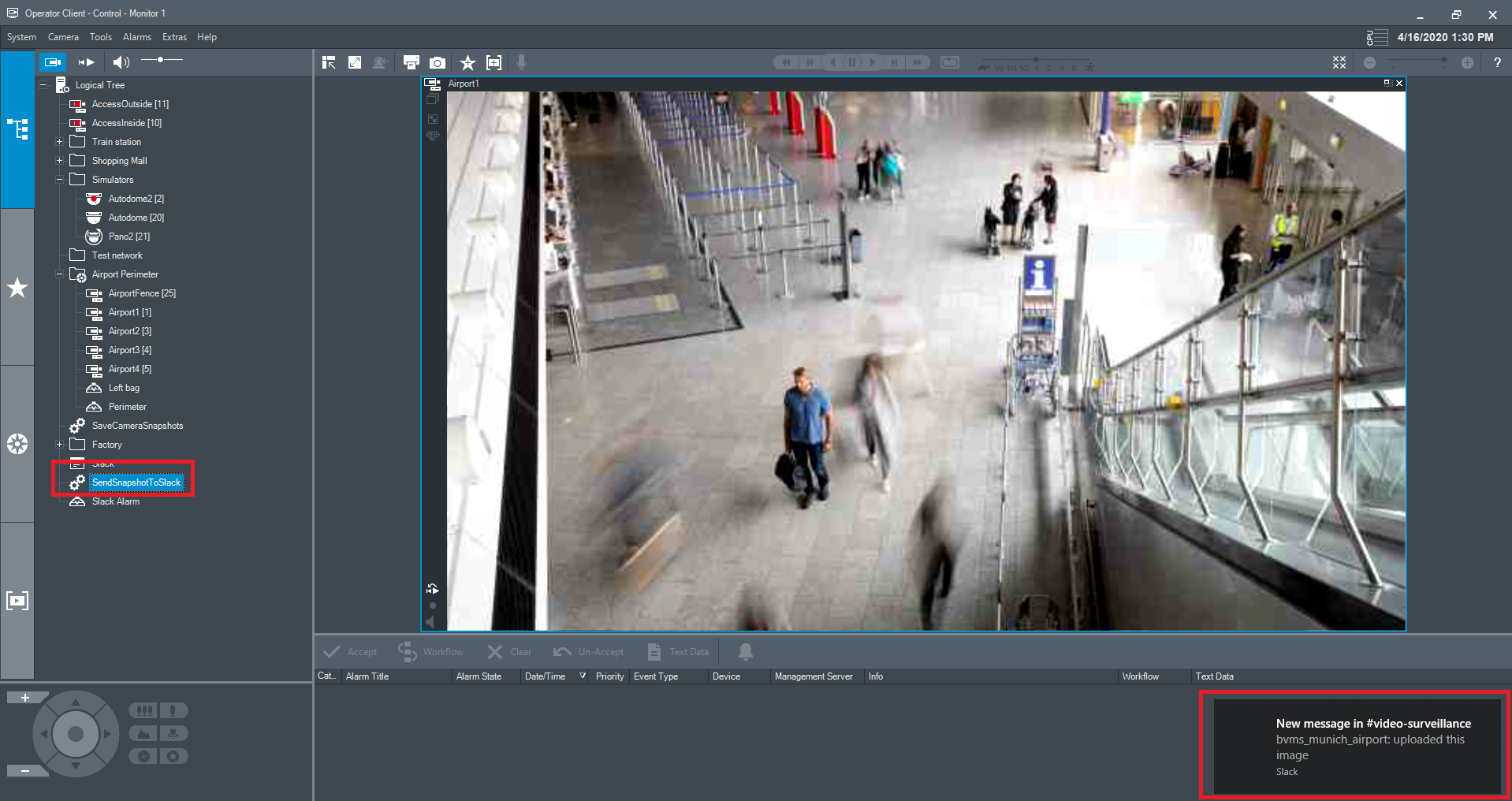
image2020-4-16_13-35-2.png

Configuration

BVMS

References

Add references to script editor to communicate with web applications. The System.Net.dll reference needs to be added for the client and server script.
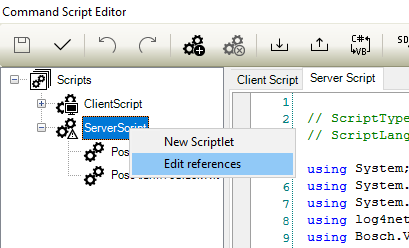
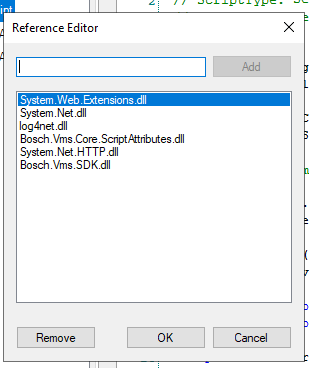
EditReferences.png AddReferences.png

Server script

Example server script (replace the Slack security token and channel ID in the SlackCommunication class): ServerScript.txt

You also need to make sure the export directory is whitelisted.

You might need to adjust the time it takes to export video.

Add "using" statements to the upper part of the server script.

// For Slack communication
using System.IO;
using System.Net.Http;
using System.Threading.Tasks

Add the class SlackCommunication.

public class SlackCommunication
{
    private static readonly HttpClient client = new HttpClient();
    public static string token = "xoxb-...";
    public static string channel = "C...";
 
    class SlackFileResponse
    {
        public bool ok { get; set; }
        public String error { get; set; }
        public SlackFile file { get; set; }
    }
 
    class SlackFile
    {
        public String id { get; set; }
        public String name { get; set; }
    }
    public class SlackMessageResponse
    {
        public bool ok { get; set; }
        public string error { get; set; }
        public string channel { get; set; }
        public string ts { get; set; }
    }
 
    public static async Task WriteChatAsync(string text)
    {
        // we need to send a request with multipart/form-data
        var multiForm = new MultipartFormDataContent();
 
        // add API method parameters
        multiForm.Add(new StringContent(token), "token");
        multiForm.Add(new StringContent(channel), "channel");
        multiForm.Add(new StringContent(text), "text");
         
        // send request to API
        var url = "https://slack.com/api/chat.postMessage";
        var response = await client.PostAsync(url, multiForm);
        // fetch response from API
        var responseJson = await response.Content.ReadAsStringAsync();
    }
 
    public static async Task UploadFileAsync(string path)
    {
        // we need to send a request with multipart/form-data
        var multiForm = new MultipartFormDataContent();
 
        // add API method parameters
        multiForm.Add(new StringContent(token), "token");
        multiForm.Add(new StringContent(channel), "channels");
 
        // add file and directly upload it
        FileStream fs = File.OpenRead(path);
        multiForm.Add(new StreamContent(fs), "file", Path.GetFileName(path));
 
        // send request to API
        var url = "https://slack.com/api/files.upload";
        var response = await client.PostAsync(url, multiForm);
 
        // fetch response from API
        var responseJson = await response.Content.ReadAsStringAsync();
    }

Add the method to clear the contents of the directory that the script uses to store temporary files.

private void cleardir()
{
    System.IO.DirectoryInfo di = new DirectoryInfo("C:\\Temp\\");
    foreach (FileInfo file in di.GetFiles())
    {
        file.Delete();
    }
    foreach (DirectoryInfo dir in di.GetDirectories())
    {
        dir.Delete(true);
    }
}

Add the method that uploads files to Slack.

public void UploadFiles(int cid)
{
    System.IO.DirectoryInfo di = new DirectoryInfo("C:\\Temp\\SlackExportCamera_" + cid.ToString());
    foreach (FileInfo file in di.GetFiles())
    {
        SlackCommunication.UploadFileAsync(file.FullName).Wait();
    }
}

Add the method to send the exported file.

public void SendExport(int cid)
{
    // Export 10 seconds of video
   Camera c = Api.CameraManager.GetCameraByLogicalNumber(cid);
   Camera[] arr = new Camera[] {c};
   DateTime dt = DateTime.Now;
   Api.CameraManager.ExportMp4(arr,dt.AddSeconds(-9),dt.AddSeconds(-1),"C:\\Temp\\","SlackExportCamera_" + cid.ToString());
   // Wait for export to complete
   System.Threading.Thread.Sleep(1000);
         
    // Upload exported files to Slack
    UploadFiles(cid);
}

I recommend to add two server scripts covering two use-cases:

  1. Send messages into the Slack channel.

  2. Upload files into the Slack channel.

Send messages into the Slack channel based on the event information.

// Export short video clip of device if coming from camera
string strMessage = "Device " + e.DeviceName.ToString() + " changed its state from " + e.State.Old.ToString() + " to " + e.State.New.ToString() + ".";
SlackCommunication.WriteChatAsync(strMessage).Wait();

Upload files into the Slack channel. You need to create a server script for each camera for which we want to upload small clips.

PostAlarmToSlack(e);
// CONFIGURE CAMERA LOGICAL ID
int cid = 20;
// ENSURE YOUR MANAGEMENT SERVER HAS ENOUGH STORAGE CAPACITY TO STORAGE EXPORT FILES
cleardir();
SendExport(cid);

Client script

ClientScript.txt

We use the same SlackCommunication class. We create a small client script that saves the current view of an image pane and sends this to the Slack channel.

ImagePane ip = Api.ContentManager.GetSelectedImagePane();
Api.ContentManager.SaveImagePane(ip,"C:\\Slack.jpg");
SlackCommunication.UploadFileAsync("C:\\BVMS_Data\\Slack.jpg").Wait();

Devices

Create virtualinputs or other devices that can generate events.
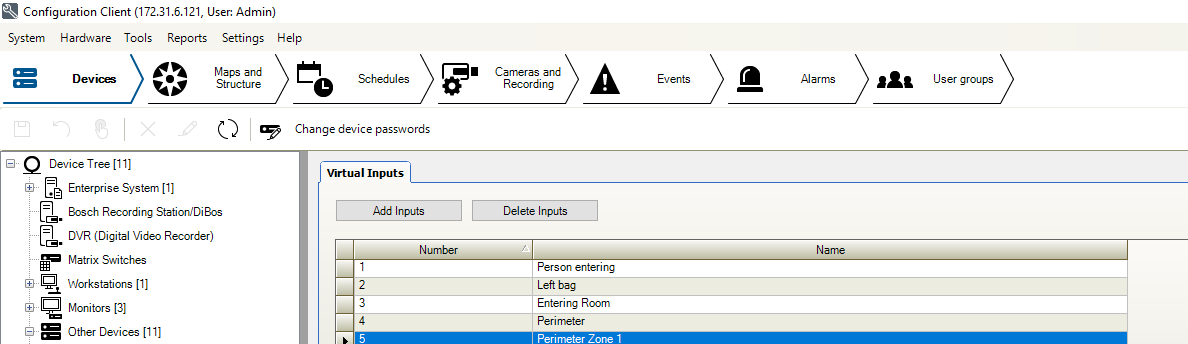
CreateVirtualInputs.png

Attach the server script to those events. The script will automatically extract the device name, old state, and new state from the event. Alternatively, the file upload script will attach a small video clip to the message of the event.
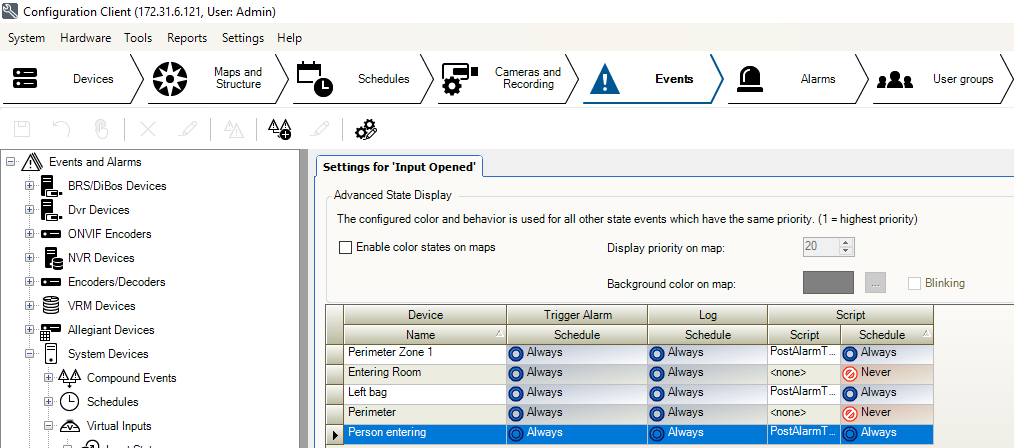
7 Trigger script on events.png

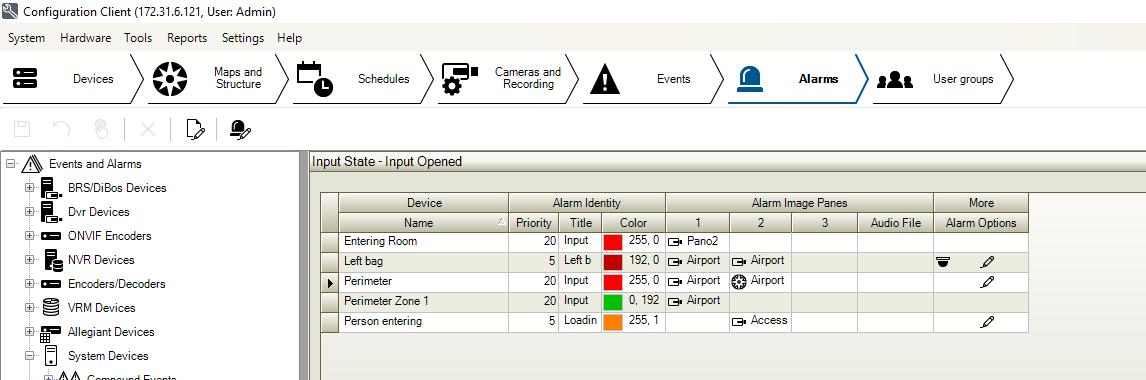
Configure your alarms.

8 Configure Alarms.png

Slack

Create a Slack account and create a new workspace.



1.png

Create a new channel in the work-space (this is indicated with a #).
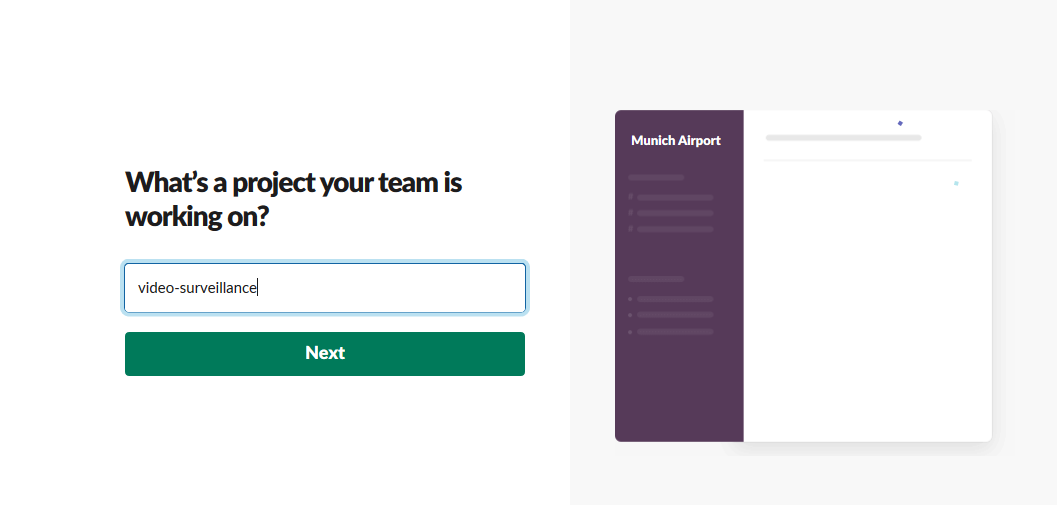
2.png

Add colleagues to your workspace or skip this option.
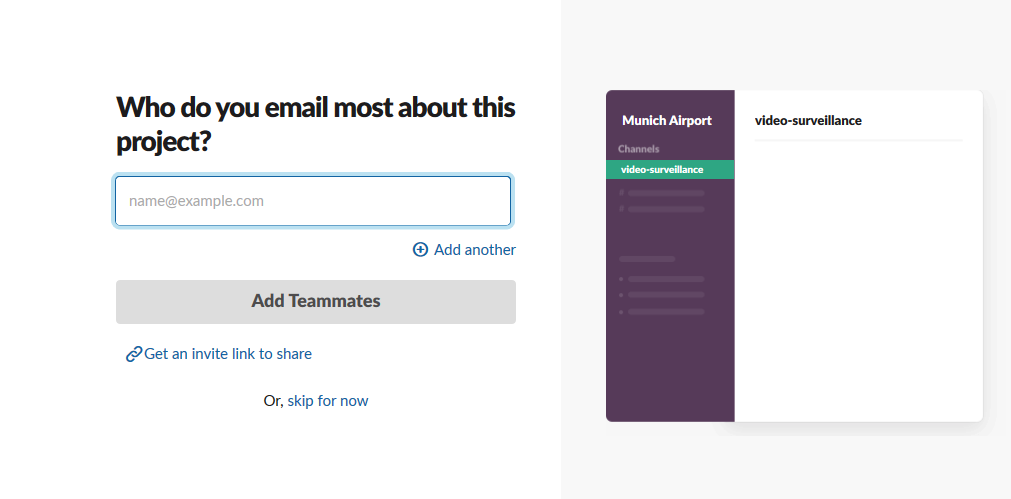
3.png

Note the channel ID of the project in the work-space. This starts with a C.

4_Channel.png

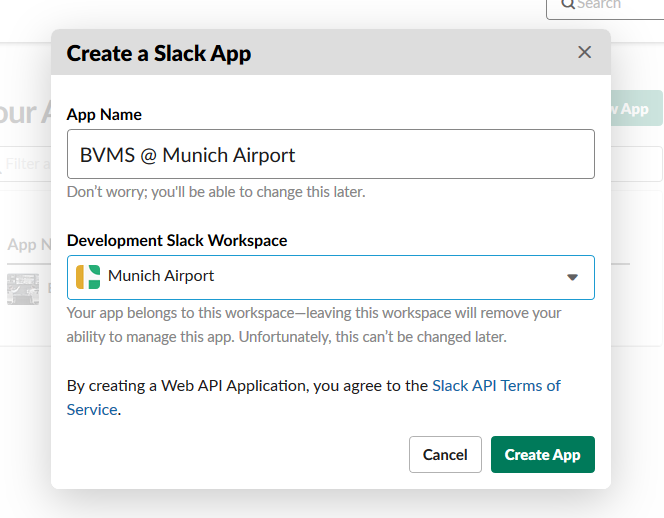
Browse to https://api.slack.com/apps and create a new app.
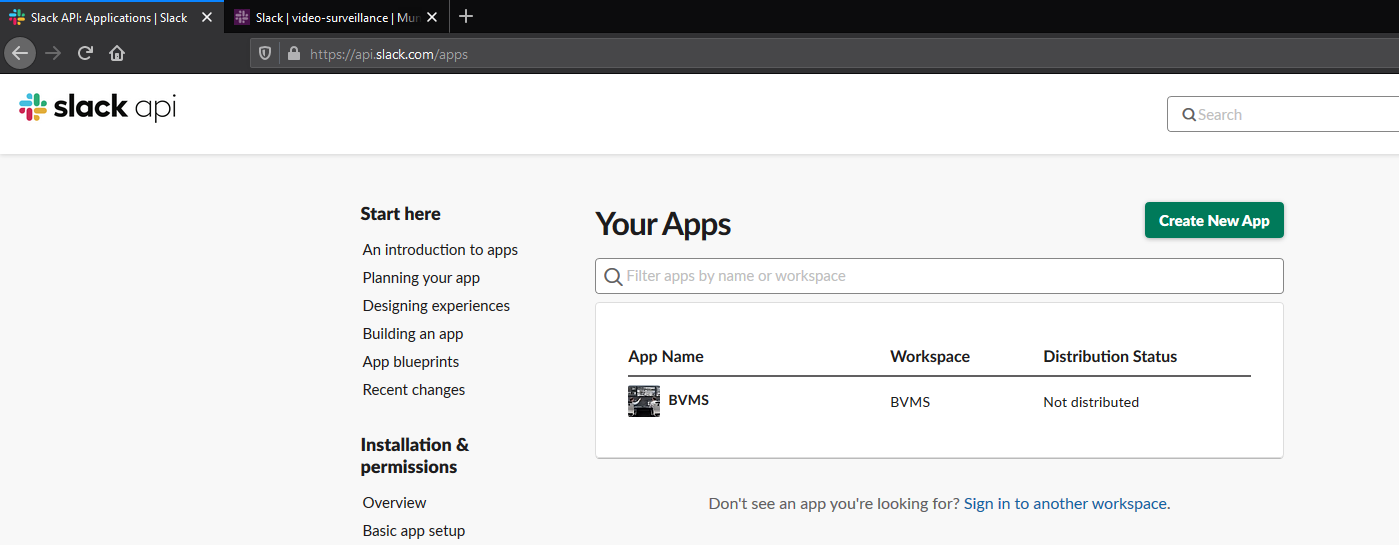
5_CreateNewApp.png

Add the app to your workspace.

6_AttachAppToWorkspace.png

We need to give the app the permissions to post messages and files into the work-space.
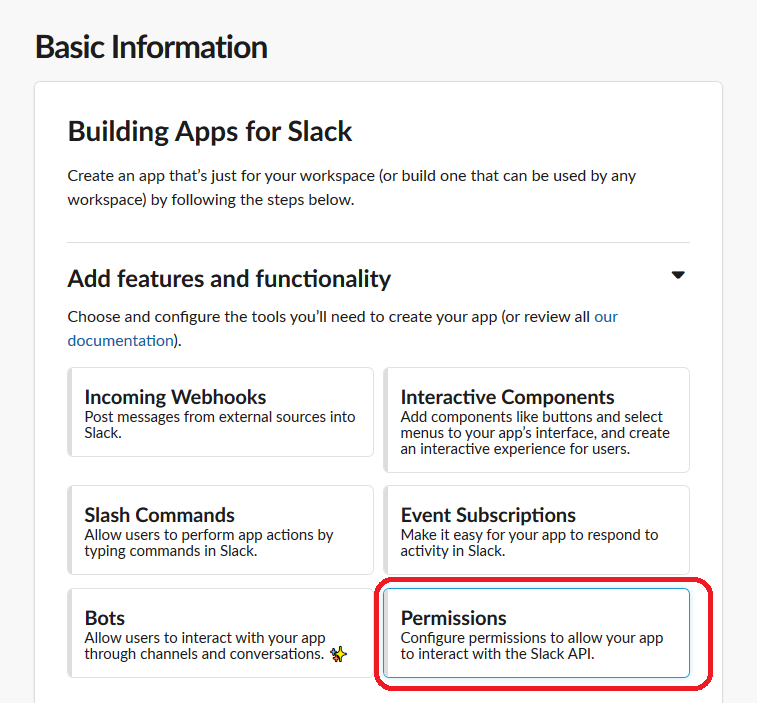
7_AppPermissions.png

You need to expand the security scopes to include chat.write and files.write.
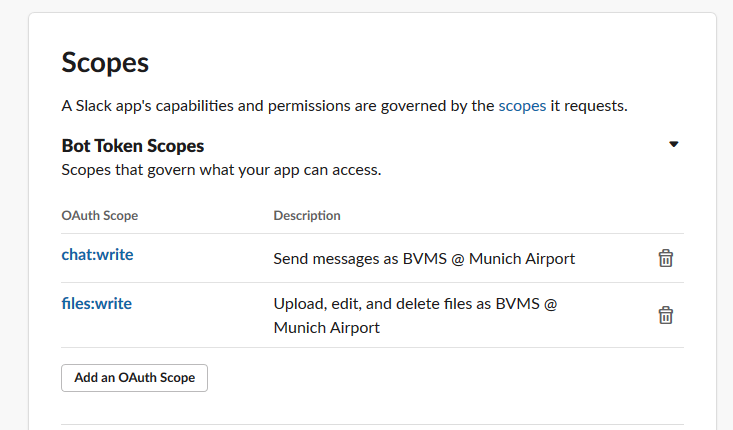
8_Scopes.png

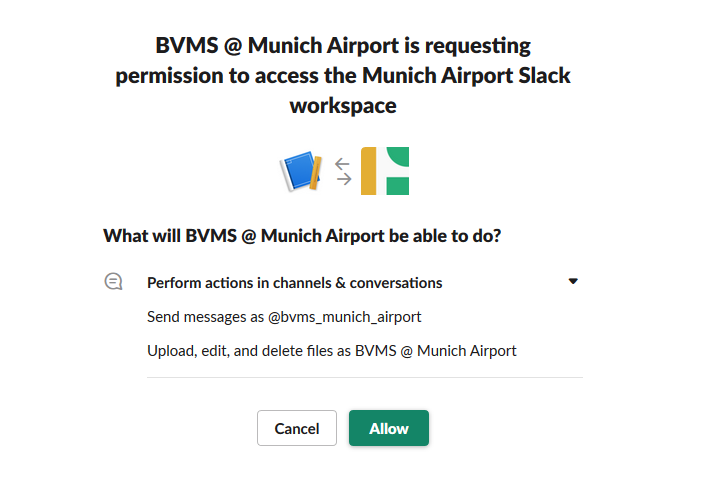
Now we are ready to install the app in the workspace.
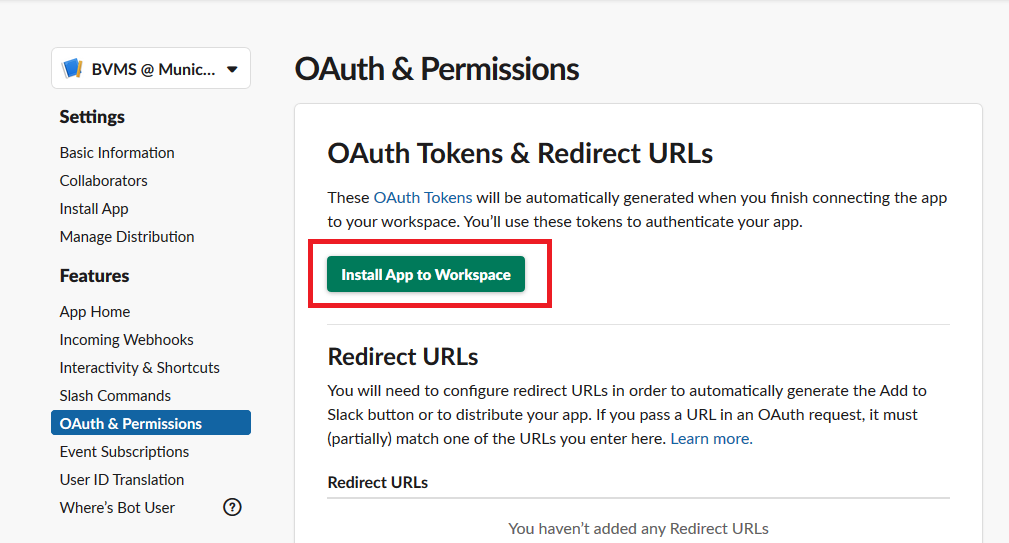
9_InstallAppToWorkspace.png 10_AllowAppIntoWorkspace.png

Copy the token ID into the SlackCommunication class in the BVMS script. You also need to copy the project ID into the script. With this information BVMS knows in which workspace and channel it should post it's notifications.
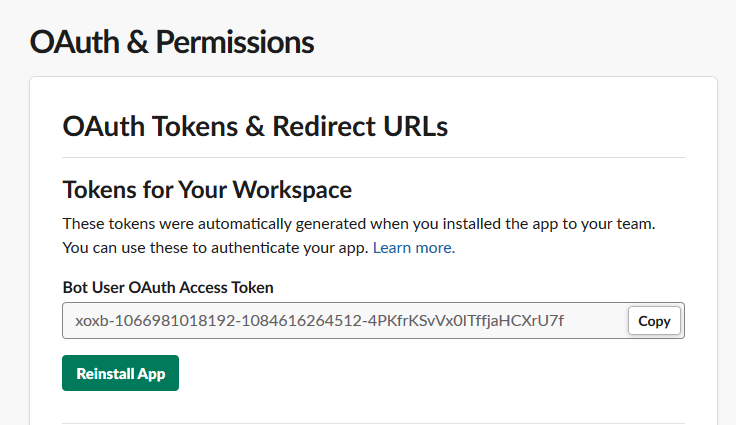
11_CopyTokenIntoScript.png

Add the created app to your workspace by typing "@appname" into text field in the channel.
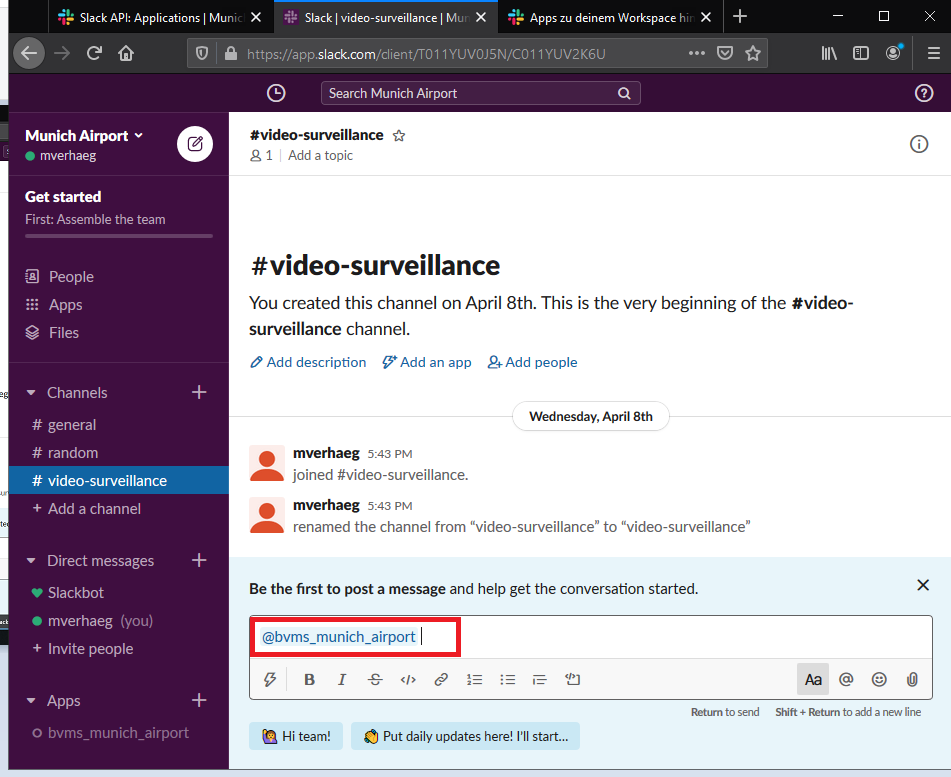
12_AddAppToWorkspace.png

13_Confirm.png

You can change the icon of the application in the settings page of the app.
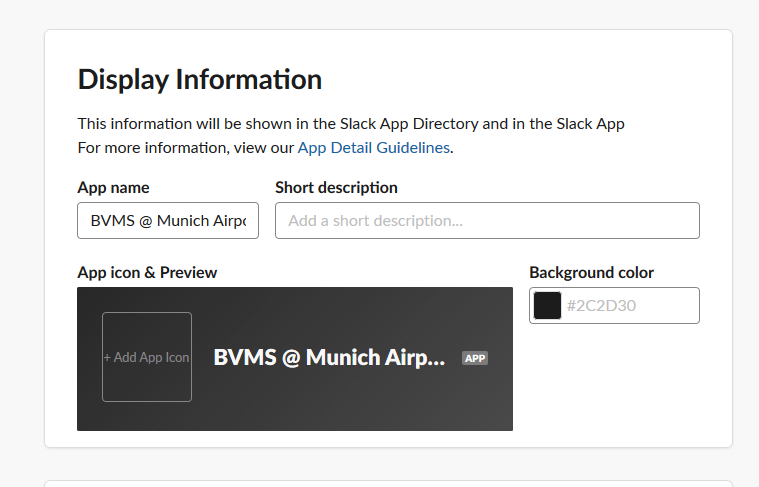
14_AddAppIcon.png