For the current article, the following devices/firmware/software versions were used:
-
MIC IP fusion 9000i (MIC-9502-Z30xVS9), firmware 7.89.0045
The thermal mode is saved in the preposition settings.
(warning) Be aware that it is not sufficient only to select a different Thermal color mode in the camera's WEB GUI > Picture Settings Thermal page and then to go in the Live preview window to see the change.
If you have changed the thermal mode of the camera in the Picture Settings Thermal page and you also want the Thermal color mode to apply to the existing saved pre-position, you have to re-save the pre-position again.
You can call the preposition number, change the thermal color mode and then save the position to the same pre-position number.
Step-by-step guide
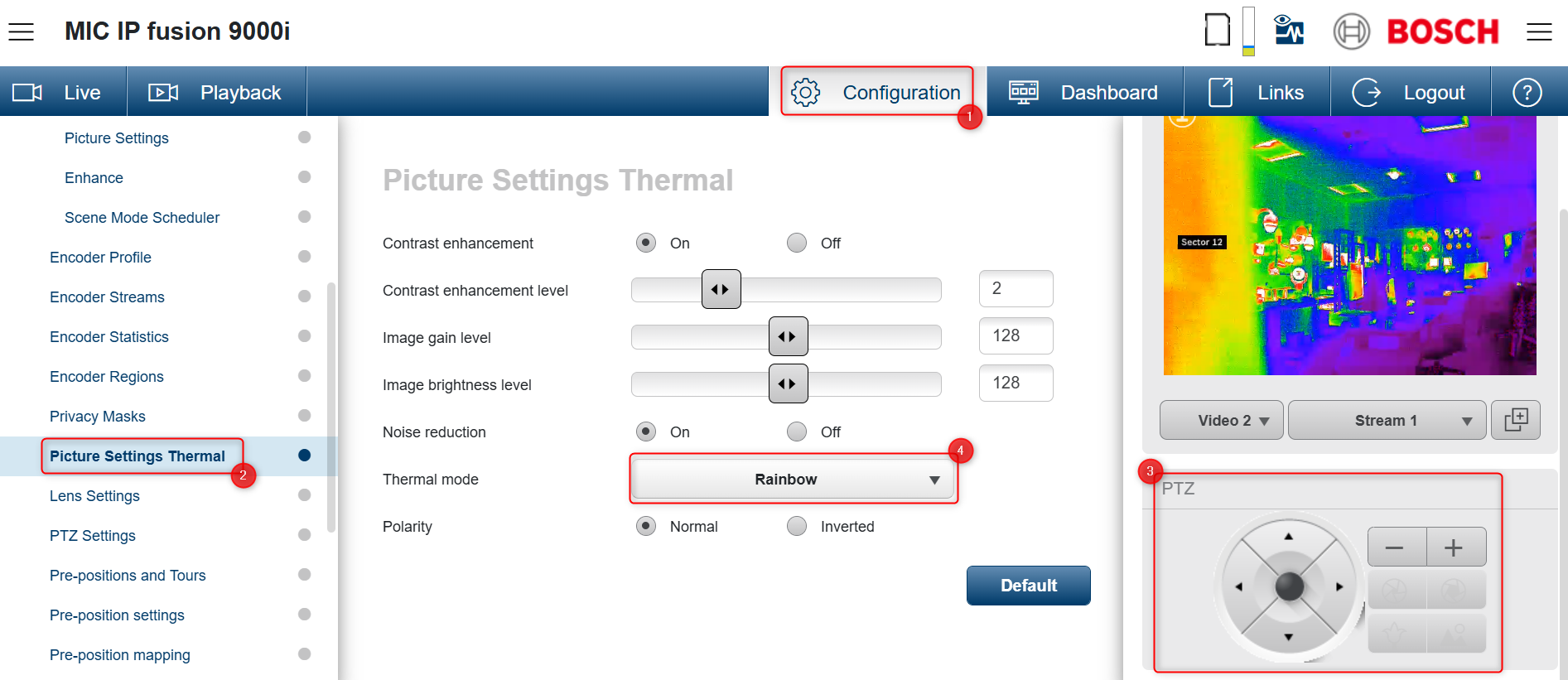
1. Go to Configuration > Camera > Picture Settings Thermal
2. Use the PTZ joystick to set the field of view for the Pre-position and Select the Thermal mode as you wish
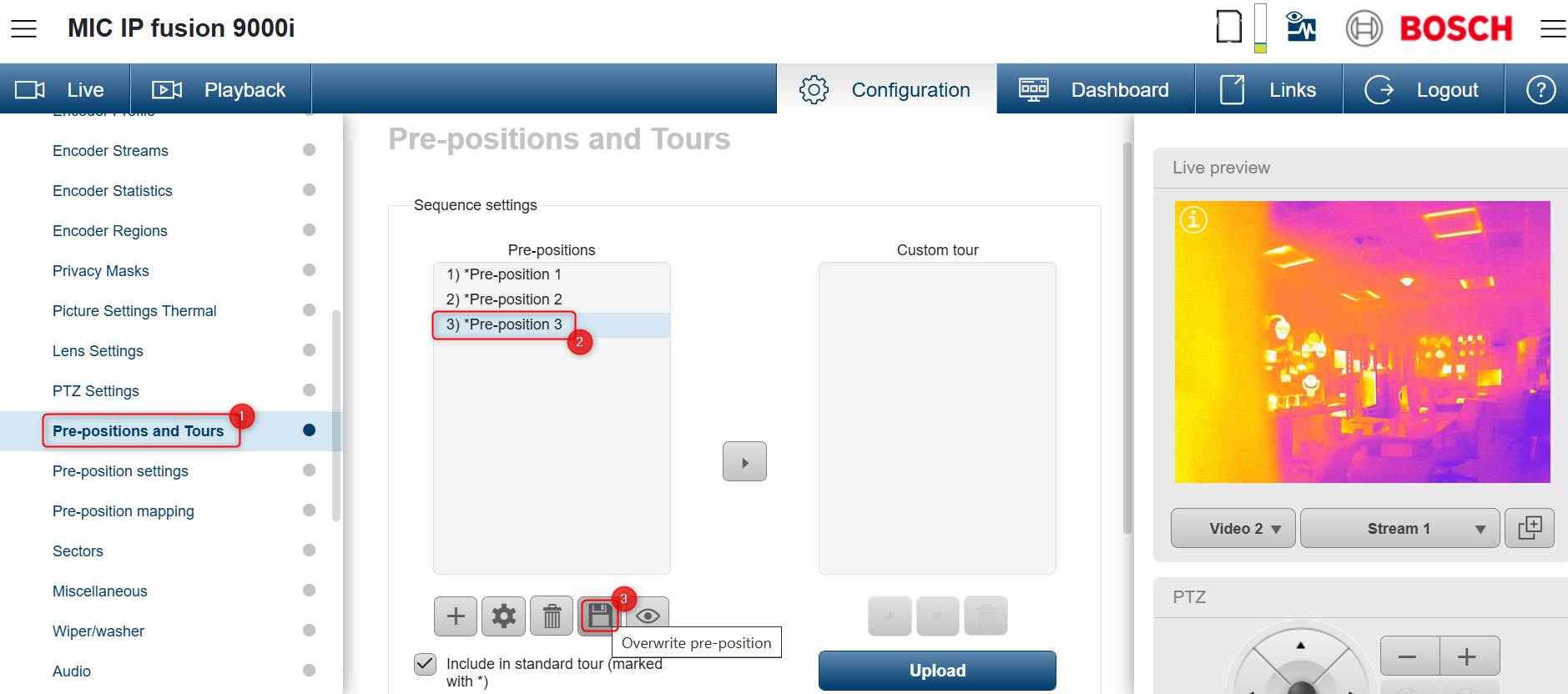
3. Go to Pre-positions and Tours > select the preposition for which you want to apply the change and click the "Overwrite Preposition" button.
If you don't have the Pre-positions configured yet:
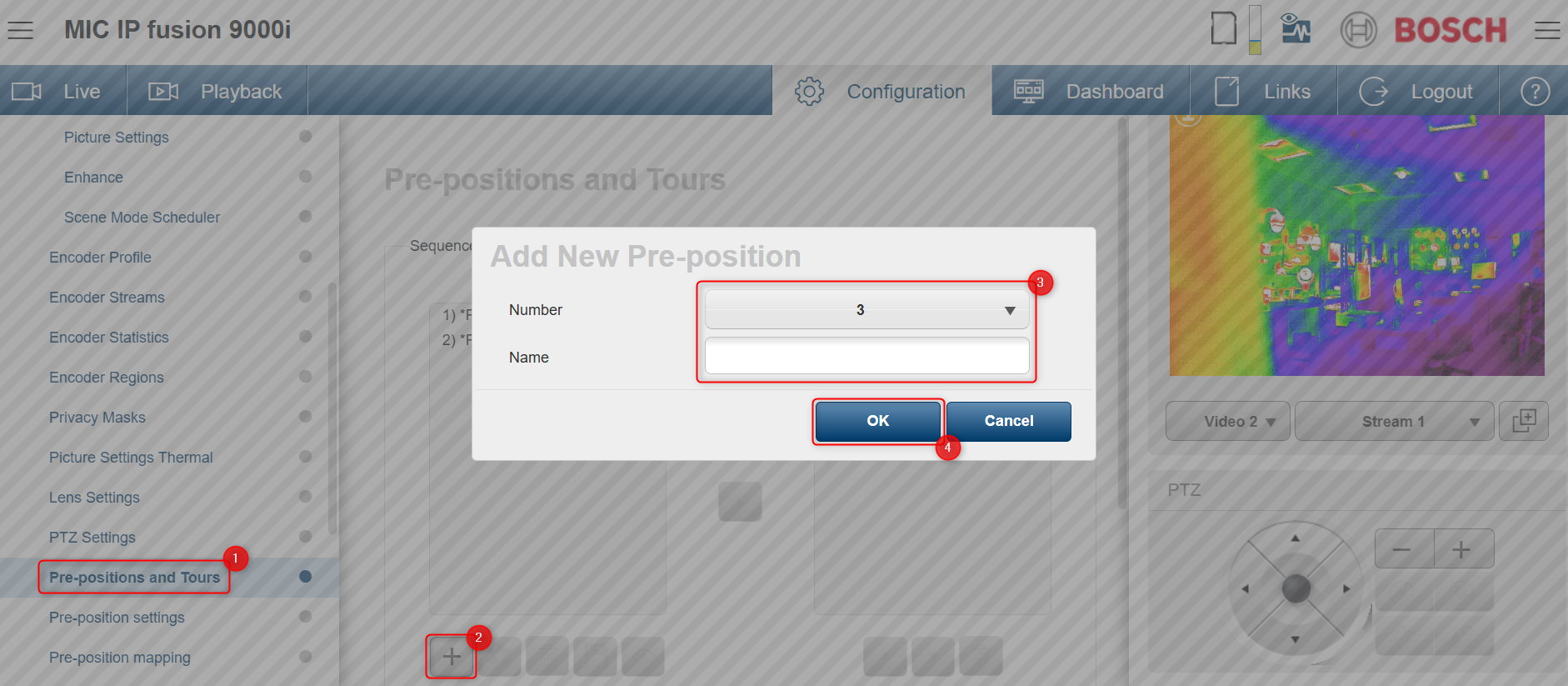
Go to Pre-positions and Tours > click the "Add New Pre-position" button 
In this example, we'll create the pre-positions and select the Thermal mode for each one as following:
-
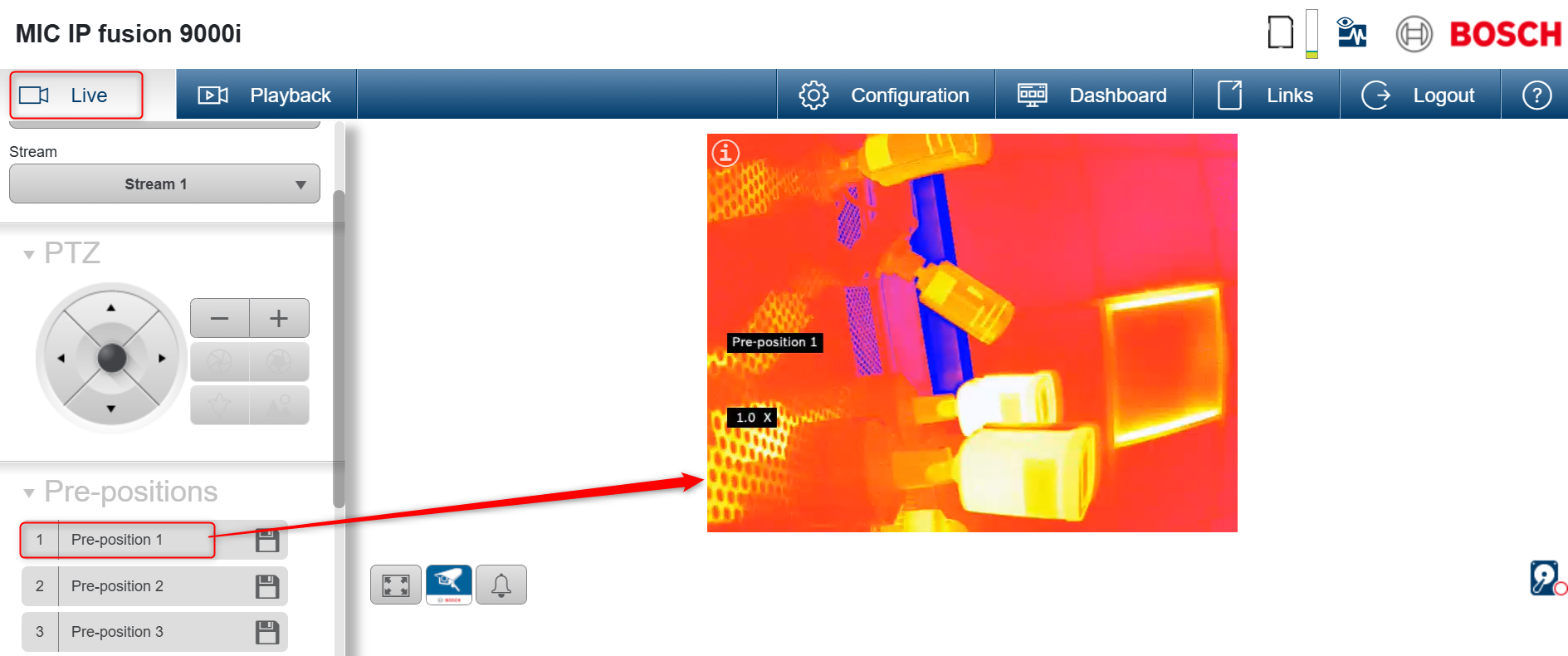
Red Light for Pre-position 1
-
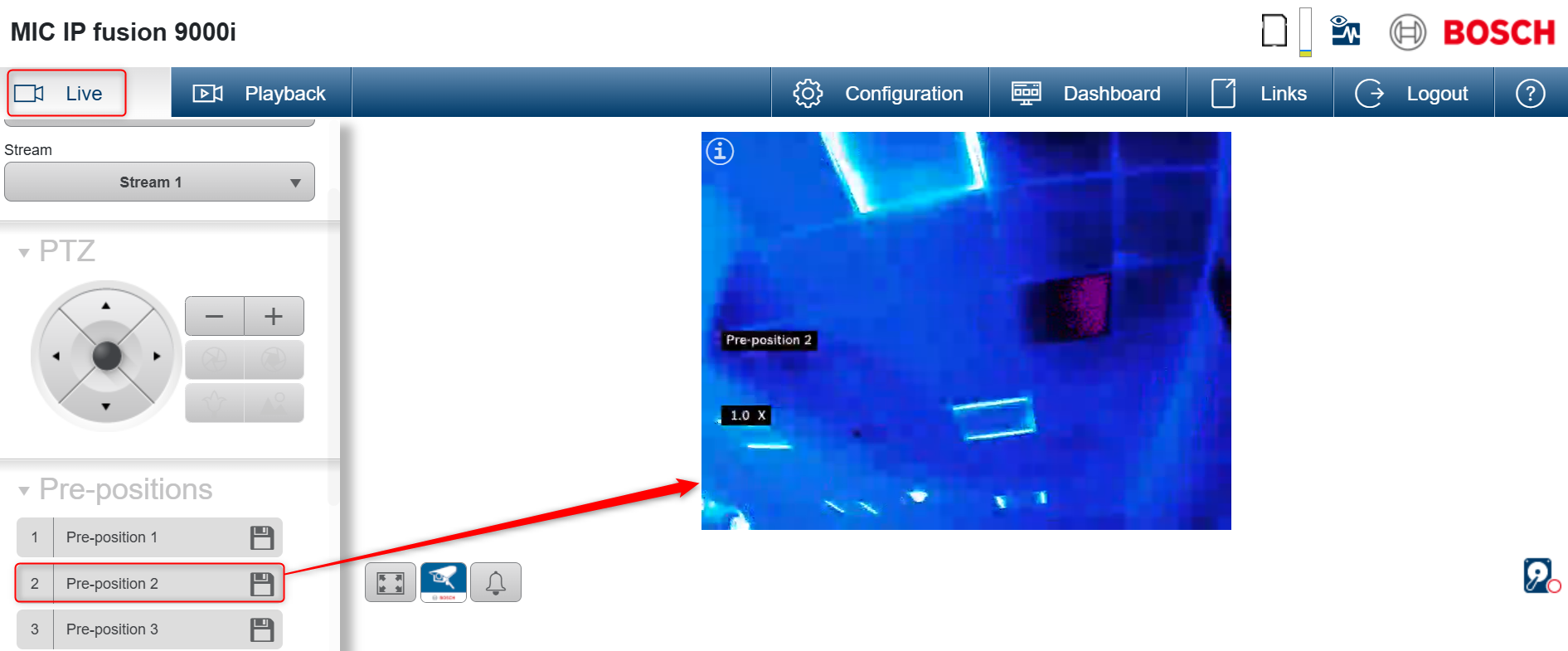
Ocean for Pre-position 2
-
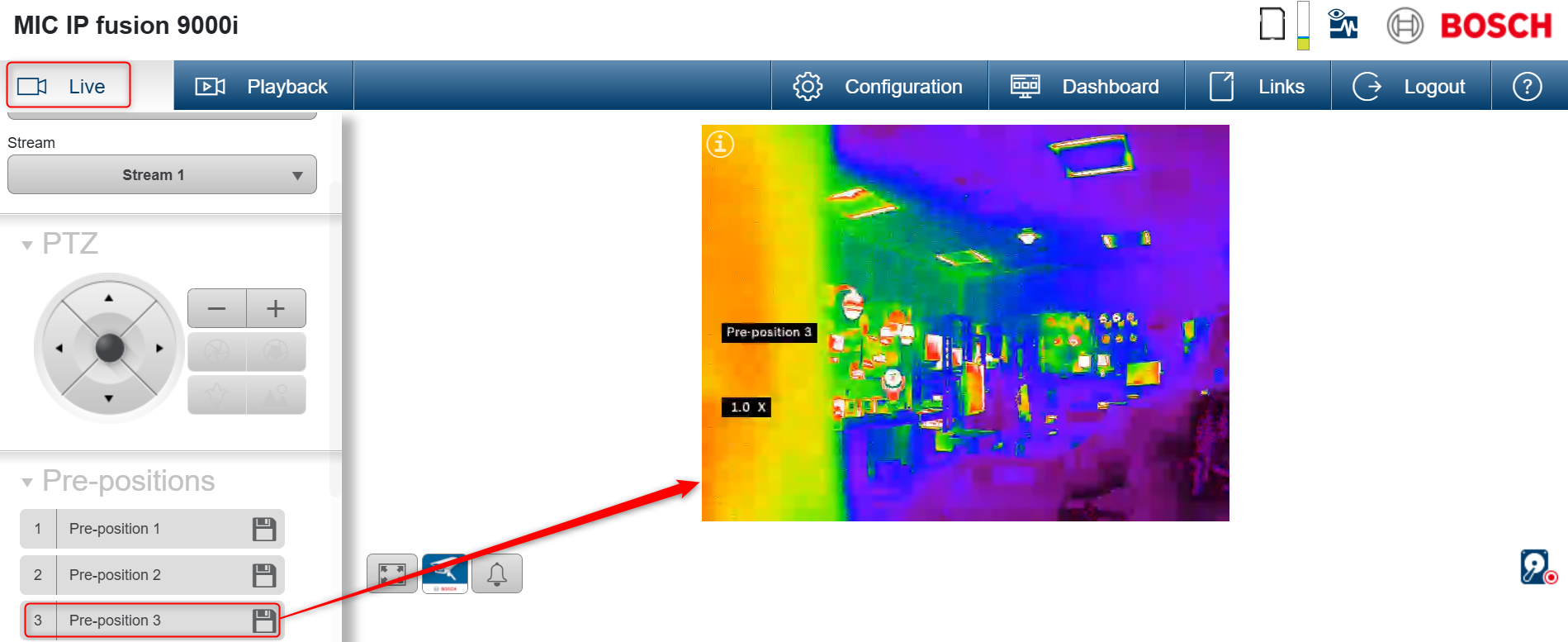
Rainbow for Pre-position 3
Pre-position 1:
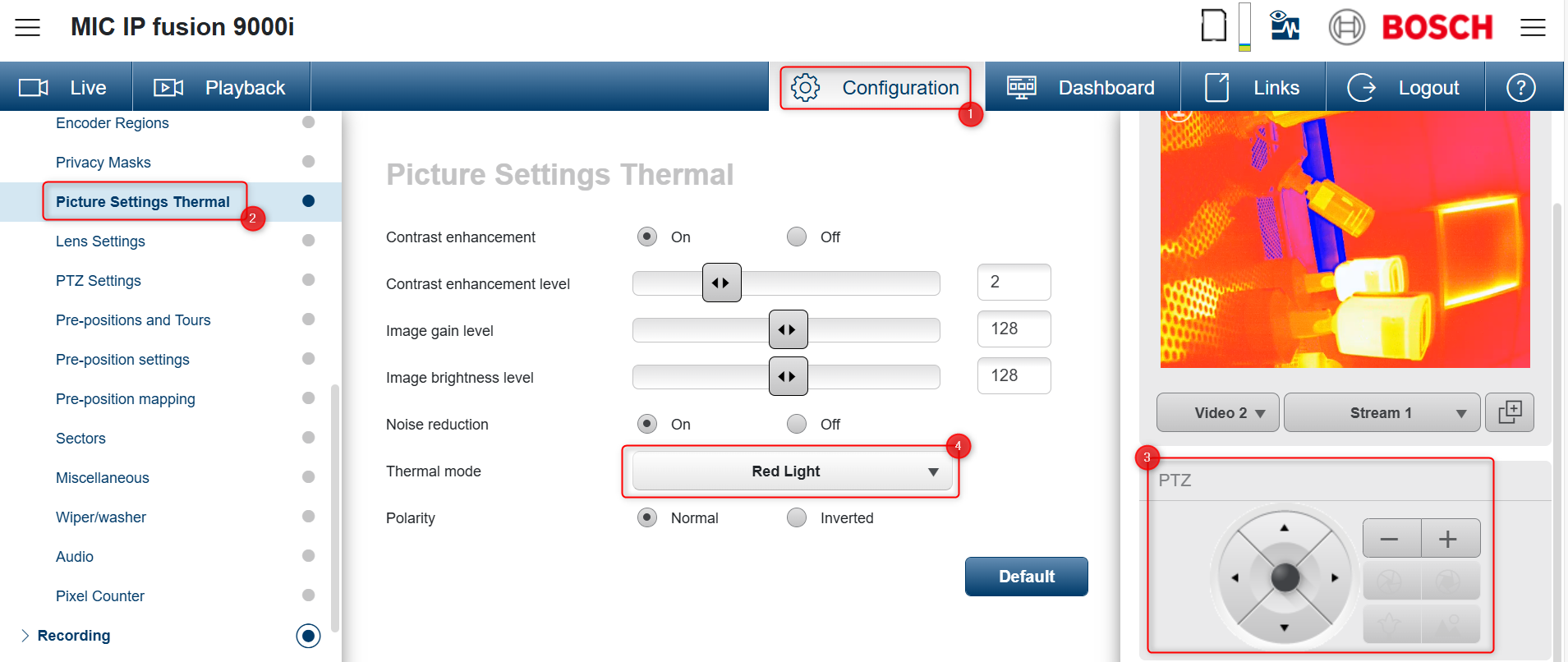
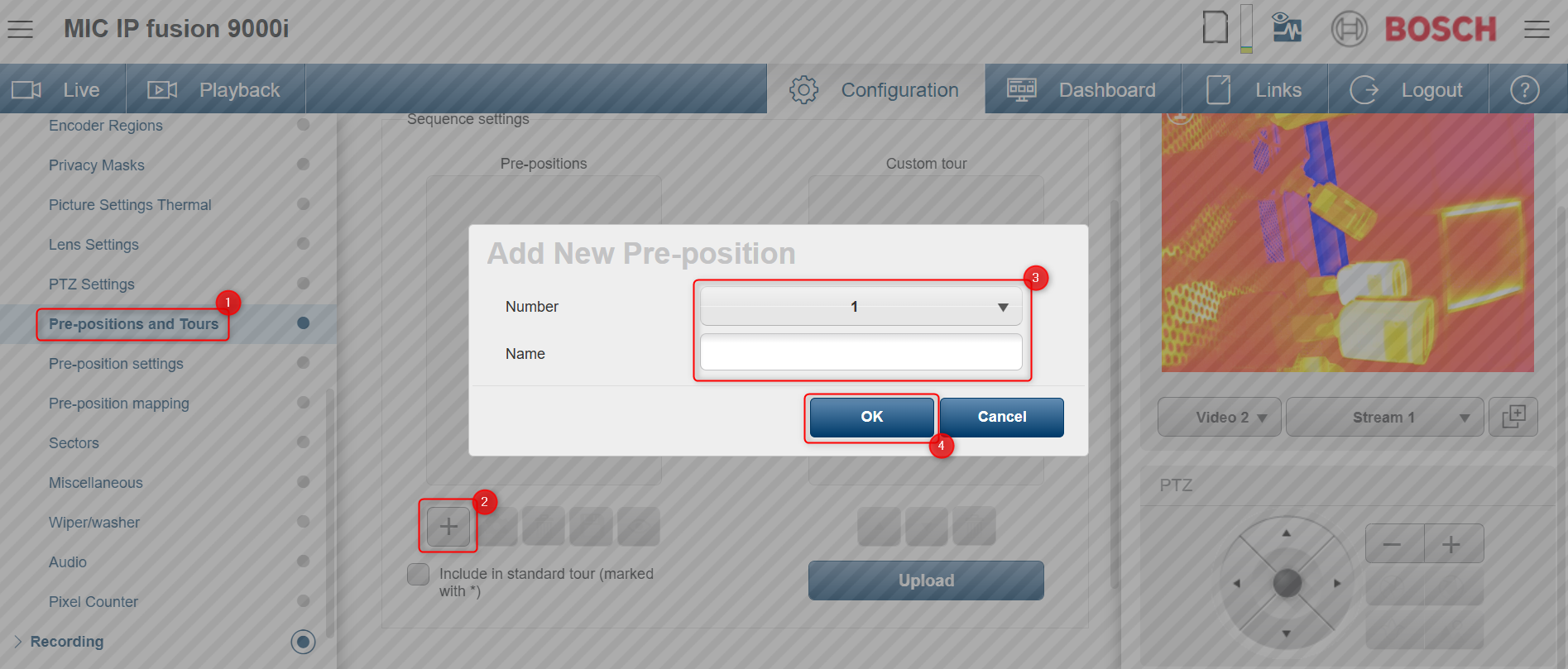
Pre-position 2:
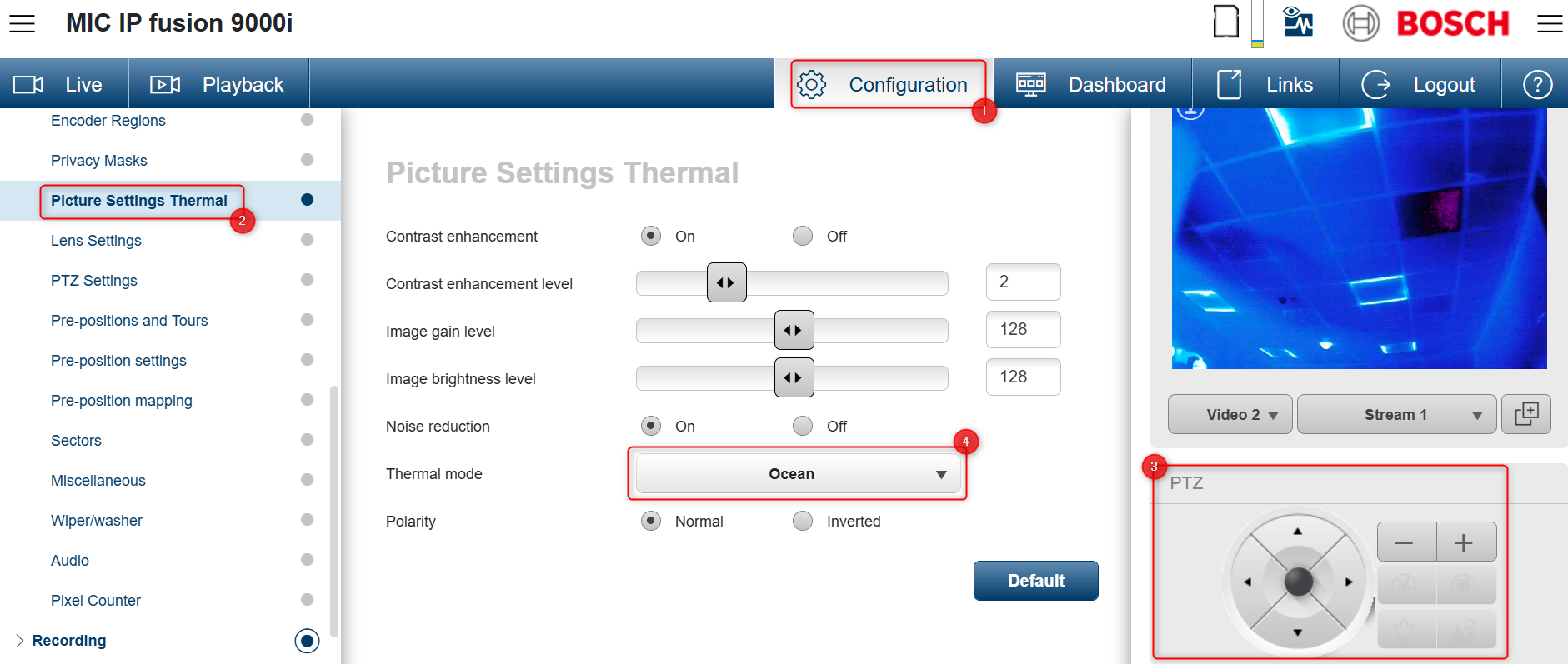
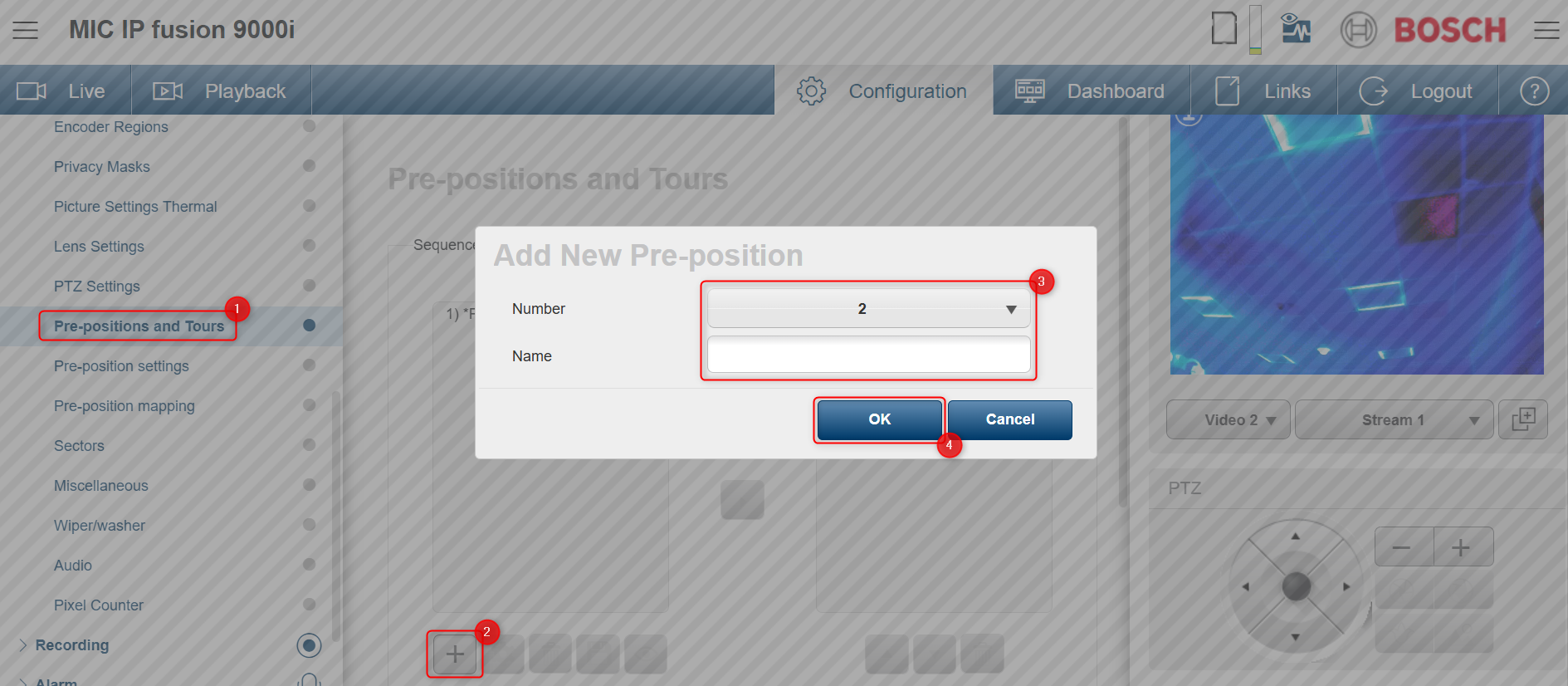
Pre-position 3:
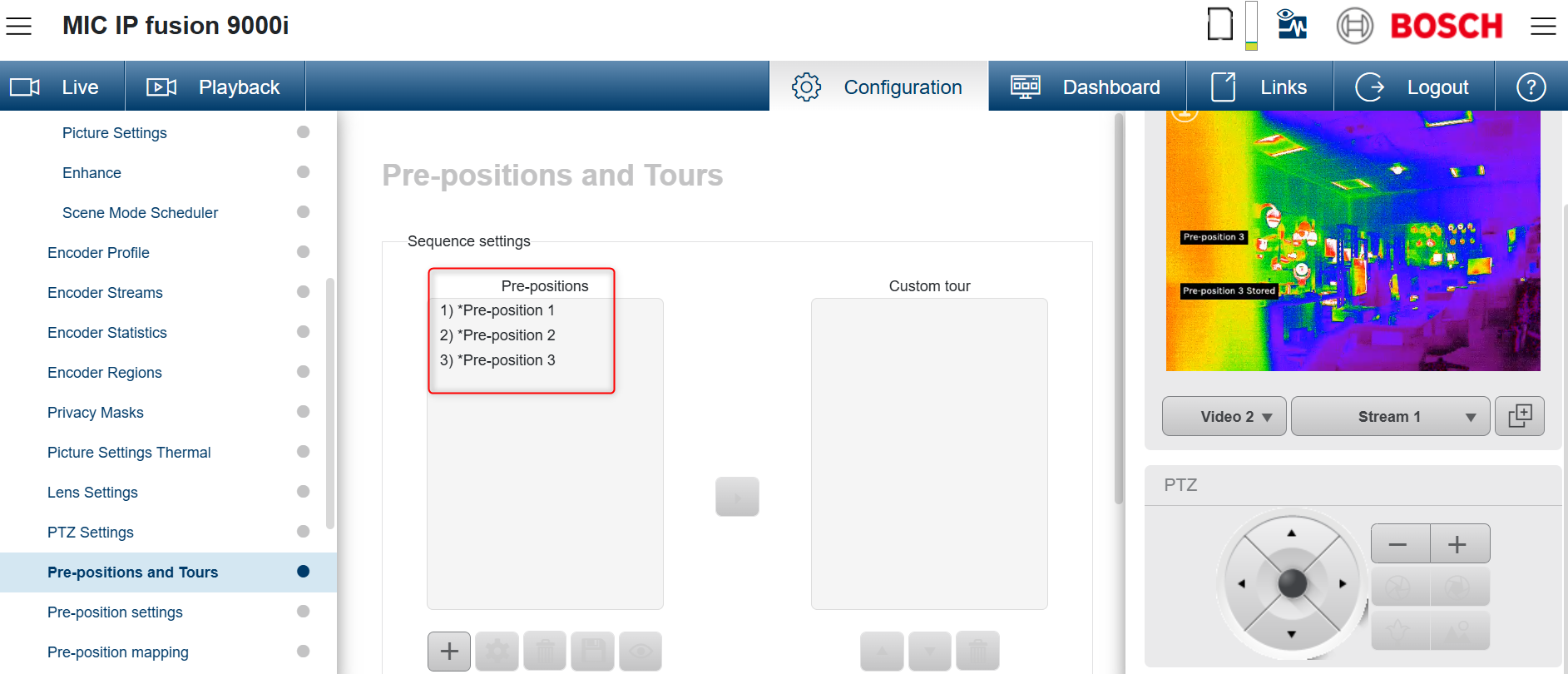
All 3 prepositions are configured:
Once the Thermal mode is set for each preposition, go to the Live page and call the preposition to see the configuration done.