
During the troubleshooting process, the Central Technical Support team often needs to run several different loggers to gain a more complete understanding of the problem. This log collection method is useful only when an issue can be reproduced fast, because the logs are overwirtten.
Step-by-step guide
Follow the steps to create and export logs for particular keyword (in this case Thumbnail):
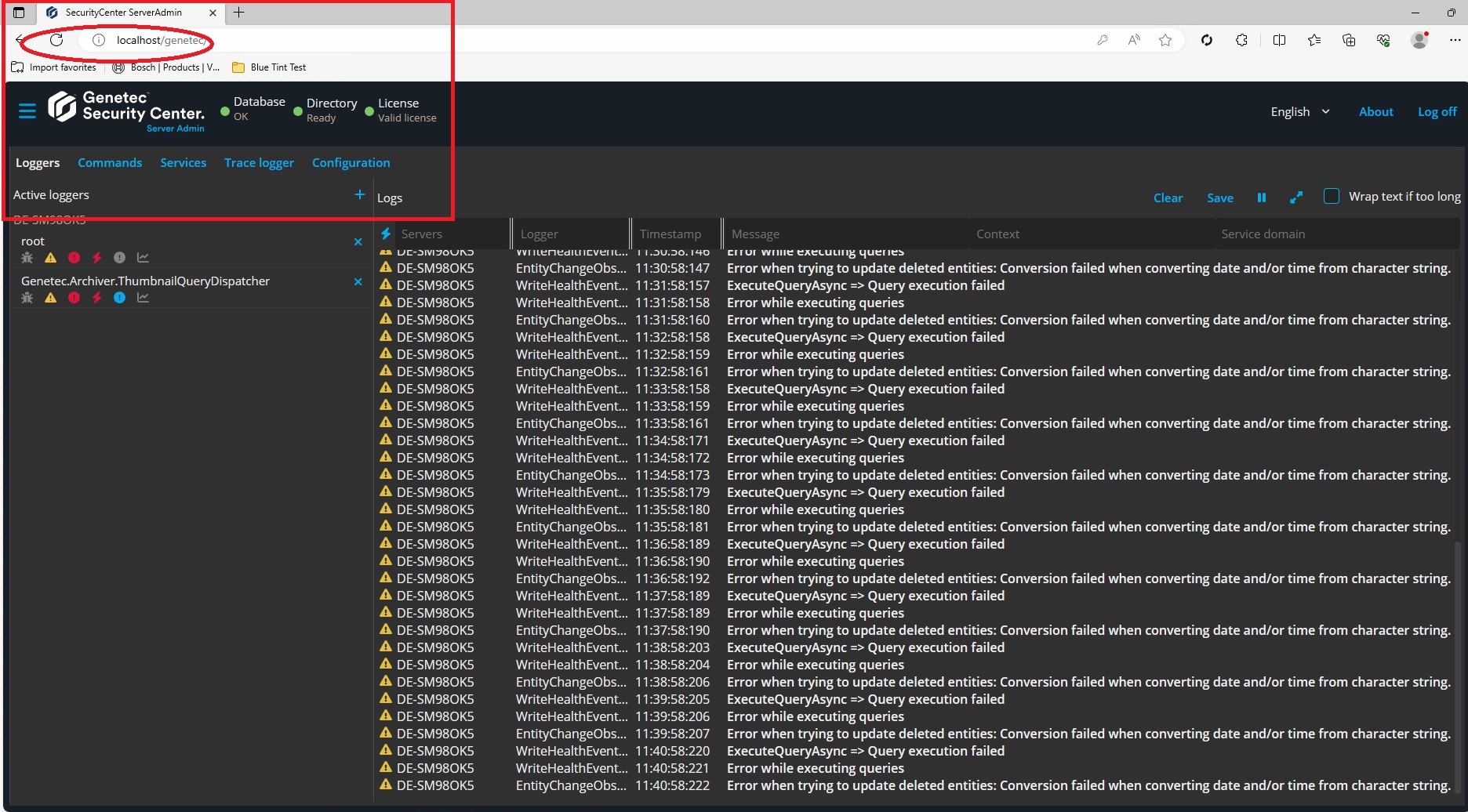
1 In your browser, open and log in to Server Admin.
You can access the consoles for Security Center client applications at the following addresses:
-
Server Admin: localhost/Genetec/Overview
-
Security Desk: localhost:6020/Genetec/Overview
-
Config Tool: localhost:6021/Genetec/Overview
-
Genetec™ Mobile: localhost:9001/Genetec/console#/Diagnostic
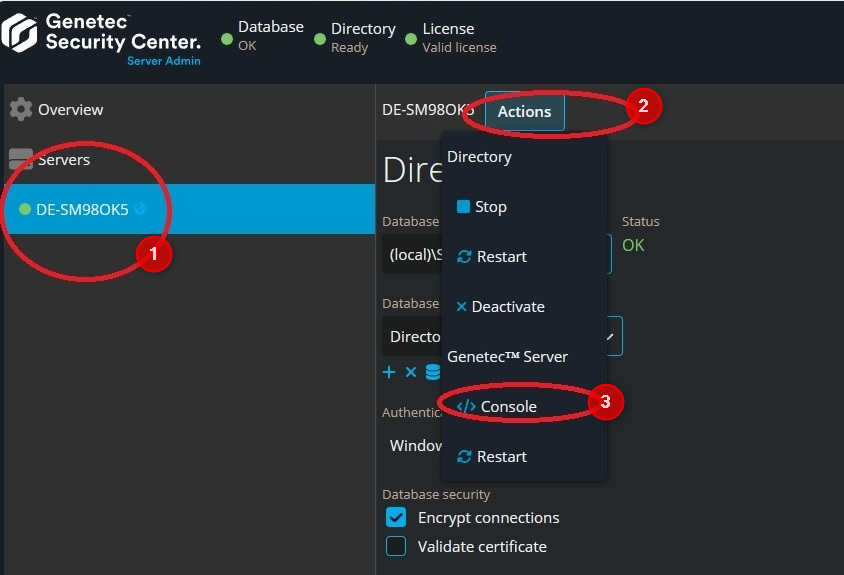
2. From the Servers list, select your server, and click Actions > Console:
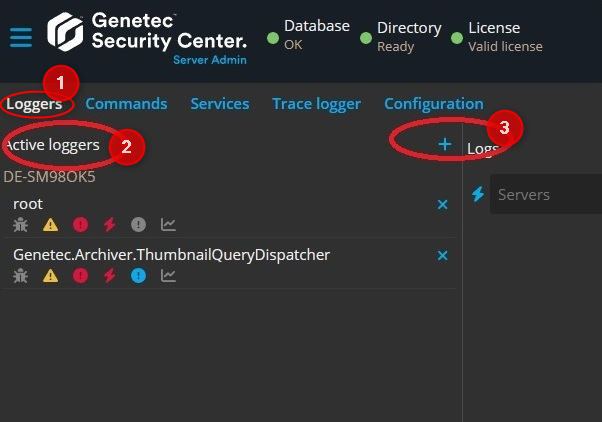
3. Create a new Logger from the Loggers menu:
4. In the field for a logger search, type Thumbnail, select the logger that is marked on the following screenshot:
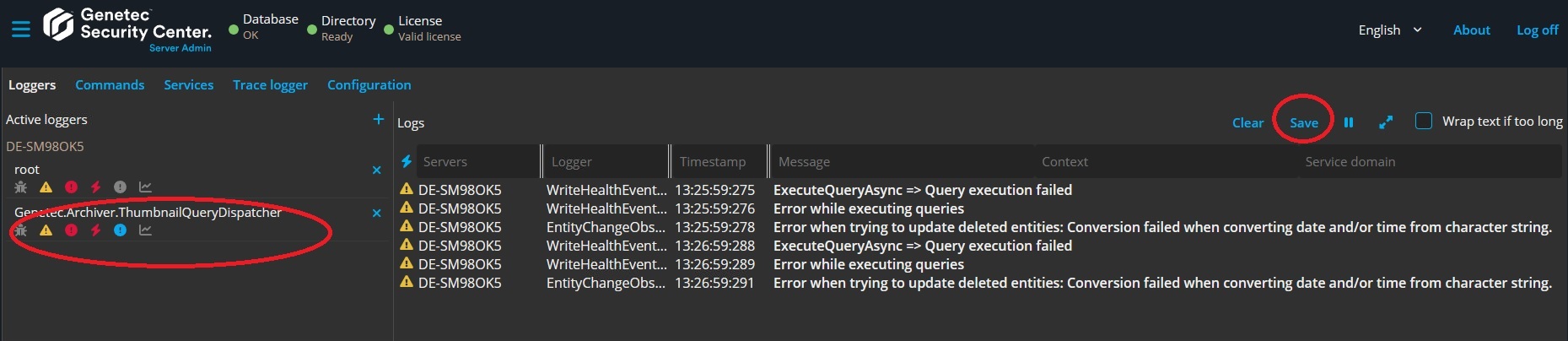
Reproduce the issue and come back to the above page, click save and send them to the Central Technical Support Team.
5. Remove the logger
