🕒This procedure takes in average ~ 5 min to complete
The DIVAR IP System Manager application includes a dedicated script that simplifies the log file collection for DIVAR IP all-in-one 4000 & 6000 & 7000 gen4.
Step-by-step guide
1. Sign in to the administrator account
To sign in to the administrator account in BVMS operation mode:
-
On the BVMS desktop, press CTRL+ALT+DEL.
-
Press and hold the left SHIFT key immediately after clicking Switch User.
-
Press CTRL+ALT+DEL again.
-
Select the BVRAdmin user and enter the password that was set during the system setup.
-
Then press ENTER.
Note: To go back to the BVMS desktop, press CTRL+ALT+DEL and click Switch user or Sign
out. The system will automatically go back to BVMS desktop without a system restart.
To sign in to the administrator account in VRM or iSCSI operation mode:
-
On the Windows sign-in screen, press CTRL+ALT+DEL and enter the BVRAdmin password.
2. In order to collect System Manager logs easily, a script is added to the DIP44/64/74’s Start Menu, called “Export System Manager Logs”:

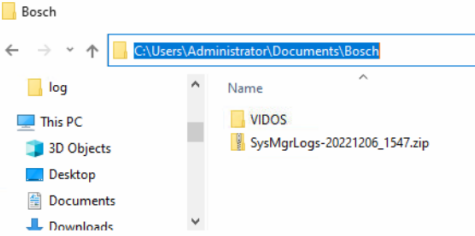
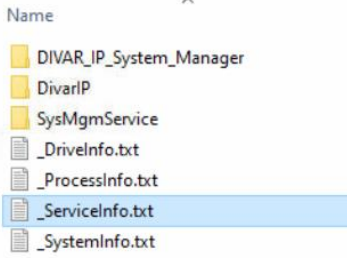
3. After running this script, the resulting ZIP-file can be found in: C:\Users\Administrator\Documents\Bosch