🕒 This procedure takes in average ~ 2 min to complete
Supermicro SuperDoctor® 5 (SD5) monitors the hardware health or availability of the target node systems in data centers real-time and provide alerts to administrators.
The software cand be downloaded from the link below:
System Requirements
Hardware:
-
Supermicro servers
-
200 MB free disk space
-
64 MB available RAM
-
An Ethernet network interface card
Operating Systems:
-
Red Hat Enterprise Linux Server 5.x (64-bit), 6.x (64-bit), 7.x (64-bit)
-
SUSE Linux Enterprise 11.x (64-bit), 12.x (64-bit)
-
Windows Server 2008 R2 64-bit
-
Windows Server 2012 R2 64-bit
-
Windows Server 2016 64-bit
-
Windows Server 2019 64-bit
Please follow the steps below and learn how you can collect the Support Data of DIP 6000 R2/ 7000 R2 with SuperDoctor 5 (SD5) software.
Step-by-step guide
1.Login to Super Doctor
Start SuperDoctor from Desktop
If it does not open the Login window, please click on this button and wait
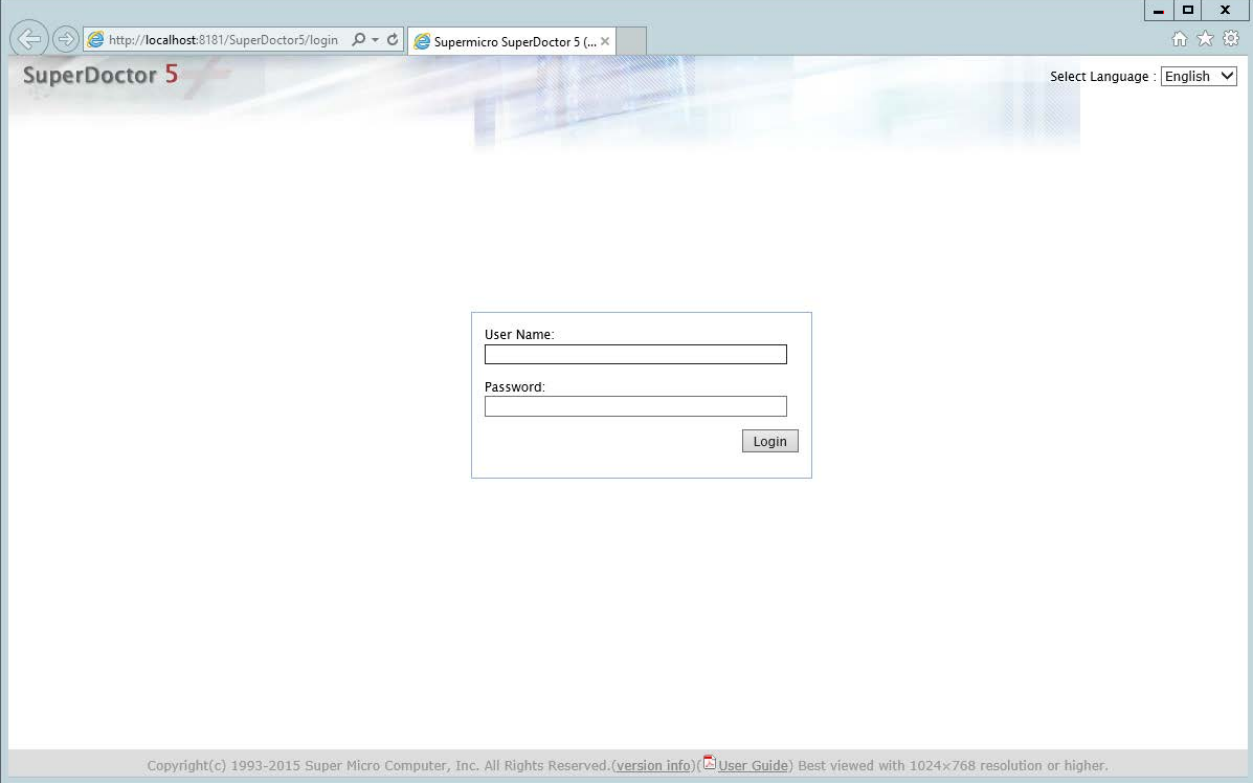
Login into the Webpage with (default) User ADMIN and password ADMIN
2. Check the status of (defect) Hardware
In SuperDoctor Check the Status from the Hardware you want/need to check, for example PSU and make a screenshot for Bosch Technical Support
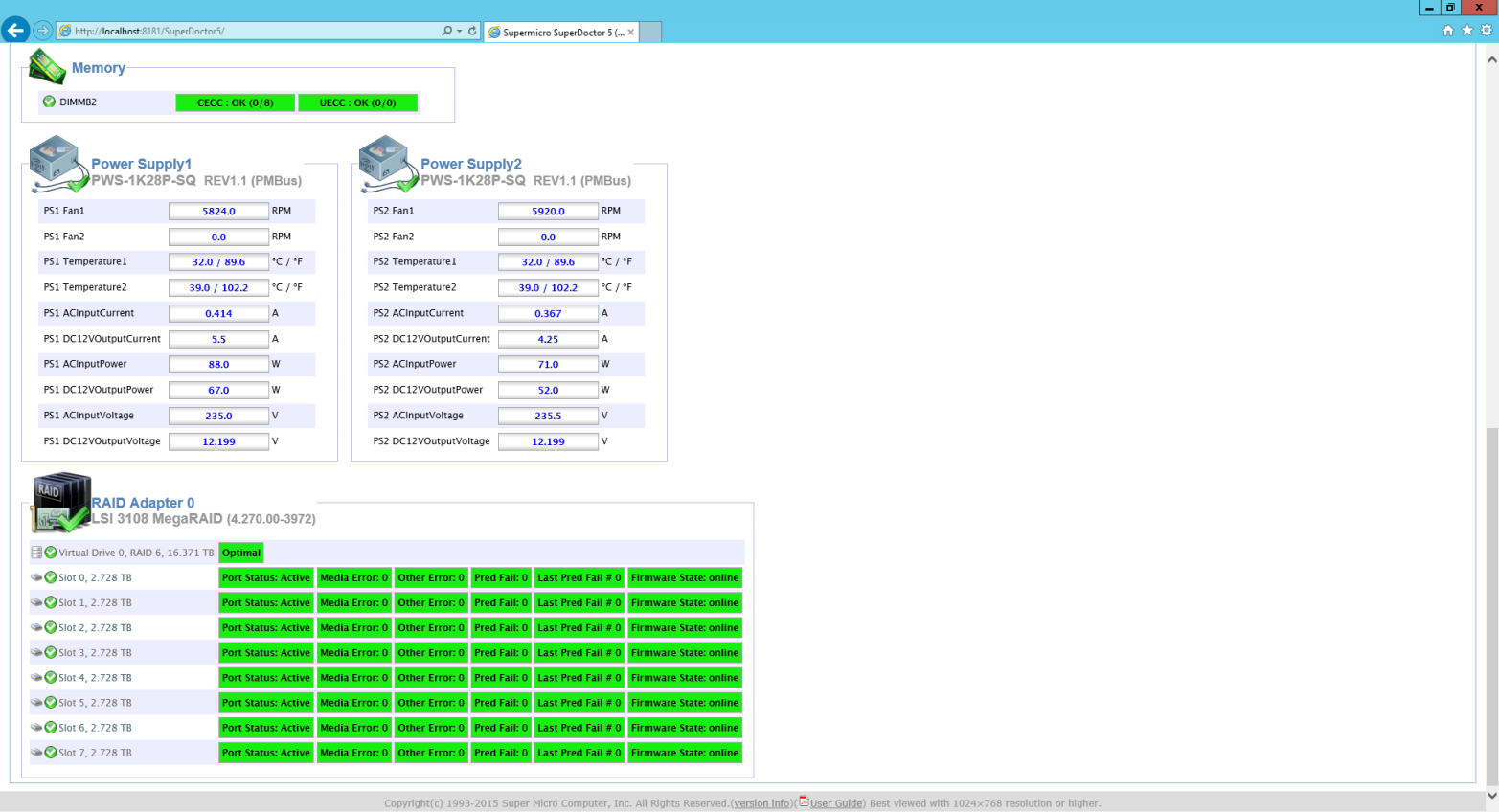
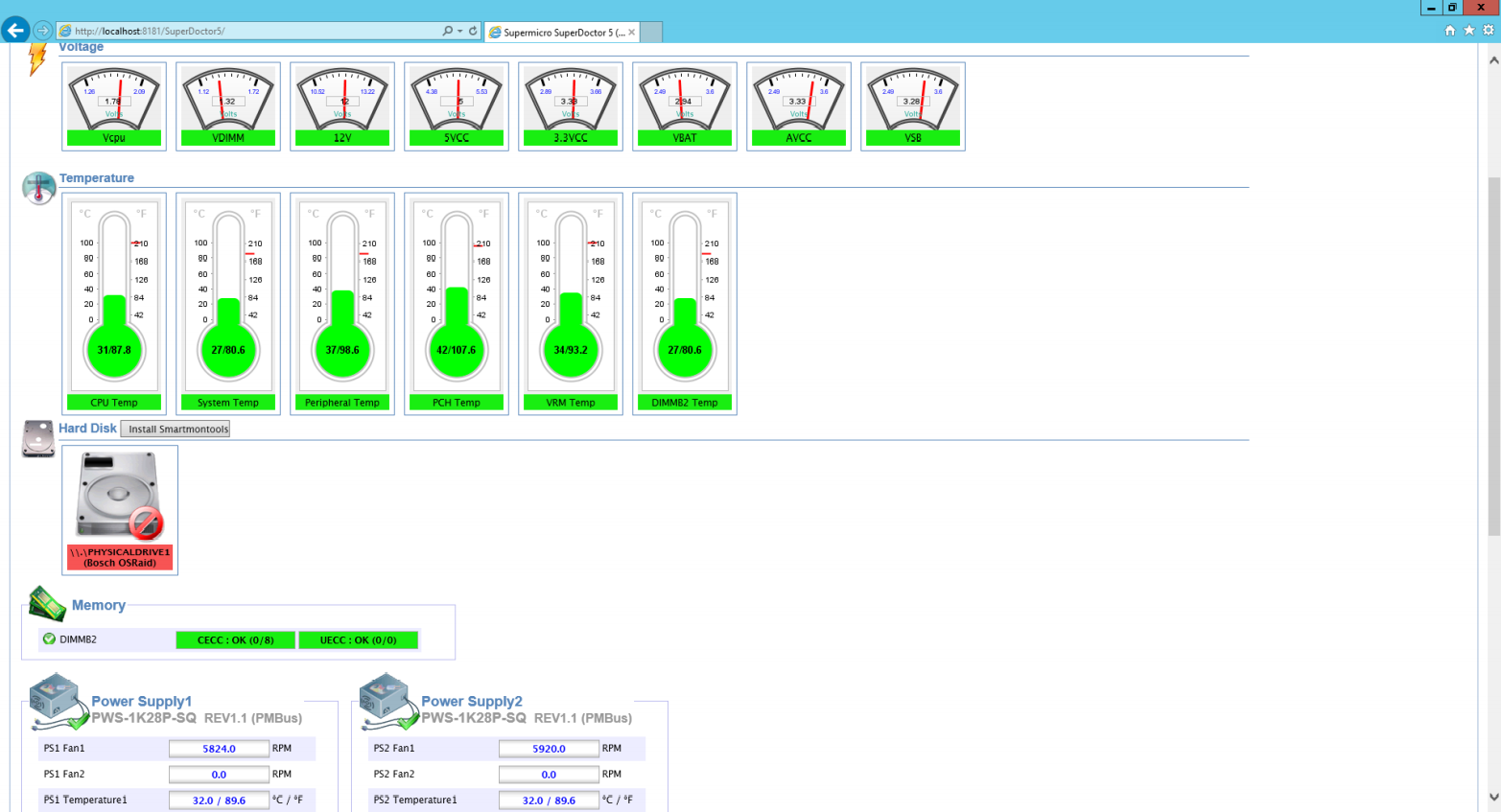
3. Please note that the SSD Raid is NOT recognized from SuperDoctor and therefore is always faulty.
For SSD check, there is the Intel Rapid Storage Tool
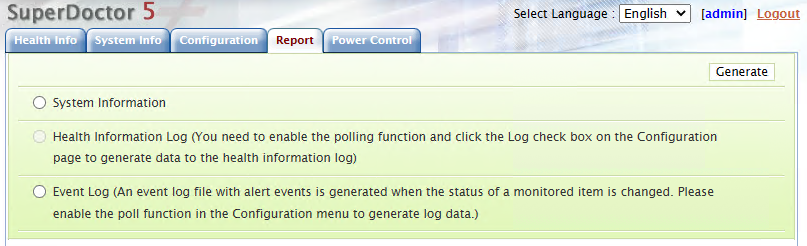
4. Generate the following logs from the “Report” tab:
a. System Information
b. Event Log