
Short intro and related topics:
This document will review the settings required to configure Windows as a NTP time server.
Note:
If you are running VRM and have the Time Server enabled, you must disable the Time Server before performing the following.
Article requirements:
-
Windows Server 2016/ Windows 10
Step-by-step guide
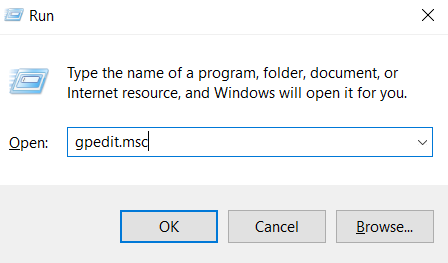
1. Click on Start and then select Run. In the Run box enter gpedit.msc and click OK.
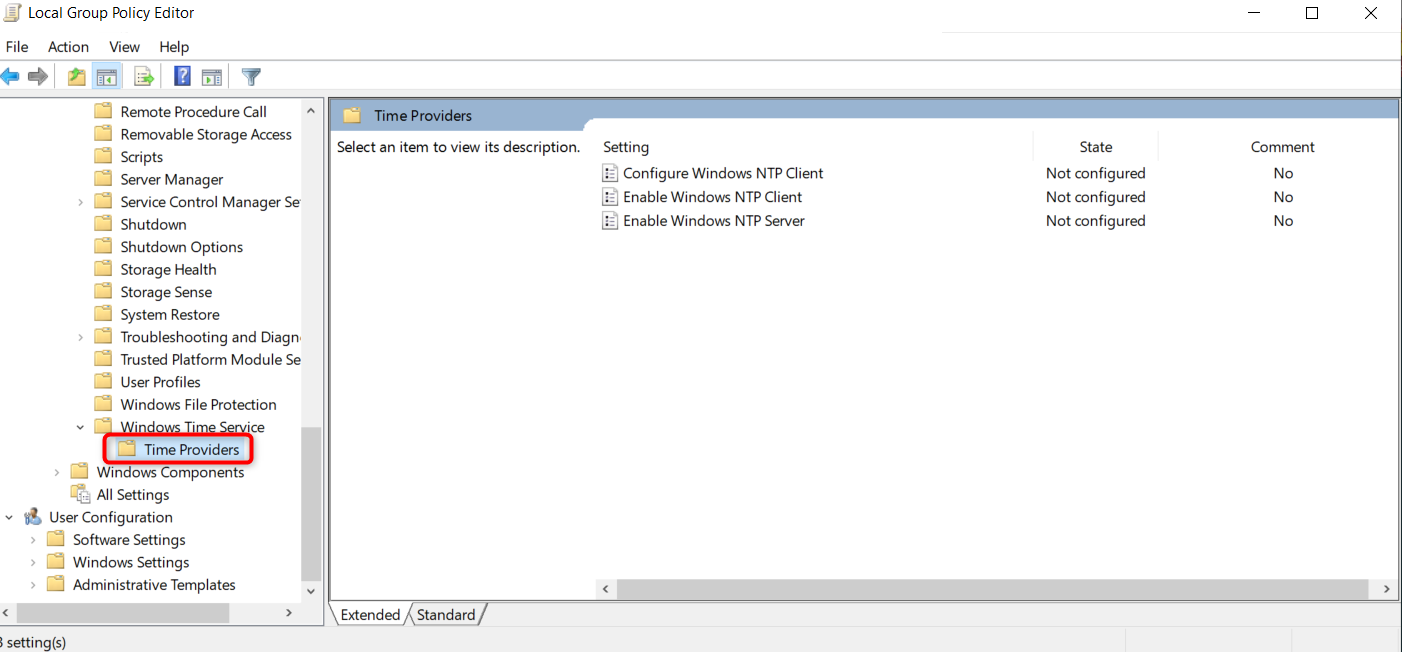
2. In the Group Policy window that opens, navigate to Computer Configuration > Administrative Templates > System > Windows Time Service > Time Providers. You should then see 3 options:
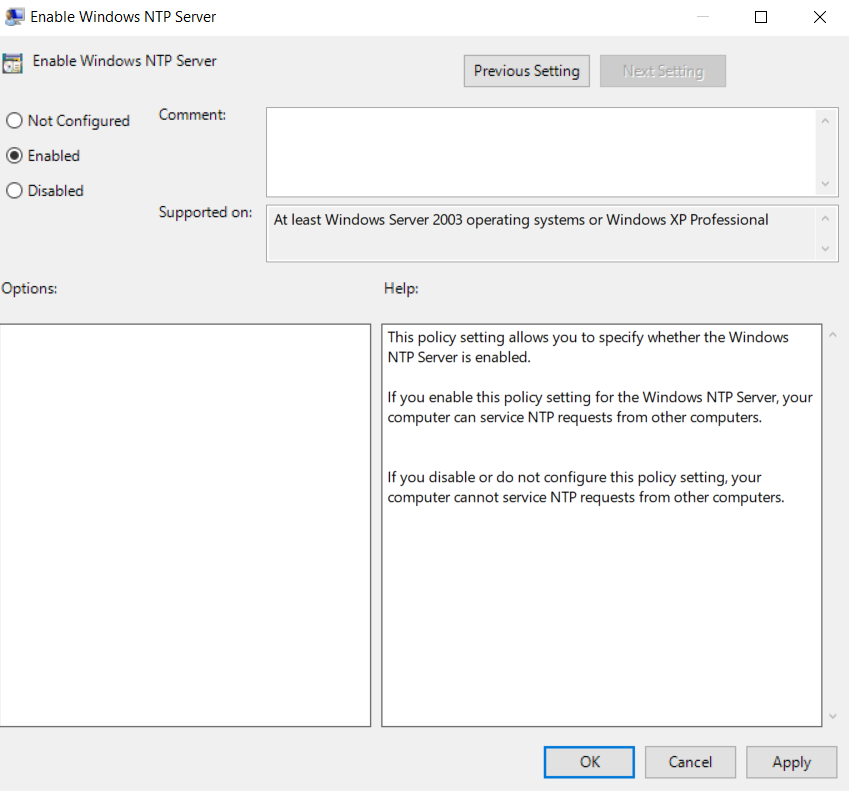
3. Right click on “Enable Window NTP Server” and select "Edit". In the new page that appears, click the “Enabled” radio button, and then click on OK.
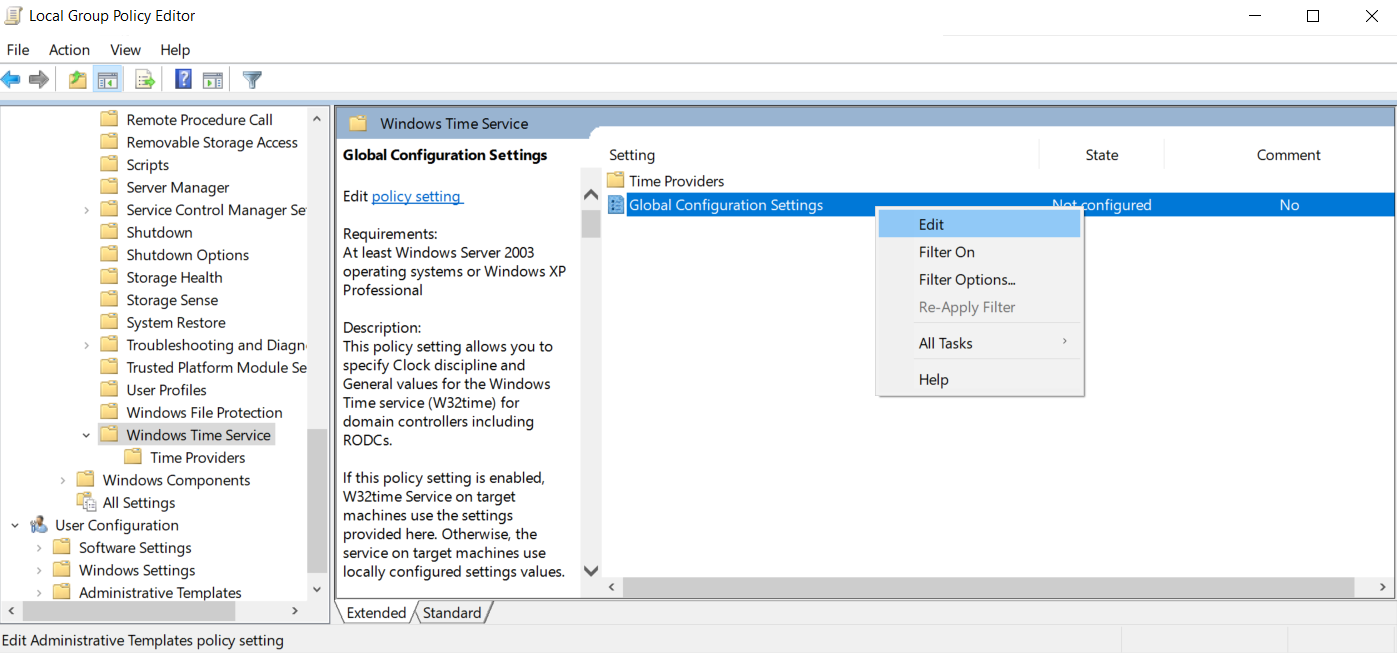
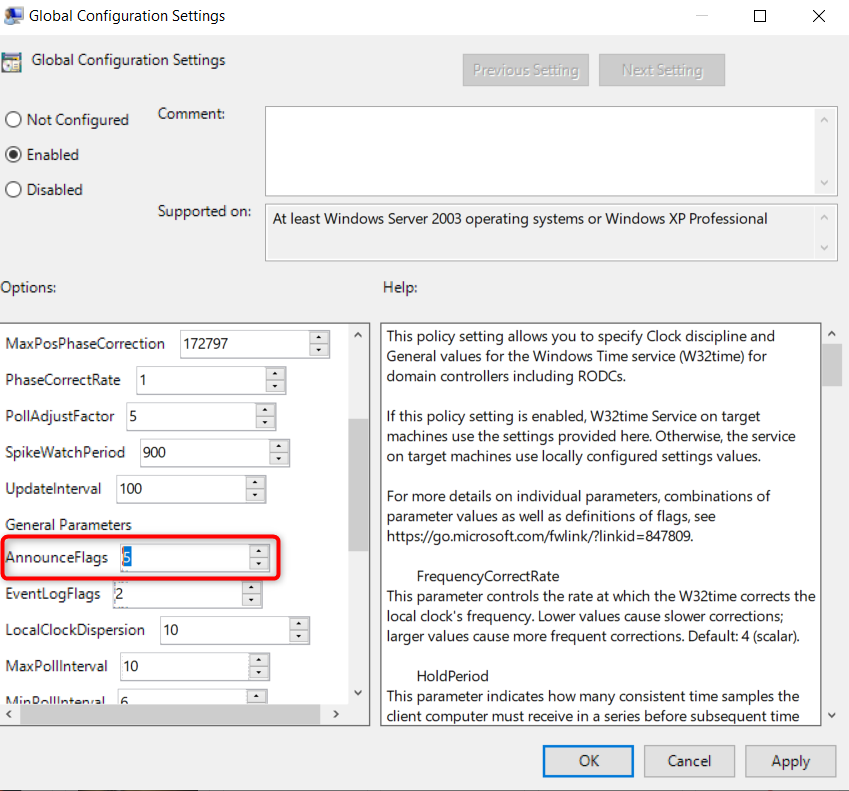
4. Click on the Windows Time Service folder in the Group Policy Window. Right click on the Global Configuration Settings option and select "Edit".
5. Select the Enabled radio button, then scroll down to the Announce Flags section. Adjust your Announce Flags to 5 from the default entry of 10 > OK
This tells other systems that the time you are providing via the network is a trusted source.
6. Your Windows System will now provide NTP time