
When working with VideoSDK, it’s often important to know which version is currently installed on your machine, especially when troubleshooting.
Follow this article to find out how to check which VideoSDK version is installed on a particular machine.
Step-by-step guide
-
Downoad VideoSDK. Note down the VideoSDK version. Check the VideoSDK-Versions.txt
|
Module |
Version |
|---|---|
|
GCA2 |
6.60.0019 |
|
BVIP-VDP |
3.30.0008 |
|
ONVIF-VDP |
3.8.0.36 |
|
AxHost |
0.00.0021 |
|
DiBos-VDP |
2.00.0042 |
|
DVR5000-VDP |
3.00.00.68 |
|
Divar700-VDP |
18.30.305.00 |
|
DivarNetwork-VDP |
3.0.77.240423 |
|
Module |
Version |
|---|---|
|
VCA Plugins |
4.61.7.8429 |
|
PD SDK |
1.20.0002 |
|
RCPP SDK |
5.07.1 |
|
RCPP Media SDK |
03.30.0009 |
|
VJ Generic |
08.63.0045 |
-
Search on the machine where VSDK is installed for GCA2.
-
Check the Properties > Details to see the file version.
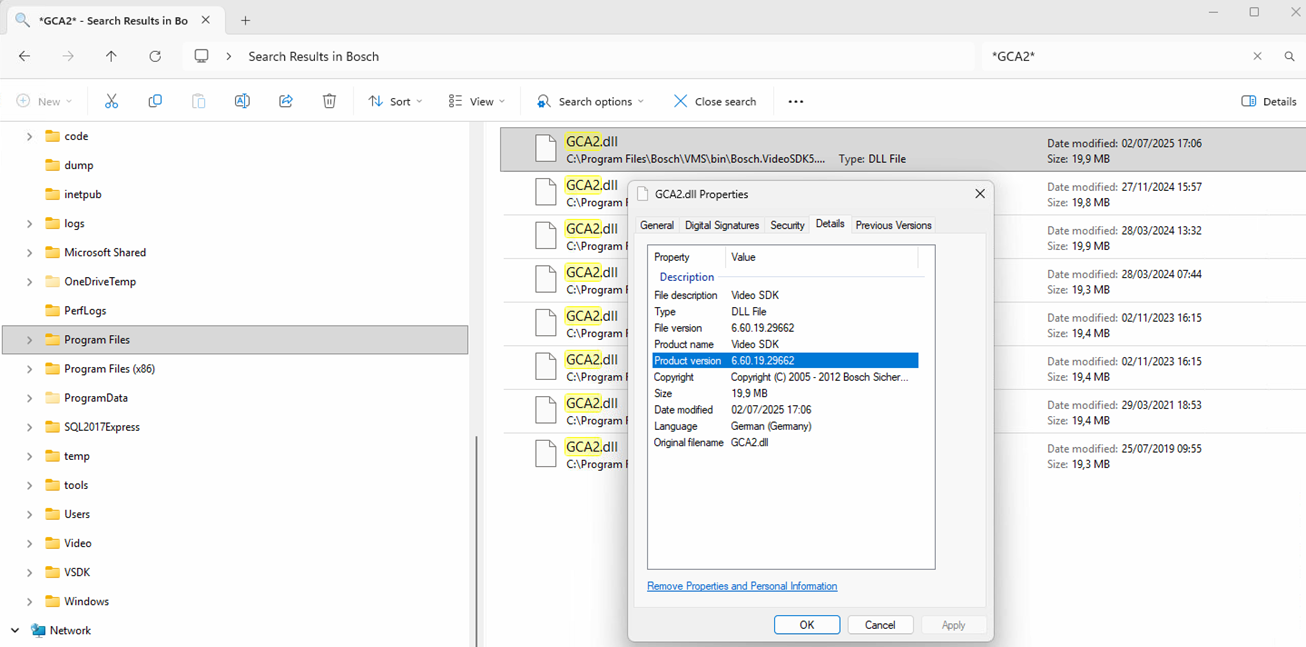
Note: the VideoSDK and GCA2.dll have different version numbers.