
This article explains how to connect an INTEOX camera to the S&ST ecosystem using Configuration Manager (7.20 and later).
Step-by-step guide
1.Before start
-
Check the download-store if there is a new fw available for the INTEOX model
-
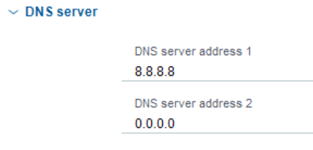
Ensure a DNS address is filled for example 8.8.8.8
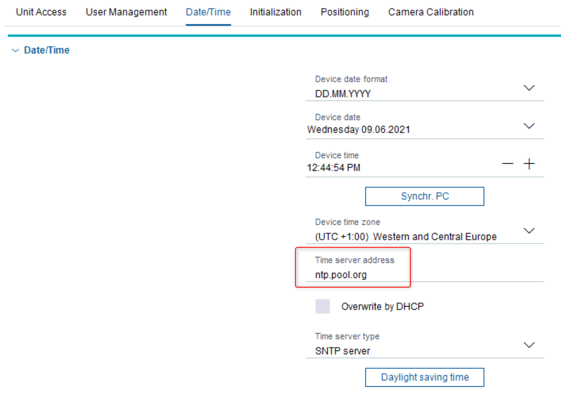
Ensure a timeserver is configured
2. Register the camera to Bosch Remote Portal
-
Start Bosch Configuration Manager
-
Authenticate the camera(s) to be added to Bosch Remote Portal in Devices or My Devices tree (Right click > Set Session Authentication > enter service level user and password > click OK)
-
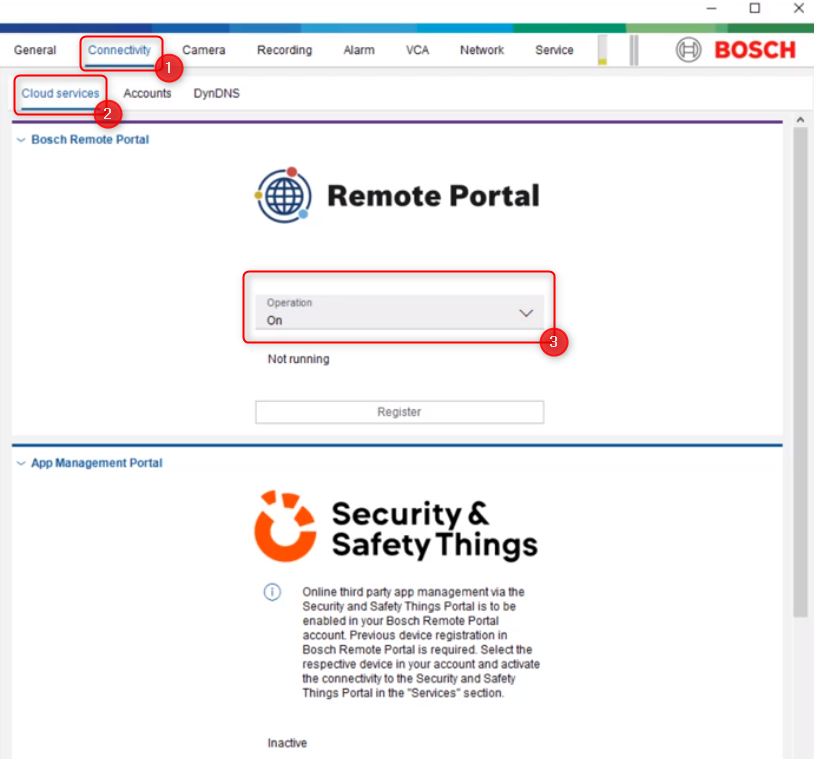
Select Connectivity tab and Cloud services sub-tab
-
In field Bosch Remote Portal switch Operation to On and click Save
-
Only with a proper DNS set the camera will be able to communicate with Bosch Remote Portal, wait till it says "Ready for cloud service"
-
-
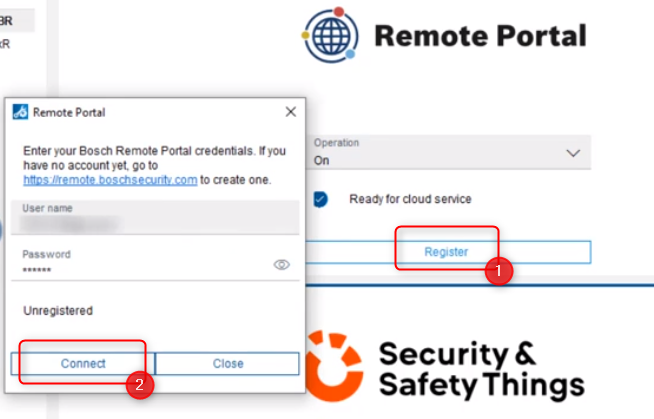
Click Register button
-
Enter your user name and password of Bosch Remote Portal and click Connect > the cameras show ‘Registered’ and appear in your account in Remote Portal
3. Log in to Remote Portal and register the camera with the S7ST ecosystem
-
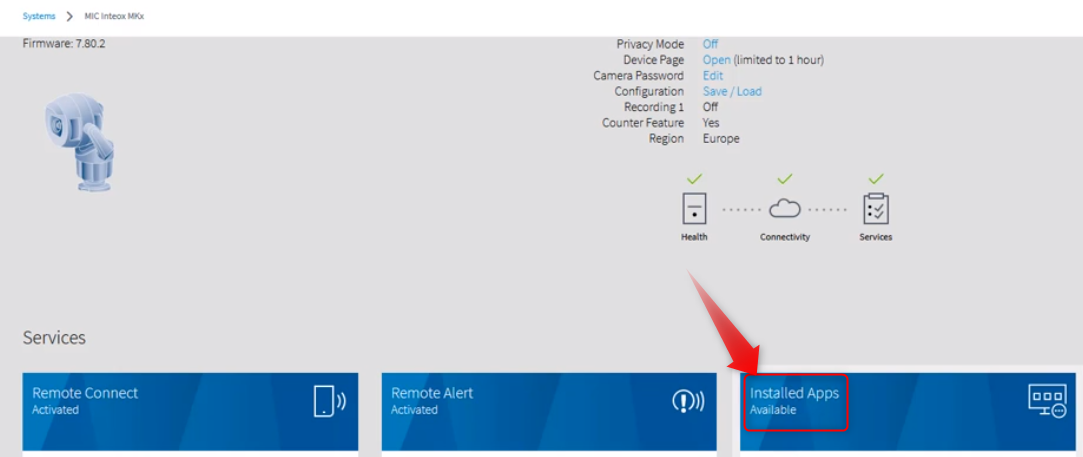
Once you have logged in to the Bosch Remote Portal using your credentials, on the camera's page, select the Installed Apps pane.
-
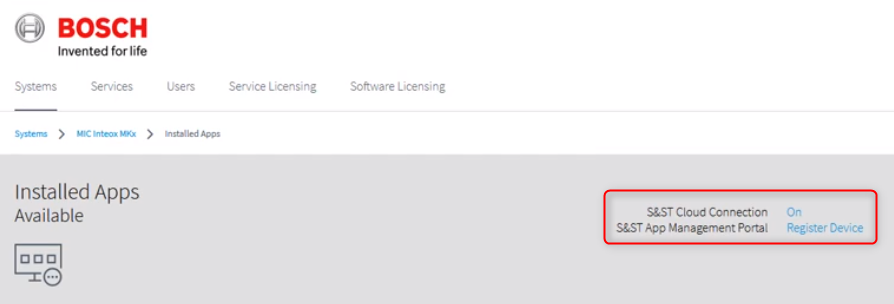
Make sure the S&ST Connection is on before proceeding (eneable to ON by clicking on it), then click on Register Device to continue.
-
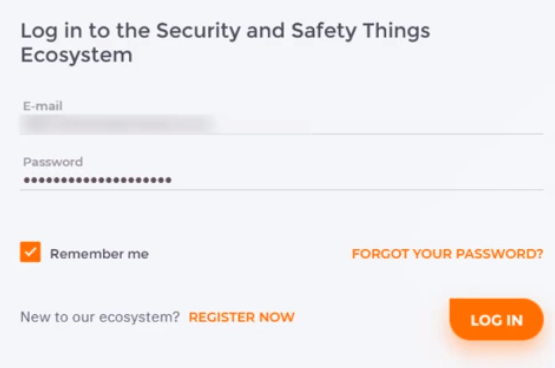
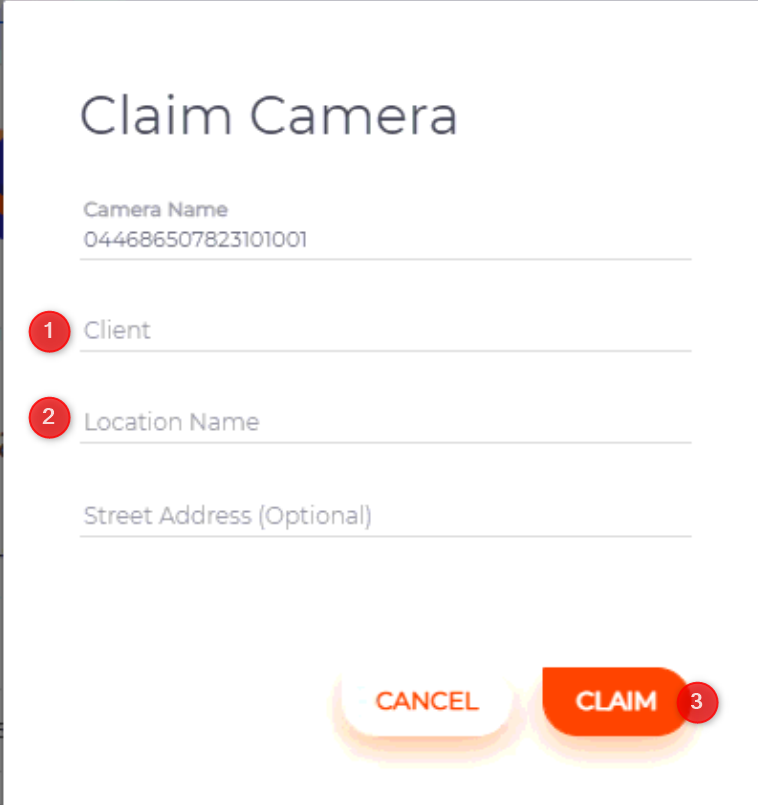
Login to the Security and Safety Things Ecosystem with your credentials or register first if you don't have any yet
-
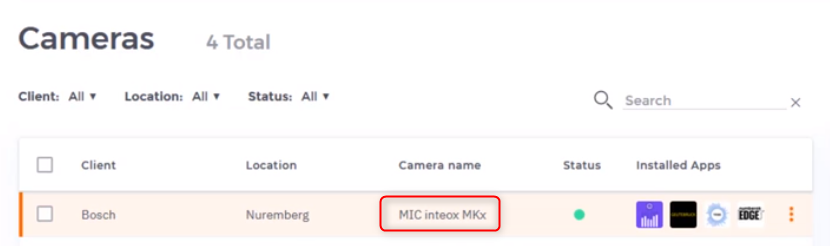
You will see that the camera is now registered with S&ST ecosystem.
-
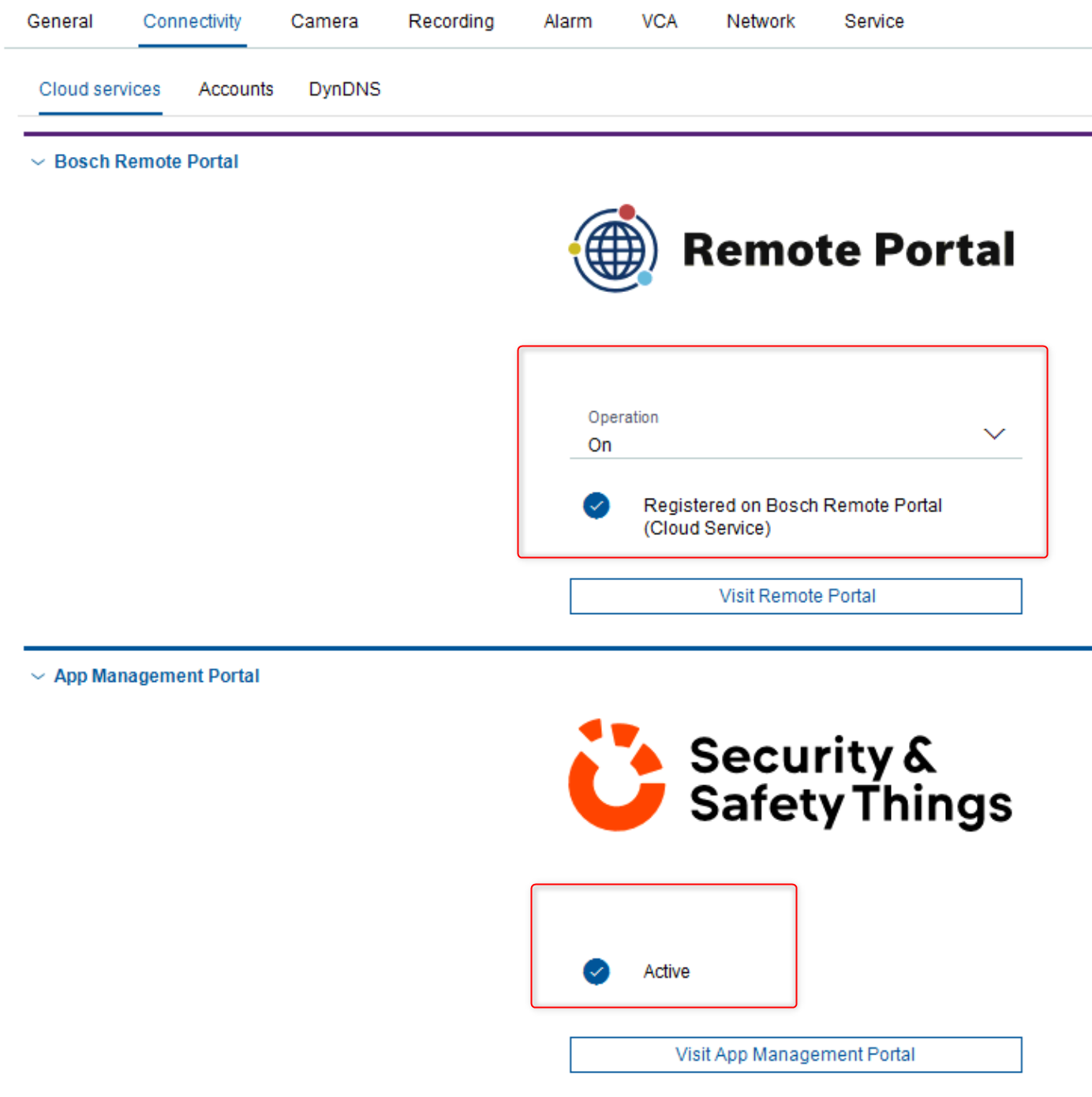
Restart the MIC, "Remote portal" and "App Management" are now active and connected

For a better understanding of using the Bosch Remote Portal, S&ST ecosystem and INTEOX cameras, we encourage you to join our online Inteox product line introduction training from KEENFINITY Academy!