
To use VideoView+ DIVAR IP Single Sign-On it is required to map the BVMS user group and the Remote Portal user group.
This article explains how the user group mapping is done.
Step-by-step guide
-
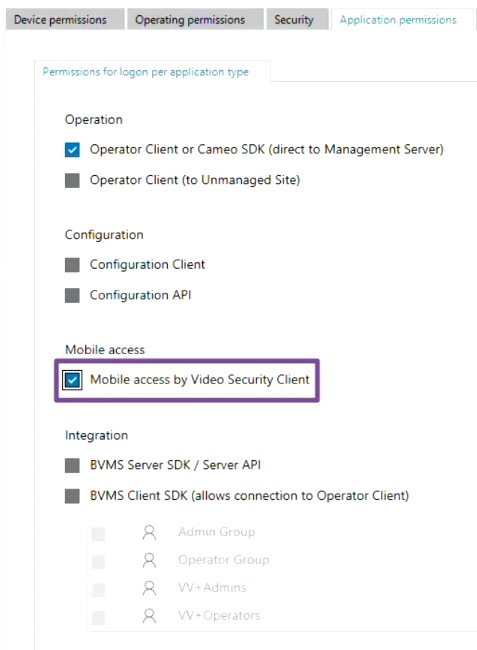
Create a BVMS user group → to create a BVMS user group, open the BVMS Configuration Client go to User Groups and click the Add user icon.

Please activate Mobile Access for the BVMS user group to ensure that users can access the system via Video Security Client.
-
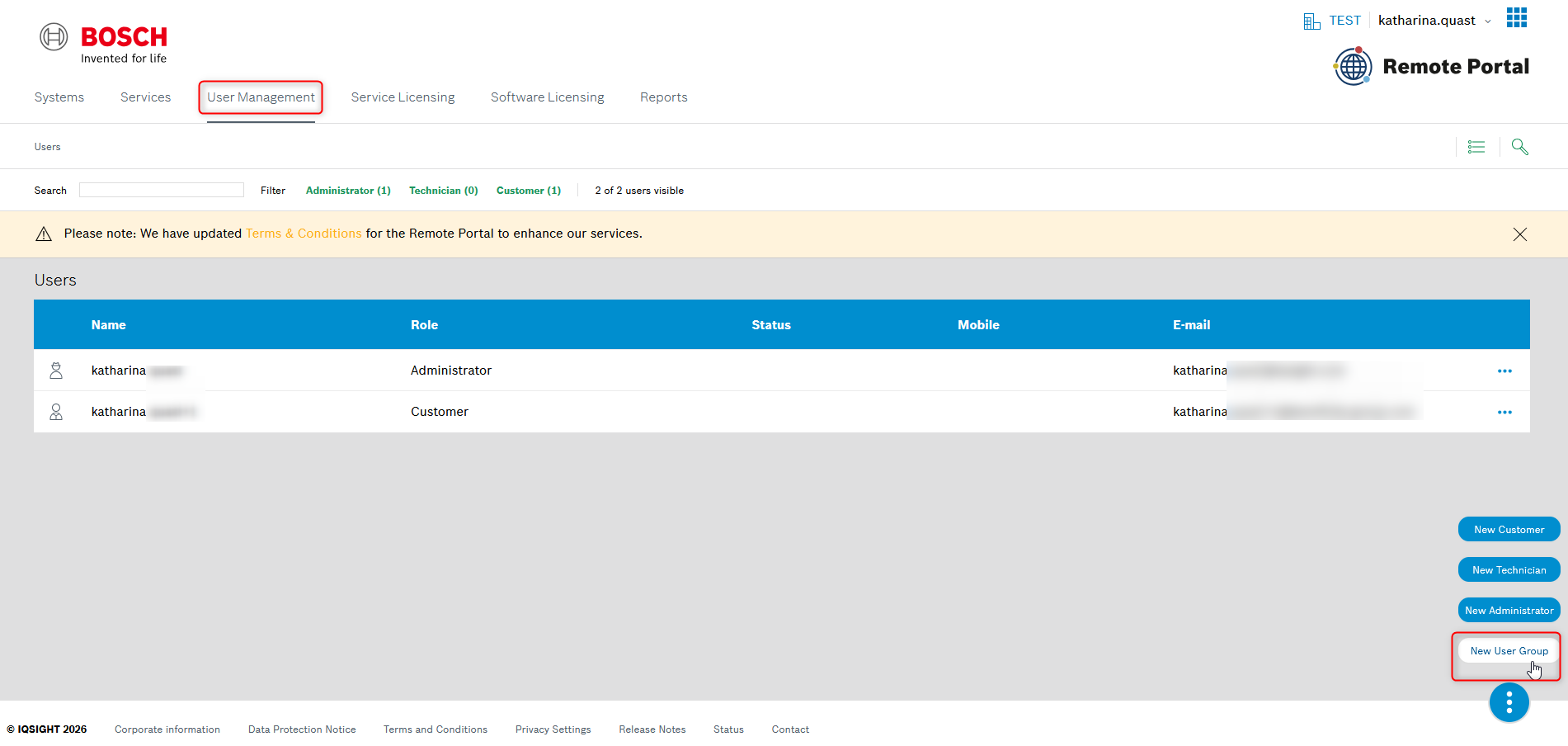
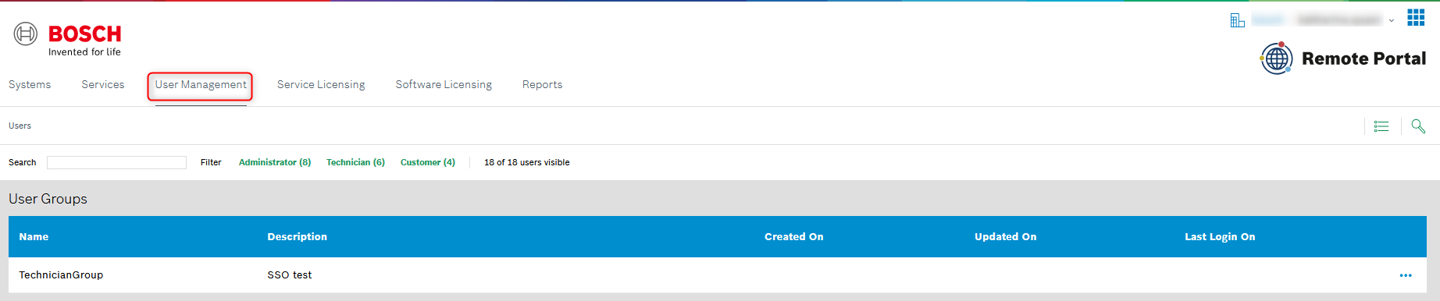
Create a user group in Remote Portal → to do this, log in to your Remote Portal account, go to User Management, and select New User Group from the three-dot menu in the lower-right corner.
-
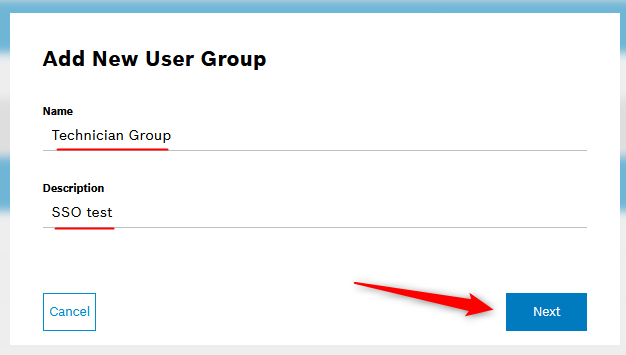
Enter the name and description of the new user group, then click Next.
-
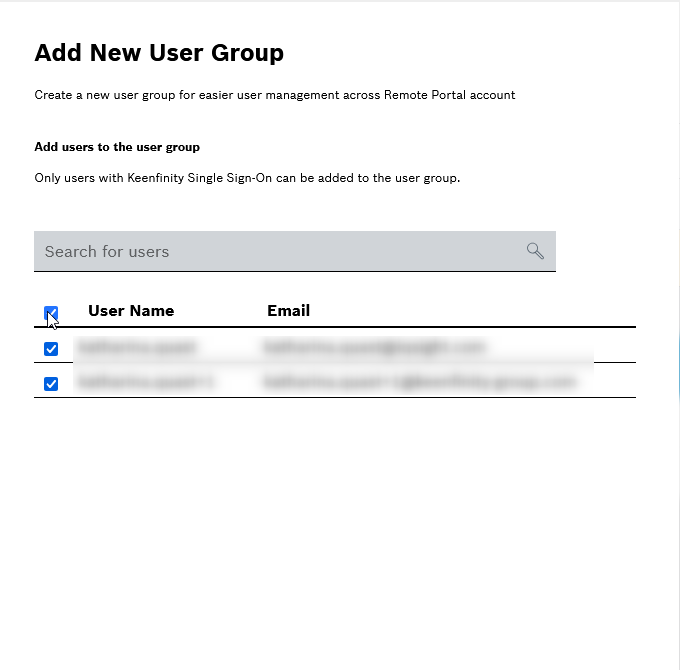
Select the user(s) that should be added to the user group and click Save.
Note: Only users with Keenfinity Single Sign-On accounts can be added to the user group.
-
The newly created Remote Portal user group will be appear under User Management.
-
Then go to BVMS on your DIVAR IP and under Remote Portal (IdP) mapping:
-
enter your Remote Portal ID,
-
select Group as Type
-
enter Remote Portal user group name as the Value and click OK
-
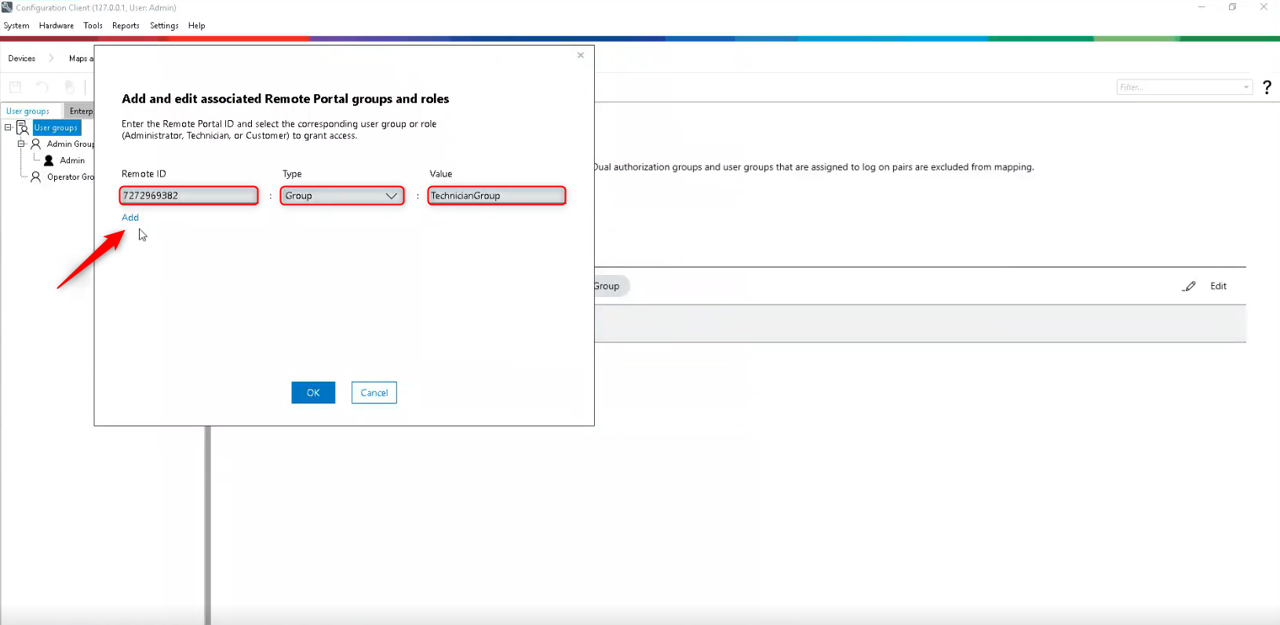
Also, instead of mapping a BVMS user group to a Remote Portal user group you can also map a Remote Portal user role to the BVMS user group. In that case:
-
select Role as Type
-
select the specific Remote Portal user role (Admin, Technician or Customer) for Value
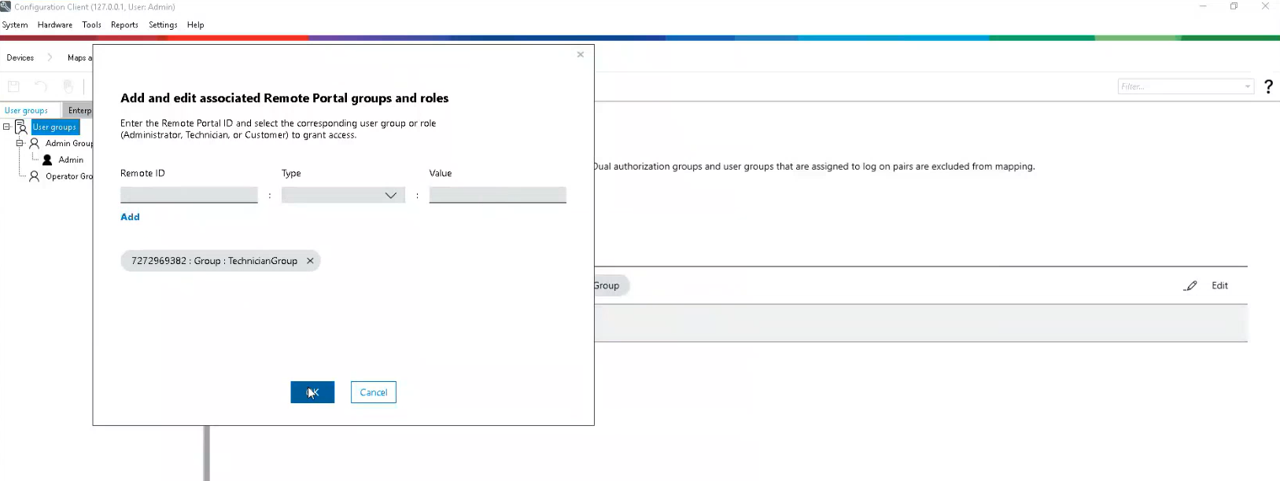
The mapped user group information will be shown, check if it is correct and click OK.
Now click save and activate.
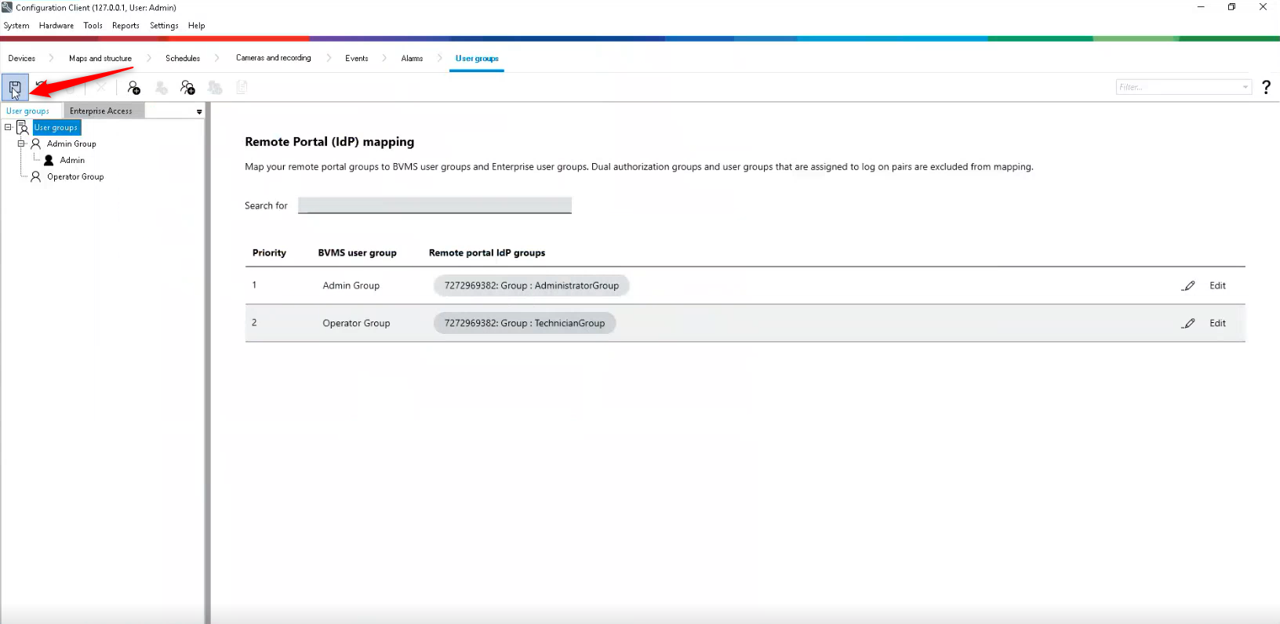
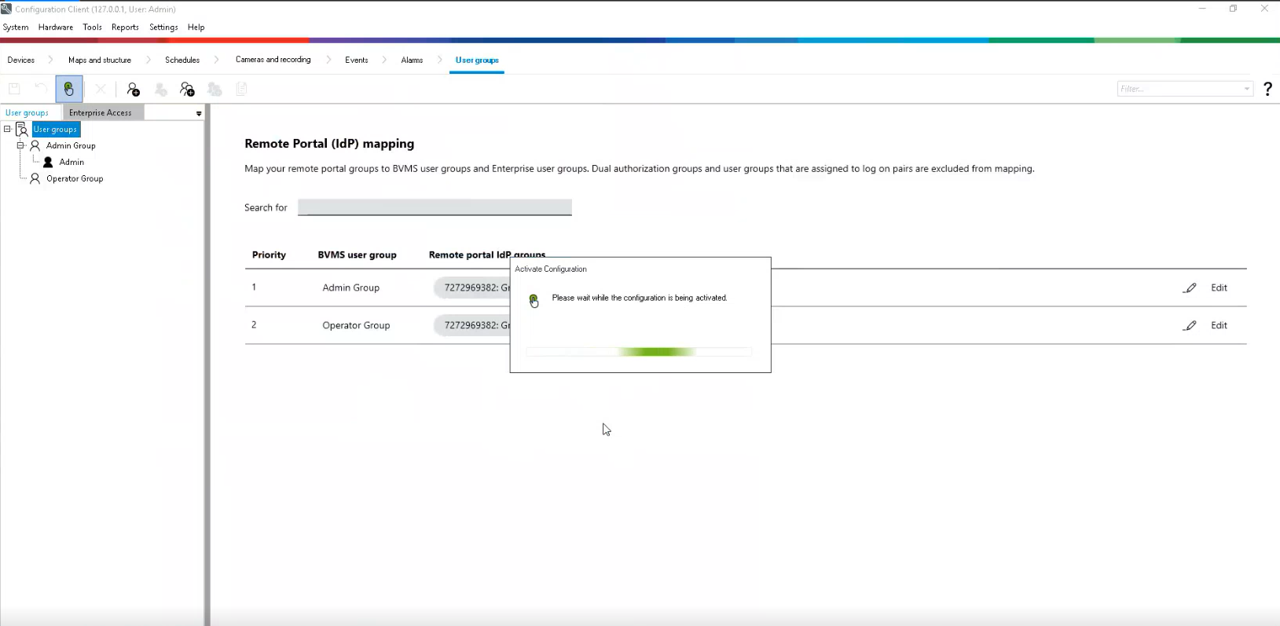
The BVMS user group is now successfully mapped with the Remote Portal user group.
To test it you can log in to Video Security Client as a user of this BVMS user group / Remote Portal user group and you should see the cameras in Video Security Client to which you also have access to in BVMS.