
Question
Can I activate/ deactivate Video Analysis Alarms received from a camera directly in BVMS v13.0 Operator Client?
Answer

Activating & Deactivating all Video Analysis Alarms received from a camera can now be activated or deactivated directly in BVMS v13.0 Operator Client.
Why is this needed?
For example, if construction work is ongoing, an operator can deactivate the Video Analysis alarms from a camera e.g. for a few hours and then activate them again after construction work is finished.
Which alarms are affected?
All BVMS Operator Client Event types: Video Analysis (01 through 16) are affected. This does not include Event type: Motion Detection.
-
New Logbook Events: New event types related to this feature are written to the Logbook by default:
-
User Event: "Video Analysis activated" and "Video Analysis deactivated" (for logging only; cannot be configured as an alarm).
-
Camera Event: "Video Analysis activated" and "Video Analysis deactivated" (can be configured as an alarm).
-
Important Note:
The Video Analysis alarms are deactivated on the Management Server, not on the camera itself.
-
How to Use: Activation/deactivation can be performed on a single camera (including on the map), multiple cameras within a folder, or all cameras in the Favorites Tree.
-
Consequences of Deactivation. When alarms are deactivated by an operator, the following occurs:
-
Events and alarms for Video Analysis (01-16) will no longer be processed by the Management Server.
-
Logging and script execution for these Video Analysis events will be disabled.
-
Who is allowed to deactivate/activate and who deactivated the camera Video Analysis alarming?
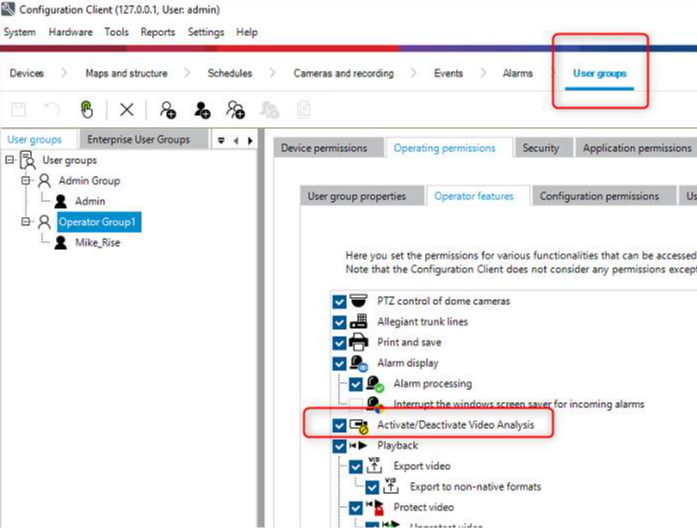
1 ) The permission to Activate/Deactivate Video Analysis needs to be given in the User groups, Operating permissions section, default is disabled.
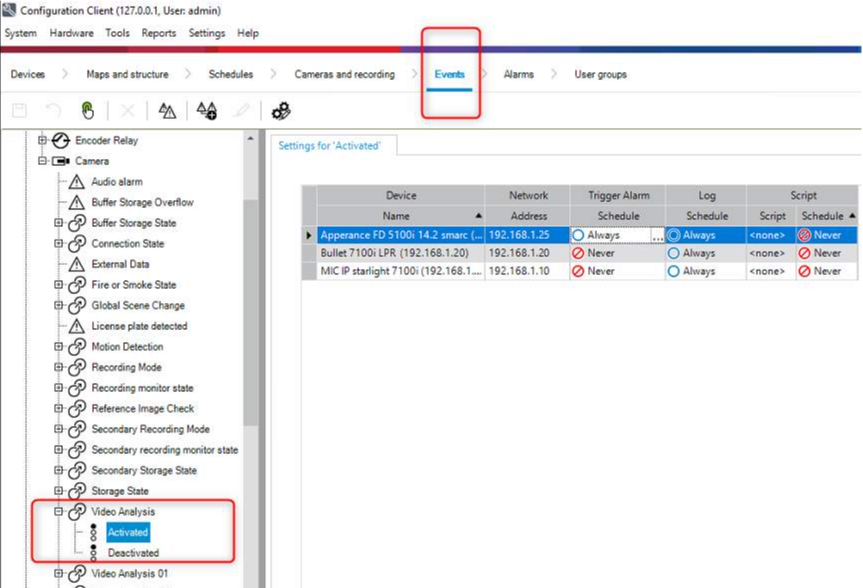
2 ) The event Video Analysis Activated/Deactivated exits per single camera event configuration and is by default written to the Logbook. It can be enabled as Alarm if required.
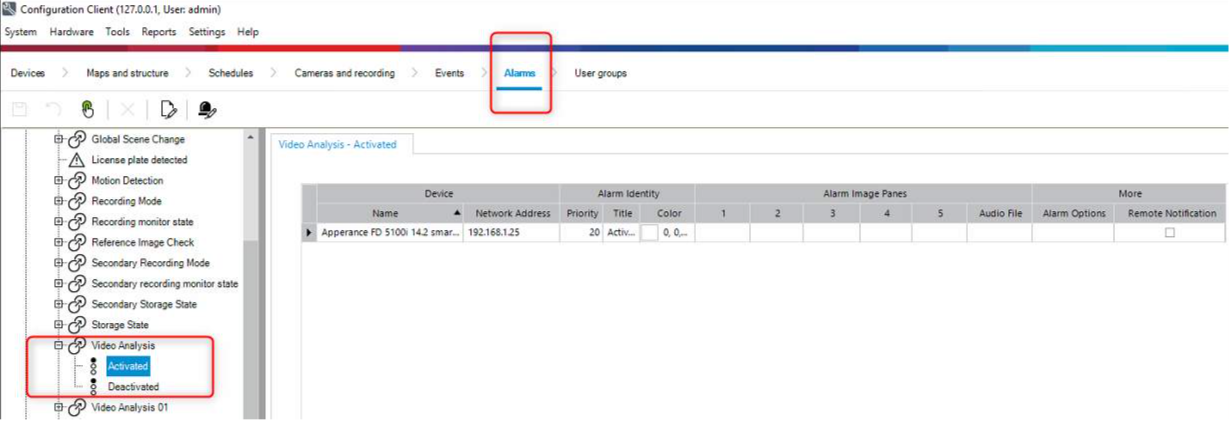
3 ) When the Alarm is enable on camera base, it can be configured like any other. For example an alarm can be send to the supervisor group to inform about the deactivated IVA alarms on a camera.
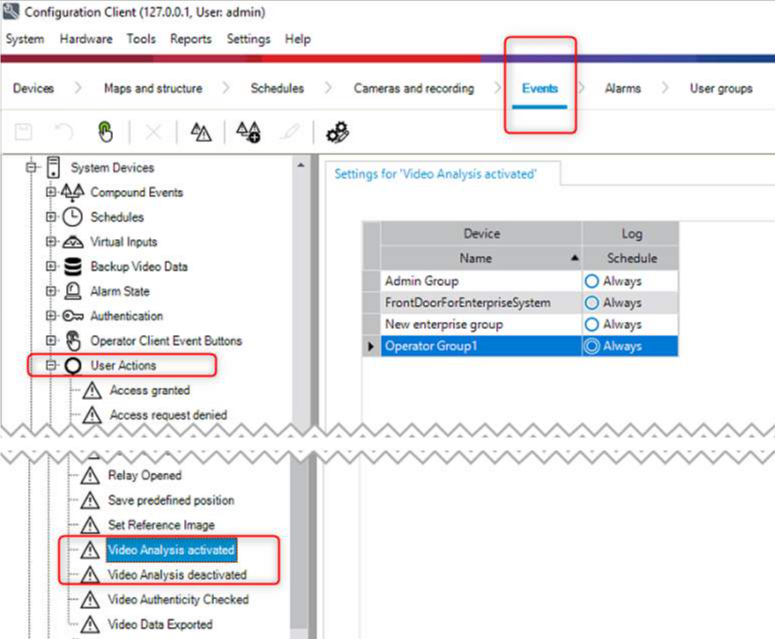
4 ) The new user action Video Analysis activated and deactivated is written by default to the Logbook for all user groups. Alarm configuration is not possible.
How to operate?
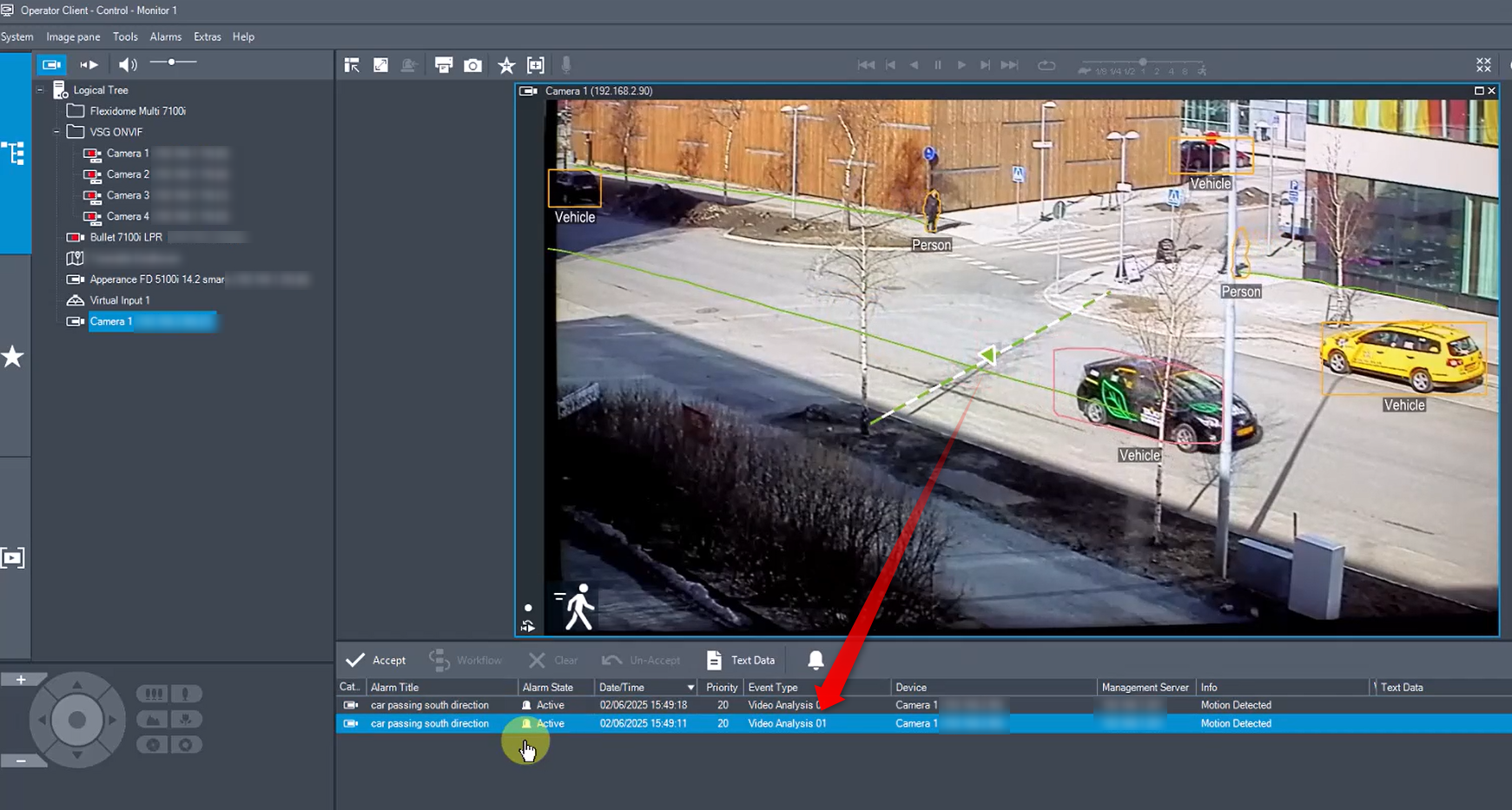
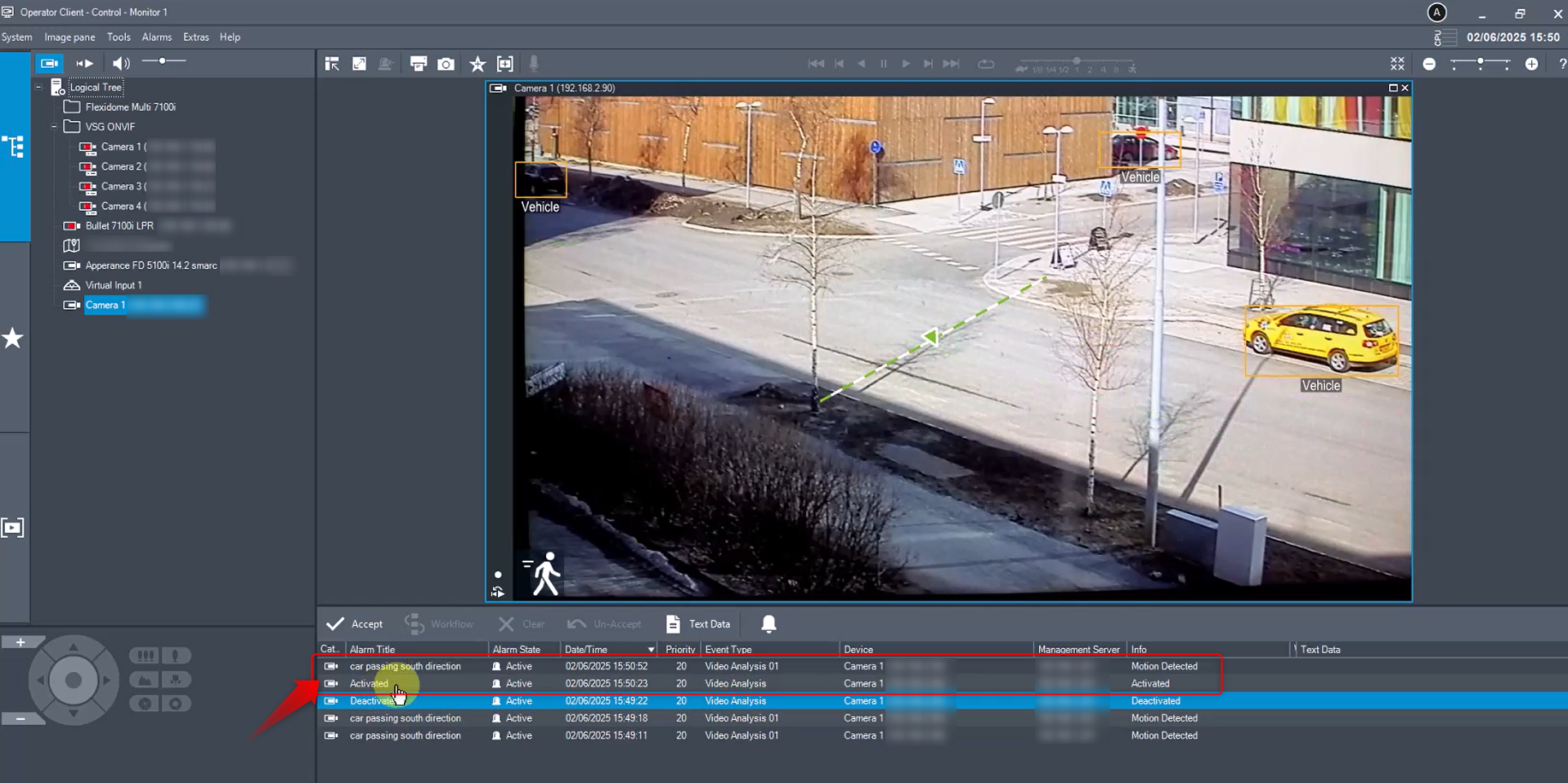
After motion is detected, the alarm will appear in the list.
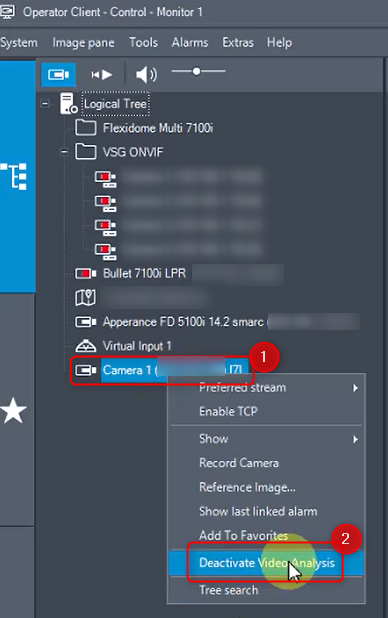
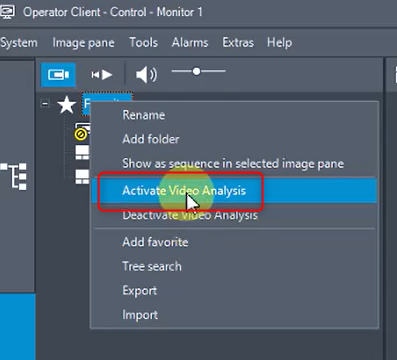
If you have permission to activate or deactivate Video Analysis, this option will be available by right-clicking on the camera and selecting Deactivate Video Analysis.
Once Video Analysis is deactivated, this action will be displayed in the list, and no further motion alarms will be detected or recorded.

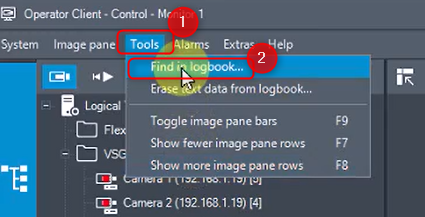
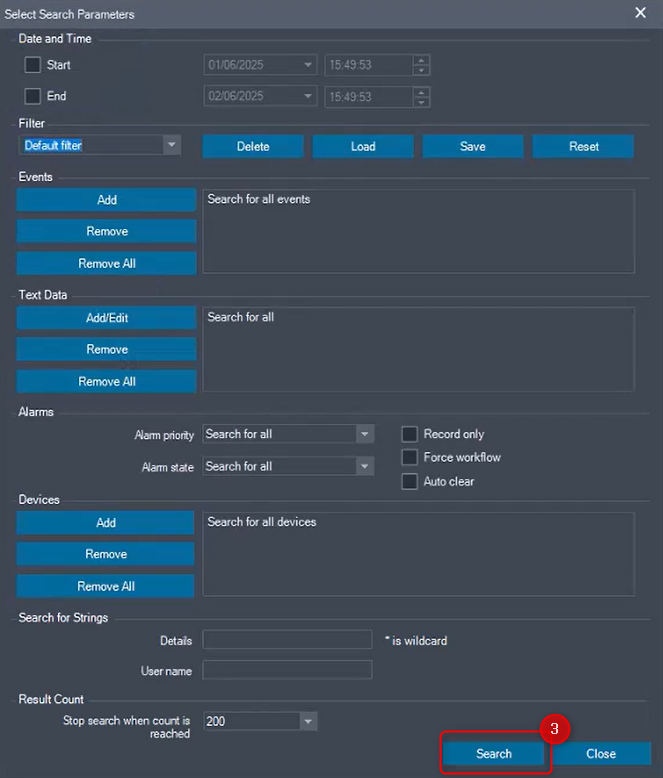
This action is also logged by default in the Logbook. You can verify it by navigating to Tools > Find in Logbook… > Search.

To reactivate Video Analysis, right-click on the camera and select Activate Video Analysis. This action will be added to the list, and any future motion alarms will again be displayed there.
Details and Restrictions:
The feature is implemented on camera base and applies for all Video Analysis 1-16 Alarms. Activating/deactivation for one single Alarm task of a camera is not possible in the Operator Client.
-
The feature works for native integrated Bosch Cameras and Onvif Profile S/T Cameras (not for Profile G cameras).
-
When the management server is down or the Operator Client is disconnected from the server, the feature is disabled for the operator.
-
Data security:
-
The Management Server (MS) stores the status of the feature per camera ever 5 minutes or when the MS service is stopped, in a file called "Devicestates.data".
-
It is encrypted to avoid manipulation of the state.
-
If the file gets deleted or manipulated, a system warning comes up in the Alarm list of the Operator Client and the resulting automatically executed action is: Activate for all cameras the Video Analysis 1-16 alarms.
-