
Question
How can I reset the Remote Portal password when using Single Sign-On (SSO)?
Answer
If you have forgotten your password and use Single Sign-On (SSO) to access your Remote Portal account, please follow the steps below to reset your password:
-
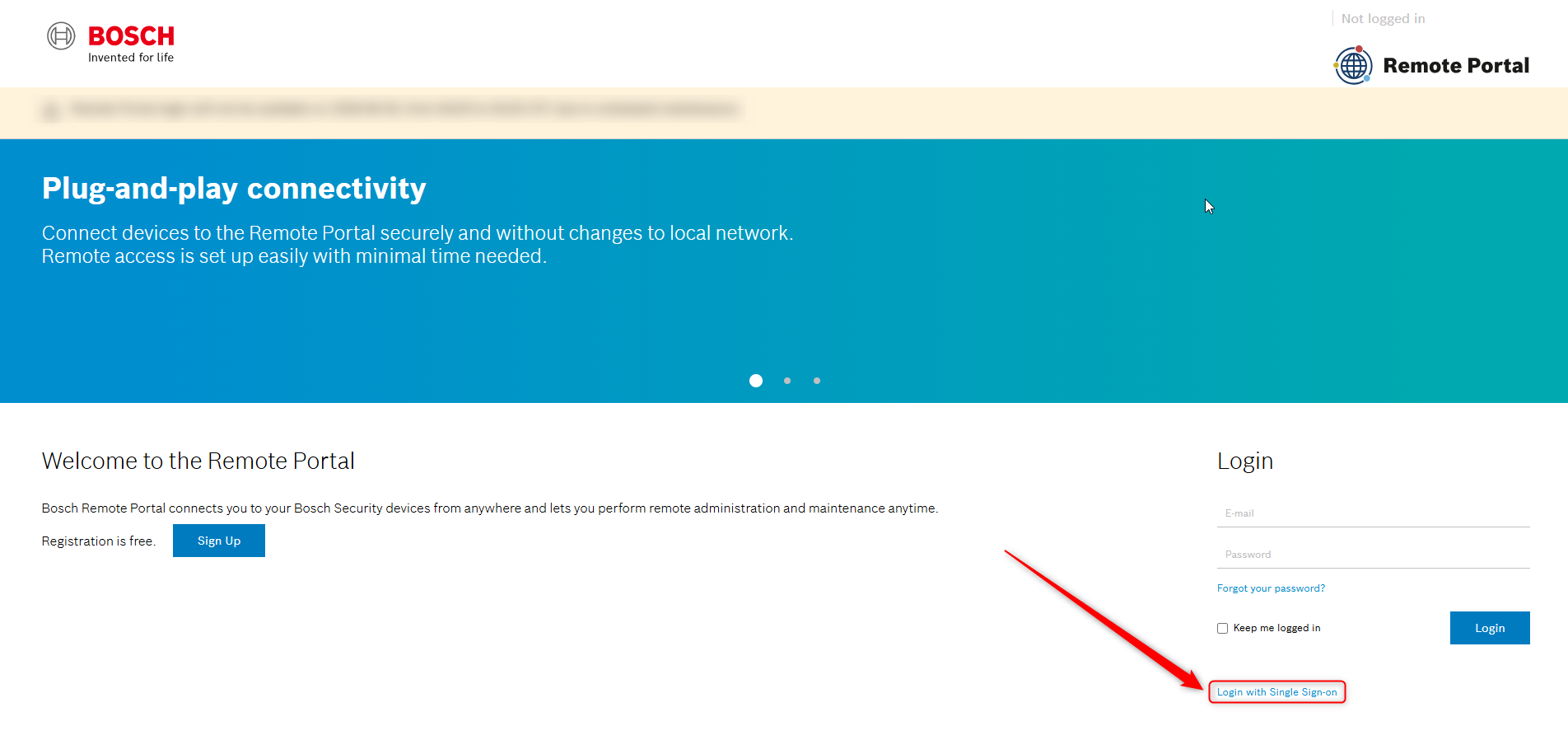
Go to the Remote Portal login page
-
In the bottom-right corner, click Login with Single Sign-On
-
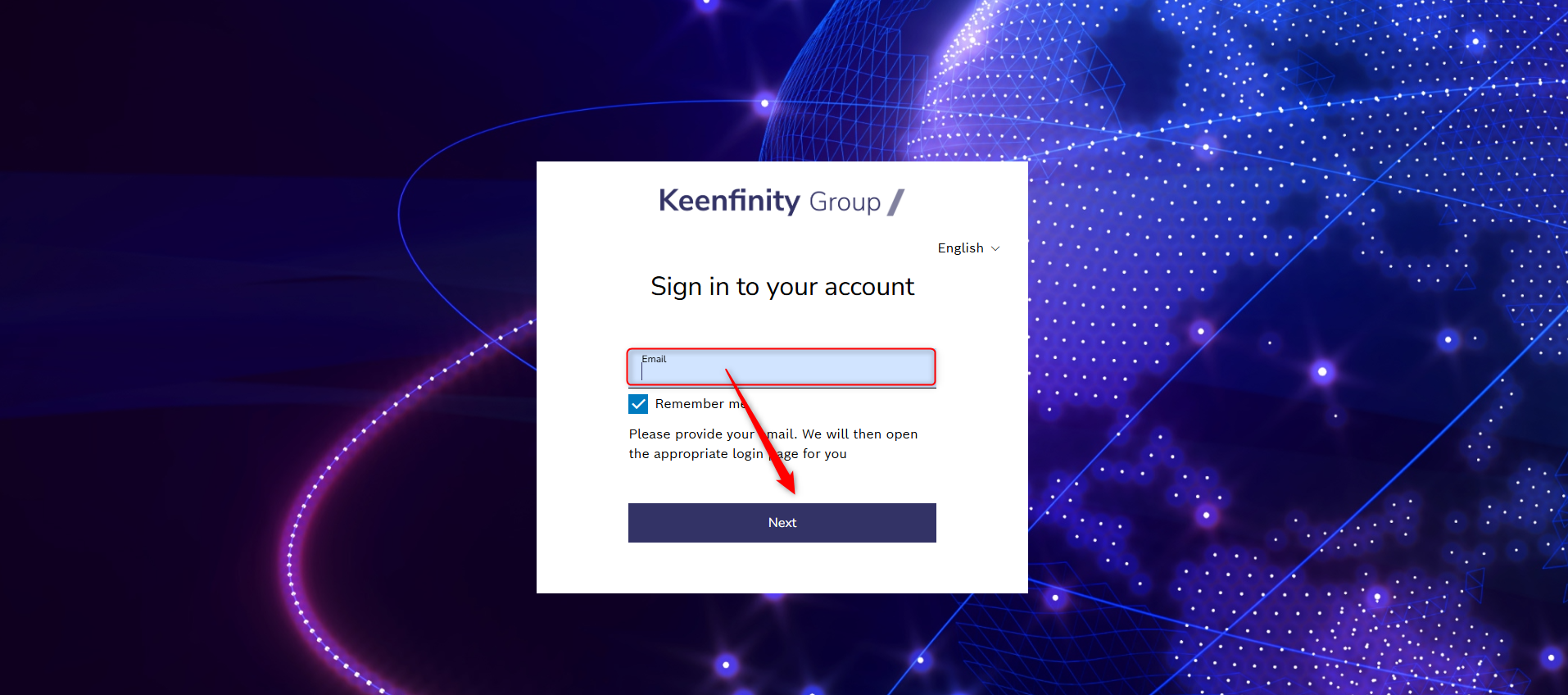
Add your email address and click Next
-
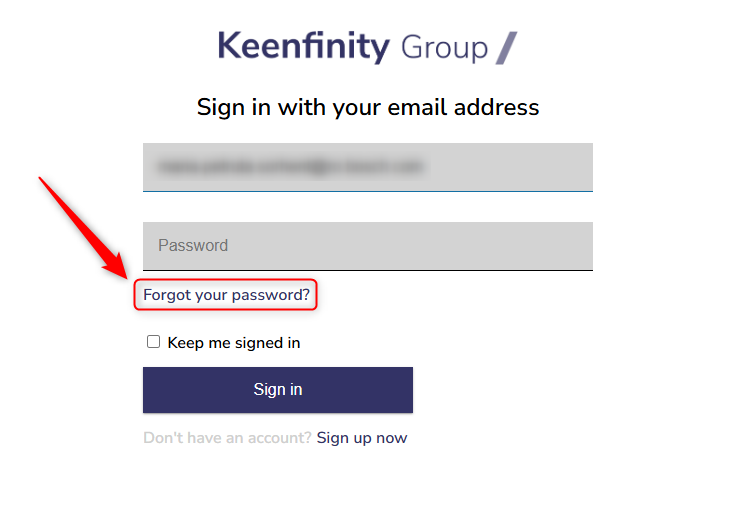
Click Forgot your password?
-
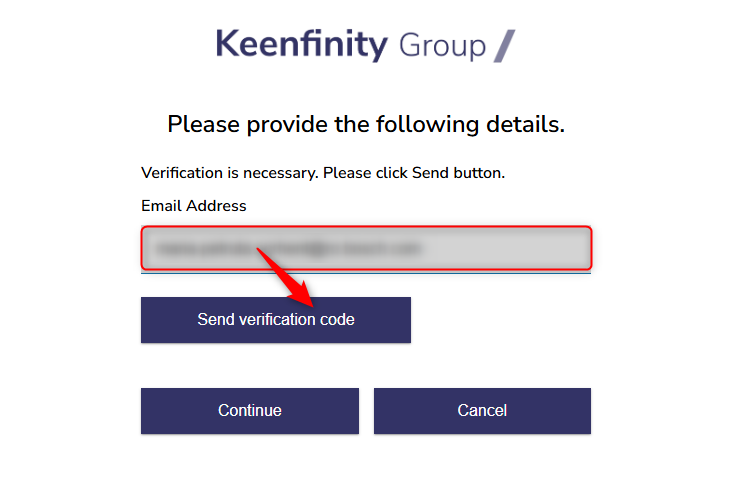
Add your email address again and click Send verification code
-
Check your email inbox for the verification code. It should arrive within a few seconds.
-
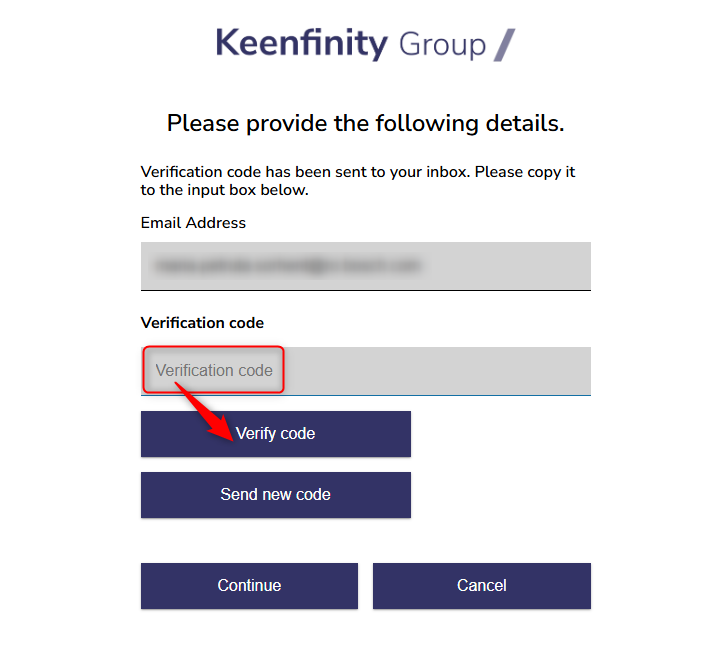
Add the verification code and click Verify code
-
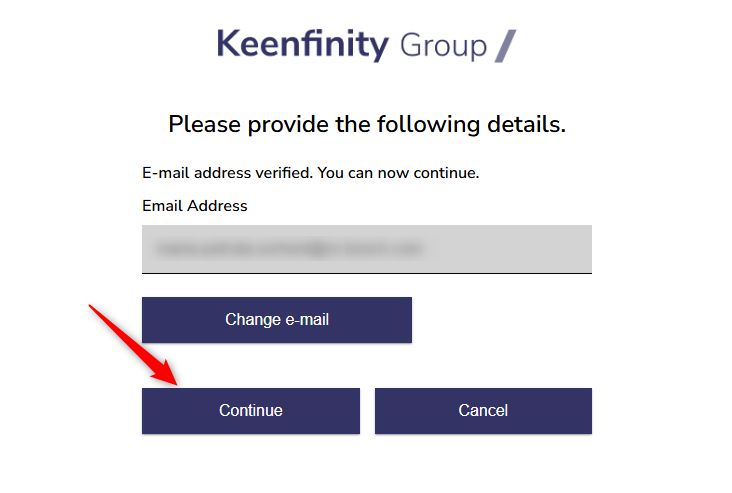
You can now update your email address if needed. Otherwise, click Continue.
-
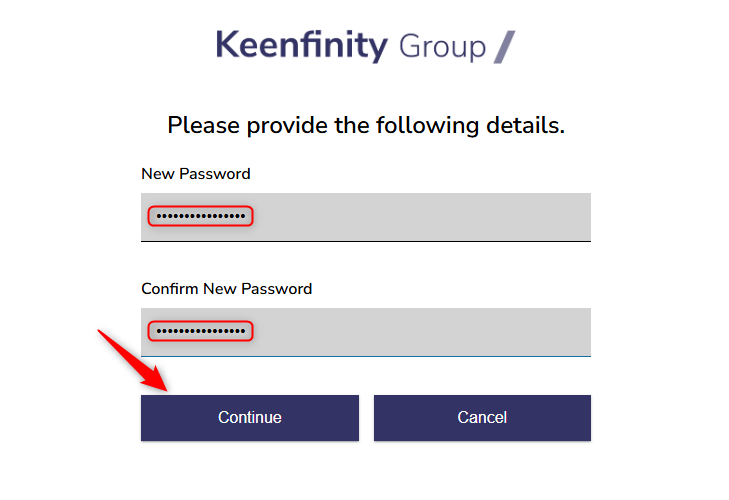
Add your new password in both fields and click Continue
-
Once completed, the Remote Portal home page will open and you will be automatically signed in.