
Question
How can I update camera’s firmware through the web interface?
Answer
To update the camera firmware successfully, please follow the steps below:
-
First, download the correct firmware version for your camera model and CPP.
-
The firmware can be downloaded from the Download Store.
Note: If you need a firmware version that is not public available on the Download Store, please contact the Technical Support team.
-
For more information about the firmware policy, please refer to IQSIGHT Video support - Firmware and Software requests
-
Access the camera through a web browser and log in
-
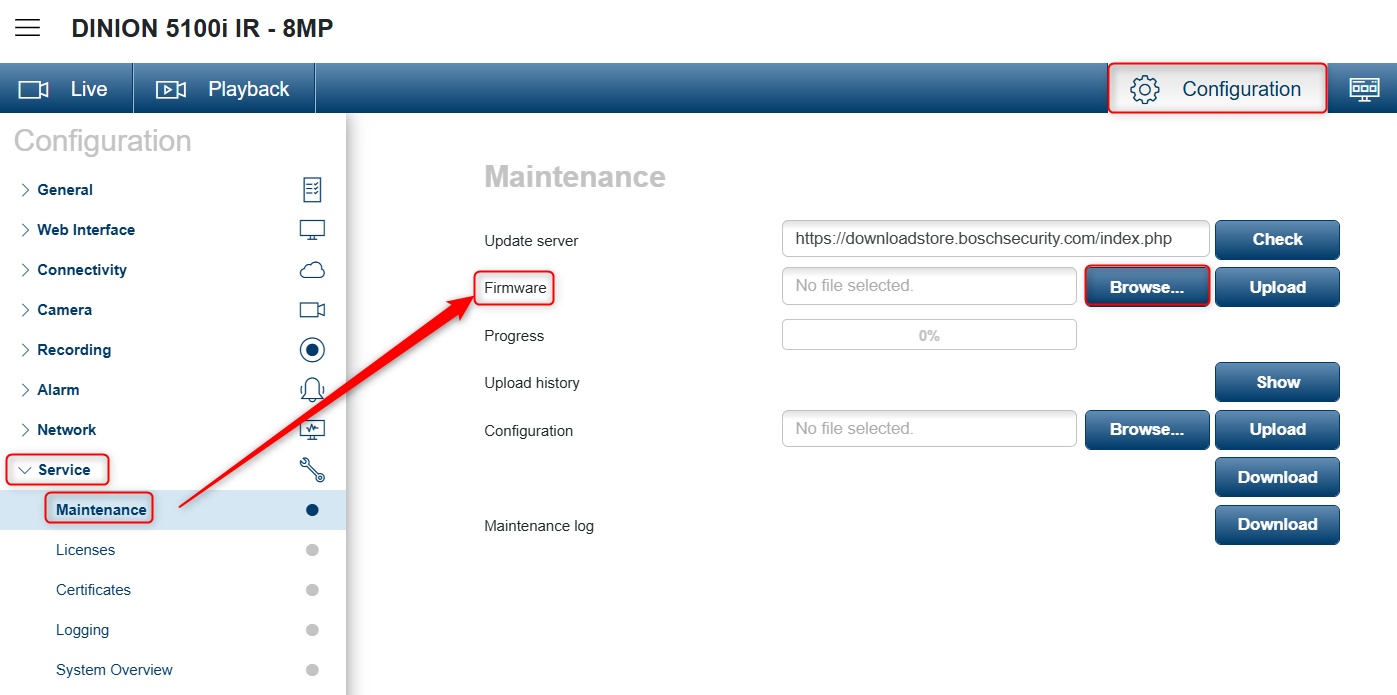
Go to Configuration → Service → Maintenance → Firmware
-
To upload the firmware, click Browse and select the firmware file you downloaded
-
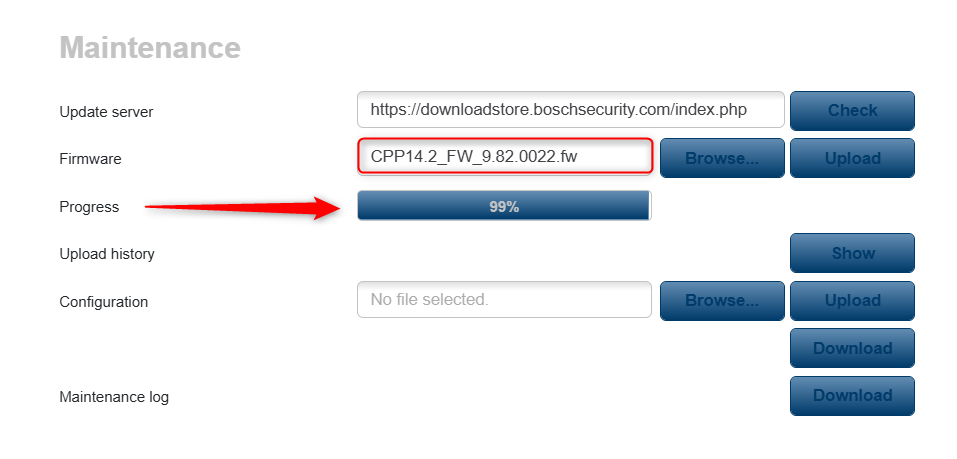
Then click Upload
-
Once the upload reaches 100%, the camera will reboot automatically.

-
During the update process, it is important to:
-
not close the browser
-
not disconnect the camera from power
-
Interrupting the update can corrupt the camera firmware.
The firmware update usually takes between 3 and 15 minutes, depending on the camera model.

-
How to perform the Firmware upgrade for multiple cameras in Remote Portal?
-
How to upgrade the firmware for multiple cameras (bulk) at the same time in Configuration Manager?
⚠️ Please be aware that, depending on the camera model and its firmware version, it may be necessary to upload the firmware multiple times. For more information, please refer to the following article: