🕒 This procedure takes in average ~10 - 15 min to complete
New Service: IQSIGHT Context Cloud
"IQSIGHT Context Cloud" is a new service that can be configured in the 'Configuration' section of Alarm Management. This service will create alarms with the help of artificial intelligence and based on a configurable prompt.
Customer Benefits:
-
Reduce false alarms and operator workload: Context Cloud uses AI to intelligently filter events based on your specific security requirements and contextual scene understanding, ensuring operators only receive relevant alarms that truly require attention - significantly reducing alarm fatigue and improving response efficiency.
-
Flexible, customizable security rules without programming: Define your own security scenarios using simple natural language prompts instead of complex rule configurations, allowing you to quickly adapt monitoring criteria to your specific operational needs without technical expertise or system reconfiguration.
Navigate to any account, then select "Services". To create a new service, click on the "+" icon in the left column and select "IQSIGHT Context Cloud". The service consists of the following fields:
-
Name: You can give the service a individual name
-
Site: Select the site you want the service to be active in
-
Triggering Device: Select the camera for the service
-
Triggering Event: Select the event trigger, e.g. any configured IVA event or motion, etc.
-
Alarm Channel: Select the alarm channel for the service
-
Prompt: Enter a prompt for the service. The prompt should be answerable with 'yes' or 'no'. A large language model will filter alarms based on the prompt entered here.
-
Trigger Debounce Time: Select the minimal pause period between alarms. Standard setting is 5 seconds
-
Arming Period: Select a schedule this service should be active
-
Service Identifier: This identifier can be used in the alarm management to link the service scenario to an event from the same area
-
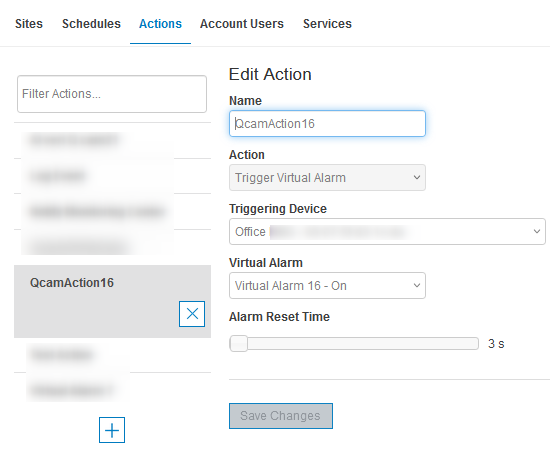
Automatic Actions: Select the actions that will be triggered automatically with every alarm
-
Intervention Actions: Select the actions that will be visible to the monitoring agent in Event Monitor
For using the service, a license for IVA Pro Context per camera is required and nees to be activated in Remote Portal in addition to VideoView+ or Alarm Management license.
Step-by-step guide
Note:
Now, the feature is only available on our demo instances demo and demo2. Release of the feature will be approx. mid of Q2 2026.
We can provide you access to demo or demo2 in case you do not have it yet. Please contact your local sales representative for further information.
-
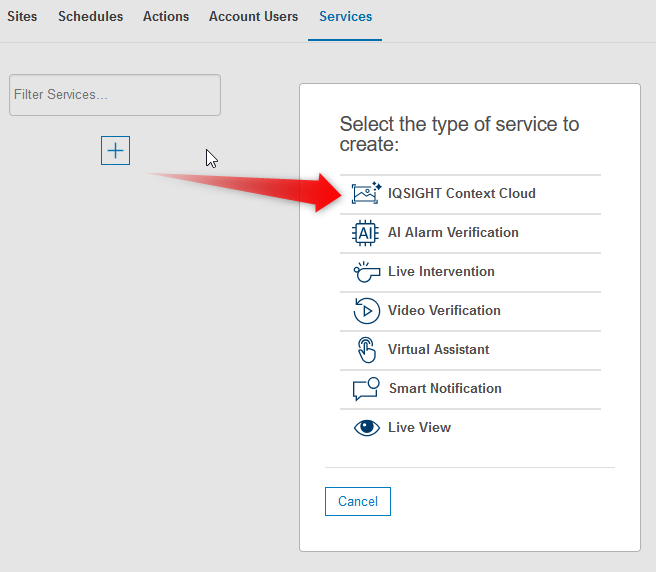
Under Services select IQSIGHT Context Cloud:
-
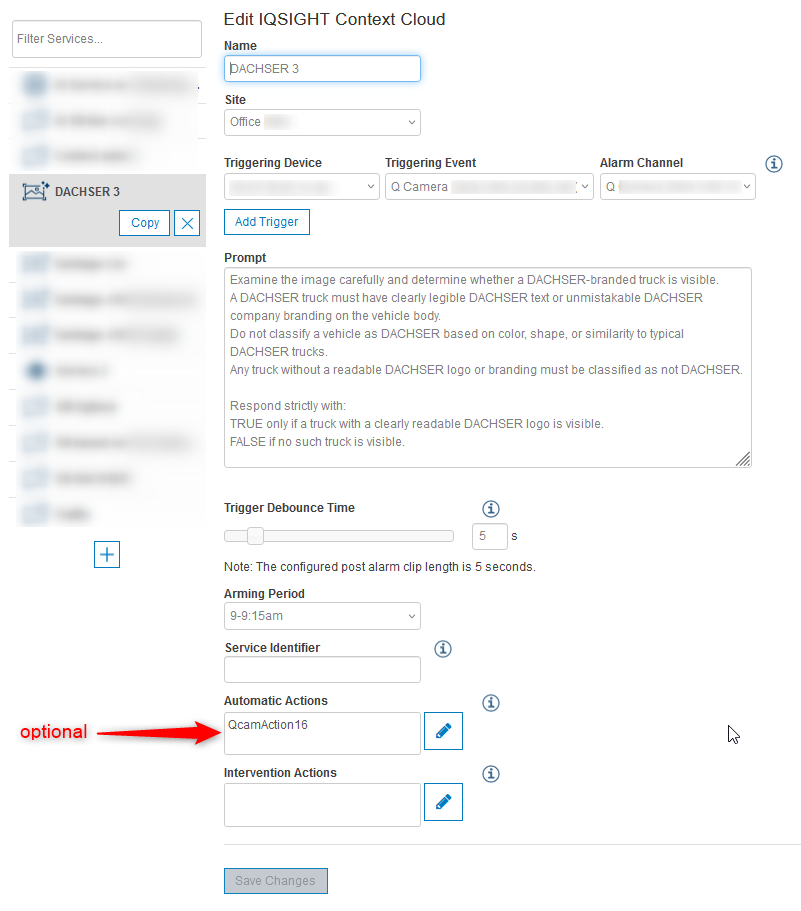
Enter a Name of the service and select the Site, the Triggering Device, the Triggering Event (could be any trigger from the camera like virtual output, motion based, IVA Pro etc.) and the Alarm Channel as usually. In the Prompt window you specify the prompt you would like the LLM to filter or verify the camera alarm with.
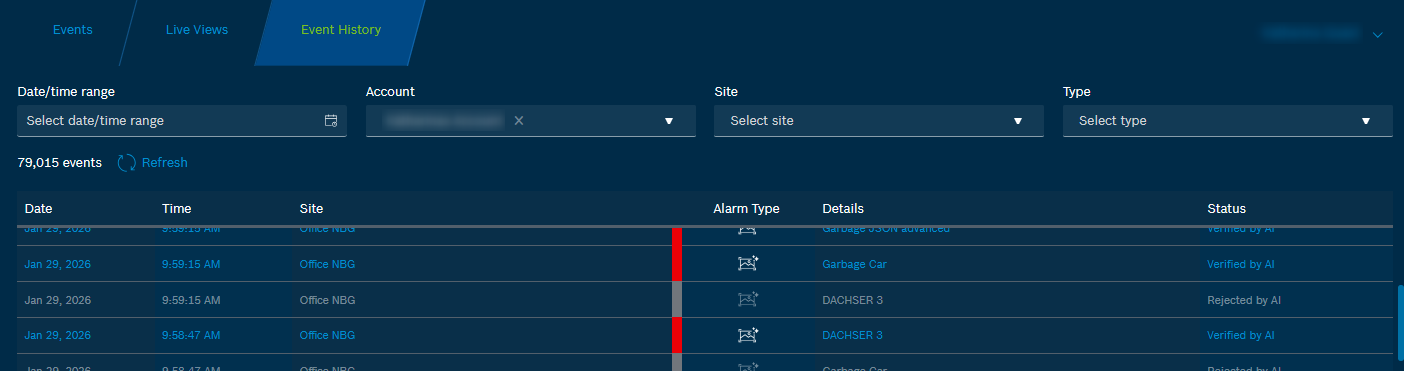
In this example, the LLM is required to filter specifically for DACHSER trucks. The LLM should return TRUE only if it can determine that the camera alarm was triggered by a DACHSER truck. In all other cases, the LLM should return FALSE.
-
In the Event Monitor the prompt-based verified AI alarms are either labeled as “Verified by AI” if TRUE or as “Rejected by AI” of FALSE like it is done for the “classic” AI alarm verification.
############# Trigger virtual alarms of the camera for further action #####################
Optionally, via automatic action, one can also trigger the virtual alarm of the camera.
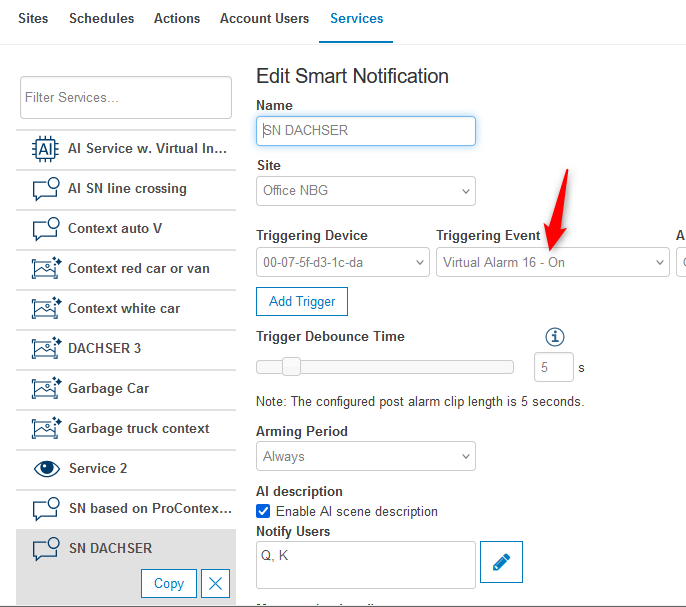
In the example below, the automatic action to set Virtual Alarm 16 of the camera is used to combine IQSIGHT Context Cloud with Smart Notification service incl. AI event description aka VV+ AI event description.
Be aware, that different frames are then processed for triggering 1. the IQSIGHT Context Cloud and 2. the VV+ AI event description. But I think it stills gives a rough idea, where a combination of these 2 services can lead us to.