Please find below the procedure to Capture 802.1X (EAP-TLS/MD5) Authentication Failure and Collect Camera Logs.
Step by step guide:
-
Ensure the camera is running the latest firmware version.
-
Ensure the camera time-server is working properly and time is synchronized.
-
(Optional) Connect the camera through a PoE midspan. This allows access to the camera after the failure occurs and enables collecting logs without rebooting the camera.
-
Activate the required debug/print commands
eapol parse_eapol syslog_dbg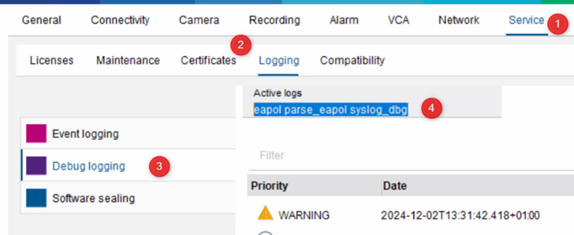
-
Configure a switch port mirror (SPAN) on the camera port.
-
Start a Wireshark capture on the mirrored port.
-
Connect the 802.1X-prepared camera to the secured switch port, or enable port security/802.1X authentication on the switch port.
-
Allow approximately 1 minute for the camera to boot and reproduce the authentication failure.
-
Stop the Wireshark capture.
-
Once the authentication failure has occurred, collect the camera maintenance log without rebooting the camera.
Tips:
-
Disconnect only the data connection from the midspan, not the power connection, to prevent the camera from rebooting.
-
Alternatively, temporarily disable 802.1X/EAP-TLS authentication on the switch port to regain access to the camera without rebooting it.
Please provide Technical Support the following information and files:
-
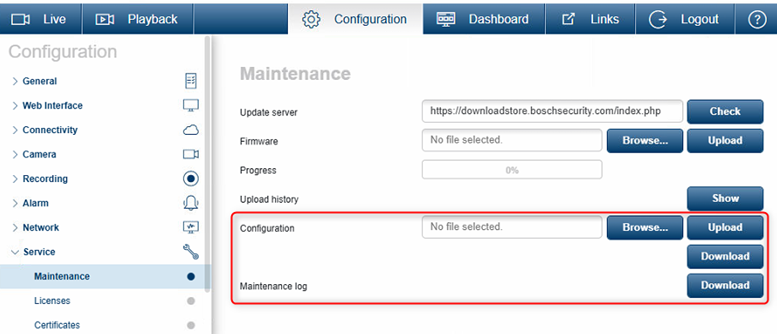
Camera maintenance logs (see: Example for “Technical support” required logs / screenshots)
-
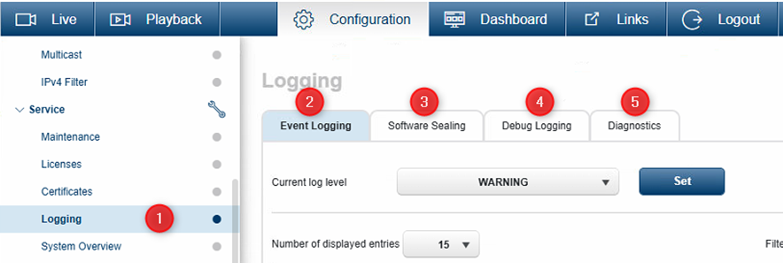
Camera debug logs (see: Example for “Technical support” required logs / screenshots)
-
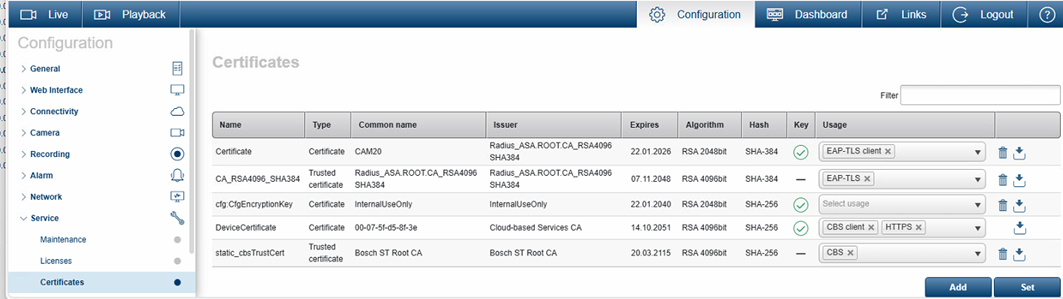
Copy of the certificates used by the camera (see: Example required screenshots - Certificate section)
-
Camera configuration file (including password if required for analysis)
-
Wireshark packet captures from the authentication attempt
-
If available, the same set of logs and configuration data from a working camera in same LAN using same authenticating server
-
Web interface screenshots showing the certificate configuration section
-
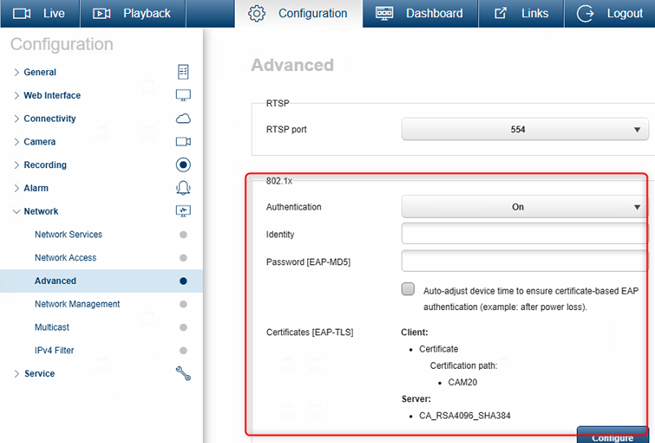
Web interface screenshots showing the 802.1X authentication settings
-
Details of the RADIUS server software being used
-
Details of the cryptographic configuration:
a) Used cipher suites
b) Key type (Elliptic Curve or RSA)
c) Key length / cryptographic strength -
Ones finished, Turn off debug print commands : eapol parse_eapol syslog_dbg
Test Procedure: Verify Authentication Using “802.1X Server Certificate Check Disabled” License
-
Enable the “802.1X server cert check disabled” license and test the 802.1X authentication.
-
Disable the license and repeat the same authentication test.
-
Document the outcome of both tests:
-
Authentication successful with license enabled
-
Authentication failed with license disabled/enabled
-
Troubleshooting Notes:
-
This license is useful for isolating authentication issues related to the RADIUS server certificate.
-
When enabled, the camera does not validate the RADIUS server certificate. The server certificate is not required or considered during authentication.
-
If authentication succeeds with the license enabled, this indicates the issue is likely related to the RADIUS server certificate validation (for example: incorrect certificate chain, wrong CA, or trust issues), rather than the client certificate.
-
This license may also be used permanently in environments where the installer does not manage the CA infrastructure and prefers cameras to operate independently from the certificate authority.
-
Use cases include situations where the RADIUS server certificate causes authentication failures due to incorrect chain validation or an untrusted CA.
-
Security note: Disabling server certificate validation reduces t
See below licenses:
CPP6, CPP7 and CPP7.3 global license
set license: 12-01.48.01-3C683BD3-54B029FA-7E5ADCC5-6F29CD7F-55B0528E
remove license: 12-01.48.00-EE2A44C1-EE5CC9E0-0BB6FBBD-2B582636-2CBBB1FC
CPP13, CPP14 en CPP16 global license
set license: 22-01.48.01-BA74459F-247E14A4-30BFD6ED-B7D145F0-2FAAC10D
remove license: 22-01.48.00-99DEC0BC-C2E99C93-545BC6D3-52A9E0FF-CA192313
Ones license code is applied it either appears as "Option 72" or (later fw) “802.1x server cert check disabled”
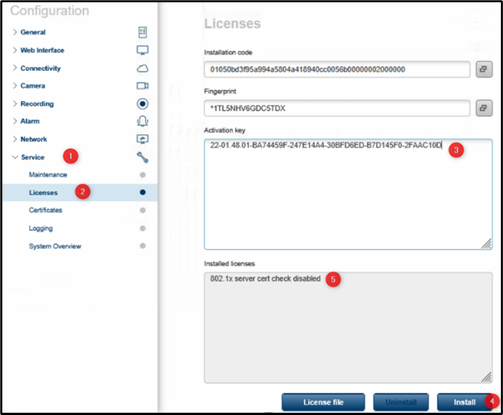
Example for “Technical support” required logs / screenshots
Maintenance + cam config logs
Example required screenshots - Certificate section