
Monitor Group gives operators flexible control over the content of a video wall or allows them to let the system take over this control automatically based on pre-defined scenarios.
This article describes how to create a Monitor Group on a decoder VJD 7xxx/ 8xxx in BVMS Configuration Client.
Note:
°Each decoder requires one or two channel expansion licenses (depending on the number of monitor ports available)
-
The current MG implementation requires the availability of the Management server during operation
-
Former Digital wall implementation has been removed in BVMS >=11.0
NEW BVMS v.11.0 feature
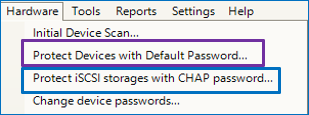
The configuration step 9+10 from this article can be done also using the “Protect iSCSI storage with global CHAP password” (Menu item under Hardware). In case the function has been already enabled, step 9+10 is obsolete.
Step-by-step guide
1. Add a decoder to the device tree
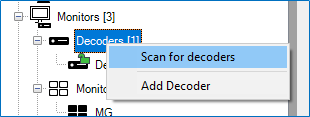
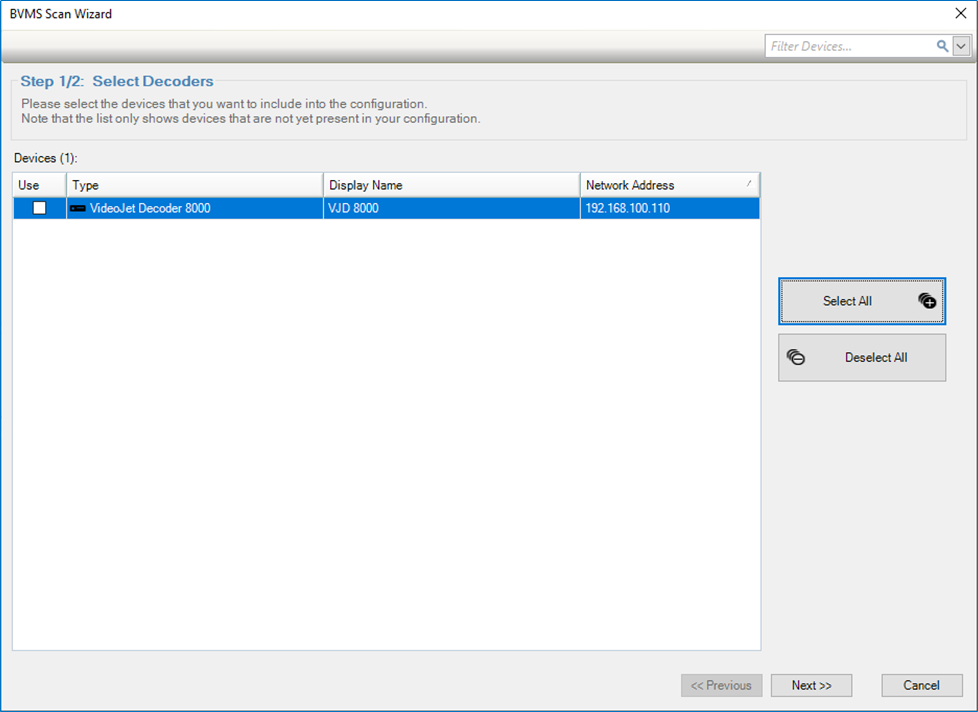
Add a decoder by Scan: for scanning right click on the node "Decoders" > select "Scan for Decoders" > select the VIDEOJET DECODER 7xxx/ 8xxx from Devices window and click next
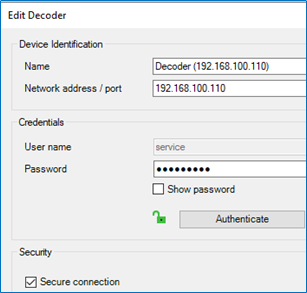
2. Right click on the decoder "Edit": Enable the secure connection (https) on the decoder
3. Check on all cameras whether the secure connection is also enabled.
Note: Only if decoder and all cameras are configured for "secure connection" the cameras can be shown on the Monitor Group. Otherwise, the Monitor wall will show black image.
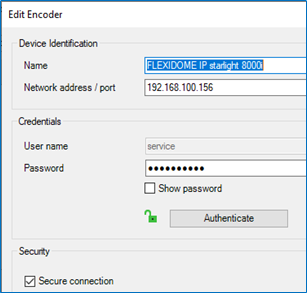
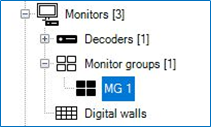
4. Add the Monitor Group (MG) to the device tree
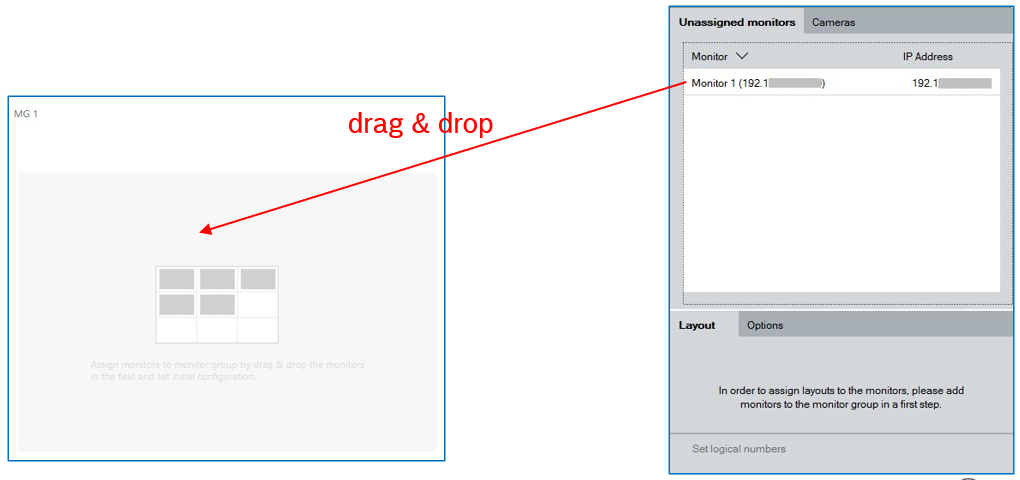
5. Which decoder belongs to which MG? Configure the assignment of a decoder to an MG (drag & drop)
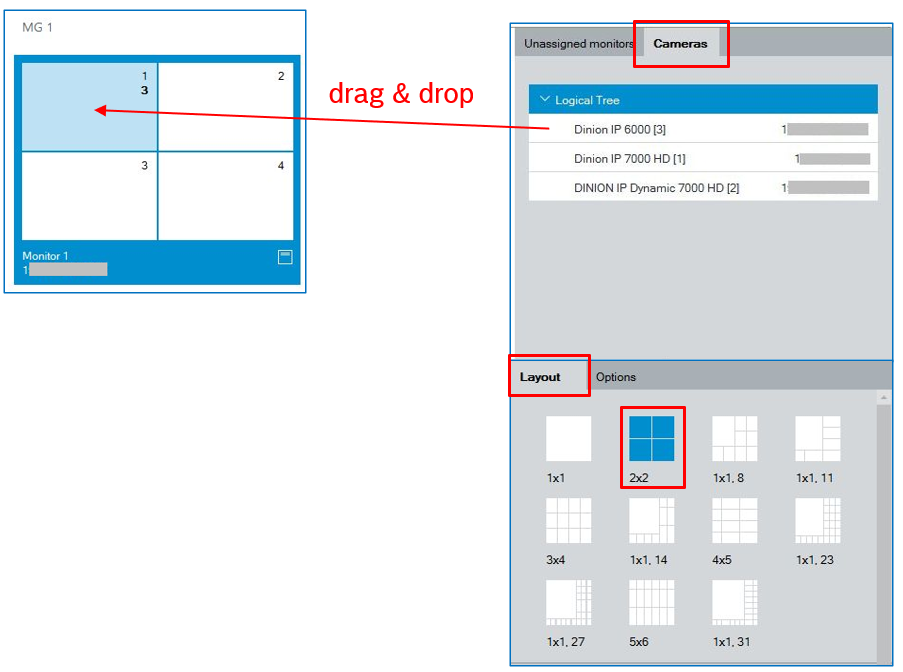
6. Define default settings
-
Default layout can be configured by simply choosing the layout and dragging & dropping the cameras to the image panes.
-
only cameras from the own Management Server can be used
-
-
Default layout can be restored in BVMS Operator Client by right click on MG and choosing Reset to default layout settings.
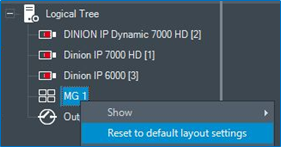
7. Assign permission to the user group
-
Verify or set the decoder permission settings in the User groups to define which group is authorized to use the Monitor Group:
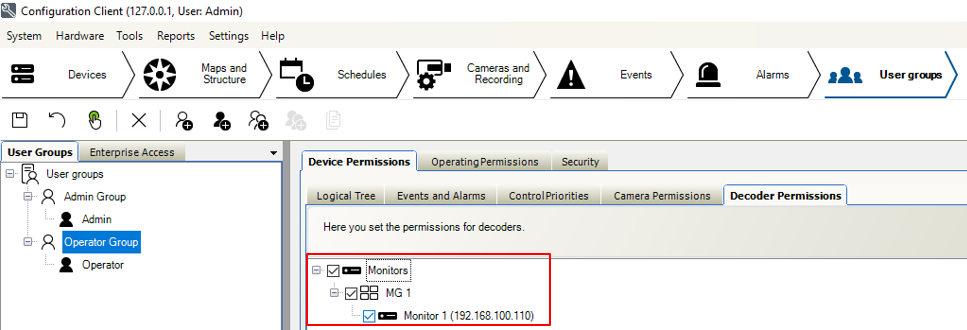
8. Add the MG to the logical tree
-
MG has to be added to the Logical Tree per drag & drop
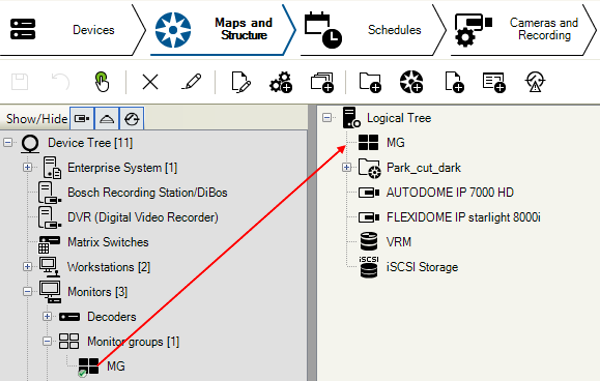
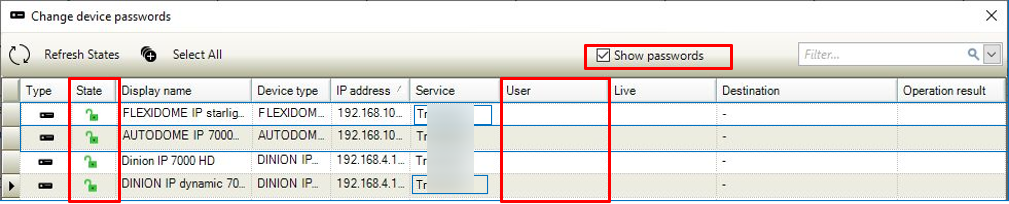
9. Assign to all cameras the same "user" password (decoder use the "user" password to get the live view)
-
The decoders are using the "user" password of cameras not the "service" password
-
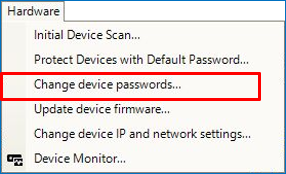
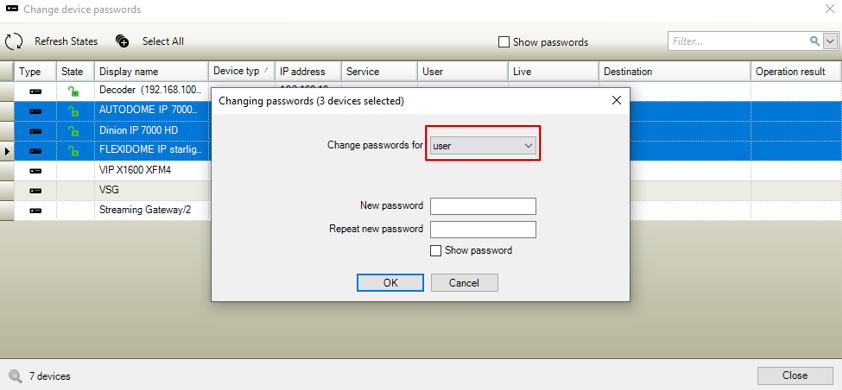
Select all cameras and then right click and choose "Edit password". Select the "user" password type.
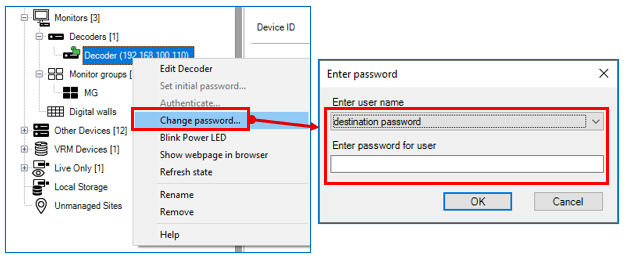
10. Configure the user password from cameras to the decoder called "destination password"
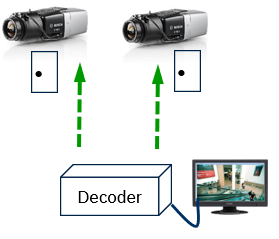
To enable access of a password protected camera to a decoder:
-
Enter the "user" authorization password of the cameras as the "Destination password" of the decoder
-
All passwords on camera side for the standard authorization level called "user" must have the same password

Note: These steps are valid only for newer decoder e.g. VIDEOJET 7xxx/ 8xxx series.
When using VIDEOJET 3000 the secure connection on step 2 and 3 has to be disabled.
MG in the Operator Client
Note: If the MG is not enabled (user group permissions) then the user can put the MG on the image pane in Operator Client, but cannot access it.
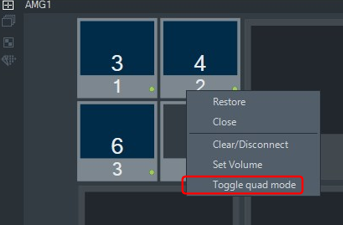
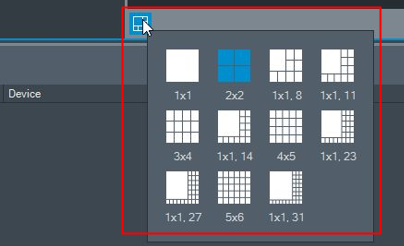
The monitor layout can be changed in BVMS Operator Client by clicking the layout icon on the left bottom corner of MG in the image pane:

For a better understanding of using BVMS and its features, we encourage you to join our online trainings from KEENFINITY Academy!