
Possible causes and solution(s)
Symptoms
When Auto Tracking is enabled on the MIC IP Starlight 7100i using Global VCA (Object on Field), the camera may occasionally track non-relevant motion sources instead of returning to the preset/home position after the intended target leaves the field of view.
This article outlines the conditions under which this may occur and provides guidance on configuration and mitigation.
Causes
This behavior can occur when movement in the scene generates detectable motion patterns that the Global VCA – Object on Field interprets as valid targets.
The following behavior may be observed:
-
The camera starts tracking a valid target correctly.
-
Once the target exits the field of view, the camera continues tracking unintended movement such as:
-
Clouds or smoke at long distance
-
Wind turbine blades
-
Distant traffic (especially during auto-zoom)
-
Birds or insects close to the camera lens
-
-
The camera remains locked on these objects instead of returning to its predefined preset or home position.
Solution
Using a combination of VCA masks, proper sensitivity tuning, and enabling Inactivity helps minimize false tracking and ensures the camera returns to its preset position.
-
Enable Inactivity / Return to Home position
To allow the camera to return to its preset after Auto Tracking stops, ensure the Inactivity or Return to Home function is enabled.
This allows the camera to resume its default position when no valid object is detected for a defined time period.
How?
-
Set a preposition (this can be done in the camera’s web browser as well):
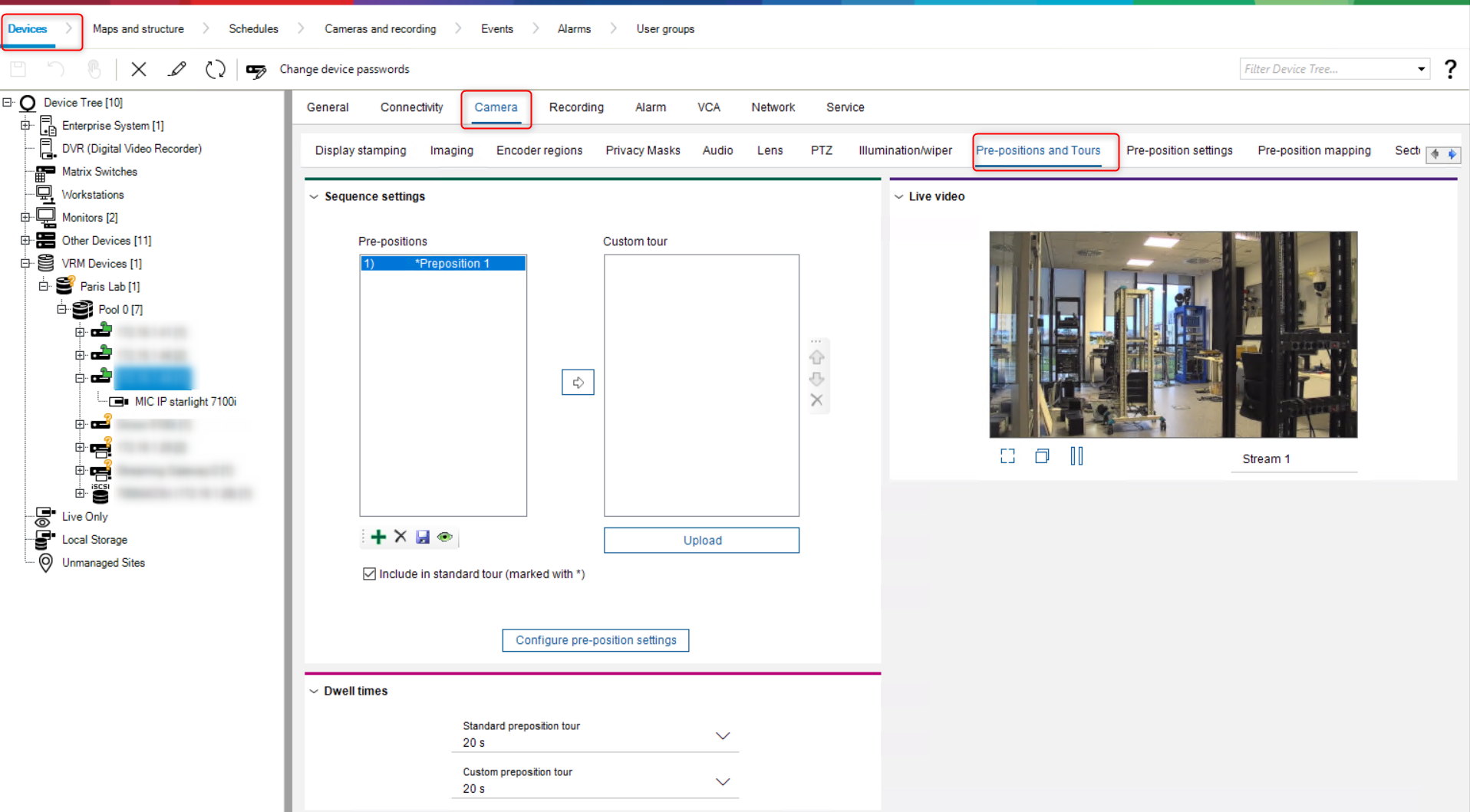
-
Select the camera’s preposition you have configured in the Inactivity field and set the Inactivity period
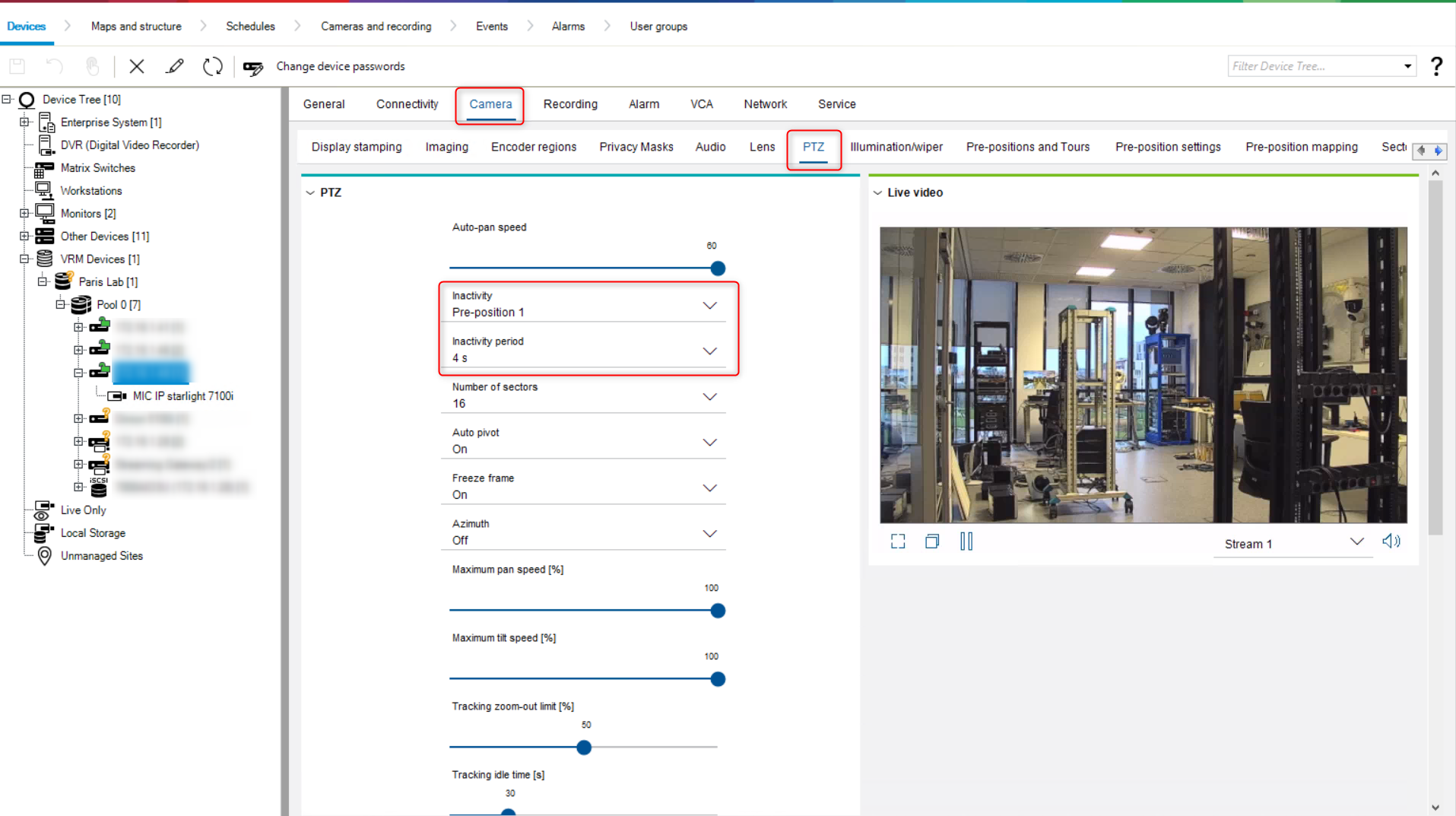
Or follow the article below if you want to use Alarm Task Script:
-
Use VCA Masks to exclude undesired areas
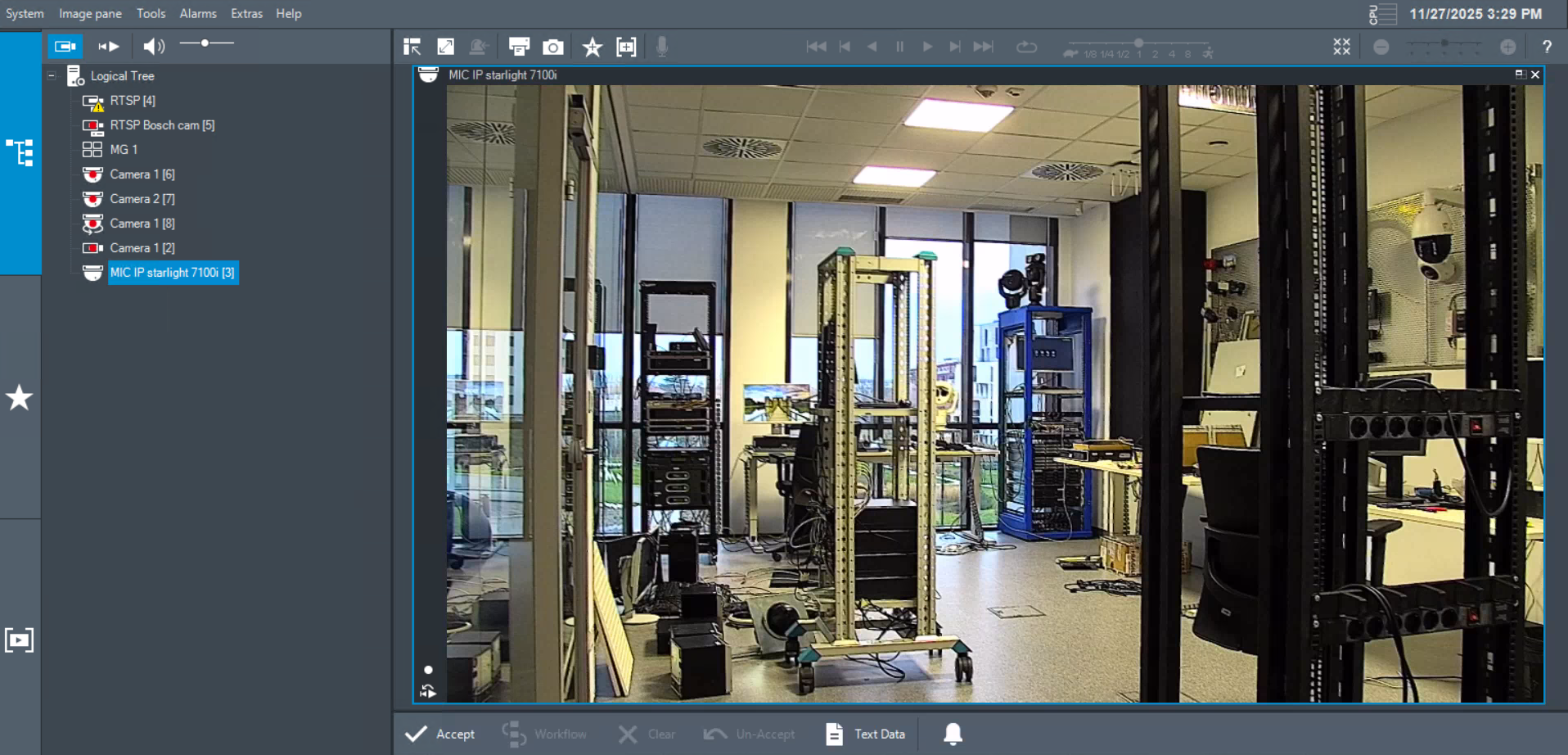
VCA masks can be applied to exclude areas that should not be analyzed. Virtual masks set for the Global VCA will not be present in the live view or playback.
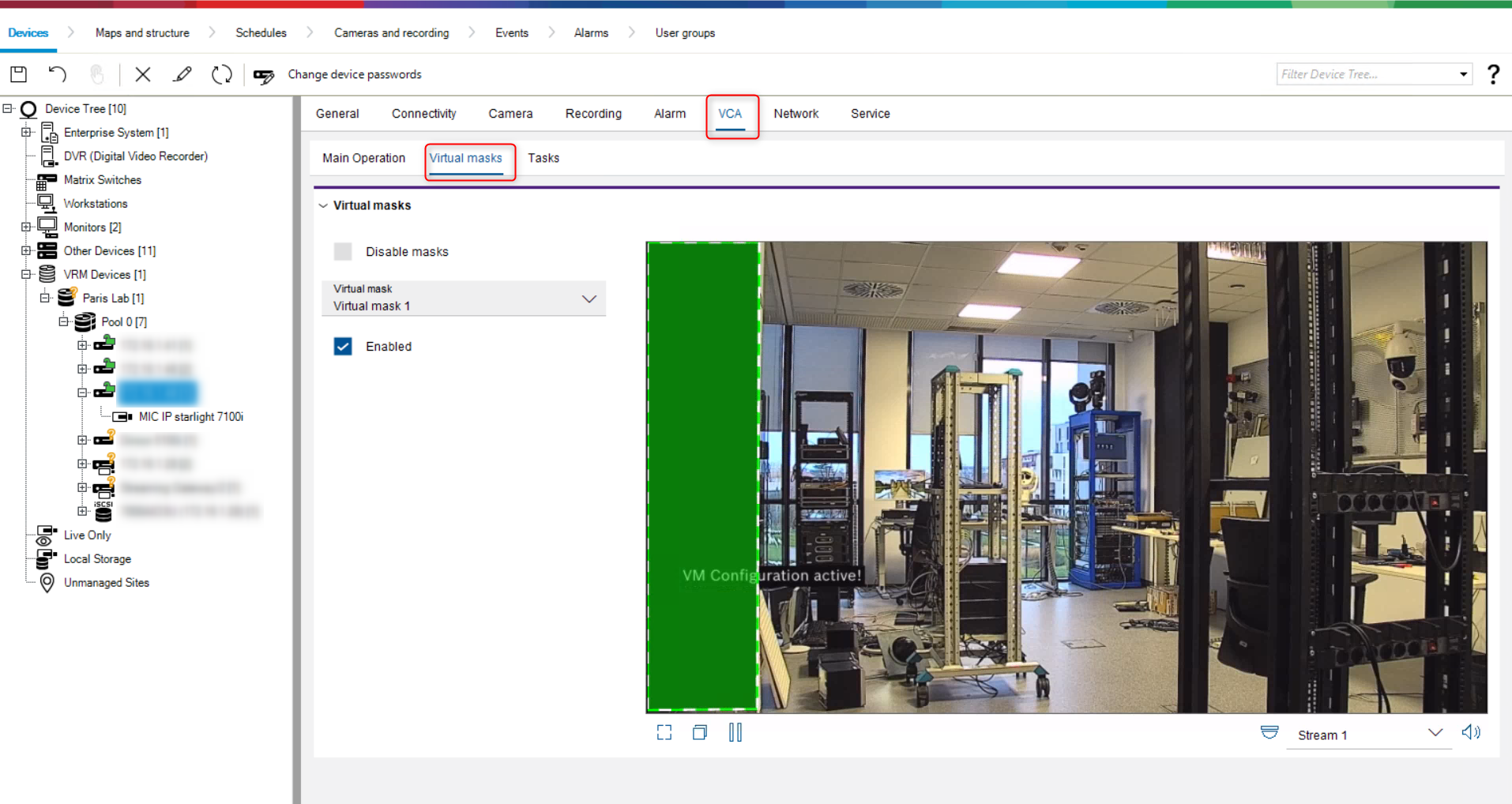
Important:
VCA masks are applied only at the analytics level. Depending on camera firmware and VCA type, these masks may or may not appear in the live video. Only privacy masks intentionally black out the video image.
To reduce false tracking:
-
Mask sky areas where clouds or smoke frequently move.
-
Mask distant zones where traffic or turbine blades are visible
-
Mask the zones close to the camera where insects often appear or where spider webs are commonly formed.
-
Avoid masking the entire Field of View
Large continuous masks will prevent analytics from processing relevant areas.
Masks should target only problematic zones to maintain Auto Tracking functionality.
-
Keep the camera lens clean to reduce insect activity: Understanding the Bubble Materials and Characteristics, and how to clean the camera bubbles across Bosch models?
-
Position the camera to minimize horizon exposure where feasible.