
Possible causes and solution(s)
Symptoms
When using AUTODOME 7100i camera with the KDB-UXF keyboard connected through a VJD-7553 device, the PTZ controls do not respond, especially the up, down, left and right movement commands.
Causes
-
The keyboard may be defective.
-
The camera may not be configured correctly in Configuration Manager
-
The camera may not be powered correctly or receiving enough power
-
The keyboard emulator may be active
Solution
First, connect to a different KDB-UXF keyboard to check whether the issue is caused by a faulty keyboard.
Then, configure the camera correctly in Configuration Manager as follow:
-
Open Configuration Manager and connect to the VJD-7553 device. Keep in mind that it is recommended to use the latest version of Configuration Manager. You can download it from here: Download Store
-
In the IP Matrix tab, verify that the Max Monitor setting is greater than 1.
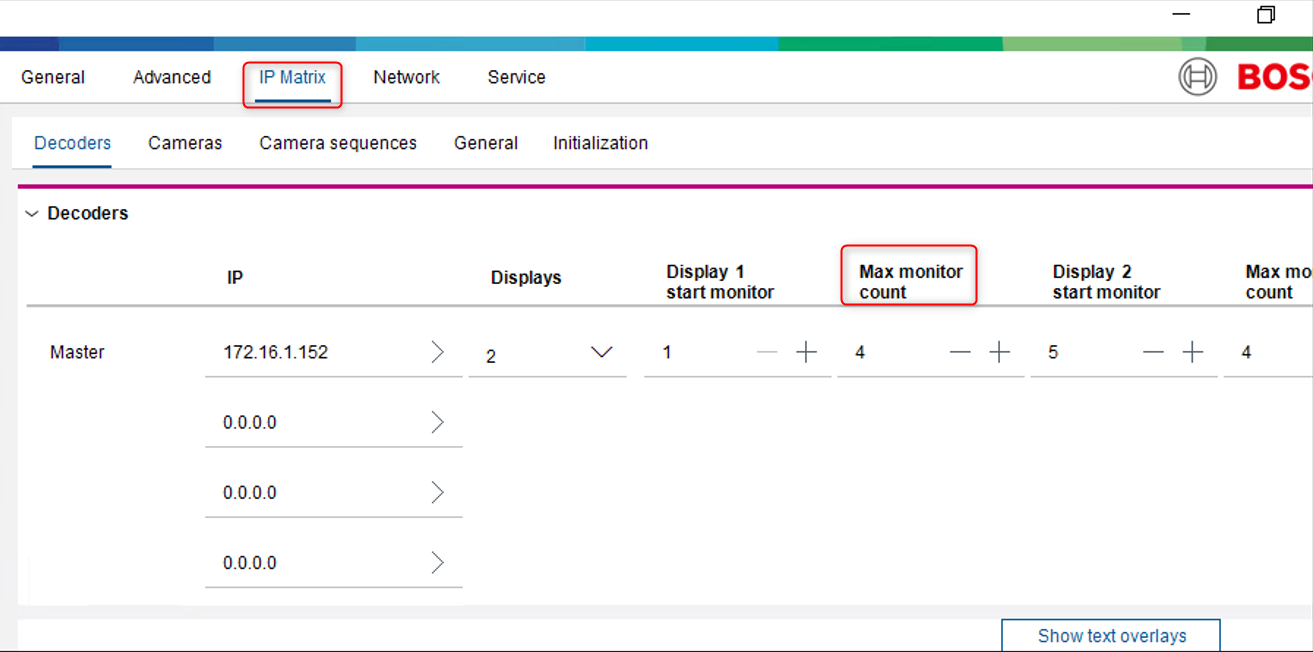
After completing the configuration, access the camera via its web interface and check if it responds correctly.
If the camera status displays “STATUS 2”, check how it is powered. This status often indicates a power issue or that the camera is not powered correctly.
-
If the camera is powered with PoE, there may be the possibility that it receives insufficient power, as the PTZ cameras need more power than fixed cameras.
-
Use a PoE injector to power the camera and fix the issue.
Also, using the emulator instead of the physical keyboard may affect the PTZ functionality. To exit the emulation mode, press and hold the designated keys on the KBD-UXF keyboard.
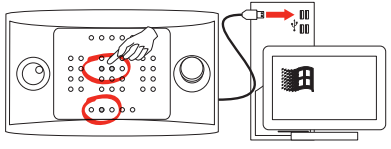
After performing all these actions, the PTZ should start working.