
Question
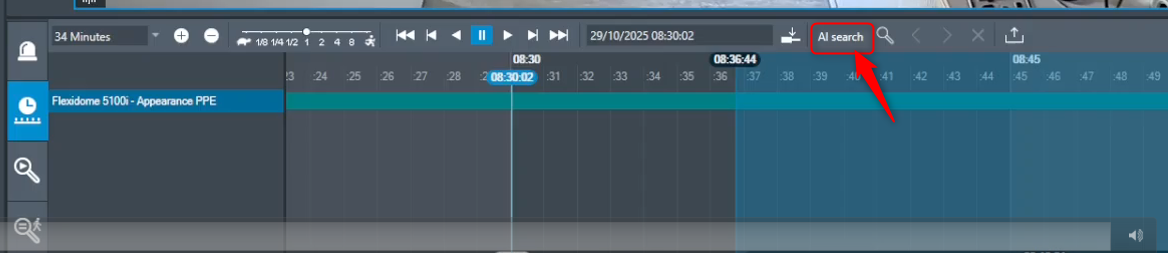
What is AI search option in BVMS 13.1 Operator Client?
Answer
The AI search option in Operator Client is a new Free-text search option introduced in BVMS v13.1.
The BVMS free text search feature:
-
Is part of the BVMS 13.1 base package and does not require any specific feature license.
-
Is in parallel available to the existing "forensic search" feature based on camera IVA/IVA PRO algorithms generated metadata ( Perimeter, Appearance, etc.).
-
Is based on a local installed AI-model model which is purely On-premises running (no cost for online cloud based AI-Services).
-
Introduces a separate new installer called "AI Video processing service".
-
Requires GPU hardware support: More GPU-power allows for processing of more cameras and more frames per camera. Using dedicated powerful workstation hardware allows for best performance.
-
All BVMS connected cameras are supported, also ONVIF. Excluded: Panoramic cameras.
Customer value:
-
Highly intuitive: Search task simply and quickly described in plain language, no effort or time needed to manually select complex search criteria.
-
Unmatched accuracy: Detailed and context-related search criteria can be easily defined to find exact event in just couple of seconds.
-
On-prem: No need for cloud or internet connection.
-
Available for existing systems: Can be enabled for existing systems and work with already installed cameras.
Requirements:
-
No specific camera requirements
-
No additional licenses needed
-
No cloud connection required
→ Capable server/workstation for the image processing
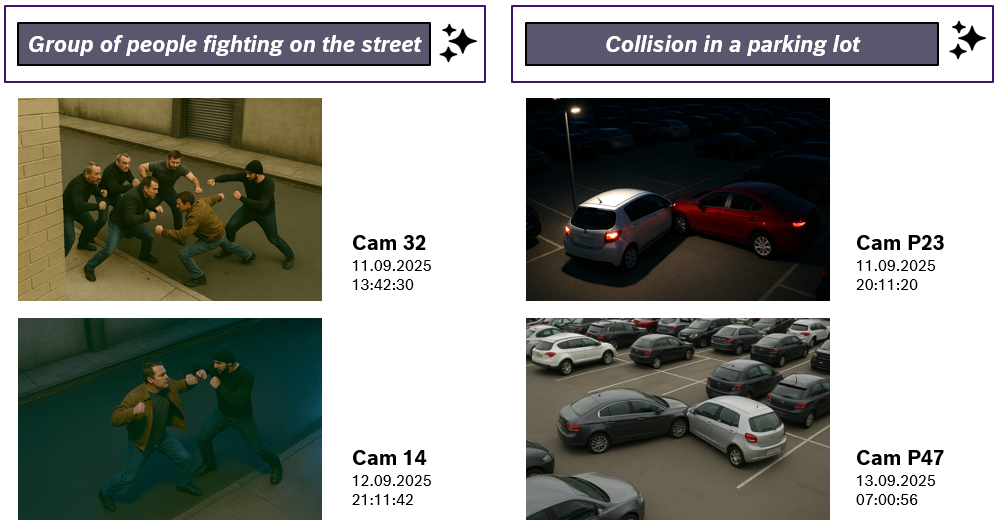
Examples:
Installing the feature and required certificates for communication
Before the Management Server can connect to the new service, complete the following steps:
-
Use the new standalone installer for the AI processing feature and install it on a Windows machine with strong GPU performance (please refer the the HW-requirements chapter)
-
Verify that the new service is running correctly
optional Steps 3+4: If the AI video processor machine does not have any other BVMS components installed, you must install a BVMS certificate. This ensures data security and allows a secure connection between the BVMS components and the new service.
-
(optional) Export the VmsRoot certificate from the Management Server.
Path: LocalComputer/Personal/Certificates -
(optional) Import it on the workstation where the new AI processing feature is running on. Use the windows tool: Manage Computer certificates
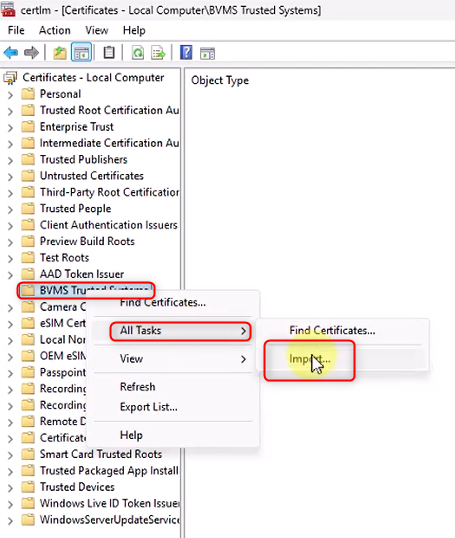
Path: LocalComputer/BVMS Trusted Systems
Step 1: Use the separate installation package provided in addition to the regular BVMS 13.1 installer and install the new service on a MS Windows machine with sufficient GPU support.
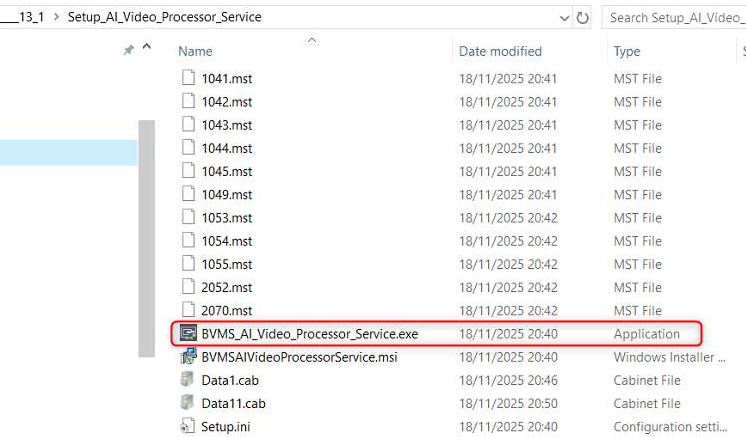
Step 2: Verify that the new service is running correctly.

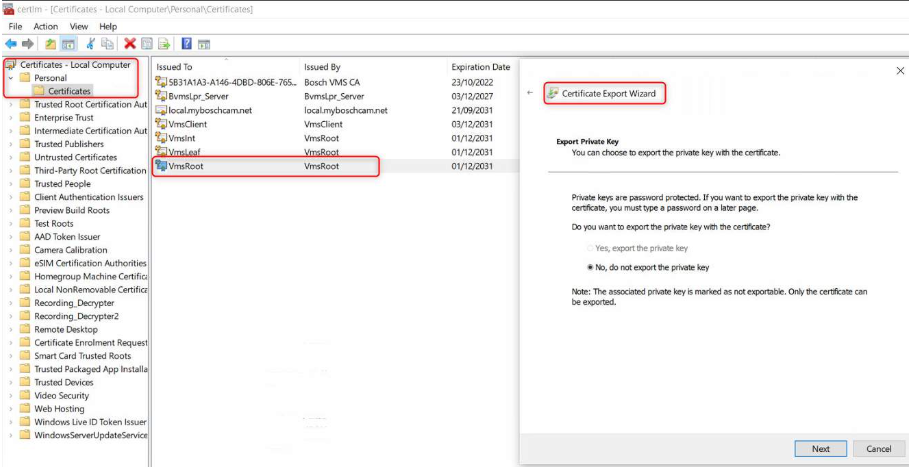
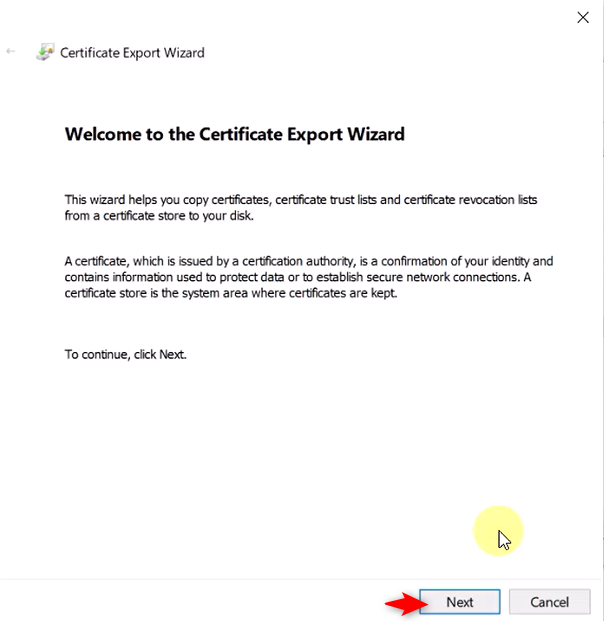
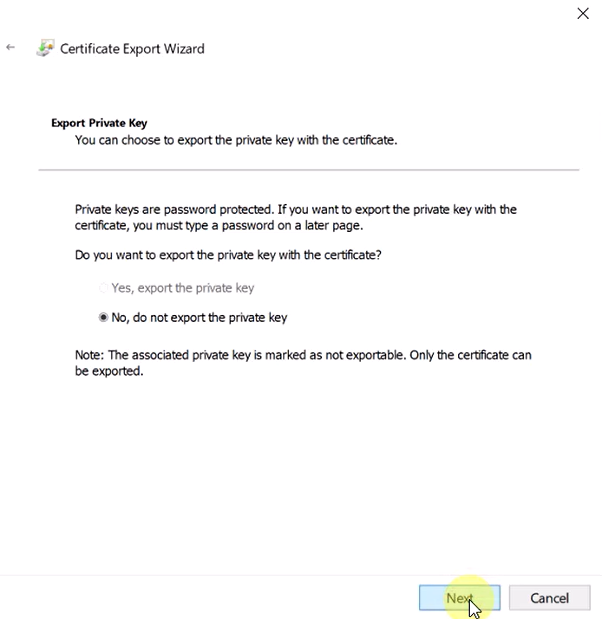
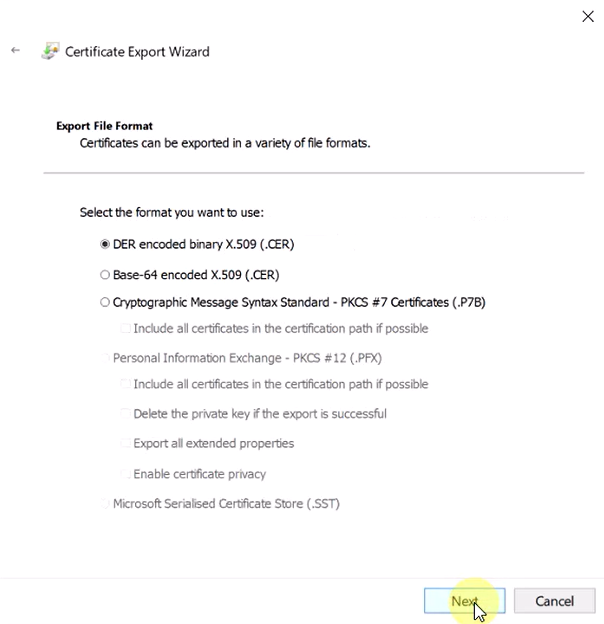
Step 3 (optional, only when the new service is installed on a separate hardware): Export the VmsRoot certificate from the Management Server using the Certificate Export Wizard.
Path: LocalComputer\Personal\Certificates.
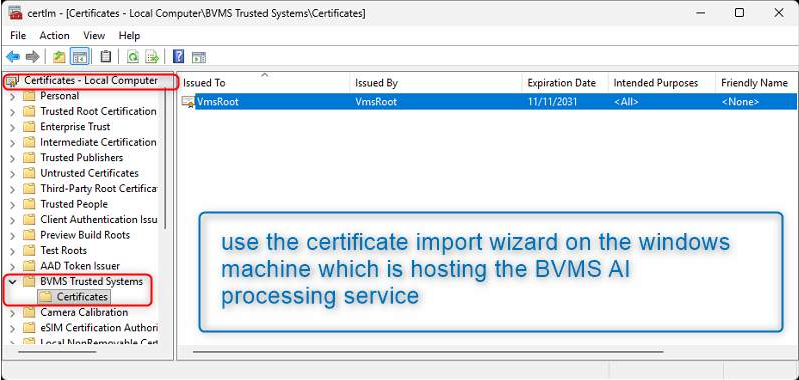
Step 4: (optional, only when the new service is installed on a separate hardware): Import the VmsRoot certificate on the separate windows machine using the Certificate Import Wizard. Path: LocalComputer/BVMS Trusted Systems\Certificates.
How it works?
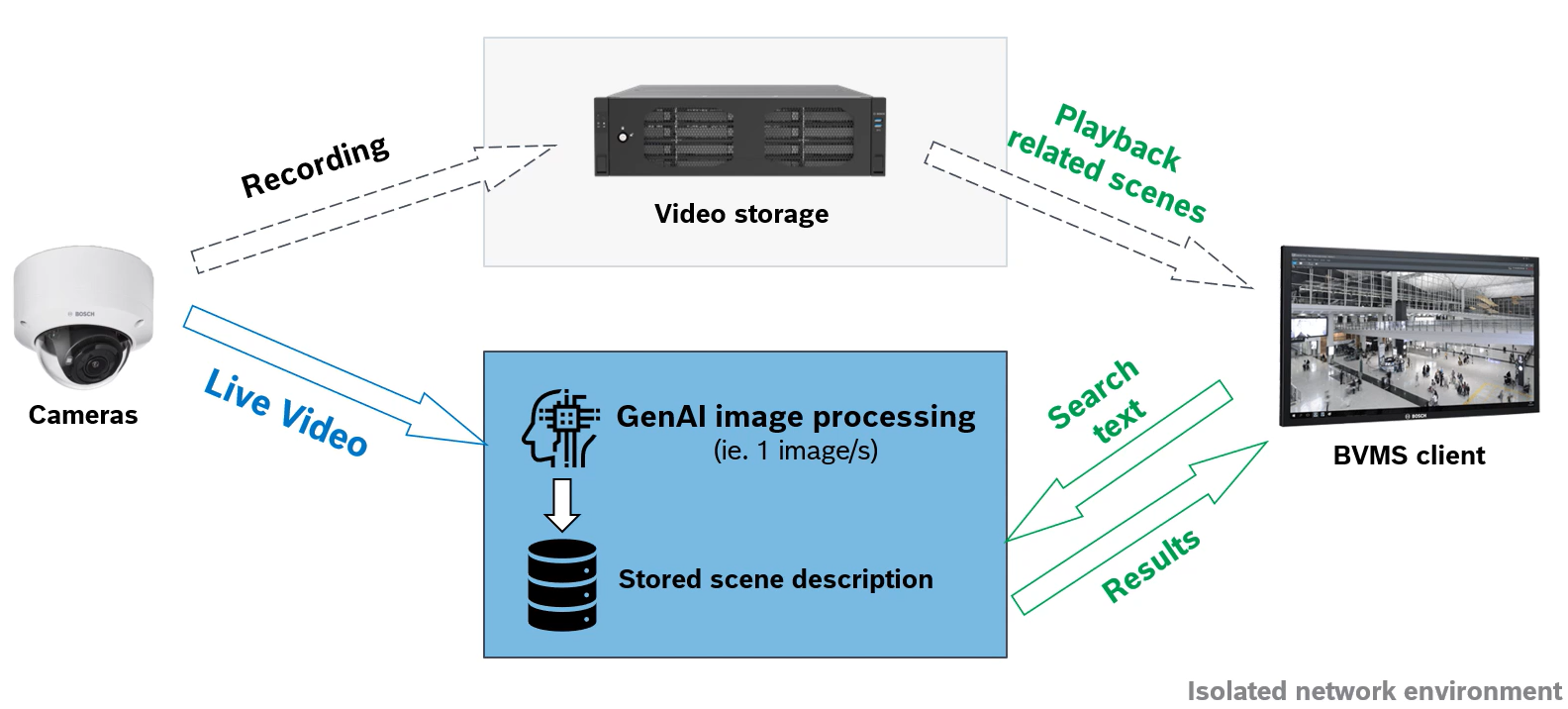
A selected camera stream is directed to the new AI video processing service, decoupled from the recording stream.
How to configure the feature using the Configuration Client?
First, you have to prepare certificates and then add cameras to the AI Video Processing service.
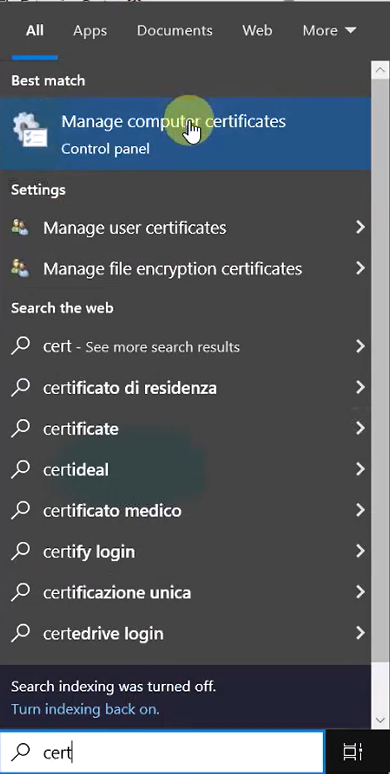
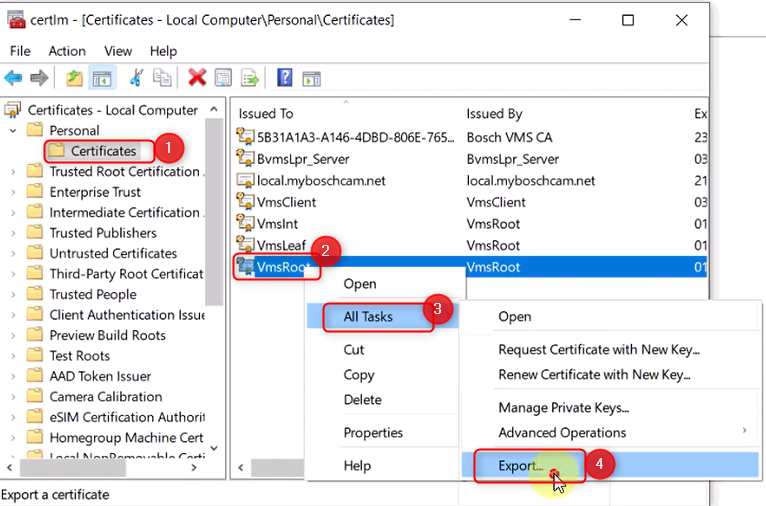
In the Search bar, search for Manage computer certificates > select Certificates folder under Personal > right click on VmsRoot > All Tasks > Export
Click Next > Next > Next
Add file name and click Next
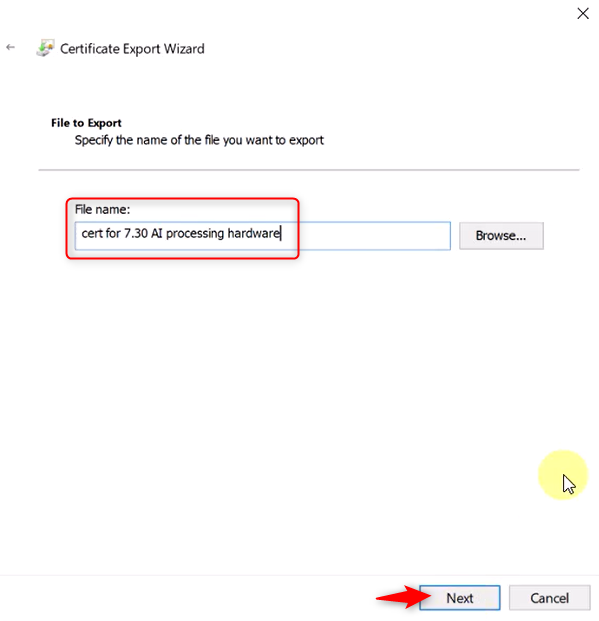
Click Finish
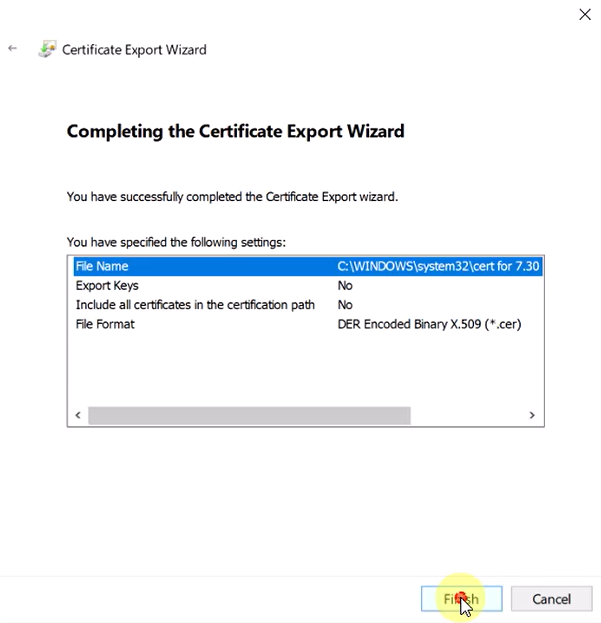
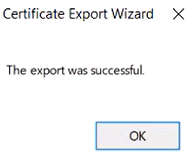
and OK
Now, import the certificate by right clicking on the BVMS Trusted Certificates > All Tasks > Import
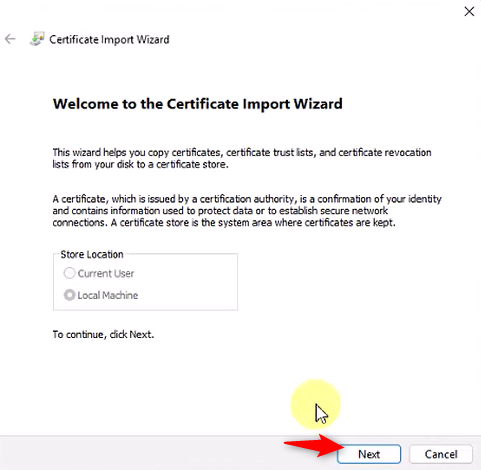
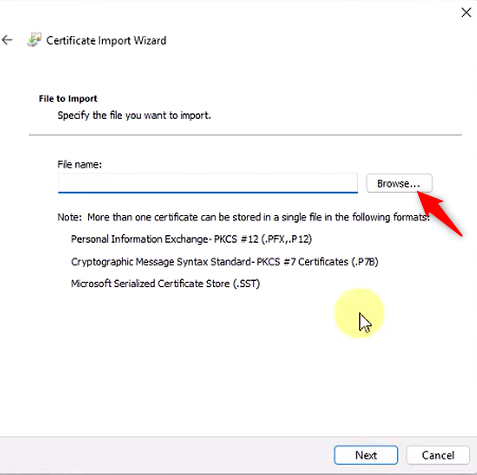
Click Next
Click Browse
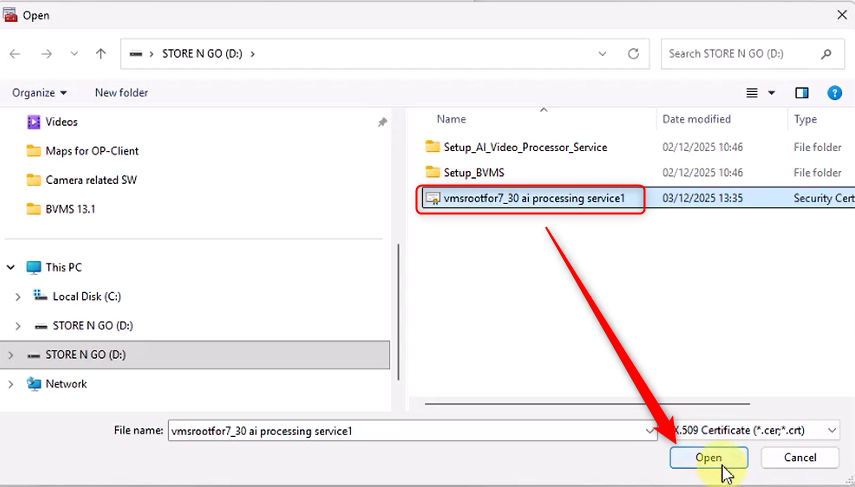
Select the certificate you just exported few moments ago and click OK:
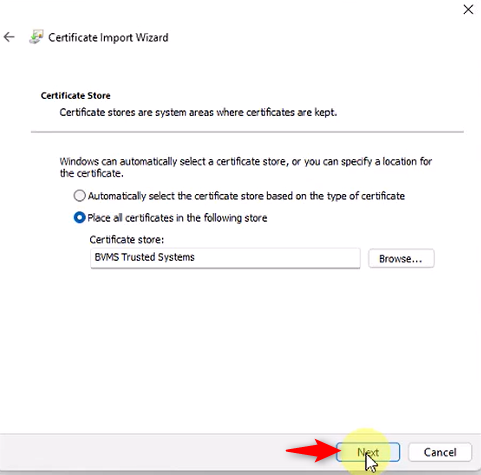
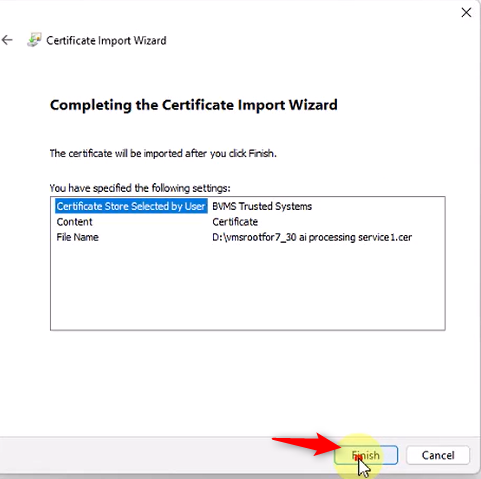
Click Next and Finish
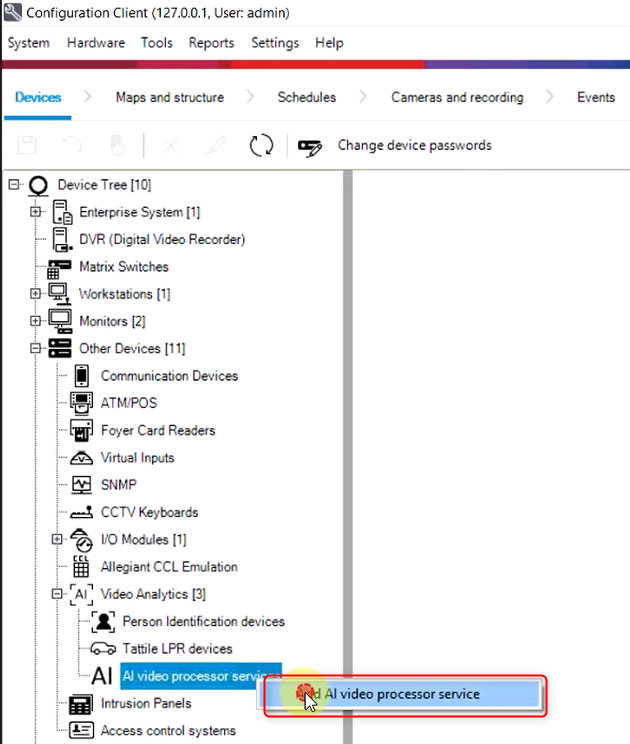
Expand Other Devices > AI Video Analytics > right click on AI video processor services > select Add AI video processor service
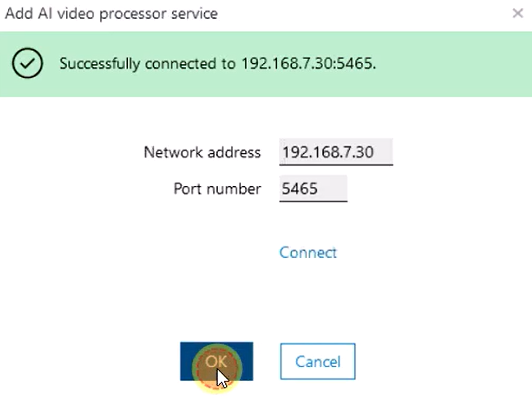
Add the Network address and click Connect > OK
In the Cameras tab, drag and drop the desired cameras from the Logical Tree:
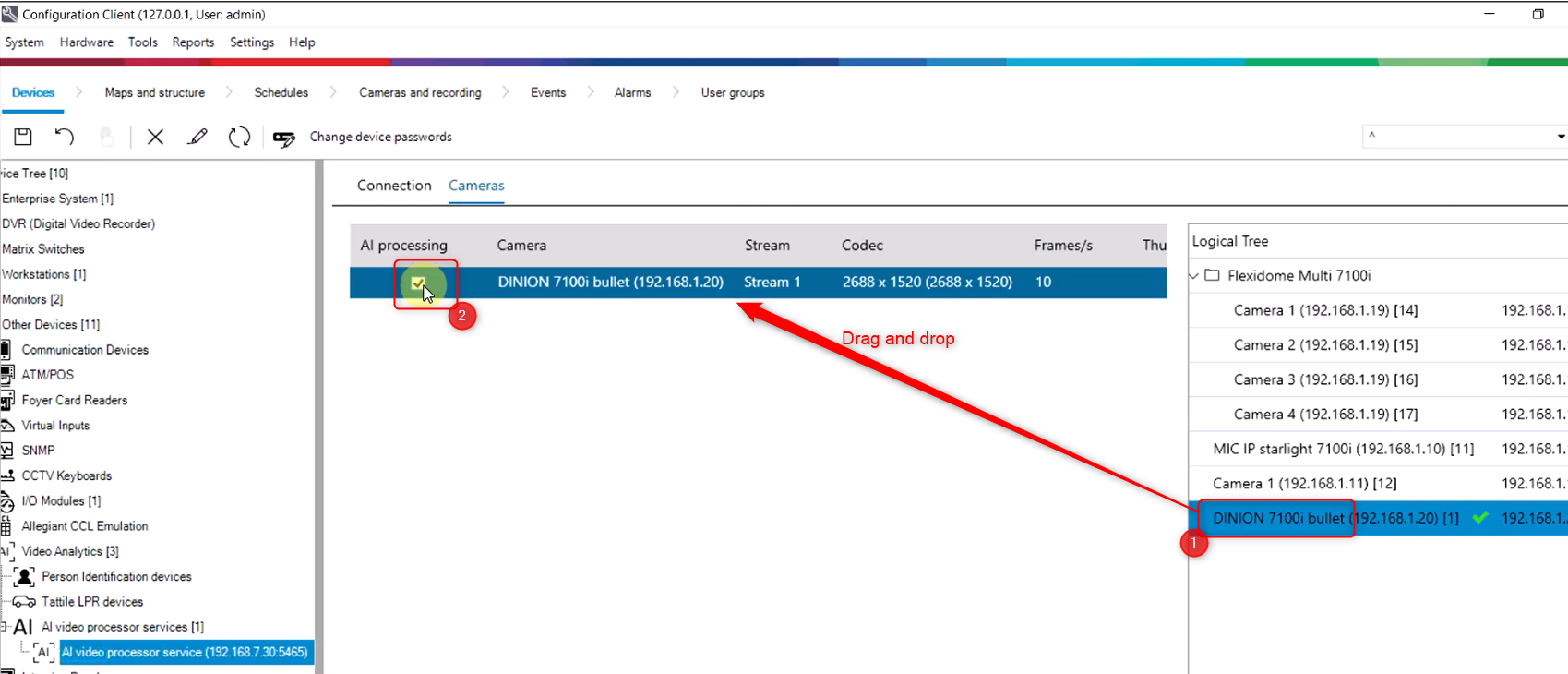
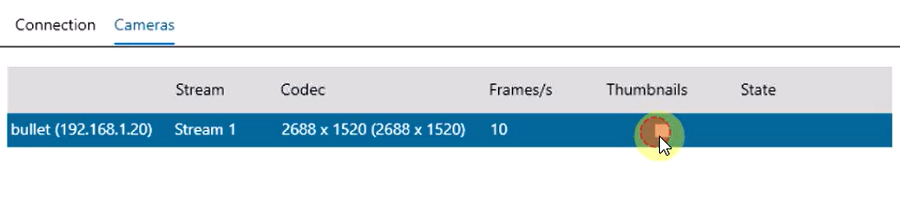
and check the boxes: the one under the AI processing column, next to the camera’s name and the one under the Thumbnails column:
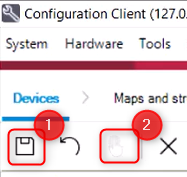
Then Save & Activate your changes:
How to operate?
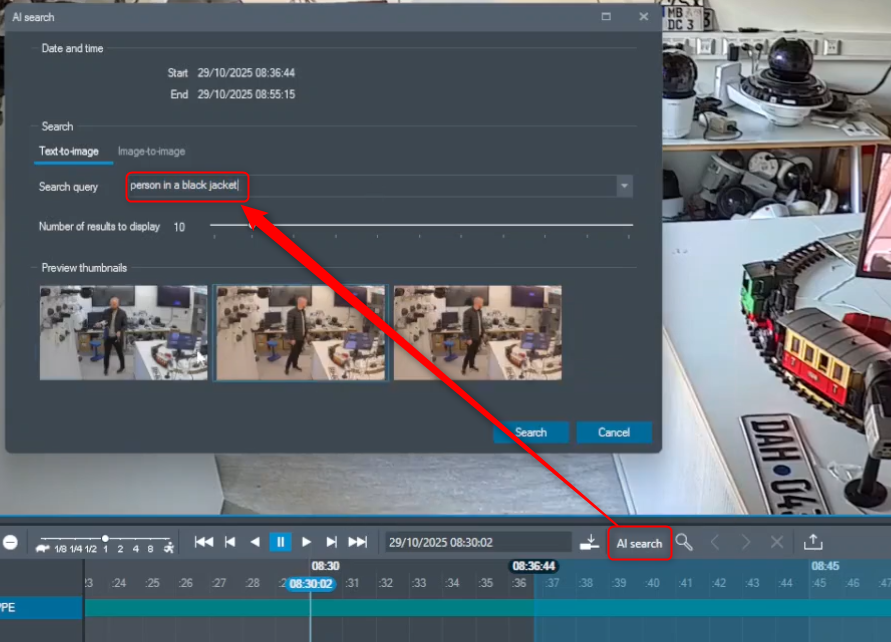
Select AI search option from Operator Client and enter the text in English to search for video content:
Note
AI search: Time range and Number of best matching images per camera
It’s best to start with a small time range and a low number setting for best matching images when beginning the search and then increase it gradually for later searches.
The default value for best matching images is 10.
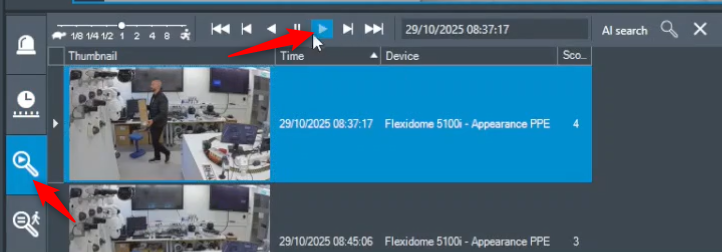
After clicking the Search button, the time-line will display the video content you are looking for, based on the key-words entered before:

By selecting the Video search results option, you can view the scene details and play the video.
Recommendations for camera design: Lens
Because every image is reduced before the AI model processes it, it’s important to keep objects as close to the camera as possible while still keeping the entire object visible.
Using a telephoto lens instead of a wide-angle lens helps achieve this, since more pixels are available on the objects assuming the distance is not too far.
Fisheye lens based cameras (360 degree view) e.g. FLEXIDOME panoramic 5100i are not supported.
