🕒 This procedure takes in average ~ 5 min to complete
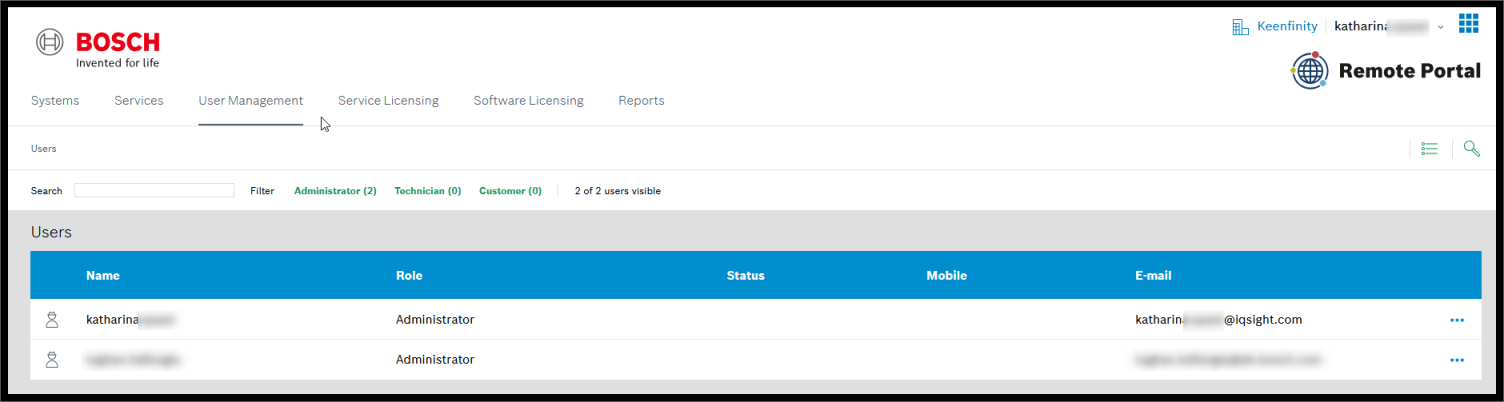
The following procedure will change your e-mail address of all your Remote Portal accounts at once and also for your Alarm Management account, in case you have one.
Step-by-step guide
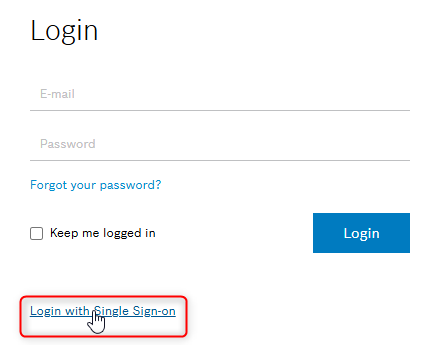
1. Login to Remote Portal with Single Sign-on.
-
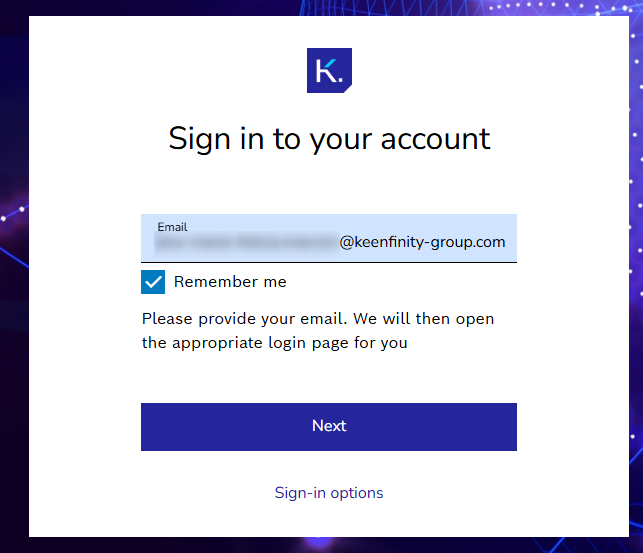
Login to your RP account KFID as usually.
-
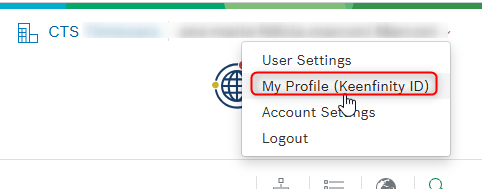
Once logged-in, click on your name in top-right corner, select "My Profile (Keenfinity ID)"
-
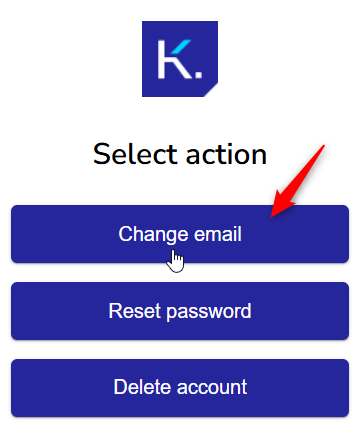
Select "Change email":
-
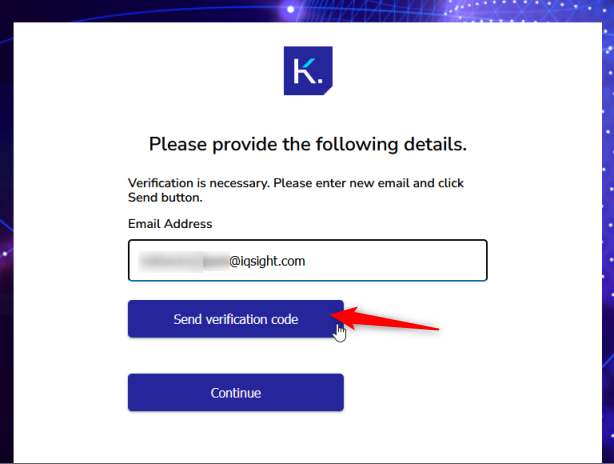
Insert your email and click on Send verification code
-
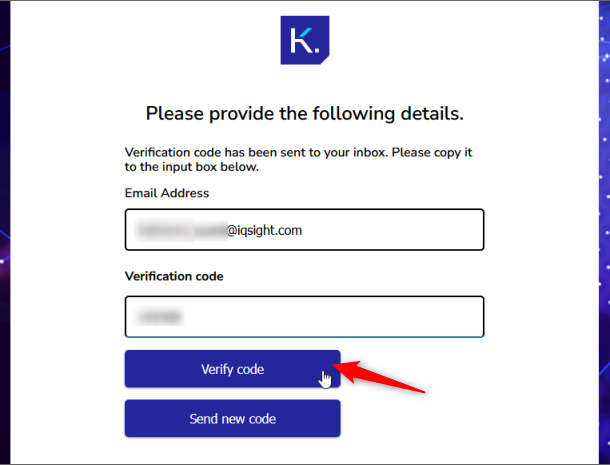
Check your mailbox for the email with the KFID verification code. Enter the verification code and click Verify code.
-
On the next screen click Continue
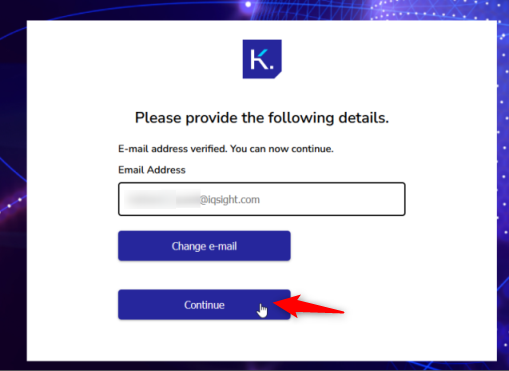
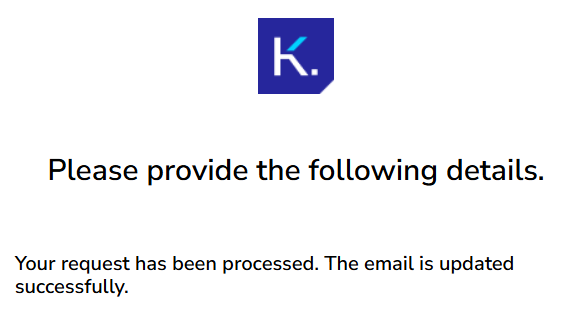
And the confirmation will follow:
-
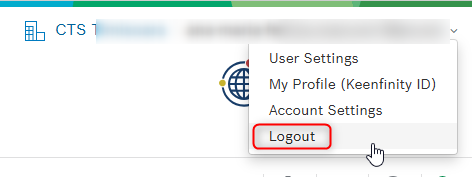
Close the tab, go back to the Remote Portal tab and log out:
-
The next time you login to Remote Portal, you’re KFID login will only accept your new e-mail address.