
Important:
Please note the following regarding Release Notes 4.10.1:
“Support for Cloud Recording will be completely phased out by September 30, 2026. Cameras in active recording modes will be switched to "livestream only" automatically on this date. Ensure to save necessary recordings locally before the EOL date, as it is not possible to back up the data after. For assistance, contact your local sales representative.“
-
To download Cloud Recording clips, please refer to the following article: How to export an Alarm Clip and Cloud Recording from Alarm Management to the local PC?
Alarm Management allows event-based and continuous cloud recording of connected cameras. This function is independent from storage of alarm/event clips that are part of "Alarm Management".
Please make sure that these pre-conditions are met:
You have access to an Alarm Management instance
The camera that you want to configure for Cloud Storage is connected to the Alarm Management
-
Your Bosch camera is connected via the Remote Portal to Alarm Management
-
Your 3rd party camera is connected directly with the Alarm Management
You have activated the appropriate Cloud Storage license in Remote Portal for the respective camera
Step-by-step guide
1. In Alarm Management Configuration, configure Recording Mode and Cloud Storage.
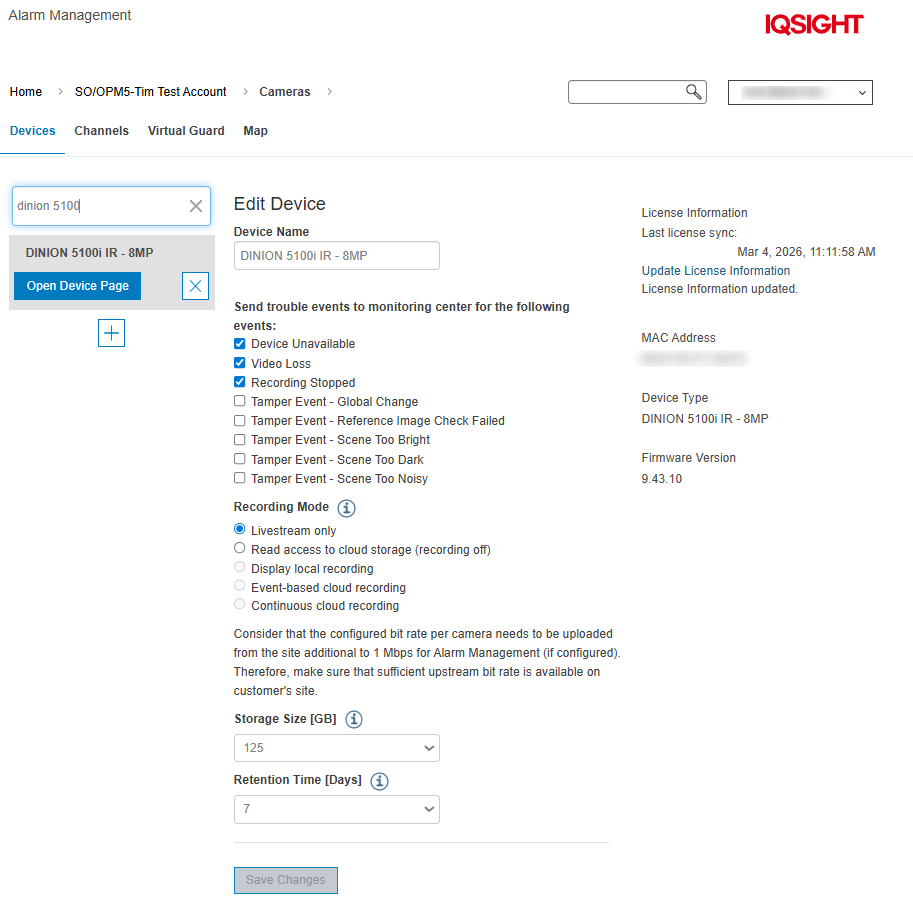
Livestream only: Cloud Storage is disabled; existing cloud recordings are deleted.
Read access to cloud storage (recording off): The camera is not recording in the cloud. Existing cloud recordings are kept until the retention time is exceeded.
Give access to local recording: The camera is recording in the cloud on motion trigger. Alarm agents can replay the recordings from the cloud and local recording e.g. from SD card or VRM.
Event-based cloud recording: The camera is recording in the cloud on motion trigger. Alarm agents can replay the recordings from the cloud.
Display local recordings: The camera is not recording in the cloud. Alarm agents can replay local recordings e.g. from SD card or VRM.
Continuous cloud recording: The camera is continuously recording in the cloud. Alarm agents can replay the recordings from the cloud and local recording e.g. from SD card or VRM.
Note: Pre-alarm recording is not available for Bosch and ONVIF cameras.
Set the right recording mode and the appropriate retention time.
Standard retention times are 7, 14, 30 days of retention. Exceptions and specific retention times can be offered on request for users of a dedicated Alarm Management instance.
The storage size is fixed and defined by the activated license in the Remote Portal.
After configuration your cloud camera is all set and you should be able to see video from the camera in the Alarm Management Live View.
Note: To set up a Live View service, please follow the article Alarm Management Configuration: How to set up a Live View service?
2. Video Control/ Alarm Management Live View
You can reach the Live View by logging into your Alarm Management instance as an operator.
The HTML5 Video Control then provides the following functionality for live video and playback of the cloud recording.
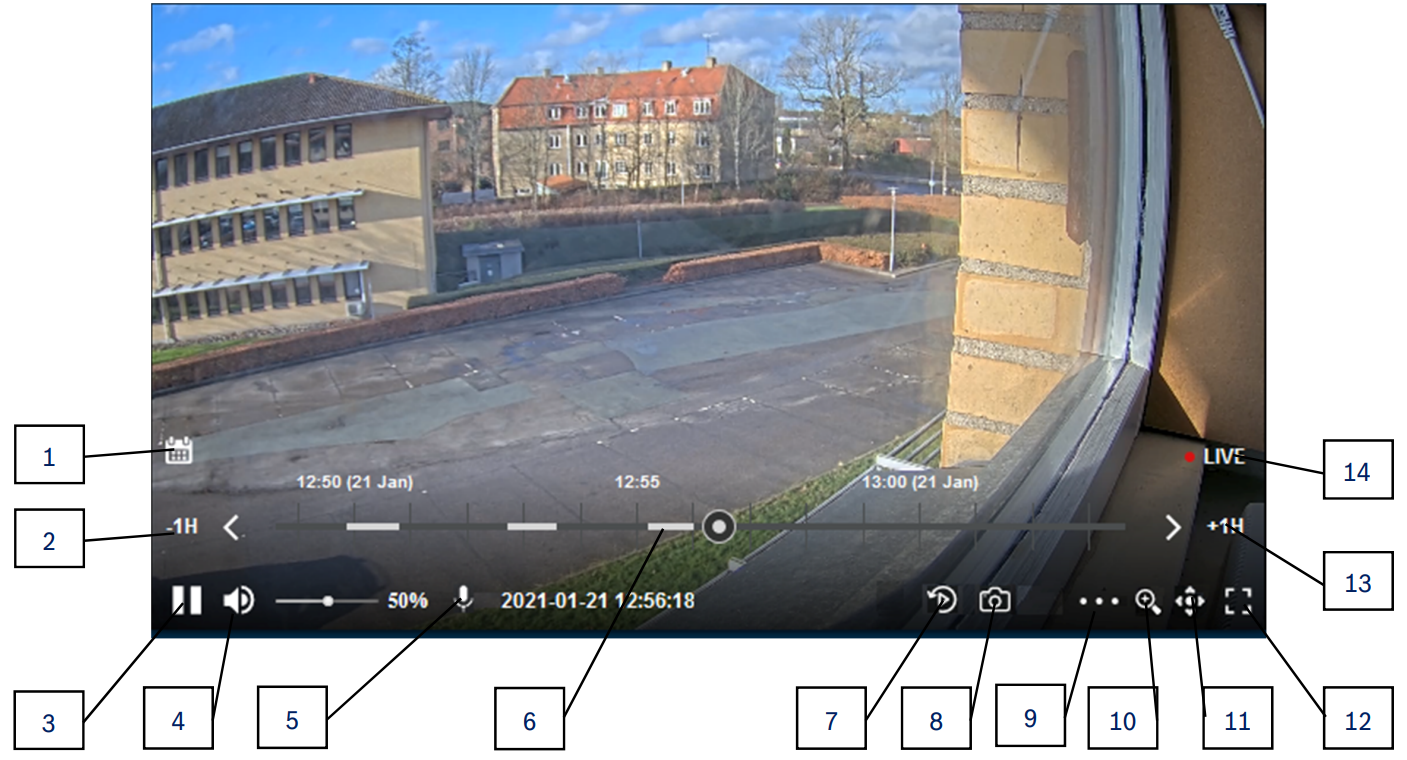
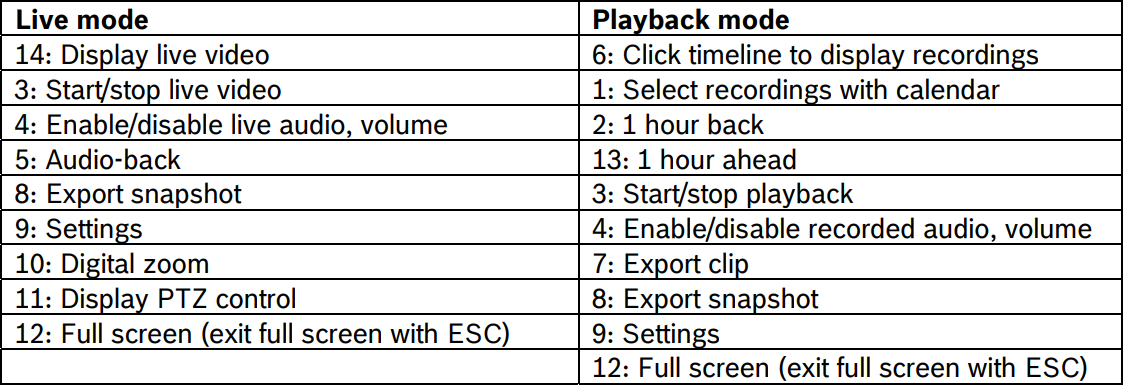
Playback mode details:
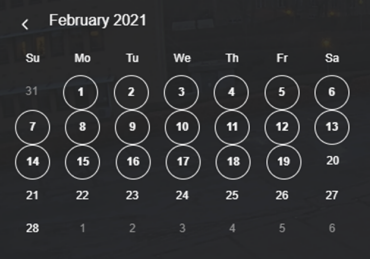
1: Calendar:
-
Days with recordings are displayed in a circle
-
Click to select the date
4: Enable audio playback from the recordings and control the volume. 
7: Select pre- and post alarm recording to be exported.
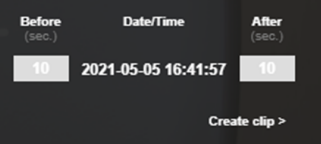
9: Settings:
-
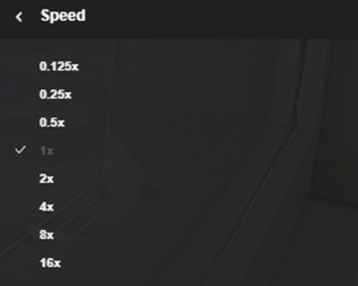
Speed:
-
Replay speed
-
3. Calculating the required storage
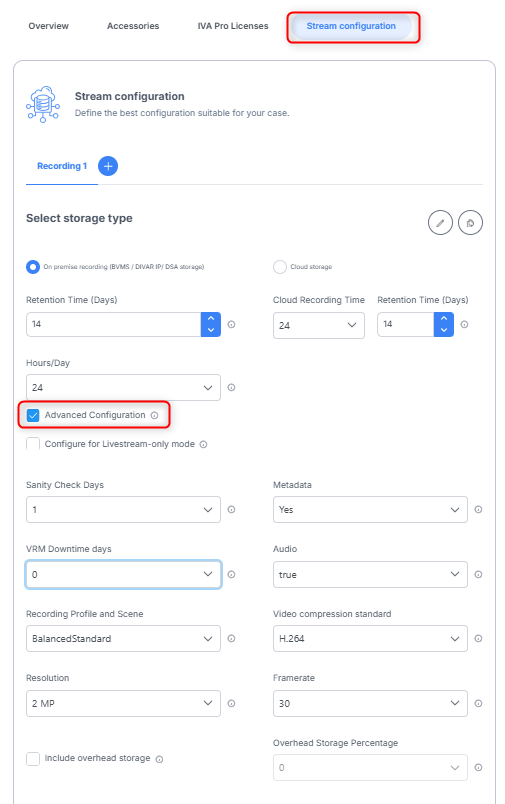
On the Storage Calculator you need to use the following parameters to calculate the required cloud storage for your Bosch camera:
-
Select the camera for which you want to calculate the cloud storage
-
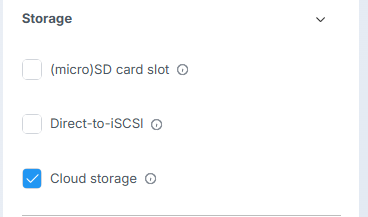
Select storage type
-
Select your preferred retention time (7,14,30 days are available for standard users in Alarm Management) and select storage type
-
Select 'Advanced Configuration' and apply the following detailed template per camera, as default:
-
Sanity Check = 1
-
Audio = ACC
-
Metadata = yes
-
Compression H.264
-
VRM downtime days = 0
-
Include overhead storage = NO
-
-
Select the following details as present in your application and camera configuration:
-
Hours/Day (24h = Continuous Recording)
-
Frame Rate
-
Resolution
-
In the bottom of the calculator screen you will see the required bandwidth for the uplink and the required storage.
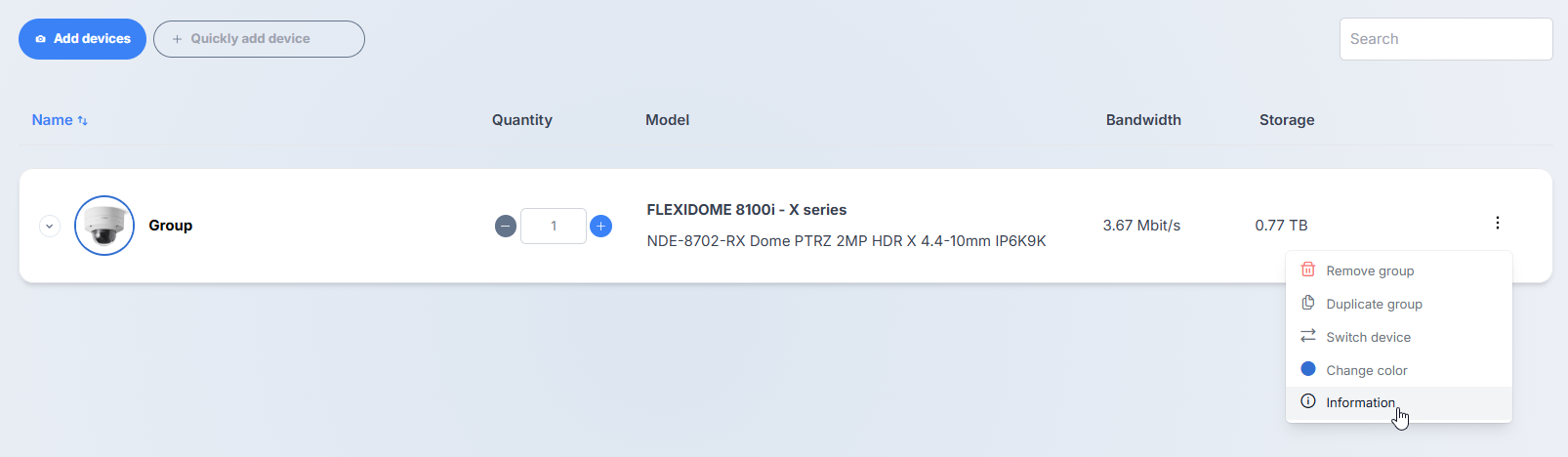
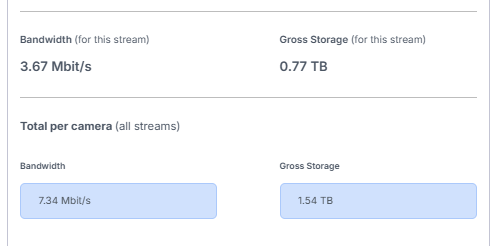
Choose the right storage license (CBS-REC-....) with a maximum storage allowance higher than the indicated size in the storage calculator from your local pricelist.